


Stop Paying for AI Video Tools — These 2 Free Generators Are Insane
Creators are burning $20, $50, even $100 a month on AI video subscriptions — without realising there are completely free tools producing cinematic videos that look like they came straight out of Sora.
- Stop Paying for AI Video Tools — These 2 Free Generators Are Insane
- Tool #1 — Tencent Hunyuan (Free Image-to-Video + Image Generation)
- How to Sign In (No Password Needed):
- Part A — Image to Video with Hunyuan Video 1.5
- Part B — Image Generation with Hunyuan Image 3.0
- Tool #2 — Tencent’s New AI Video Generator (Text to Video, Lip Sync, Action-Driven)
- Features Available:
- Feature 1 — Text to Video
- Feature 2 — Picture to Video
- Feature 3 — Lip Sync
- Feature 4 — Action-Driven (Motion Control)
- How to Remove Watermarks from AI Videos for Free
- Full Tool Comparison
- Best Use Cases for Each Tool
- Pro Tips
And no, these aren’t fake free trials that lock you out after three generations. I mean actually free — no credit card, no hidden paywalls. One of these tools even generates 4K videos with built-in sound effects.
In this tutorial, I’m showing you two powerful AI video generators that most creators have no idea exist:
- Tencent Hunyuan — hyper-realistic image-to-video in seconds
- Tencent’s New AI Video Tool — full cinematic scenes, lip-sync, action-driven motion control, and 4K with sound
And I’ll show you exactly how to remove watermarks from any AI video for free so your content looks 100% professional.
🎬 Watch the full tutorial here:
💡 All prompts used are available in the video description, pinned comment, and Discord server.
Tool #1 — Tencent Hunyuan (Free Image-to-Video + Image Generation)
Click the link in the video description to access Tencent Hunyuan. If the interface loads in Chinese, toggle the language option to English.
You’ll see several models available including:
More EV News

- Hunyuan Image 3.0 Instruct — for image generation
- Hunyuan Video 1.5 — for image-to-video animation
How to Sign In (No Password Needed):
- Click the Sign In button
- Enter your email address
- Click the button that translates to “Get Code”
- A verification code will be sent to your Gmail — retrieve it
- Paste the code and click Submit
No password required — just your email and the code.
Part A — Image to Video with Hunyuan Video 1.5
- Click on Hunyuan Video 1.5
- Upload your image
- Type your animation prompt (prompts available in the video description)
- Select your resolution:
- 720p — renders fastest (recommended for speed)
- 1080p — highest quality
- Toggle on Prompt Enhancer — this ensures the AI generates the best possible output
- Click Generate
Example results from the tutorial:
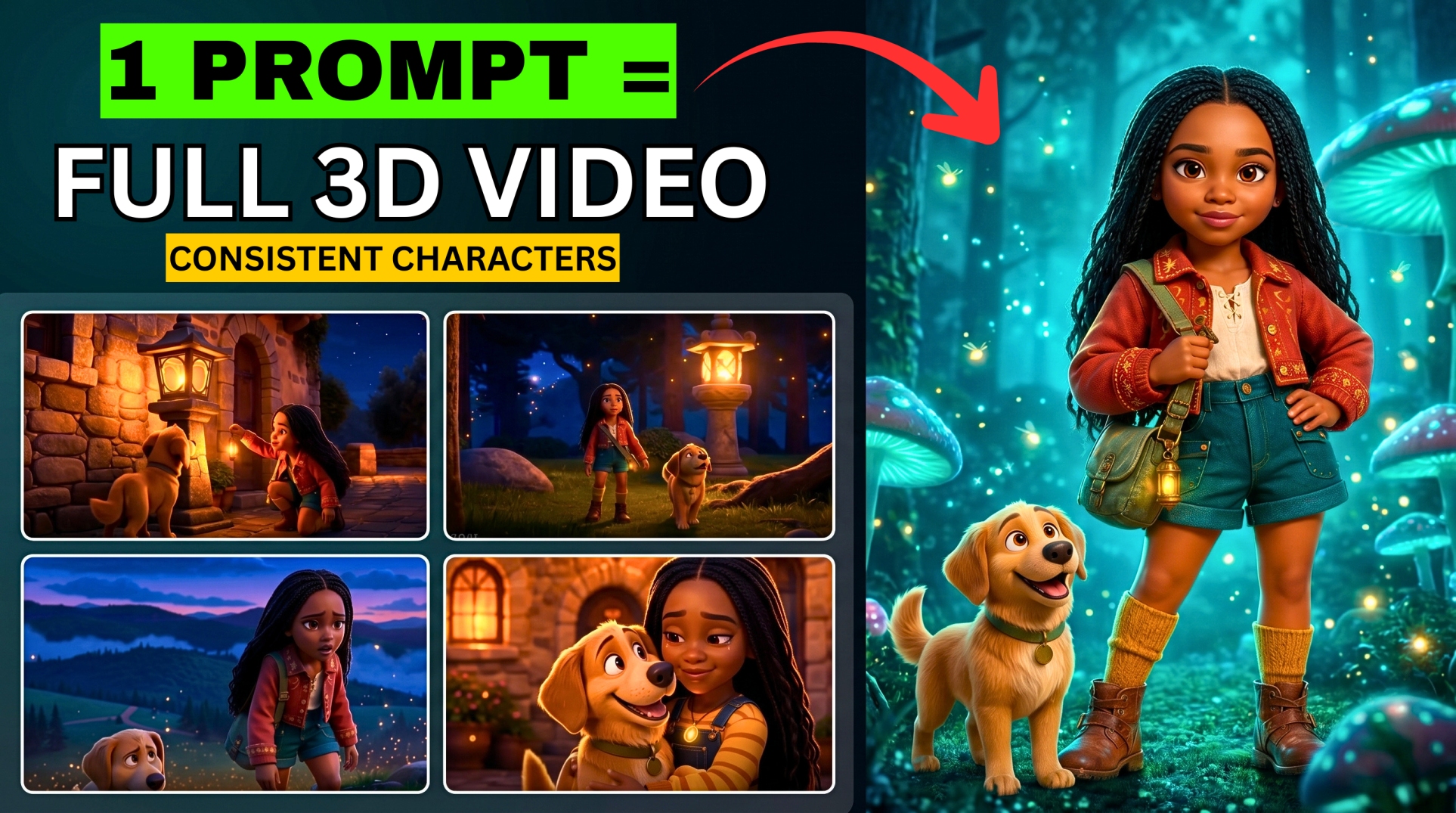
- Lady in a phone booth — hyper-realistic movement
- Girl with her robot dog — cinematic and smooth
- Chef slicing carrots — natural, lifelike animation
⚠️ Videos include a watermark on the free plan — see the watermark removal section at the end of this post.
Part B — Image Generation with Hunyuan Image 3.0
If you don’t have an image to animate, generate one directly on the platform:
- Select the Hunyuan Image 3.0 model
- Type your image prompt
- Select resolution:
- 9:16 — for Instagram or TikTok
- 16:9 — for YouTube
- Set quantity to 2 images
- Click Generate
Download your favourite image and animate it using Hunyuan Video 1.5. The whole pipeline stays completely within one free platform.
Tool #2 — Tencent’s New AI Video Generator (Text to Video, Lip Sync, Action-Driven)
Click the link in the description to access this tool. Click “Try Now” to enter the playground.
💡 The interface loads in Chinese. Fix this by installing the Immersive Translate browser extension (search “Translate Web and PDF”). Once installed, click the extension button on the page — it translates everything to English instantly.
Features Available:
| Feature | What It Does |
|---|---|
| Text to Video | Generate cinematic video from a text prompt |
| Picture to Video | Animate a still image into video |
| Lip Sync | Upload an avatar and make it speak |
| Action-Driven | Upload a character and assign a reference motion |
Feature 1 — Text to Video
- Clear the default prompt and paste your own
- Set Aspect Ratio to 16:9 (or 9:16 for vertical content)
- Add Common Tags to define style — example: “4K”, “High Detail”, “Cinematic”
- Select Resolution — up to 2K
- Toggle on Background Sound — the tool adds automatic sound effects to your video
- Click Send and wait
💡 Director Mode — toggle this on and the AI will auto-generate a detailed, professional prompt for you based on your topic. Great if you’re not sure how to describe your scene.
The result includes built-in sound effects that match the visual content — a feature almost no other free tool offers.
Feature 2 — Picture to Video
- Upload your image
- Type your animation prompt describing the motion you want
- Toggle on Background Sound
- Click Send
Works the same as Hunyuan Video 1.5 but with the added sound effects feature.
Feature 3 — Lip Sync
- Upload your AI avatar image and confirm the crop
- Choose your audio input method:
- Upload an audio file — supports up to 10 seconds (auto-trims if longer)
- Type a script — then select a voice actor from the available list and preview before selecting
- Click Generate
The lip sync processes quickly and produces natural mouth movement synced to your audio or script.
Feature 4 — Action-Driven (Motion Control)
This is one of the most unique features available on any free platform:
- Upload a character image and confirm the crop
- Select a reference motion video — for example, a dance clip
- Click Send
The AI applies the motion from the reference video to your uploaded character — making them perform the same action. Great for creative content, dance videos, and character animation.
How to Remove Watermarks from AI Videos for Free
Both tools add watermarks to free tier videos. Here’s how to remove them cleanly using a free online tool:
- Search for a free online AI watermark remover (link in the video description)
- Upload the video with the watermark
- Select Watermark Type:
- Moving — for watermarks that travel across the screen
- Fixed — for stationary watermarks (most AI tool watermarks)
- Draw a box around the watermark area
- Click “Remove Now”
- Download the clean, watermark-free video
The watermark is removed completely — your video looks 100% professional with no trace of the original overlay.
Full Tool Comparison
| Feature | Tencent Hunyuan | Tencent New Tool |
|---|---|---|
| Image to Video | ✅ Yes | ✅ Yes |
| Text to Video | ❌ No | ✅ Yes |
| Lip Sync | ❌ No | ✅ Yes |
| Action-Driven Motion | ❌ No | ✅ Yes |
| Built-in Sound Effects | ❌ No | ✅ Yes |
| Image Generation | ✅ Yes | ❌ No |
| Max Resolution | 1080p | 2K |
| Director Mode | ❌ No | ✅ Yes |
| Cost | Free | Free |
| Watermark | Yes (removable) | Yes (removable) |
Best Use Cases for Each Tool
Use Tencent Hunyuan for:
- Animating still images you already have
- Generating new images and immediately animating them
- Fast 720p animation for social media content
Use Tencent’s New AI Video Tool for:
- Generating full cinematic scenes from text prompts
- Lip-syncing AI avatars
- Adding motion to characters using reference videos
- Creating 4K content with automatic sound effects
Pro Tips
- Generate images in Hunyuan first, then animate — the whole pipeline is free and stays within one platform
- Use Director Mode on the new tool if you’re not sure how to write video prompts — it writes professional prompts automatically
- Always toggle Prompt Enhancer ON in Hunyuan — it significantly improves output quality
- 720p renders fastest — use it when you’re testing prompts, then switch to higher resolution for final output
- Watermark removal is always available — don’t let watermarks stop you from using free tools
Found this helpful? Subscribe to BigWizTV on YouTube for more free AI tool discoveries. Drop a comment — which feature of these two tools are you going to try first?