


Generating a dramatic scene is only part of making an AI micro drama. You also need the next shot to contain the right character, the right props, and the right dialogue. Repeating the upload, prompt, generate, and download process for every shot makes those details harder to manage.
- What Each Tool Does
- Step 1: Write a Ten-Shot Micro Drama
- Step 2: Build the Character, Prop, Location, and Voice Bible
- Step 3: Generate and Download the Reference Images
- Step 4: Create the Ten Starting-Frame Prompts
- Step 5: Format the Batch and Confirm the Prompt Count
- Step 6: Attach References and Run the Flow Image Queue
- Step 7: Prepare Animation Prompts and Resolve the Timing
- Step 8: Pair the Images and Prompts in Grok Automation
- Step 9: Generate, Download, and Review the Video Clips
- Step 10: Assemble the Episode in CapCut
- Common Problems and Practical Fixes
- The Extension Detects One Prompt Instead of Ten
- Characters or Props Change Across the Batch
- The Right Image Gets the Wrong Dialogue
- The Dialogue Does Not Fit
- Is the Workflow Free and Unlimited?
- Start Your First Automated Micro Drama
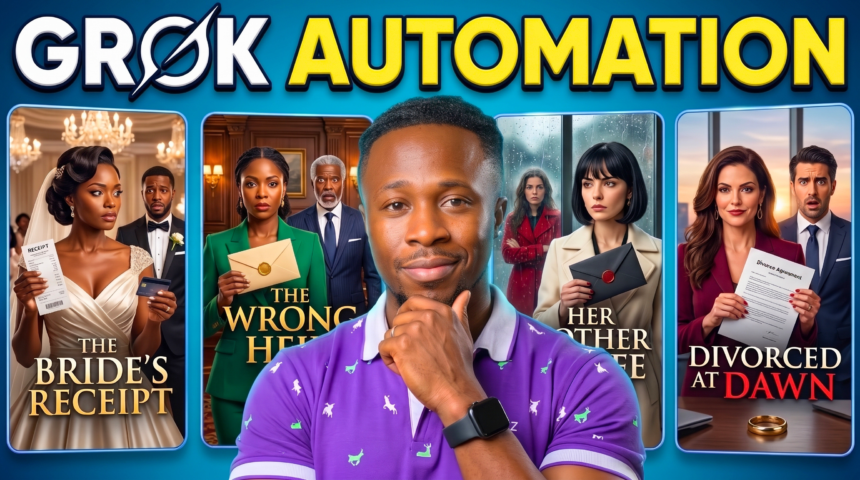
This BIGWIZ MEDIA workflow uses ChatGPT to plan the story, Google Flow to establish the references and scene images, and Grok Imagine to animate those images with dialogue. Two browser extensions handle the generation queues and downloads, then CapCut brings the accepted clips into a finished episode.
The tutorial follows The Wrong Signature, a short drama about a disputed signature, a deposit, and a family business under pressure. Its production uses ten shots, a 9:16 vertical format, and nine uploaded reference images for the image-generation stage.
The reference setup and shot order are what make the automation useful. Approve those first, then let the extensions process the matching image and animation batches.
Watch the tutorial: Grok Automation Just Changed AI Micro Dramas — Full Workflow.
Get the free prompt pack: Micro Drama Automation Master Prompts.
What Each Tool Does
| Tool | Production role |
|---|---|
| ChatGPT or another writing chatbot | Develop the premise, script, production bible, and prompt batches |
| Google Flow | Generate and save approved character, prop, location, and scene images |
| Flow Automation | Submit the scene-image queue and download the results |
| Grok Imagine with Grok Automation | Animate the ordered scene images using their matching dialogue prompts |
| CapCut or another editor | Select usable footage, refine the conversation, and export |
The master pack separates the work into story, reference design, scene images, animation, and voice direction. It also includes checks for formatting and continuity.
More EV News

The generation settings below describe the recorded workflow. Model access, extension controls, download options, and account allowances can change. Google’s Flow model guide, checked October 24, 2026, lists Nano Banana 2.1 among its image models. Check the options available in your own accounts before starting a batch.
Step 1: Write a Ten-Shot Micro Drama
Open the prompt pack and paste the story-and-script instructions into your writing chatbot. In the tutorial, ChatGPT offers three premises and the creator selects The Wrong Signature. You can choose a suggested idea or supply your own.
The pack plans a 60-second episode with ten six-second shots, identified S01 through S10. Each shot records the location, time, visible characters, starting positions, important props, action, dialogue, and ending state.
Give the protagonist an immediate problem and something specific to lose. Short dialogue exchanges work well when each shot has one principal action and one speaking character. A reply can have its own shot, allowing the camera to show the other person’s reaction.
For a new practice story, this original instruction can help:
Develop an original sixty-second live-action micro drama in English with ten six-second shots named S01 through S10, a maximum of four original fictional adult characters and two locations, an immediate concrete conflict, short dialogue from one speaker per shot, an evidence-based reversal and a final cliffhanger; record each shot’s visible characters, starting positions, props, action, exact dialogue and ending state; use no narration or likeness to a real person, then stop for script approval.
Review the script before continuing. Make sure a character can realistically speak the line and perform the action within the planned usable shot.
Step 2: Build the Character, Prop, Location, and Voice Bible
Use the pack’s production-bible prompt after approving the script. This creates the reusable descriptions that guide all later generations.
For every recurring character, define the face, skin tone, eyes, hairstyle, build, relative height, complete outfit, footwear, and accessories. Give the character a stable name and asset ID. If an outfit changes, record that as a separate look with its own applicable shots.
For important props, record appearance, starting position, holder, and any transfer between characters. For recurring locations, establish the layout, furniture, entrances, lighting, and camera direction.
Voice notes should describe the character’s usual accent, pitch, texture, and pace. Keep temporary emotions separate: a frightened delivery should still sound recognizably like the same character.
The pack also asks for a reference manifest linking asset IDs, filenames, and shot assignments. Keep that manifest beside the script throughout production.
Step 3: Generate and Download the Reference Images
Create a project in Google Flow. Open the character controls, paste the first character-reference prompt, and generate the design.
Inspect it before saving. Confirm the face, hair, outfit, and proportions, then name the asset consistently with the planning document. Download the approved image and give the local file its matching name.
Repeat for the other characters and recurring props. Generate any location references required by your own production bible as well.
The tutorial uploads nine reference images later in the workflow. Your asset count should follow your script: a different story may need a different number.
Here is an original reference prompt for an illustrative character named Maya:
Create a photorealistic reference sheet of Maya, an original fictional adult woman with dark-brown skin, an oval face, brown eyes and shoulder-length tight black curls, wearing a navy cardigan over a cream blouse, charcoal trousers, black flats and small round gold earrings; show full-body front, side and back views plus a clear face close-up of the identical person in the identical outfit against a plain white background with even lighting and natural skin texture, without labels, logos or any likeness to a real person.
This example is additional practice material, rather than an extracted description of the tutorial’s cast.
Keep Reference Names Easy to Match
| Example asset ID | Example filename | Purpose |
|---|---|---|
| CHAR_MAYA | CHAR_MAYA_LOOK01.png | Approved face, hairstyle, and outfit |
| PROP_ENVELOPE | PROP_ENVELOPE.png | Recurring envelope design |
| LOC_OFFICE | LOC_OFFICE.png | Stable room layout and lighting |
These filenames are illustrative. Keep the actual file extensions in the manifest, outside the copyable generation prompts.
A name in a prompt helps organize the reference assignment, but it does not upload an image. Attach the actual files through the extension’s supported controls and inspect the resulting assignments.
Step 4: Create the Ten Starting-Frame Prompts
Run the pack’s batch-image prompt in the same writing conversation. It should produce one starting-frame prompt for every approved shot, in S01–S10 order.
Each image should show one composition immediately before its shot’s main action or spoken line. Include the visible characters, expressions, positions, props, camera framing, room layout, and lighting.
Keep a character reference sheet separate from a scene image. The reference sheet may contain multiple views on white; the scene image should contain the single dramatic composition you intend to animate.
For the illustrative Maya character, an original scene-image prompt could read:
Create one photorealistic live-action television drama starting frame in vertical 9:16, using the attached CHAR_MAYA and LOC_OFFICE references; show Maya with dark-brown skin, an oval face, brown eyes and shoulder-length tight black curls, wearing her navy cardigan, cream blouse, charcoal trousers, black flats and small round gold earrings, standing left of a walnut desk with a restrained suspicious expression and looking toward the right; preserve the approved office layout and daylight from the left window, keep the closed reference envelope on the near edge of the desk before she reaches for it, and use a medium composition with room for that action, natural skin texture and no generated text or additional people.
Check the starting state against the script. A document should not already be signed if signing it is the next action; a prop should not change hands before the planned transfer.
Step 5: Format the Batch and Confirm the Prompt Count
Install the Flow Automation extension demonstrated in the tutorial from the Chrome Web Store, then open its interface and navigate to Flow.
Paste the generated image batch into the prompt field. Before running it, check how many jobs the extension detects.
In the recording, the pasted text initially appears as one prompt. The creator adds separation between the individual scene prompts until the extension recognizes ten.
The linked prompt pack adds a stricter export rule to address sentence-based splitting: one complete sentence on one physical line per shot, with one final period and no internal periods, question marks, or exclamation marks. Use commas and semicolons to connect the details.
Keep headings, numbering, shot labels, filenames, and manifests outside the import block. The pack’s clean export contains ten nonempty lines. If your installed version groups those lines together, add its required paragraph separation between complete prompts and recheck the detected count.
This original formatting instruction can help repair an existing batch:
Reformat the approved batch as exactly ten complete single-sentence prompts in S01 through S10 order, one physical line per prompt, using commas and semicolons between details and exactly one final period per line with no internal periods, question marks or exclamation marks; preserve all approved character details, references, locations, props, actions and dialogue words, normalize only dialogue punctuation, repeat the required shared directions within every prompt, and keep labels, filenames, manifests and explanations outside the copyable block.
Check the queue itself after formatting. Ten lines in the chatbot output must become ten correctly assigned jobs in the extension.
Step 6: Attach References and Run the Flow Image Queue
Upload the approved character and prop reference files to Flow Automation. Include any additional reference assets your shot manifest requires.
Inspect the scene assignments. The creator checks that the reference images have been tagged to their corresponding scenes before starting the queue.
The recorded image settings are:
| Setting | Tutorial choice |
|---|---|
| Image model | Nano Banana 2.1 |
| Aspect ratio | 9:16 |
| Image download resolution | 2K |
| Download folder | Default location |
| Generation process | Automated scene-image queue with downloads |
Save the settings and return to the control tab. Confirm the prompt count and reference tags, then click Run.
The extension works through the queue, generates the images, and downloads the results. The recording shows it completing one image before proceeding to the next.
The pack recommends testing S01–S02 first. Use that small test to inspect the character designs, prop placement, prompt parsing, and filenames before processing the remaining eight shots.
Review the completed scene images before animation. Replace any rejected image while retaining its original shot ID, then gather exactly one approved starting image for each shot.
Step 7: Prepare Animation Prompts and Resolve the Timing
Use the pack’s animation stage to create one image-to-video prompt per approved scene image. Each prompt should preserve the starting frame, direct one principal action, identify the speaker, include the approved dialogue, and specify the voice, camera, and relevant ambience.
For native dialogue, name the sole speaker and their visible position. Keep listeners silent. A locked camera is valid; choose movement only when it supports the scene.
The pack also provides voice-direction instructions. Reuse each character’s stable vocal description, then add the emotion for that shot. Prompt wording helps direct the performance, but you still need to review whether separate generations sound consistent.
Understand the Six-Second Plan and Ten-Second Generation
The prompt pack plans ten six-second shots for a 60-second episode. The recording selects ten-second video generations to leave more room within each clip.
| Timing choice | What it means |
|---|---|
| Ten planned six-second shots | A 60-second story structure |
| Ten generated ten-second clips | Up to 100 seconds of raw footage before trimming |
| Edited episode | Runtime determined by the usable dialogue, action, and cuts |
Resolve this difference before submitting the animation batch. If you follow the recording’s ten-second setting, ask the writing model to adapt the generation instructions to that duration while keeping the intended usable story beat within its planned window and leaving editing room around it.
If you need exactly ten six-second finished shots, check that every required line and action fits into the selected six seconds from each clip. Flag an overlong exchange for revision before committing to the full batch.
For the illustrative Maya image, this original animation example uses the recording’s ten-second generation length:
Animate the assigned starting frame into one continuous ten-second photorealistic live-action drama shot in vertical 9:16, preserving Maya’s approved face, curls, navy cardigan, cream blouse, charcoal trousers, earrings, office layout and envelope position; Maya at the left of the desk lowers her gaze to the envelope and alone says “The transfer date is wrong” in a steady mid-pitched American voice with controlled suspicion, beginning after a brief setup and finishing within the first five seconds; keep all other visible characters silent, use a locked medium camera and quiet office ambience, then hold her reaction and the unchanged prop state for editing room without music, narration, new dialogue, subtitles or cuts.
Keep the actual dialogue words approved in your script. The example above is a new practice line, not dialogue extracted from The Wrong Signature.
Step 8: Pair the Images and Prompts in Grok Automation
Install the Grok Automation extension shown in the tutorial, pin it if useful, and use its navigation control to open Grok Imagine.
Select Frame-to-Video. Match the aspect ratio to the images, choose an available upscale option, and set the clip duration. The recording uses 9:16 and ten seconds.
Upload the ten accepted scene images in chronological order. Use consistent names such as S01.png through S10.png, and verify the displayed order rather than relying only on the file picker.
Paste the animation prompts in the same sequence. Apply the formatting checks from Step 5 and inspect each pairing:
- The first image receives the first shot’s animation prompt.
- Every later image receives its corresponding action and dialogue.
- The tenth image receives the final shot’s prompt.
- No rejected image, duplicate file, or extra prompt remains in the queue.
An image can look convincing while receiving the wrong line. Review both the visual input and its assigned text before starting generation.
Step 9: Generate, Download, and Review the Video Clips
Click Run after the queue is ready. Grok Automation submits the animation jobs and downloads the resulting clips.
The pack recommends a two-shot talking test before the remaining batch. Listen to the test with sound and check the speaker, exact words, delivery, mouth movement, and available editing room.
After the batch finishes, inspect every accepted clip. Check character appearance, dialogue, prop handling, camera behavior, and the starting and ending poses.
If one shot fails, retry that image-and-prompt pair while preserving its shot ID. Keep only the accepted version in the assembly folder so a replacement does not accidentally become an extra scene.
Automatic downloads save repetition, but they do not replace reviewing the footage. Keep a simple accepted-or-retry status beside each shot in the manifest.
Step 10: Assemble the Episode in CapCut
Import the accepted clips into CapCut and place them on the timeline in story order.
Trim unnecessary waiting time before and after the important action or dialogue. Keep the beginning and ending of every spoken line intact, and retain reactions that help the audience understand the emotional turn.
The tutorial favors hard cuts for its continuous-location drama. Watch eyelines, screen direction, and prop positions across each cut so the exchange remains understandable.
Review the whole episode with sound. Avoid adding a second voiceover on top of usable native dialogue. If you replace visible speech with external TTS, plan the separate lip-sync work and check the final alignment.
For a plot-critical document or phone message, add the approved readable text during editing rather than depending on generated lettering. Keep any background music below the conversation.
Check the final runtime against your target, export in the intended vertical format, and watch the exported file from beginning to end.
Common Problems and Practical Fixes
The Extension Detects One Prompt Instead of Ten
Keep every scene prompt as one sentence on one physical line. Add the separator required by the installed extension between complete prompts, then confirm ten jobs in its interface.
Characters or Props Change Across the Batch
Check that the approved reference files are attached to the affected shots. Repeat essential appearance details in each prompt and inspect the reference tags before regenerating.
The Right Image Gets the Wrong Dialogue
Compare the image order with the animation manifest. Match the shot ID, source image, speaker, and prompt before retrying the affected pair.
The Dialogue Does Not Fit
Recheck the selected generation duration and the intended usable shot length. Revise the approved line or timing plan when necessary, leaving room for natural delivery and reaction.
Is the Workflow Free and Unlimited?
The prompt pack is free to access. Generation and extension allowances depend on the services and versions you use. Automation does not remove those allowances; check current account options, including Google’s Flow credit guidance, before running large queues.
Start Your First Automated Micro Drama
Begin with a small cast and a clear ten-shot story. Approve the reference assets, verify the prompt counts, and keep each image paired with its intended animation prompt. A two-shot test gives you a useful check before processing the full episode.
Use the master prompt pack alongside the full BIGWIZ MEDIA tutorial. Comment AUTOMATION on the YouTube video if you want to join the discussion about the workflow.
Find more guides at BigWizTV.com, join our Discord community, and follow BIGWIZ MEDIA on Telegram.