


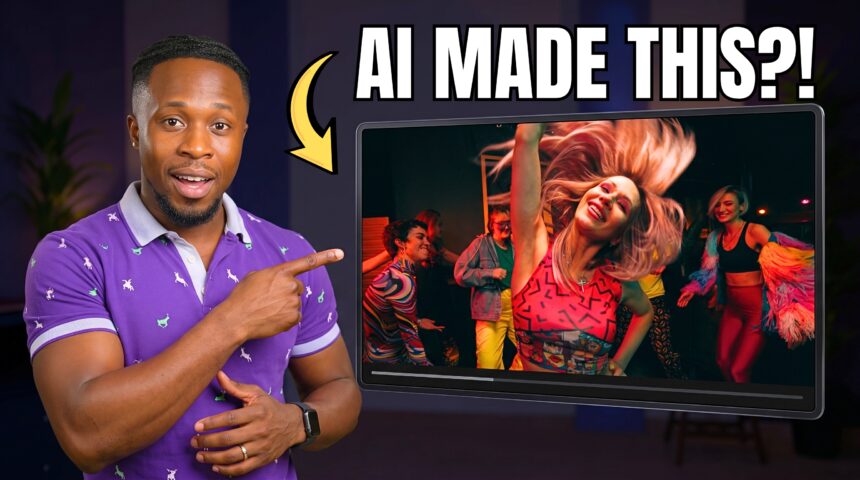
An AI music video needs a song, a recognizable performer, scenes that fit the lyrics, and an edit that carries the rhythm. Stock footage can add city views, dancing, and celebration details around the main performance.
- What You Need for This Workflow
- Choose the Track and Release Rights First
- Step 1: Write the Lyrics and Production Notes
- Step 2: Generate the Vocal Track in Envato
- Step 3: Break the Finished Song into Scenes
- Step 4: Generate the Performer Images
- Step 5: Animate Each Image with Its Matching Lyrics
- Step 6: Add Real Stock Footage and Custom AI B-Roll
- Step 7: Choose a LUT for the Finishing Look
- Step 8: Build the Music Video in CapCut
- Step 9: Match the Footage and Apply the LUT
- Step 10: Review and Export the Finished Sequence
- Frequently Asked Questions
- Do I need to generate the song with AI?
- Why use stock footage in an AI music video?
- How do I keep the singer consistent?
- Does entering lyrics guarantee accurate lip-sync to my song?
- Is this a free workflow?
- Build Your Music Video Around One Approved Track
In this BIGWIZ MEDIA tutorial, we combine Envato’s AI tools, real stock footage, cinematic LUTs, and CapCut to build an Afrobeats music-video sequence. The process starts with lyrics and production notes, then moves through character images, animated scenes, B-roll, and the final edit.
The demonstration generates eight scene images and turns them into performance clips using their matching prompts and lyric sections. Real footage and additional AI shots fill out the sequence.
This guide follows that complete production workflow, with practical notes on character references, audio synchronization, color matching, and the rights needed for the finished project.
Watch the full tutorial: Can AI Make a REAL Music Video?.
Get the original prompts: Open the AI music-video prompt document.
What You Need for This Workflow
| Tool or resource | Role in the project |
|---|---|
| ChatGPT | Write lyrics and production notes, then develop scene prompts |
| Envato MusicGen | Generate the demonstration’s vocal music track |
| Envato ImageGen | Create the performer images for each scene |
| Envato VideoGen | Animate those images and create additional B-roll |
| Envato stock footage and LUTs | Supply real-world shots and a shared finishing look |
| CapCut | Arrange the song and clips, refine the rhythm, color grade, and export |
Open Envato through the BIGWIZ MEDIA link. The recording uses its Generate area for AI tools and its Stock area for footage and other creative assets.
More EV News

This is a subscription workflow. Check the current plan and AI-credit allowance before starting a batch of images, videos, music variations, and extra B-roll. Stock downloads and AI generation have different usage conditions.
Choose the Track and Release Rights First
The tutorial demonstrates music creation with MusicGen. Its AI Product Terms, checked October 1, 2026, license generated music for incorporation into a larger end product, with specific restrictions on standalone music distribution and videos where music is the primary purpose. They also prohibit claiming Content ID rights in MusicGen output.
A song-focused public release may fall within that restriction. Confirm the intended use with Envato before assuming the demonstrated track can be released as an artist music video or standalone song. You can also follow the visual workflow with a track you own or have licensed for that release.
Use performer photos you are authorized to upload. For stock footage or photos, check the item’s license and any relevant release information for the intended use. AI outputs and stock assets are covered by separate terms.
Step 1: Write the Lyrics and Production Notes
Open the original prompt document and copy its first prompt into ChatGPT.
The brief requests a 30–60-second Afrobeats song about success and celebration. It asks for a short verse, a catchy repeating hook, and optional bridge lines or ad-libs.
The production direction includes driving bass, polyrhythmic percussion, bright brass accents, a modern Afro-fusion groove, high energy, and a 105 BPM target.
Adapt the subject and musical direction for your project, then review the generated lyrics. Keep the language singable and the hook simple enough to repeat naturally.
ChatGPT supplies the written material and production instructions. The audio-generation stage happens in MusicGen.
If you already have approved lyrics and a track, keep those as the basis of the visual plan. Use the actual recording to determine scene timing.
Step 2: Generate the Vocal Track in Envato
In Envato’s Generate area, select Music and paste the approved lyrics together with the production notes.
The demonstration uses these settings:
| Setting | Demonstration choice |
|---|---|
| Vocal mode | Vocals enabled |
| Genre | Afrobeats |
| Theme | Left at the default |
| Energy | Auto |
| Variations | One |
| Tempo direction | 105 BPM in the production brief |
Enable Vocals when the project requires a sung performance. Instrumental mode produces a different starting point for the music video.
Generate the track, listen through it, and download the version you want to use. Envato’s current music-generation guide also describes lyric input, vocal controls, genre, energy, and variation settings.
Check the actual result for clear vocals, a usable arrangement, and the intended mood. A tempo instruction belongs to the brief; use the finished audio’s beats and phrasing when editing.
Keep one approved song as the master track for the project. This gives the scene plan and final edit a stable reference.
Step 3: Break the Finished Song into Scenes
Copy the document’s second prompt and replace [PASTE YOUR FULL LYRICS HERE] with the approved lyrics.
The template requests sections of approximately six to eight seconds, each with a scene number, proposed time range, lyric excerpt, and a detailed VideoGen prompt. It asks for a consistent African male performer, cinematic styling, and direction suitable for image-to-video generation with a start frame.
Send the prompt to ChatGPT in the same planning conversation. The demonstration produces eight scenes.
Treat those time ranges as a planning draft. Listen to the downloaded song and adjust the boundaries to its actual verses, repeated hooks, instrumental spaces, and phrase endings.
The scene count depends on the finished track. Eight scenes are the demonstrated example, rather than a fixed requirement for every 30–60-second song.
Keep these elements together for each scene:
- The matching lyric section.
- The performer and setting description.
- Lighting, camera, and movement instructions.
- The scene number and intended position in the edit.
If you need a separate still-image prompt, ask ChatGPT to adapt that scene’s visual description for ImageGen while preserving the performer, outfit, setting, and lighting.
Step 4: Generate the Performer Images
Select Image in Envato and paste the first scene’s visual prompt.
The tutorial uses a family reference photo to establish the performer. Upload your authorized reference image, set the aspect ratio to 16:9, and generate the first scene.
The host leaves visual styling on Auto and chooses one variation for the test. The recording also shows an option for additional variations.
Review the face, hairstyle, clothing, body proportions, and important accessories before accepting the image. This first approved result becomes a key reference for the rest of the sequence.
Keep One Approved Character Reference Active
For scene two, the demonstration uploads the approved character image created in scene one as the new reference. It then keeps that reference active while replacing the text with the prompts for later scenes.
Follow that pattern so your scene changes have a shared identity reference. Keep the character’s established features and costume explicit in the prompts.
Review every image before animating it. Check that the performer remains recognizable as the pose, camera angle, and environment change.
Download the approved images with clear scene numbers. The demonstration completes all eight images before starting video generation.
Step 5: Animate Each Image with Its Matching Lyrics
Select Video in Envato. Add the first approved image as the start frame, using the plus control or selecting it from the gallery.
Copy the matching scene prompt from ChatGPT, including the relevant lyric section, and paste it into VideoGen.
The recording leaves the movement preset on Auto and chooses With audio before generating. This allows the test clip to include an audible performance.
After scene one is ready, clear its start frame and add scene two’s image. Replace the prompt with scene two’s instructions and lyrics, then generate again.
Repeat for the remaining scenes, keeping the image, prompt, and lyric section correctly paired:
| Scene | Start image | Generation instructions |
|---|---|---|
| Scene 1 | Approved scene-one image | Scene-one prompt and lyric section |
| Scene 2 | Approved scene-two image | Scene-two prompt and lyric section |
| Scene 3 onward | The matching approved image | The matching prompt and lyric section |
Download the approved clips with the same scene numbering used for the images.
Check the Performance Against the Master Song
The demonstration supplies lyrics to the video generator. It does not show the full master song uploaded as an audio reference for each clip.
Matching words alone does not guarantee matching melody, phrasing, or mouth timing. Play the performance clip against the approved song and check the visible singing.
Revise a take that distracts from the performance, shorten its visible section, or cut to relevant B-roll at an awkward moment. Check whether your current workflow offers an audio-driven lip-sync option if exact singing synchronization is central to the project.
An Additional Scene-Prompt Example
This is an original template written for the article, rather than the exact generated prompt shown in the video:
Use the uploaded image as the start frame and preserve the performer’s face, hairstyle, clothing, and accessories. Create a cinematic Afrobeats performance shot on a rooftop at dusk, with soft golden light and the city behind him. Use one slow camera push-in and natural, restrained hand gestures. The performer sings only this approved lyric section: [insert the matching lines]. Keep the subject recognizable throughout, with a clean 16:9 composition and no added text. Generate with audio for review, then check the result against the master song.
Use only the short lyric section assigned to that clip. Give the performance room for natural pauses and movement.
Step 6: Add Real Stock Footage and Custom AI B-Roll
With the main performance clips ready, open Envato’s footage library and gather shots that support the song’s mood.
The demonstration searches for city views, dancing, parties, and celebration footage. These shots add variety around the recurring performer.
| Stock search idea | Possible role in the edit |
|---|---|
| City awakening | Establish the setting or open the sequence |
| Dancing | Add movement around a lively musical section |
| Party | Build energy around the hook |
| Celebrate | Support the song’s success and celebration theme |
Preview the framing, movement, and light before downloading. Choose material that can sit comfortably beside the generated scenes.
Detail shots, city views, and dancing feet can add variety while your main performance clips carry the lead character’s identity.
Generate a Missing B-Roll Shot
The tutorial also uses text-to-video generation for custom B-roll. It removes the start frame, pastes a new visual prompt, and selects No audio, because the master song will supply the soundtrack.
Its examples include celebration shots, dancing feet, and movement details. Ask ChatGPT for ideas that fit a particular gap in your sequence, then generate the shots you need.
Here is an original example:
A cinematic close-up of dancing feet moving naturally to an upbeat Afrobeats rhythm on a polished floor. Deep purple and warm yellow light sweep softly across the shoes and floor reflections. The camera tracks a short distance at ankle height, with realistic motion and a continuous shot. Match a celebratory nighttime atmosphere. Landscape 16:9, no faces, text, or logos. No audio needed.
Collect the main footage and enough supporting material to build a first edit. Add further shots when the timeline reveals a specific need.
Step 7: Choose a LUT for the Finishing Look
Search Envato for cinematic LUTs and download a suitable pack for your editor.
A LUT applies a preset color transformation. It can help establish a shared look across AI scenes and real footage, but different source images may still need individual exposure and color adjustments.
Choose a look that supports the song’s atmosphere and preserves natural skin tones. Check the pack’s instructions and compatibility before importing it into CapCut.
Keep the grading restrained enough that important details remain visible. You can adjust the intensity after reviewing the assembled sequence.
Step 8: Build the Music Video in CapCut
Open CapCut and import the master song, performance clips, stock B-roll, and generated B-roll.
Place the approved song on the timeline first. Then arrange the main scenes according to the musical sections and the scene plan.
Mute or remove the generated clips’ audio when using the master song as the main soundtrack. This prevents a second vocal performance or competing music from playing over it.
Check each visible singing section against the master track. Position the useful parts of a performance clip where the phrasing matches, and make editorial decisions around the result you actually have.
Cut Around the Rhythm and the Lyrics
Use the song’s waveform and your listening judgment to locate strong beats and phrase changes. Place cuts where they support the musical movement.
Interleave B-roll with the performance shots. Give the hook room to feel energetic, then use quieter details or wider views when the arrangement changes.
The tutorial recommends returning to the footage library if you discover a missing shot during editing. Search for that specific visual need instead of adding unrelated clips.
Watch the first assembly from start to finish. Check that the performer, locations, rhythm, and lyric progression feel connected.
Step 9: Match the Footage and Apply the LUT
Review the individual clips for exposure, color balance, and contrast before applying the finishing look. An AI shot with strong purple lighting and a daylight stock shot may need different corrections.
In the demonstrated CapCut workflow:
- Open Adjustments and choose LUT.
- Import the downloaded LUT.
- Apply it through an adjustment layer over the sequence.
- Extend the layer from the beginning to the end of the video.
- Adjust the LUT’s intensity while reviewing the footage.
Check highlights, shadows, skin tones, and saturated colors. If one clip still looks out of place, correct it individually rather than increasing the effect across the whole sequence.
Review the boundaries between AI footage and real stock. The shared grade should support visual continuity while allowing each shot to remain clear.
Step 10: Review and Export the Finished Sequence
Before exporting, play the music video in full and check:
- The master track plays continuously without duplicate clip audio.
- The visible performance fits the assigned lyric sections.
- The performer remains recognizable across the main scenes.
- B-roll supports the mood and the rhythm.
- The color grade covers the intended sequence and preserves detail.
Export in 16:9 for the landscape version shown in the tutorial. Choose the resolution, frame rate, and quality appropriate to your source footage and publishing destination.
The recording demonstrates an export choice up to 4K. A 4K export setting does not establish that all generated clips and stock files contain native 4K detail.
Review the downloaded file as well as the editor preview. Confirm the project’s intended use is covered by the music and asset rights before release.
Frequently Asked Questions
Do I need to generate the song with AI?
You can use a track you own or have licensed for your intended release. The image, video, B-roll, and editing stages can follow the same structure around that song.
Why use stock footage in an AI music video?
Stock footage supplies supporting scenes and movement that fit the song. The tutorial combines those real shots with generated performance clips, then matches their appearance during the edit.
How do I keep the singer consistent?
Approve the first performer image, reuse it as a shared reference, preserve the face and outfit in later prompts, and review every result before animation.
Does entering lyrics guarantee accurate lip-sync to my song?
The clip still needs checking against the master recording. Lyrics describe the words; they do not automatically supply the exact melody, timing, and vocal delivery of the approved song.
Is this a free workflow?
The tutorial uses Envato’s subscription tools and stock library. Check your current AI-credit allowance and access before planning the full batch. It is separate from the free-tool workflows covered elsewhere on BigWizTV.
Build Your Music Video Around One Approved Track
Choose the song and intended release first, then prepare the performer reference and timed scene plan. Generate the main clips, add supporting footage, and use the edit to connect the performance with the music.
Get the original music-video prompts and watch the complete BIGWIZ MEDIA tutorial.
Explore the tools and creative assets through the BIGWIZ MEDIA Envato link.
For more AI filmmaking resources, visit BigWizTV, join our Discord community, follow our Telegram channel, and subscribe to BIGWIZ MEDIA.
What kind of song would you build a music video around? Share your idea in the comments.