


Stop Paying for HeyGen — I Tested 5 Free AI Lip Sync Tools So You Don’t Have To
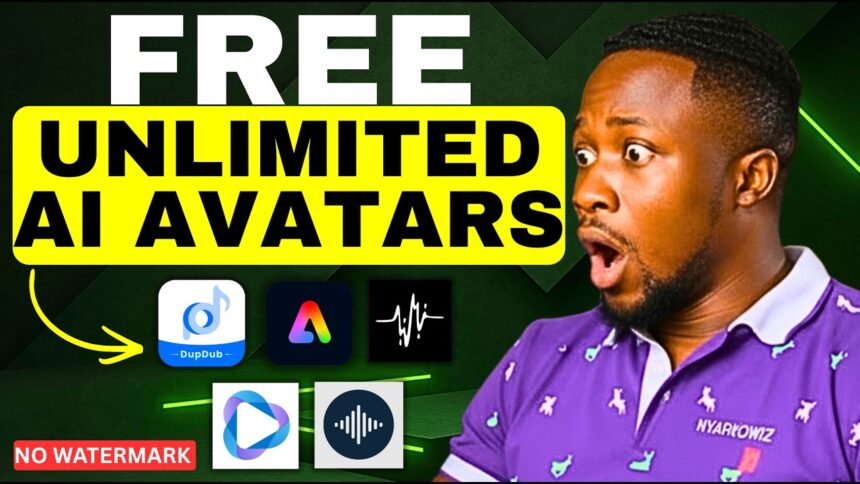
Tired of running out of credits on HeyGen? I tested five completely free AI lip-sync tools to find out which ones actually look realistic — and which ones are a total waste of time.
- Stop Paying for HeyGen — I Tested 5 Free AI Lip Sync Tools So You Don’t Have To
- Tool #1 — Wave2Lip (Free & Open Source)
- Tool #2 — DubDub AI (All-in-One Content Platform)
- Tool #3 — Lipsync.video (Longest Duration on Free Tier)
- Tool #4 — Adobe Express (Cartoon + HeyGen Integration)
- Tool #5 — HeyGen (The Industry Standard)
- All 5 Tools Compared
- The Unlimited Trick — Bypass Credit Limits on Any Platform
- How to Remove Watermarks from AI Videos for Free
- Which Tool Should You Use?
And stay until the very end — I’ll reveal a simple unlimited trick to bypass credit limits on almost all of these platforms, plus how to remove watermarks from any AI video for free.
🎬 Watch the full comparison here:
Tool #1 — Wave2Lip (Free & Open Source)
Website: wave2lip (search on Google)
Wave2Lip is a completely free, open-source lip sync tool designed specifically for realistic talking videos.
How to Use Wave2Lip:
- Click “Get Started” and sign in with your Google account
- You’ll see two options — Video Lip-Sync and Image Lip-Sync
- Select Image Lip-Sync to use a still photo of your AI avatar
- Upload your AI avatar image
- Upload your voiceover audio
⚠️ Free plan limit: Lip sync is capped at 10 seconds on the free tier. Trim your audio to 10 seconds before uploading.
- Click Generate and wait for processing
- Download your result
Result:
Wave2Lip produced genuinely impressive results — especially on P and B sounds, which are typically the hardest consonants for lip sync AI to handle. Compared to HeyGen, the realism was surprisingly competitive for a completely free tool.
Rating: ⭐⭐⭐⭐ — Impressive for free
More EV News

Tool #2 — DubDub AI (All-in-One Content Platform)
Website: dubdub.ai
DubDub is a full content creation platform with features including AI voiceover, instant voice cloning, AI writing, translation — and most importantly, AI avatar lip sync.
How to Use DubDub:
- Click “Sign Up for Free” and log in with your Gmail account
- Complete the onboarding steps
- Click on AI Avatar from the dashboard
- Upload your AI avatar image
- Optional: enhance the image, change the background, or add subtitles
- On the right panel, either:
- Type your script, or
- Upload a voiceover (up to 3 minutes — the longest of any free tool here), or
- Record your voice directly
- Click “Generate Talking Avatar”
💡 DubDub supports voiceovers up to 3 minutes long on the free plan — the longest duration of any tool tested in this video.
⚠️ Credit limit: Free accounts get 10 credits. Each generation costs approximately 3 credits. See the unlimited trick at the bottom of this post.
Result:
The output was decent but not the most impressive — slightly disappointing compared to Wave2Lip in terms of lip sync accuracy. However, as a free tool with 3-minute support, it still has strong practical value for longer content.
Rating: ⭐⭐⭐ — Decent, best for longer clips
Tool #3 — Lipsync.video (Longest Duration on Free Tier)
Website: lipsync.video
How to Use Lipsync.video:
- Sign in with your Google account
- You’ll receive 50 free credits upon signup
- Navigate to the Talking Photo feature
- Upload your AI avatar
- Select your model version:
- Version 1.0 – 3.0: Generate up to 90 seconds of lip sync
- Version 4.0 (recommended): Up to 40 seconds
- Choose your audio input:
- Type a text script
- Upload a voiceover
- Record your voice directly
- Click Generate
- Go to My Creations to find and download your video
💡 Version 3.0 allows up to 90 seconds — the longest duration of any model tested. If your audio file is too large for your credit balance, select version 3.0 to manage costs.
Result:
The lip sync accuracy on lipsync.video was noticeably weaker than Wave2Lip — mouth movement didn’t sync well with the audio, especially noticeable on longer sentences.
Rating: ⭐⭐ — Below average accuracy
Tool #4 — Adobe Express (Cartoon + HeyGen Integration)
Website: express.adobe.com
Adobe Express offers two different approaches to AI avatar creation — and it’s the only tool on this list that goes beyond realistic avatars into cartoon-style animation.
Method A — Standard Animated Avatars:
- Go to Adobe Express and scroll down to “Animate Characters”
- Browse categories and select a cartoon avatar
- Set your background
- Upload your voiceover audio or record directly
- Click Generate
The result is a cartoon-style animated character — not photorealistic, but great for educational content, kids videos, or fun branding.
💡 As Adobe Express puts it — the avatar doesn’t need to look realistic, it just needs to match the energy and timing of your voiceover.
Method B — HeyGen Avatar Add-on Within Adobe Express:
- Click “Open in Adobe Express” via the HeyGen integration
- Click “Make Another Video”
- Select an avatar — either upload your own or choose from the available library
- Set your background colour
- Upload audio or type a script and select a voice from the available options
- Click “Generate AI Video”
💡 Videos created inside Adobe Express via HeyGen are synced to your HeyGen account and visible there as well.
Result:
The HeyGen-powered avatar inside Adobe Express produced clean, realistic lip sync results. The cartoon option is a fun creative alternative for specific content types.
Rating: ⭐⭐⭐⭐ — Solid results, unique cartoon option
Tool #5 — HeyGen (The Industry Standard)
Website: heygen.com
HeyGen is the most well-known AI lip sync tool — and it’s included here because it does offer a free tier.
How to Use HeyGen Free:
- Sign up or log in with your Gmail account
- Click Create and select Photo to Video
- Upload your AI avatar image
- Either type a script or upload a voiceover audio file
- Toggle on Expression for more realistic facial movement and emotion — this is the recommended setting
- Click Generate
Result:
HeyGen produced clean, natural lip sync with good expression movement when the Expression toggle is enabled. The quality is consistent and professional-looking.
⚠️ Watermark note: Free tier videos include a HeyGen watermark. See the watermark removal tip below.
Rating: ⭐⭐⭐⭐⭐ — Best quality, but most limited on free tier
All 5 Tools Compared
| Tool | Free Duration | Credits | Lip Sync Quality | Watermark |
|---|---|---|---|---|
| Wave2Lip | 10 seconds | Unlimited | ⭐⭐⭐⭐ Excellent | No |
| DubDub AI | Up to 3 minutes | 10 credits | ⭐⭐⭐ Decent | No |
| Lipsync.video | Up to 90 seconds | 50 credits | ⭐⭐ Below avg | No |
| Adobe Express | Varies | Varies | ⭐⭐⭐⭐ Good | No |
| HeyGen | Limited | 3 videos/month | ⭐⭐⭐⭐⭐ Best | Yes (free) |
The Unlimited Trick — Bypass Credit Limits on Any Platform
Here’s the secret that makes all these free tools truly unlimited:
When you hit your credit or generation limit on any of these tools — simply sign in with a different Google account.
Each new Google account gets a fresh set of free credits and generations. You can create as many Google accounts as you need and switch between them to keep generating for free indefinitely.
⚠️ Exception: This trick does not work on Adobe Express — it’s tied to Adobe account verification in a way that limits this approach.
Works on:
- ✅ Wave2Lip
- ✅ DubDub AI
- ✅ Lipsync.video
- ✅ HeyGen
How to Remove Watermarks from AI Videos for Free
HeyGen and some other tools add watermarks to free tier videos. A dedicated watermark removal tutorial is available on the BigWizTV YouTube channel — check that out for the full free method.
Which Tool Should You Use?
| Goal | Best Tool |
|---|---|
| Best overall lip sync quality | HeyGen |
| Best free quality without watermark | Wave2Lip |
| Longest audio duration free | DubDub AI (3 min) or Lipsync.video (90 sec) |
| Cartoon/animated style | Adobe Express |
| Truly unlimited free generations | Wave2Lip or rotate accounts on others |
Found this helpful? Subscribe to BigWizTV on YouTube for more free AI tool comparisons and hacks. Drop a comment — which of these 5 tools are you going to try first?