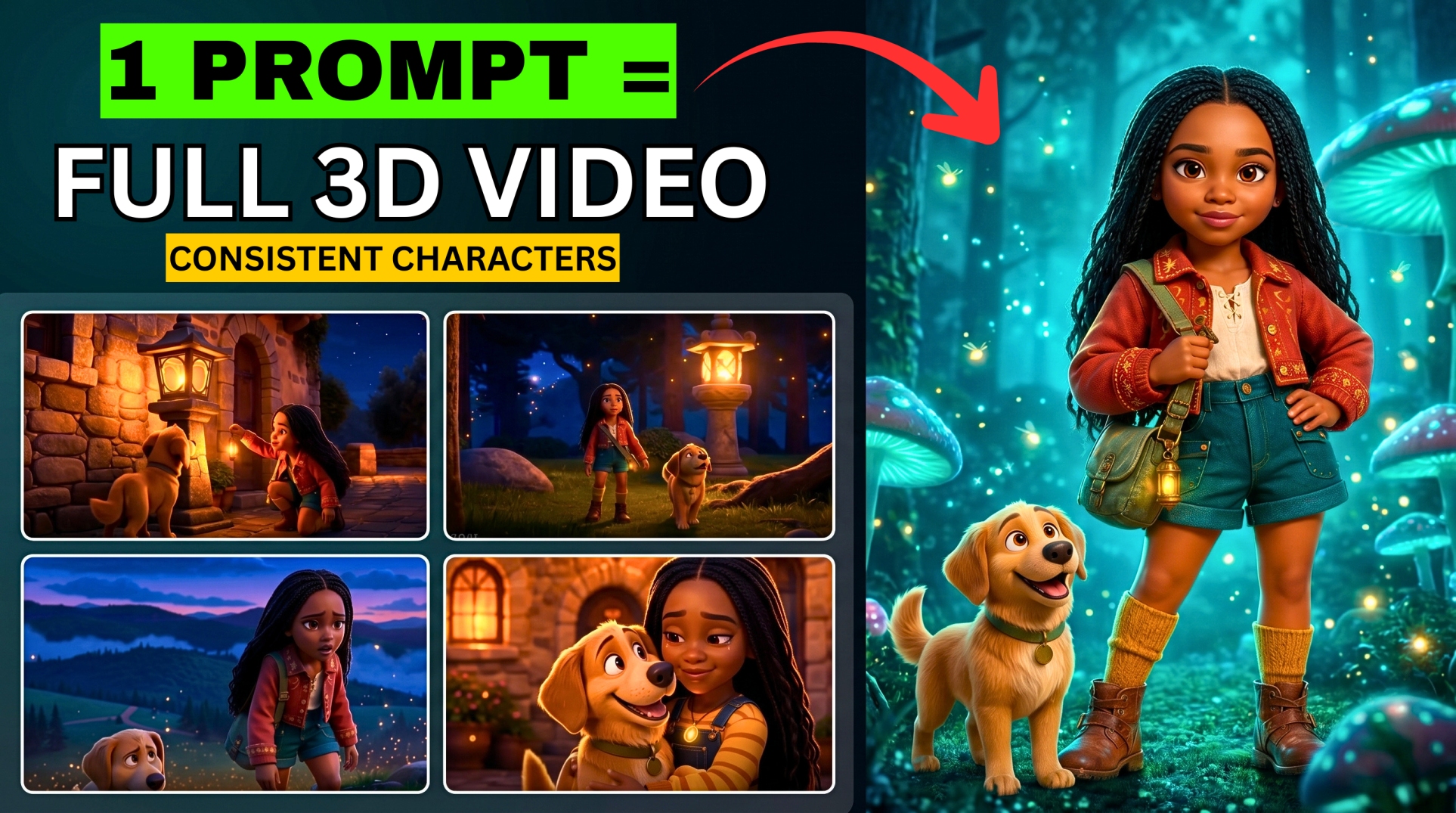




3 Free AI Video Tools So Powerful They Feel Illegal to Use
What if you could generate cinematic videos, talking avatars, product ads, voiceovers, and even full TikTok-style commercials — all free, in minutes, with no editing experience?
- 3 Free AI Video Tools So Powerful They Feel Illegal to Use
- Tool #1 — TikTok Symphony Creative Studio
- Feature 1 — Text to Video
- Feature 2 — Image to Video
- Feature 3 — Image Generation
- Feature 4 — Voiceover Avatar (Talking Head Videos)
- Feature 5 — Product Avatar (AI Product Ads)
- Bonus Features in Symphony:
- Tool #2 — Hunyuan AI (Tencent)
- Tool #3 — Google Vids (My Favourite)
- What’s Inside Google Vids:
- Feature 1 — Text to Video from Scratch:
- Feature 2 — AI Avatar (Talking Head):
- Feature 3 — Voiceover Generation:
- Exporting Your Google Vids Project:
- All 3 Tools Compared
- Which Tool Should You Use?
- Quick Access Links
In this tutorial I’m testing three completely free AI video generators:
- TikTok Symphony Creative Studio — TikTok’s own AI creator studio
- Hunyuan AI — powerful cinematic video model
- Google Vids — my absolute favourite, saved for last
🎬 Watch the full tutorial here:
Tool #1 — TikTok Symphony Creative Studio
🔗 Access here: ads.tiktok.com/creative/creativestudio
Symphony Creative Studio is TikTok’s official AI tool built specifically for creators and advertisers. Log in with your TikTok account to access it.
⚠️ Note: Symphony currently generates horizontal videos only — no vertical format yet. The other tools covered later do support vertical.
Feature 1 — Text to Video
- Click on Video Generation
- Select the Text to Video option
- Input your prompt
- The model used is Video 1.5 Pro
- Set duration up to 12 seconds
- Click Create
Symphony generates the video quickly — results are cinematic and high quality for a free tool.
Feature 2 — Image to Video
- Select Image to Video
- Click Upload and upload your image
- Choose your frame option:
- First Frame Only — AI animates from your image outward
- First and Last Frame — AI creates a transition between two images
- Input the same prompt used to generate the original image
- Select duration — 5, 10, or 12 seconds
- Click Send
Feature 3 — Image Generation
- Click on Image Generation
- Optionally upload a reference image or leave it blank
- Input your prompt — example: “A skincare product sitting inside a melting ice cube, water droplets forming around it”
- Select your model:
- Nano Banana — high accuracy image generation
- Flux Context Max — high detail and style control
- Click Send — generates up to 4 image variations
Once your image is generated, click Edit to modify it, or click Generate Video to animate it directly into a video.
More EV News

Feature 4 — Voiceover Avatar (Talking Head Videos)
Create faceless talking head content using AI avatars:
- Click on Voiceover Avatar
- Browse available avatars — both AI-generated and real human avatars available
- Select the avatar that fits your content style (example: tech, lifestyle, beauty)
- Type your script
- Select a voice actor — filter by language, accent, and age
- Preview voices and click Select
- Click Save — converts script to audio
- Click Generate — lip syncs the audio to the avatar
Result: a fully lip-synced talking avatar video with your chosen voice and script.
Feature 5 — Product Avatar (AI Product Ads)
Create professional product advertisement videos with an AI avatar holding and promoting your product:
- Click on Product Avatar
- Upload your product image (or generate one / import from TikTok Ads Manager)
- Browse and select an avatar to promote the product
- Add the avatar to the scene and click Generate — creates up to 4 product ad variations
- Review the variations and select the best one
- Click Animate — generates up to 4 video animations
- Choose the animation with the most realistic physics
- Click Add Voiceover
- Type your script — example: “This is a perfect product from Big Wiz Cosmetics. Order yours now!”
- Select your preferred voice actor
- Click Save then Generate — lip syncs the voiceover to the animated product ad
Bonus Features in Symphony:
- Remix — remix existing TikTok content with AI
- Translate and Dub — auto-translate and dub videos into other languages
- Built-in Video Editor — drag and drop editor similar to CapCut with auto-captions, text, effects, filters, and stickers — no separate editing app needed
Tool #2 — Hunyuan AI (Tencent)
🔗 Access here: aistudio.tencent.com
Hunyuan AI is a versatile free platform from Tencent with multiple powerful models:
- Image 3.0+ — image generation
- HY Video 1.2 — video generation
- Hunyuan Video 1.5 — cinematic image-to-video
- 3D World models — experimental 3D generation
Image to Video with HY Video 1.5:
- Select the HY Video 1.5 model
- Upload your image
- Write a detailed animation prompt
- Select your resolution — up to 1080p
- Toggle Prompt Enhancer ON — the AI rewrites and optimises your prompt for better results
- Click Generate
The result is a smooth, cinematic animation of your image — the Prompt Enhancer noticeably improves output quality, so always leave it on.
💡 Clips from HY Video 1.5 tend to be shorter but are cinematic quality — perfect for product B-roll and short-form content.
Tool #3 — Google Vids (My Favourite)
🔗 Access here: workspace.google.com/products/vids
Google Vids is the most powerful and versatile tool on this list — an all-in-one AI video creation workspace built directly into Google’s ecosystem.
Sign in with your Gmail account and open a new project. Choose your orientation:
- Landscape — YouTube, standard video
- Portrait — TikTok, Reels, Shorts
- Square — Instagram feed
What’s Inside Google Vids:
| Tool | What It Does |
|---|---|
| Avatar | Generate AI talking avatars with custom dialogue |
| VoiceOver | Generate professional voiceovers with Google TTS |
| Music | Generate background music for your video |
| Image Generation | Create images directly in the workspace |
| Record | Record your screen within the tool |
| Uploads | Import your own media |
| Stock Media Library | Access free stock footage and images |
Feature 1 — Text to Video from Scratch:
- Input your text prompt in the workspace
- Select your aspect ratio (landscape, portrait, square)
- Optionally attach up to 3 reference images to guide the style
- Click Generate
- Monitor generation progress at the bottom of the screen
Feature 2 — AI Avatar (Talking Head):
- Click the Avatar module in the right panel
- Upload your AI avatar image
- Enter your prompt — example: “Animate this avatar with realistic head and hand movements. He says: Subscribe to BigWiz Media.”
- Click Generate
⚠️ Known limitation: In some cases, the avatar may animate without speaking the script aloud even when volume is turned up. Check your audio settings if this happens — it’s a known issue being improved.
Feature 3 — Voiceover Generation:
Use Google’s powerful text-to-speech directly inside Google Vids:
- Click the VoiceOver module
- Type your script
- Select a voice
- Generate and add to your timeline
Exporting Your Google Vids Project:
Once you’ve added all scenes, transitions, and audio:
- Click the Share button at the top
- Choose your export option:
- Copy project link
- Export to Google Drive
- Publish directly to YouTube
- Download as MP4 or GIF
All 3 Tools Compared
| Feature | Symphony Creative Studio | Hunyuan AI | Google Vids |
|---|---|---|---|
| Text to Video | ✅ Yes | ✅ Yes | ✅ Yes |
| Image to Video | ✅ Yes | ✅ Yes | ✅ Yes |
| Talking Avatar | ✅ Yes | ❌ No | ✅ Yes |
| Product Ads | ✅ Yes | ❌ No | ❌ No |
| Built-in Editor | ✅ Yes | ❌ No | ✅ Yes |
| Music Generation | ❌ No | ❌ No | ✅ Yes |
| Voiceover | ✅ Yes | ❌ No | ✅ Yes |
| Vertical Format | ❌ No | ✅ Yes | ✅ Yes |
| Max Resolution | High | 1080p | High |
| Cost | Free | Free | Free |
| Login Required | TikTok account | Gmail |
Which Tool Should You Use?
| Goal | Best Tool |
|---|---|
| TikTok product ads with avatar | Symphony Creative Studio |
| Cinematic image animation | Hunyuan AI (HY Video 1.5) |
| All-in-one video workspace | Google Vids |
| Faceless YouTube channel | Google Vids or Symphony |
| Quick B-roll generation | Hunyuan AI or Symphony |
| Translate and dub videos | Symphony Creative Studio |
Quick Access Links
- 🎬 TikTok Symphony Creative Studio: ads.tiktok.com/creative/creativestudio
- 🎬 Hunyuan AI (Tencent): aistudio.tencent.com
- 🎬 Google Vids: workspace.google.com/products/vids
Found this helpful? Subscribe to BigWizTV on YouTube for more free AI tool discoveries. Drop a comment — which of these 3 tools impressed you the most?