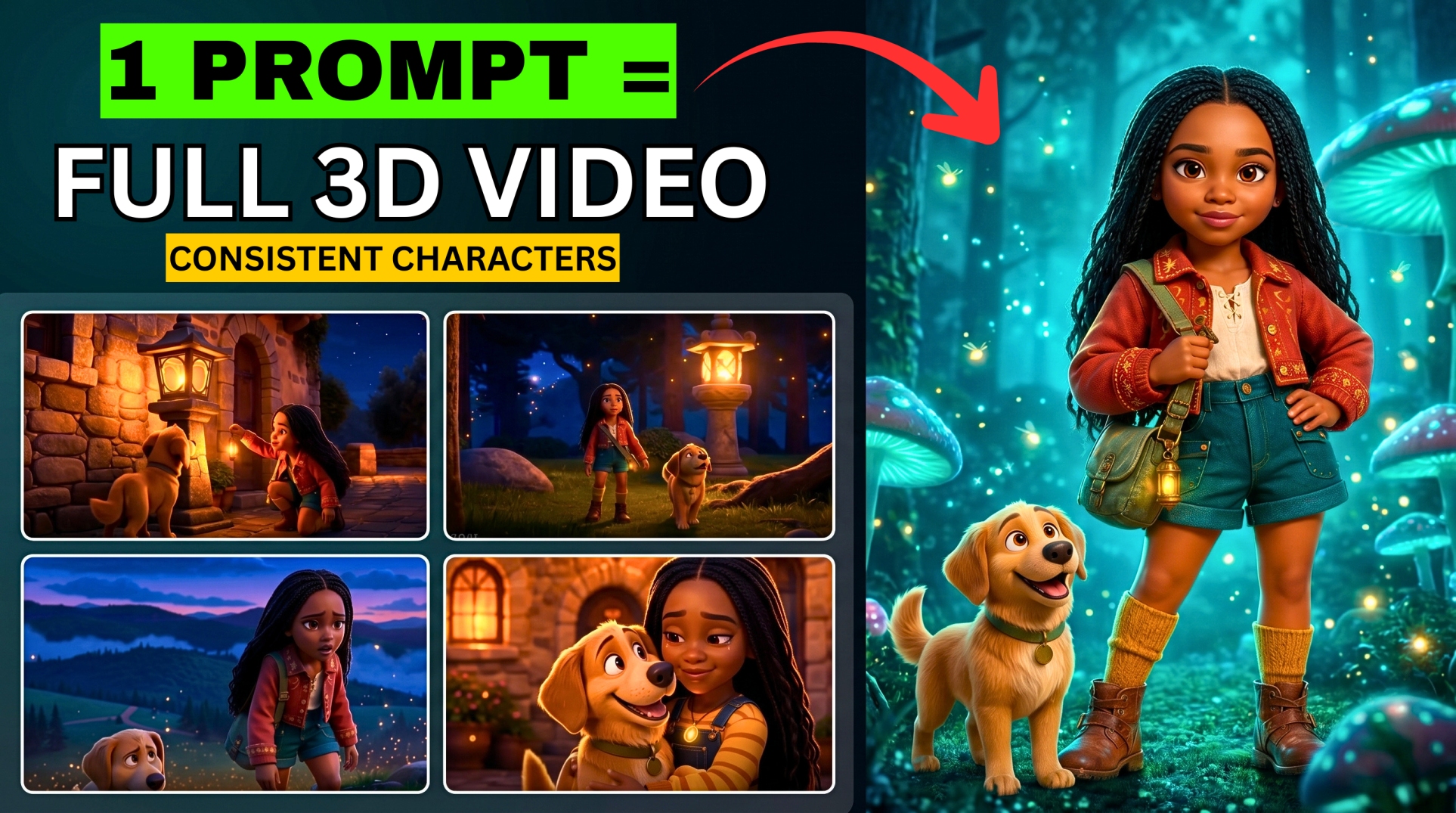




Your next cinematic scene does not have to start with another subscription. Whether you want to animate a character, create a product advertisement, or build visuals for a faceless YouTube video, there are free AI video tools worth testing before you spend money.
- Compare the Five Free AI Video Generators
- 1. UsefulShelf: Try Text-to-Video Without Logging In
- 2. ZSky AI: Animate Images with Camera and Render Controls
- 3. Viggle AI: Generate Videos with MiniMax H3
- 4. GizAI: Compare MiniMax H3 Turbo and LTX-2.5 Distilled
- 5. Meta Vibes: Create Variations and Landscape Videos
- Turn Short AI Clips into a Longer Video
- Two Original Prompts to Test
- Frequently Asked Questions
- Are All Five Tools Free and Unlimited?
- Are the Generated Videos Watermark-Free?
- Which Tool Should I Try First?
- Can I Use These Tools for Faceless YouTube Videos?
- Get More AI Video Tutorials and Prompts
In our latest BIGWIZ MEDIA tutorial, we explored UsefulShelf, ZSky AI, Viggle AI, GizAI, and Meta Vibes. Each offers a different route from an idea or reference image to a generated clip. One lets you start without logging in, two provide access to MiniMax models, and the final tool produced multiple video variations from one prompt.
Below, you will find the workflows demonstrated in the video, direct tool links, and notes on the free limits advertised when this article was checked. We also explain the 16:9 landscape workaround used in Vibes and how short clips can become part of a longer video.
Watch the full tutorial: STOP Paying for Grok AI — These 5 FREE AI Video Generators Feel ILLEGAL.
Compare the Five Free AI Video Generators
| Tool | Suggested starting use | Free access and limits | Detail to remember |
|---|---|---|---|
| UsefulShelf | A quick text-to-video experiment | Its current page lists one video per visitor daily | Download the result before leaving the page |
| ZSky AI | Animating a reference image | Its site advertises unlimited free generation with a free account | Free exports carry a ZSky wordmark; paid plans add higher resolution and priority access |
| Viggle AI | Testing MiniMax H3 with frame references | Its H3 page advertises five free 5-second videos daily | Follow the settings available for the selected model |
| GizAI | Comparing MiniMax H3 Turbo and LTX-2.5 Distilled | Its model listings show two free daily uses for each of these models | Other models and follow-up operations have their own allowances |
| Meta Vibes | Comparing variations and experimenting with animation | Free generation was demonstrated in the tutorial | The tutorial’s unlimited claim is not a confirmed quota guarantee for every account |
The suggested uses above are our editorial recommendations based on the demonstrated workflows. These are short-clip generators; creating a complete long-form video also involves arranging scenes and editing.
1. UsefulShelf: Try Text-to-Video Without Logging In
Open the tool: UsefulShelf AI Tools.
UsefulShelf offers a simple place to begin. In the tutorial, we opened its video generator and submitted a prompt without creating an account. That makes it a convenient option for a first experiment.
More EV News

How to Generate a Video with UsefulShelf
- Open the AI Tools page and choose Create a video.
- Describe the subject, action, setting, and camera movement.
- Choose an aspect ratio. The tutorial used 16:9 for a landscape video; square and portrait options were also shown.
- Select a resolution and duration from the available settings. The recorded interface offered 480p to 1080p and 3 to 10 seconds.
- Click Generate video for free and keep the page open while it processes.
- Preview the finished clip and download it immediately.
There was no dedicated generation gallery in the walkthrough, so saving your result before leaving the page is an important part of this workflow.
Current free limit: UsefulShelf now lists one video per visitor each day, resetting at 00:00 UTC. Use the live interface to confirm which settings are available for that generation. See UsefulShelf’s current allowance.
2. ZSky AI: Animate Images with Camera and Render Controls
Open the tool: ZSky AI.
ZSky AI is the second platform in the tutorial. We used a reference image as the starting point and described how the scene should move. This is a useful approach when you already have a character, product shot, or composed scene you want to animate.
How to Create a Video with ZSky AI
- Sign in and select Create to open the playground.
- Upload a reference image for an image-to-video generation.
- Enter a motion prompt describing what should happen in the shot.
- Add a camera-angle preset if it helps your scene.
- Choose the available aspect ratio, resolution, and clip duration.
- Select a render mode. The tutorial showed Fast, Quality, and Cinematic options.
- Submit the request, wait for the free queue, and preview the result.
The walkthrough showed an upgrade option for skipping the queue. Waiting allowed the demonstration to continue without purchasing that upgrade.
Current free offer: ZSky advertises unlimited free generation, but its detailed page says free outputs include a ZSky wordmark. Higher resolutions and priority access are paid-plan features. Although some headings on that page say “No Watermark,” the detailed wordmark disclosure is the clearer description to use when planning your project. Check ZSky’s free-tier details.
3. Viggle AI: Generate Videos with MiniMax H3
Open the tool: MiniMax H3 on Viggle AI.
Viggle’s MiniMax H3 workflow lets you generate from a prompt and add visual references. The tutorial showed a start-frame field, an end-frame field, and character-reference options.
How to Use MiniMax H3 on Viggle
- Sign in and open Video Generation.
- Select MiniMax H3.
- Upload a start frame if you want to animate an existing image.
- Add an end frame or other reference if your scene needs it.
- Enter your text prompt.
- Choose the settings included in your free allowance. In the tutorial, we used the Flash option rather than Pro and kept the clip at 5 seconds.
- Start the free generation, wait for it to finish, and preview your video.
The recorded queue estimate was about nine minutes. Treat that as the wait shown in this particular test, rather than a standard completion time.
Current H3 offer: Viggle’s dedicated model page advertises five free 5-second H3 videos daily, with audio and resolution options up to 1080p. That differs from the subscription restriction shown for 1080p in the recording. Check the H3 settings in your account before generating. See Viggle’s current H3 offer.
The tutorial also showed separate allowances for Mix and multi-track Mix. Those are distinct workflows, so check their counters separately from H3 video generation.

4. GizAI: Compare MiniMax H3 Turbo and LTX-2.5 Distilled
Open the tool: GizAI Video Generator.
GizAI brings several video models into one interface. The two highlighted in this tutorial were MiniMax H3 Turbo and LTX-2.5 Distilled. We selected LTX for the demonstration and generated a short perfume advertisement.
How to Generate a Video with GizAI
- Open the video generator and browse the model selector.
- Choose a model marked as free within your available allowance.
- Enter your prompt and add a starting image if required by your chosen workflow.
- Select the available resolution and duration. The tutorial selected 5 seconds for its test.
- Click Create video and sign in if prompted. An account was required at this point in the recording.
- Preview and save the finished output.
The result screen offered options to recreate the clip, extend it, upscale it, or add a voiceover. These provide possible next steps, but their availability and cost can differ from the initial generation.
Current model allowances: GizAI lists two free uses per day for MiniMax H3 Turbo and two free uses per day for LTX-2.5 Distilled. Read the selected model’s allowance before submitting another request. Check GizAI’s model listings.
5. Meta Vibes: Create Variations and Landscape Videos
Open the tool: Meta Vibes.
Vibes was the creator’s favorite in this tutorial. The demonstration produced up to four video variations from one prompt and showed options for extending a clip, adding background music, generating images, and creating lip-sync animations.
The landscape workaround is particularly useful for creators making standard YouTube videos rather than Shorts.
How to Create a 16:9 Landscape Video in Vibes
In the recording, starting with text alone usually produced a 9:16 portrait video. We used a landscape image to guide the output instead:
- Create or prepare a 16:9 image in an image generator.
- Open Vibes and upload that image.
- Choose the animation option or place it in the workspace using Add start frame.
- Describe the movement you want in the scene.
- Open the advanced settings and select an available resolution. The tutorial used 720p.
- Submit the request and compare the generated variations.
- Save the version that best matches your intended scene.
The aim is to establish the widescreen composition in the starting image before animating it. Check the downloaded clip’s dimensions to confirm that it preserved the format in your account.
Free-access note: The video demonstrates free generation and describes it as unlimited. Meta’s public Vibes page promotes free AI video creation, but the sources checked here do not establish a universal unlimited quota. Confirm availability in your account. Read Meta’s Vibes overview.
Turn Short AI Clips into a Longer Video
You do not need one enormous generation to build a longer sequence. A more manageable approach is to create individual shots and assemble the strongest results.
Here is a practical workflow to try after following the tutorial:
- Divide your idea into separate shots, with one main action in each.
- Prepare reference images that keep recurring characters, clothing, and locations consistent.
- Generate each shot in your target aspect ratio.
- Where an extension feature is available, review the continuation for changes in faces, objects, or camera position.
- For an image-to-video continuation, try using the previous clip’s final frame as the next starting image.
- Arrange the clips in an editor and add narration, music, and captions where needed.
These are editing suggestions, rather than a claim that every platform provides free, unlimited extension. If a continuation loses the scene’s consistency, a planned cut to a new shot may work better.
For another reference-based workflow, read our guide to creating AI videos with consistent characters using Grok.
Two Original Prompts to Test
These examples were written for this article. They are additional practice prompts, rather than prompts extracted from the video.
Cinematic Image-to-Video Prompt
Use the uploaded image as the starting frame. The character turns slowly toward a warm light at the end of the corridor as the camera moves forward at a steady pace. Preserve the face, hairstyle, clothing, and room layout from the reference. Keep the movement subtle and physically believable, with one continuous shot, natural shadows, no cuts, and no added text.
Product Advertisement Prompt
A cinematic close-up of a glass perfume bottle on dark polished stone. Fine droplets catch soft blue and purple studio lighting while a thin layer of mist drifts behind the bottle. The camera makes a slow, smooth arc around the product and ends on a clear front view. Keep the bottle shape consistent throughout, with realistic reflections, one continuous shot, and no added text or logos. Landscape 16:9.
Frequently Asked Questions
Are All Five Tools Free and Unlimited?
All five were demonstrated with free access, but their offers differ. UsefulShelf has a daily video cap, Viggle and GizAI provide defined allowances, and ZSky advertises unlimited free generation. The Vibes unlimited claim should be treated as the creator’s recorded experience rather than a guarantee for every account.
Are the Generated Videos Watermark-Free?
Do not assume every free export is unbranded. The tutorial’s opening describes the outputs obtained during its tests, while ZSky’s current detailed page specifies a free-tier wordmark. Viggle’s general image-to-video page also says free exports carry a watermark; check the selected workflow and downloaded file. See Viggle’s export information.
Which Tool Should I Try First?
Our suggested starting points are UsefulShelf for a quick text-to-video experiment, ZSky for reference-image animation, Viggle for MiniMax H3, and GizAI for comparing models. If you want several variations and the landscape workflow shown in this tutorial, start with Vibes.
Can I Use These Tools for Faceless YouTube Videos?
You can use generated clips as visuals in a faceless video workflow. To create a finished video, you will still need to develop the story, arrange the scenes, and add any narration or sound your format requires. These tests compare clip-generation workflows; they do not establish a quality winner for every kind of project.
Get More AI Video Tutorials and Prompts
Try the tool that fits your next scene, then compare the result with the examples in the full BIGWIZ MEDIA tutorial. Share which platform gave you your favorite result in the comments.
- Subscribe to BIGWIZ MEDIA for more AI tools and video workflows.
- Join our Discord community for prompts and discussion.
- Join our Telegram community for updates.
- Explore more AI tools and resources on BigWizTV.