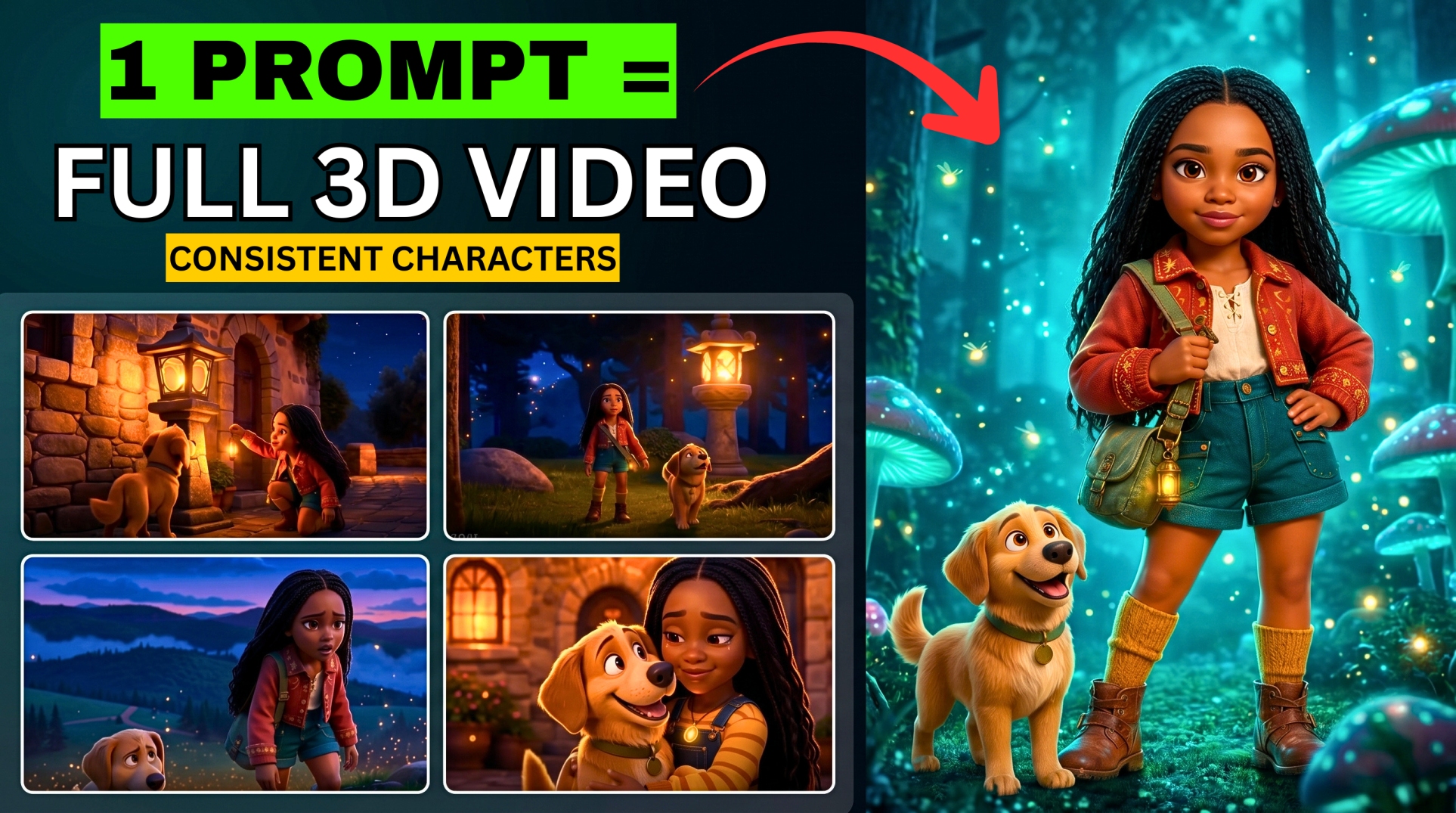




An entire YouTube Automation can start with an idea, a set of prompts, and a collection of AI-generated scenes. The challenge is making those scenes feel connected: the character needs to stay recognizable, the visuals need to follow the narration, and the edit needs to carry the story forward.
- What You Need for This AI Video Workflow
- Step 1: Choose a Channel Concept with Prompt One
- Step 2: Turn the Concept into Video Ideas with Prompt Two
- Step 3: Generate the Numbered Production Plan
- Plan the Runtime Before Generating Every Scene
- Step 4: Establish the Character Details Before Making Images
- Step 5: Create Landscape Images in Google Flow
- Alternative: Generate the Starting Images in Meta AI
- Step 6: Animate the Images with Meta Vibes
- Step 7: Compile Only the Narration for Your Voiceover
- Step 8: Match the Clips to the Narration in CapCut
- Frequently Asked Questions
- Does Meta Vibes Generate the Whole Long Video in One Request?
- Is This Workflow Free and Unlimited?
- What Is the Most Important Character-Consistency Step?
- Can I Use This Process for Fictional Stories or What-If Videos?
- Can I Generate the Images in Larger Batches?
- Get the Prompts and Build Your First Sequence
In this BIGWIZ MEDIA tutorial, we use ChatGPT, Google Flow, Meta Vibes, Google AI Studio, and CapCut to develop a story, create its images, animate them, generate narration, and assemble the finished sequence.
The example is a survival documentary concept titled “He Was Alone on a Raft for 133 Days.” The recording demonstrates the workflow with 16 scenes from a larger production plan of roughly 100 scenes. You can apply the same stages to the rest of your project, with the scene count adjusted to your intended runtime.
Watch the full tutorial: Meta’s NEW AI Makes LONG YouTube Videos FREE & UNLIMITED.
What You Need for This AI Video Workflow
| Tool or resource | Role in the project | Output |
|---|---|---|
| ChatGPT | Develop the channel concept, video idea, and production plan | Narration, image prompts, and motion prompts |
| Google Flow | Create the storyboard images | Numbered 16:9 images |
| Meta AI | Alternative image-generation route shown in the tutorial | Images you can use as starting frames |
| Meta Vibes | Animate each starting image | Video variations for each scene |
| Google AI Studio | Generate the narration | Downloaded voiceover |
| CapCut | Match the scenes to the narration and export | Finished edited video |
| The three production prompts | Guide the project from channel strategy to numbered scenes | A structured plan you can follow throughout production |
The tutorial uses free starting options. Its opening describes the Meta generation experience as unlimited and watermark-free; check your current account and downloaded outputs before treating those claims as a guarantee. Current access notes appear in the FAQ below.
Step 1: Choose a Channel Concept with Prompt One
Open the linked prompt document and copy Prompt 1: Find the Best AI-Producible YouTube Channel Ideas into ChatGPT.
At the top, you can enter an idea you already have or leave the optional field blank and request suggestions. The document asks for 12 distinct channel concepts that can be represented through AI-generated scenes, narration, sound, and music.
More EV News

The prompt evaluates factors such as audience demand, title potential, retention, repeatability, visual variety, and production feasibility. It favors formats that can support a substantial story without depending on screen recordings, interviews, or existing film footage.
Read the concepts and their explanations before selecting one. Treat the generated scores as strategic estimates rather than verified audience data or promises of views.
When you choose a concept, copy its complete COPYABLE CHANNEL BLOCK. That block carries the channel’s viewer promise, audience, subject matter, storytelling style, and visual direction into the next stage.
Step 2: Turn the Concept into Video Ideas with Prompt Two
Copy Prompt 2: Turn the Channel Into High-Potential Video Ideas into the conversation. Replace its selected-channel placeholder with the complete channel block from Prompt One.
This step develops individual videos for the channel you have chosen. The linked version requests 20 video concepts, with a working title, premise, hook, central question, story progression, payoff, and key visual moments for each.
It also distinguishes between factual, speculative, and fictional content. That classification matters when you move into writing: a historical documentary needs verified facts, while an original fictional story needs internal continuity.
In the demonstration, we selected “He Was Alone on a Raft for 133 Days.” Once you pick your own idea, copy the complete COPYABLE VIDEO BLOCK, including its premise, story arc, visual direction, and any fact-check requirements.
Step 3: Generate the Numbered Production Plan
Paste Prompt 3: Build the Complete Numbered AI Video Production Plan into ChatGPT. Replace the selected-video placeholder with your complete video block and enter the target final length.
The prompt asks for five connected outputs:
- Video information: the title, content type, target length, estimated block count, and viewer promise.
- Narrator voice design: a description of the voice, delivery, energy, and pace.
- Visual consistency bible: fixed rules for characters, locations, objects, lighting, and camera style.
- Story sections: the larger narrative structure and approximate time ranges.
- Numbered production blocks: the narration, image prompt, and image-to-video prompt for every scene.
Keep the three parts of each block together throughout production. The narration explains the story beat, the image prompt establishes the scene’s appearance, and the image-to-video prompt describes its movement.
For factual topics, review the plan’s facts before generating the assets. The prompt specifically asks the model to flag unverified information and avoid inventing dates, events, statistics, or quotes.
If the response stops before the plan is complete, the document instructs it to finish a whole block and identify the next block number. Ask it to continue from that number, preserving the established character and visual rules.
Plan the Runtime Before Generating Every Scene
A long video comes from the duration of the finished sequence. The number of generated images alone does not establish its length.
For a ten-minute target, you need 600 seconds of finished material. Here is how the scene count changes with the average duration:
| Average finished scene duration | Scenes needed for 10 minutes |
|---|---|
| 4 seconds | 150 |
| 5 seconds | 120 |
| 6 seconds | 100 |
The linked production prompt asks for narration that can be spoken in less than five seconds per block. If your finished blocks also stay under five seconds, a ten-minute plan needs more than 120 blocks. A practical starting point is 150 blocks at approximately four seconds each, followed by a check against the actual narration.
The six-second option in the table would require deliberately adapting the timing rules. Do not assume that 100 four-second blocks cover ten minutes: they total 6 minutes 40 seconds.
The tutorial’s roughly 100-scene plan and 16-scene demonstration show the production method. Review your own block timings and completed audio to determine how much material your full video needs.
Step 4: Establish the Character Details Before Making Images
This is the step that holds the visual story together. If the main character changes from one scene to the next, the audience may struggle to recognize who they are following.
Use the Visual Consistency Bible from Prompt Three to define the recurring character’s face, hairstyle, body proportions, clothing, and distinctive features. Also establish recurring objects and locations, such as a raft, cabin, vehicle, or landscape.
The prompt requires the complete character description to appear in every image prompt involving that character. Phrases such as “the same man” or “as before” leave too much information outside the individual prompt.
If your generated plan needs that correction, use this adapted instruction:
Revise every image prompt featuring a recurring character. Repeat that character’s complete approved appearance, hairstyle, clothing, and distinctive features inside each prompt. Preserve the scene’s action, location, lighting, and camera angle. Keep all prompts standalone, retain the block numbers, and include the fixed descriptions of recurring objects where relevant.
When you have an approved character image and the chosen interface accepts references, use it to guide later scenes. Compare each result with that reference before saving it.
In the recording, adding specific character details improved the next generation and removed unrelated elements. Consistency still requires reviewing the actual images rather than assuming that the text instruction worked perfectly.
Step 5: Create Landscape Images in Google Flow
The main image-generation route in the tutorial is Google Flow, using Nano Banana 2 in the recorded interface.
Image-Generation Workflow
- Copy the image prompt for Block 001.
- Open Flow and paste it into the image-generation prompt area.
- Choose 16:9 for a landscape YouTube project.
- Select the number of variations. The tutorial generates two.
- Submit the prompt and compare the outputs.
- Download the version that fits the scene and visual direction.
- Repeat for the remaining numbered blocks.
Use a clear naming system such as 001.png, 002.png, 003.png. Matching image and clip numbers makes it easier to return to the corresponding narration and motion prompt later.
The recording revises the opening image to better match the color direction of the later scenes. That is a useful point to check early: approve a small group of images before committing to the whole storyboard.
The tutorial completes the first 16 images for its demonstration. For a full production, continue through every block required by your script and runtime.
Alternative: Generate the Starting Images in Meta AI
The video also tests an image prompt in Meta AI.
To follow that route, open its image-creation interface, paste the image prompt, compare the results, and save the chosen starting image. Apply the same character descriptions, 16:9 framing instructions, and numerical naming system.
Choose the image tool that gives you the composition your scene needs. In this workflow, either route supplies the still images that will be animated in Vibes.
Step 6: Animate the Images with Meta Vibes
Open Vibes and sign in using the available Meta account option. The recording enters the workspace through Create new.
Meta describes Vibes as an AI-video creation experience that can work with existing content, add new visuals, and layer in music. This tutorial specifically uses uploaded images as starting frames. Read Meta’s Vibes introduction.
Animate the First Scene
- Open Start frame and select Upload.
- Upload image 001.
- Select it and choose Add to video.
- Return to Block 001 in your production plan.
- Copy its image-to-video prompt into Vibes.
- Choose an available resolution. The tutorial uses 720p.
- Submit the request and compare the generated variations.
- Download the preferred clip and keep the same scene number.
Repeat with image 002 and Block 002, then continue through the sequence. Matching the image to its own motion prompt is more important than using a single generic animation instruction for every scene.
The recording shows an upload selection of up to 12 images, but demonstrates animation scene by scene. Uploading several assets is separate from producing an animation for every one of them.
An extension option is also shown. Use it when a scene needs more time, and review the continuation for changes in character design or composition.
Motion Should Support the Story Beat
Keep each short clip focused on one clear action. A scene may need a slow camera move, a character’s small reaction, or environmental motion rather than a complicated sequence of events.
For example, this original motion prompt could guide an appropriate raft image:
Animate the uploaded image in one continuous shot. The raft rises and settles gently with the ocean swell while the seated character steadies himself against its edge. Wet clothing moves subtly in the wind, and small waves pass beneath the wood. Preserve the character’s appearance, raft design, and widescreen composition. Use a slow camera drift with believable motion and no cuts or added text.
The tutorial encounters a failed generation and retries it. If this happens in your project, confirm that the correct image and prompt are still selected before regenerating.
The demonstrated clips had no usable narration attached, so the voiceover is created separately in the next stage.
Step 7: Compile Only the Narration for Your Voiceover
Return to the production plan and collect the NARRATION from each block in order. Leave out the image prompts, motion instructions, time labels, and block headings.
The tutorial assembles these lines in a text document. You can also ask ChatGPT to compile them. Here is an adapted instruction:
Extract only the approved narration from the selected production blocks, in numerical order. Preserve every line exactly as written. Remove block headings, time labels, image prompts, and animation instructions. Return one continuous voiceover script with paragraph breaks where useful. Do not summarize or add new narration.
If you are producing a sample section, compile only the narration belonging to its scenes. If you are producing the full video, check that every block’s narration is present.
Open Google AI Studio and its text-to-speech interface. Paste the narration, preview a voice, and add the plan’s narrator description through the voice or delivery controls available for your selected model.
Keep delivery guidance separate from the text you want spoken. Field labels and controls can differ between models; Google’s TTS documentation describes the available voice and style options. See the speech-generation guide.
Generate the audio, listen through it, and download the approved version. The tutorial also mentions MiniMax audio as an alternative narration tool.
Step 8: Match the Clips to the Narration in CapCut
Open CapCut, create a project, and import the numbered clips and voiceover.
- Place the narration on the audio timeline.
- Arrange the video clips above it in numerical order.
- Match each visual action to the line it illustrates.
- Trim or adjust clips to fit the narration’s actual timing.
- Review the transitions between scenes.
- Play through the complete sequence before exporting.
In the demonstration, the combined clips are longer than the narration. Several are sped up to approximately 2× to bring the timing closer together. Use that adjustment selectively: some movements may still look natural, while others may work better with a trim or a different shot.
The tutorial adds a Mix transition and uses Apply to all. Review each cut after applying a transition across the sequence, especially around moments that need a clear visual change.
The recording shows export options for 1080p and 4K. Select the resolution available in your editor that suits the project, then inspect the exported video for timing and visual consistency.
Frequently Asked Questions
Does Meta Vibes Generate the Whole Long Video in One Request?
This workflow builds the video from individual scenes. Vibes animates the starting images, a separate tool creates the voiceover, and CapCut assembles the sequence. The length comes from the edited collection of scenes and narration.
Is This Workflow Free and Unlimited?
The recording demonstrates free starting options and describes its Meta generation experience as unlimited and watermark-free. The Meta sources checked for this article do not establish a universal unlimited quota or an unbranded-export guarantee for every account.
Google’s current model guide identifies Nano Banana 2 Lite as its default image model available at no charge; the tutorial selected Nano Banana 2. Check your active model and displayed cost. OpenAI’s free-tier FAQ also notes that tools such as uploads and image generation have separate usage limits. Check Flow’s models and ChatGPT’s free-tier details.
What Is the Most Important Character-Consistency Step?
Establish the character description before generating the storyboard images, then repeat it in each relevant prompt. Use an approved reference image where supported and review the outputs before animation. The same clothing, hairstyle, and distinctive features help connect the scenes visually.
Can I Use This Process for Fictional Stories or What-If Videos?
The linked prompts support factual, speculative, and fictional projects. Choose the appropriate classification when planning the story. Keep factual claims verified, identify extrapolation in a speculative scenario, and maintain continuity in an original fictional story.
Can I Generate the Images in Larger Batches?
This tutorial demonstrates the manual scene-by-scene process. For the batch method, watch our Claude + Google Flow automation tutorial, which shows a 130-image run through Flow’s Agent.
Get the Prompts and Build Your First Sequence
Open the three-prompt production document, choose a concept, and build a short section of your plan first. Review the character, visual tone, animation, and narration before producing the rest of the video.
- Watch the full BIGWIZ MEDIA tutorial for the on-screen walkthrough.
- Subscribe to BIGWIZ MEDIA for more AI video workflows.
- Join the Discord community for prompts and discussion.
- Join the Telegram community for updates.
- Explore more AI tools and resources on BigWizTV.
Tell us which story you would create with this workflow. If you want more bulk-production tutorials, leave AUTOMATION in the comments.