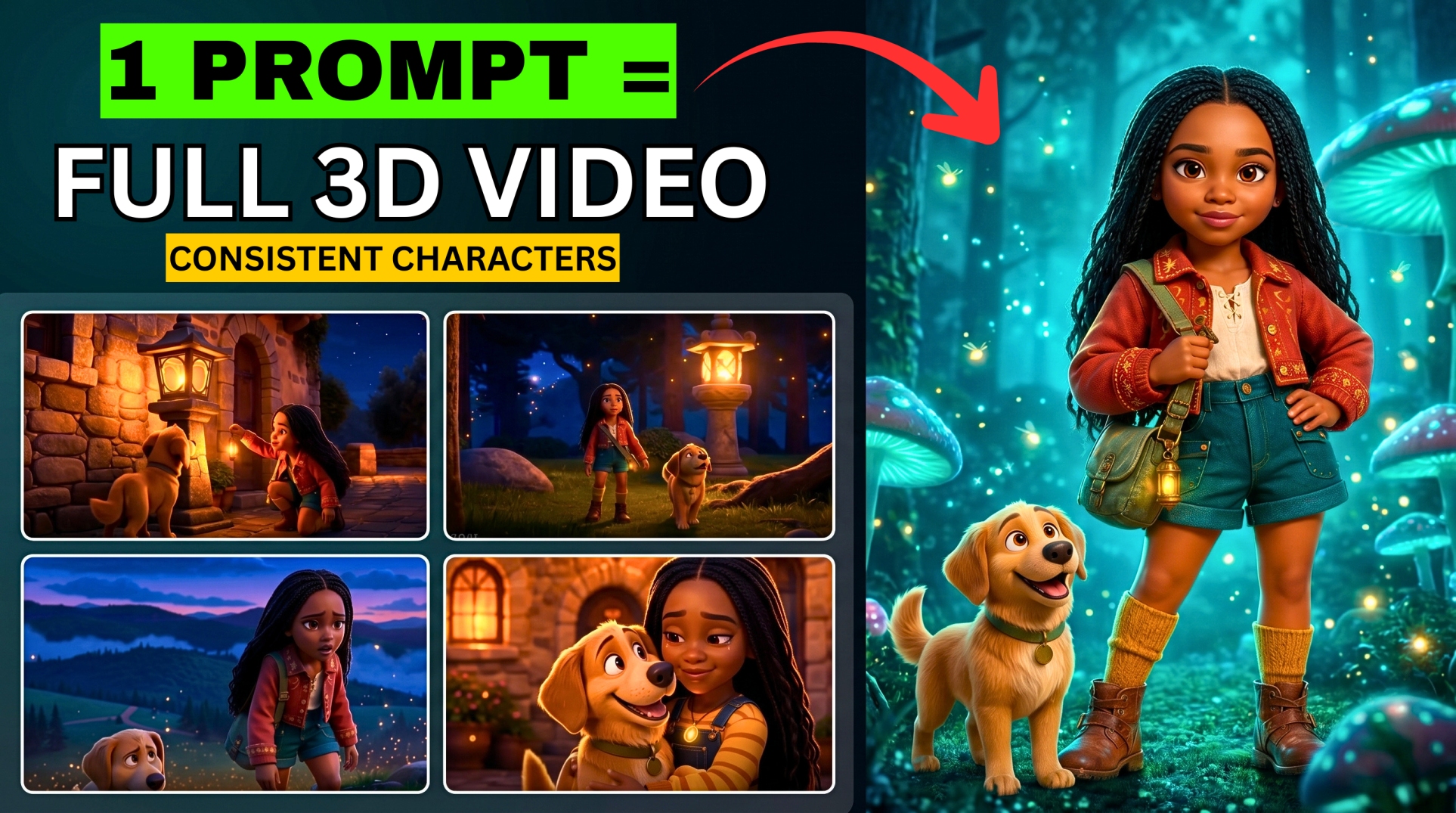



Creating a faceless YouTube video involves more than generating a few impressive clips. You need a story, recognizable characters, clear voices, connected scenes, music, and an edit that makes the whole sequence work.
- What Is Anijam AI?
- Before You Start: Free Credits and Publishing Rights
- Step 1: Describe the Faceless Video You Want to Make
- Step 2: Choose the Production Mode
- Step 3: Select the Video Model
- Step 4: Configure the Project Settings
- Step 5: Review the Story Direction
- Step 6: Choose a Style and Generate the Concepts
- Step 7: Generate the Video Segments
- Step 8: Add Background Music and Render a Preview
- Step 9: Refine the Video on the Timeline
- Step 10: Export the Finished Video
- How to Create a UGC-Style Product Video with Anijam
- 1. Open a Suitable Template
- 2. Load It with Try Now
- 3. Replace the References and Adapt the Prompt
- 4. Follow the Agent’s Setup Questions
- 5. Review, Edit, and Export
- Turning This Workflow into a Faceless Content Series
- Frequently Asked Questions
- Is Anijam AI free to use?
- Can I create a video without showing my face?
- Do I need a separate editor?
- Can the same characters appear across several scenes?
- Which aspect ratio should I choose?
- Can I publish the result as a monetized video or a client ad?
- Create Your First Anijam Video
Anijam AI brings those stages into one workspace. You describe your idea to an AI video agent, answer its setup questions, review the proposed visuals, and guide the project through generation and export.
In this BIGWIZ MEDIA tutorial, we demonstrate two ways to use it: a 60-second cinematic story with character dialogue and a UGC-style product video built from a template. Both workflows help you create content without recording yourself on camera.
This guide takes you through the settings used in the demonstration, explains where to review the AI’s decisions, and shows how to adapt the process for your own channel or product.
Watch the full tutorial: How to Build a Faceless Channel & Make Money with Anijam AI.
What Is Anijam AI?
Anijam is an AI video creation platform with a conversational production workflow. Its agent can help plan a story, design characters, generate scenes, create voices, and assemble the project on a timeline. You can begin with text or add image, video, and audio references.
The platform’s AI video agent overview describes this connected workflow and access through its web and mobile apps.
More EV News

For this tutorial, the two starting points are:
| Starting point | What you provide | What you build |
|---|---|---|
| An original story | A premise, scene structure, characters, and dialogue instructions | A cinematic faceless video |
| A UGC Ads template | A template, your product reference, and an adapted prompt | A social product video |
The story workflow gives you room to develop an original concept. The template workflow gives you an existing structure to adapt when the product and message are already clear.
Before You Start: Free Credits and Publishing Rights
Anijam offers free starting credits, including daily check-in credits, so you can test the workflow. Generation uses credits; the recording does not establish an unlimited allowance.
For publishing, Anijam’s current pricing page states that free-plan exports have watermarks and are for non-commercial use. Paid plans include watermark removal and commercial usage rights. It lists exports up to 720p on Beginner and 1080p on Creator and higher tiers.
Choose a plan that covers your intended use before generating a monetized channel video or a client ad. A free test is useful for learning the interface and evaluating the output.
The steps below follow the interface shown in the September 2026 recording. Model availability and individual controls may change, so use the matching options in your current account.
Step 1: Describe the Faceless Video You Want to Make
Open Anijam through the BIGWIZ MEDIA link and use the prompt box to describe your project.
In the demonstration, the brief requests a 60-second cinematic historical epic, a five-scene structure, and multiple characters with dialogue. It also specifies the desired voice acting and assigns characters to the relevant scenes.
A useful brief gives the agent enough information to make connected decisions:
- Premise: what happens and why the viewer should care.
- Characters: who appears, what they look like, and how they speak.
- Scene progression: the opening, conflict, escalation, and ending.
- Visual style: the setting, atmosphere, lighting, and camera approach.
- Delivery: the target length, format, and audio style.
You can start with a short idea, then refine the agent’s proposal. For dialogue, name each speaker clearly so the lines do not become an ambiguous block of text.
An Original Story Prompt to Adapt
The following is an additional example written for this article, rather than the exact prompt used in the video:
Create a 60-second fictional historical epic in five scenes for a 16:9 YouTube video. A young messenger reaches a mountain fortress with news that its bridge will collapse before dawn. Use three recurring characters: the anxious messenger, a calm commander, and a skeptical gatekeeper. Scene 1: the messenger arrives. Scene 2: the gatekeeper challenges the warning. Scene 3: cracks appear in the bridge. Scene 4: the commander orders an evacuation. Scene 5: the final traveler reaches safety as dawn breaks. Use cinematic realism, consistent costumes, and tense but brief dialogue. Assign a distinct voice to each character and keep those voices consistent. End with a clear resolution.
Replace the premise and characters with your own idea. Keep the structure focused enough to fit the requested runtime, then send the brief to the agent.
Step 2: Choose the Production Mode
The recording shows four modes:
| Mode | Purpose shown in the tutorial |
|---|---|
| AI Director Mode | Guides the project toward a finished video with audio |
| Workflow Mode | Handles keyframes, video, and audio step by step for more control |
| Oscar Film Mode | Develops cinematic narrative scripts and videos from an idea |
| MV Mode | Creates a music video synchronized to an uploaded song |
We select AI Director Mode for the cinematic story. Although the interface describes it as generating the final video in one go, the demonstration still includes setup questions and approval stages. You will have opportunities to review the direction, concepts, and finished scenes.
Use Workflow Mode when you want closer control over the separate production stages. For the demonstrated route, confirm AI Director Mode and continue.
Step 3: Select the Video Model
The next menu shows Standard and Ultra model options. In the demonstration, we choose Standard and leave the selected model on Seedance 2.0 Mini.
Here, Standard is a model-menu setting. It should not be confused with a subscription plan or with the full Seedance 2.0 model.
Check the model selected inside that menu before confirming. Changing it can affect the project’s appearance, credit use, and generation options.
Anijam’s Seedance 2.0 Mini page currently lists native generation up to 720p. The tutorial later selects a 1080p export, but that selection alone does not establish that the underlying clips were generated at native 1080p.
For your first project, use an available model that fits your credit balance and desired output. Review a representative scene before committing to a larger batch.
Step 4: Configure the Project Settings
The agent asks about the audience, platform, aspect ratio, audio, and duration. These are the settings used for the cinematic example:
| Setting | Demonstration choice | Why it fits this project |
|---|---|---|
| Audience | Teenagers | Defines the intended audience for the brief |
| Platform | YouTube | Matches the planned viewing format |
| Aspect ratio | 16:9 | Creates a landscape video |
| Audio mode | Dialogue | Supports conversations between characters |
| Duration | 1 minute / 60 seconds | Sets the target length |
For a vertical YouTube Short, TikTok video, or Instagram Reel, choose 9:16 instead of 16:9. Set the aspect ratio before generating the scenes so the composition fits the intended frame.
Select Voiceover when a narrator will carry the story. Select Music only when you want the visuals to play without spoken narration or character dialogue.
Choose the audience that actually matches your project; the tutorial’s teenager setting is an example. Confirm the settings when they match your brief.
Step 5: Review the Story Direction
The agent then asks whether you want to Co-design with me or let AI decide.
Co-design is useful when you want to collaborate on the story in detail. AI decide lets the agent propose the direction from the information you have supplied. The demonstration uses AI decide.
Read the resulting story preview before clicking Use this direction. Check that the characters, conflict, scene order, and ending match your intention.
If the proposal changes an important part of the story, adjust the direction or switch to co-design. Reviewing a text outline now is easier than replacing several generated scenes later.
For a factual documentary, verify the proposed events and dialogue before accepting them. The fictional prompt above can use invented characters; a documentary requires a different standard of sourcing.
Step 6: Choose a Style and Generate the Concepts
Open the Style Library to browse the available looks. The recording selects Realistic Atmosphere rather than one of the initial suggestions.
Choose a style that fits the story and can carry through the whole sequence. For recurring channel episodes, keeping a recognizable visual direction can also help the videos feel related.
Next, choose Concept Design. This stage develops the visual plan around the story, including characters and scene concepts.
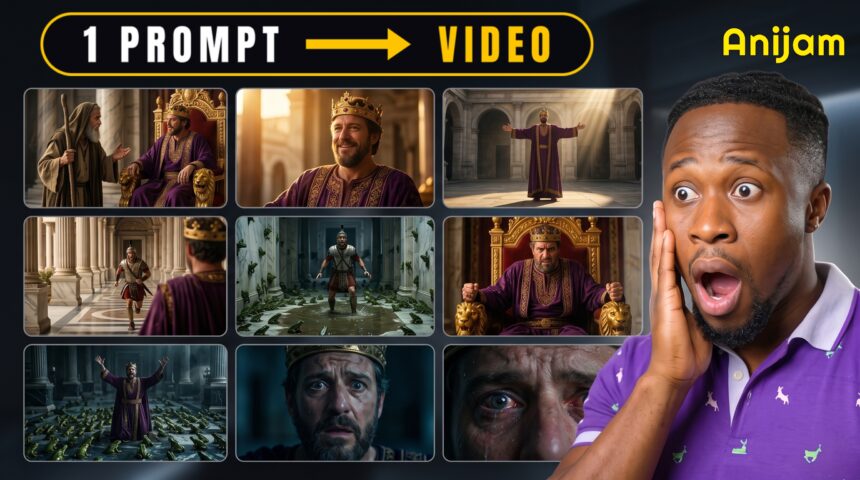
The demonstration produces nine concept images and uses Generate all nine concept images. That count belongs to this example; your project may propose a different number.
Review the concepts for character appearance, costume continuity, setting, and important props. If the commander has a different outfit in every image, resolve that inconsistency before moving to video generation.
Continue once the concepts are acceptable. In the recording, the approved concepts are locked before the next stage.
Step 7: Generate the Video Segments
Choose Start Video Generation.
The demonstrated project is divided into five video segments. The interface offers the option to generate them individually or confirm generation of all five. We use the batch option.
The nine concept images and five video segments represent different stages of the project. Do not assume that every concept image becomes a separate finished clip.
When the segments are ready, review each one for the intended action, recognizable characters, correct speakers, and continuity with its neighbors. Listen to the dialogue as well as watching the picture.
A scene can look convincing while delivering the wrong line or changing a central prop. Resolve the parts that distract from the story before assembling the final preview.
Step 8: Add Background Music and Render a Preview
After scene generation, the recording uses Generate background music. The agent creates a music track for the project.
Then select Render Preview Video to assemble the generated material into a viewable sequence.
Watch the preview from beginning to end. Check whether the opening introduces the situation quickly, each scene advances the story, and the ending delivers the promised resolution.
Listen for music that competes with the voices. In a dialogue-led story, viewers need to understand what the characters are saying without struggling against the soundtrack.
The preview gives you a chance to assess the whole video rather than judging five isolated clips.
Step 9: Refine the Video on the Timeline
Add the project to Anijam’s built-in timeline for editing.
The tutorial shows options for captions, basic adjustments, and animations or transitions between clips. These let you refine the sequence inside the same dashboard.
Use captions when they help viewers follow the dialogue. Check names and unfamiliar words manually, then keep the text clear of important faces or product details.
Review pauses, clip boundaries, and audio changes. A clean cut often works well for a dramatic exchange; a transition should have a clear purpose in the sequence.
Before export, play the edited version again. Check that your changes preserve the story’s pace and that the final runtime fits the intended format.
Step 10: Export the Finished Video
Open Advanced Export. The recording uses:
- Export type: Video.
- Output format: MP4.
- Resolution: 1080p.
- Additional controls: frame rate, bitrate, codec, and watermark options.
Use the export resolution available on your plan. The demonstration’s 1080p selection and watermark control show the interface used for that project; they do not establish free access to either feature.
A higher export resolution cannot restore detail that was never generated in the source clips. Inspect the downloaded file for image quality, complete audio, readable captions, and the expected watermark status before uploading it.
At this point, you have followed the full cinematic workflow: brief, settings, story direction, concepts, video segments, music, timeline review, and export.
How to Create a UGC-Style Product Video with Anijam
The second part of the tutorial starts from the homepage’s UGC Ads templates. UGC means user-generated content; these templates create AI-generated videos with that informal social-video style.
They offer a different starting point from the original cinematic story. You adapt an existing prompt and reference setup around your product.
1. Open a Suitable Template
Browse the UGC Ads section and choose a template that fits the kind of product video you want to create.
Opening a template shows its prompt and reference image in the demonstration. Review both so you understand what is driving the example’s appearance and delivery.
2. Load It with Try Now
Click Try now to insert the template prompt and reference image into the creation canvas.
Treat the loaded content as a starting point. A template may contain product details, dialogue, or a reference subject that does not match your project.
3. Replace the References and Adapt the Prompt
Add your own product image and update the description, features, and message. If you use a presenter reference, choose one you are authorized to use.
Give the agent a clear view of the product’s shape, colors, and distinguishing details. In the generated result, check that the object still resembles the item you are promoting.
Keep the script tied to verified product information. For a demonstration video, describe and show the product rather than inventing a customer’s personal experience.
Here is an additional prompt example to adapt:
Create a 15-second vertical 9:16 UGC-style product demonstration using my uploaded desk lamp image. Preserve the lamp’s shape, color, and visible controls. Begin with a brief shot of a cluttered desk, then show the lamp placed beside a notebook and demonstrate its adjustable head. Use only these verified features: [insert the product’s actual features]. Include a friendly AI presenter and short, natural dialogue. Finish with a close-up of the lamp and the line, “Take a closer look.” Keep the focus on the product demonstration and avoid invented personal testimonials.
Adjust the actions to match what your product actually does. The prompt above is an original example, not the exact template prompt shown in the recording.
4. Follow the Agent’s Setup Questions
Send the adapted prompt and continue through the setup questions, as in the story workflow. Choose the audience, platform, format, and audio that fit the intended use.
For a vertical social video, confirm 9:16. Keep the opening focused on one product angle so a short clip has a clear message.
5. Review, Edit, and Export
Review the generated presenter, dialogue, product appearance, and scene sequence. Pay particular attention to hands, logos, controls, and any action that needs to match the real product.
Refine the video on the timeline, render the final preview, and export using a plan that permits the intended commercial use.
The demonstration shows a completed template-based product video. It does not establish an exact turnaround time for every project; allow for generation, review, and revisions.
Turning This Workflow into a Faceless Content Series
For a channel, begin with one repeatable format: short fictional dramas, narrated explainers, or another clear audience promise. Create a pilot, evaluate the finished result, and reuse the production structure for the next episode.
Keep the audience, visual direction, and storytelling approach recognizable while giving each video an original premise. A faster production process is useful when it supports a consistent publishing schedule and material viewers want to watch.
For product work, build a sample around an actual item and define the deliverable: format, duration, script, and revisions. This gives a potential client something concrete to assess.
The source video’s title discusses making money, but the demonstration provides a production workflow, not measured earnings or guaranteed monetization. Use the finished videos to test a channel concept or show your creative work, then evaluate actual results.
Frequently Asked Questions
Is Anijam AI free to use?
You can begin with free credits and test the workflow. Free access is credit-based, so check your account balance and the generation cost before starting a project. Review the plan’s export and usage conditions before publishing.
Can I create a video without showing my face?
Yes. The demonstrated story uses generated characters, dialogue, and scenes. You can also use narration or a generated presenter, depending on the format you choose.
Do I need a separate editor?
The demonstration completes the basic edit in Anijam’s timeline, including optional captions and transitions. Whether you need another editor depends on how much additional editing your project requires.
Can the same characters appear across several scenes?
The workflow establishes character concepts before video generation. Review the approved concepts and final clips to make sure the faces, clothing, voices, and props remain consistent in your particular result.
Which aspect ratio should I choose?
Use 16:9 for a landscape video like the cinematic demonstration. Use 9:16 for a vertical social video. Choose the intended format before generating the visuals.
Can I publish the result as a monetized video or a client ad?
Check Anijam’s current plans and commercial-use terms. Free-plan outputs are designated non-commercial; the relevant paid-plan rights are separate from any platform’s monetization eligibility.
Create Your First Anijam Video
Start with one focused idea or one product. Work through the agent’s questions, review the concepts before generating the scenes, and give the finished video a complete playback before export.
Try Anijam through the BIGWIZ MEDIA link and watch the full demonstration alongside this guide.
For more practical AI tutorials, subscribe to BIGWIZ MEDIA, join our Discord community, or follow our Telegram channel.
What would you create first: a cinematic story or a product video? Share your idea in the comments.