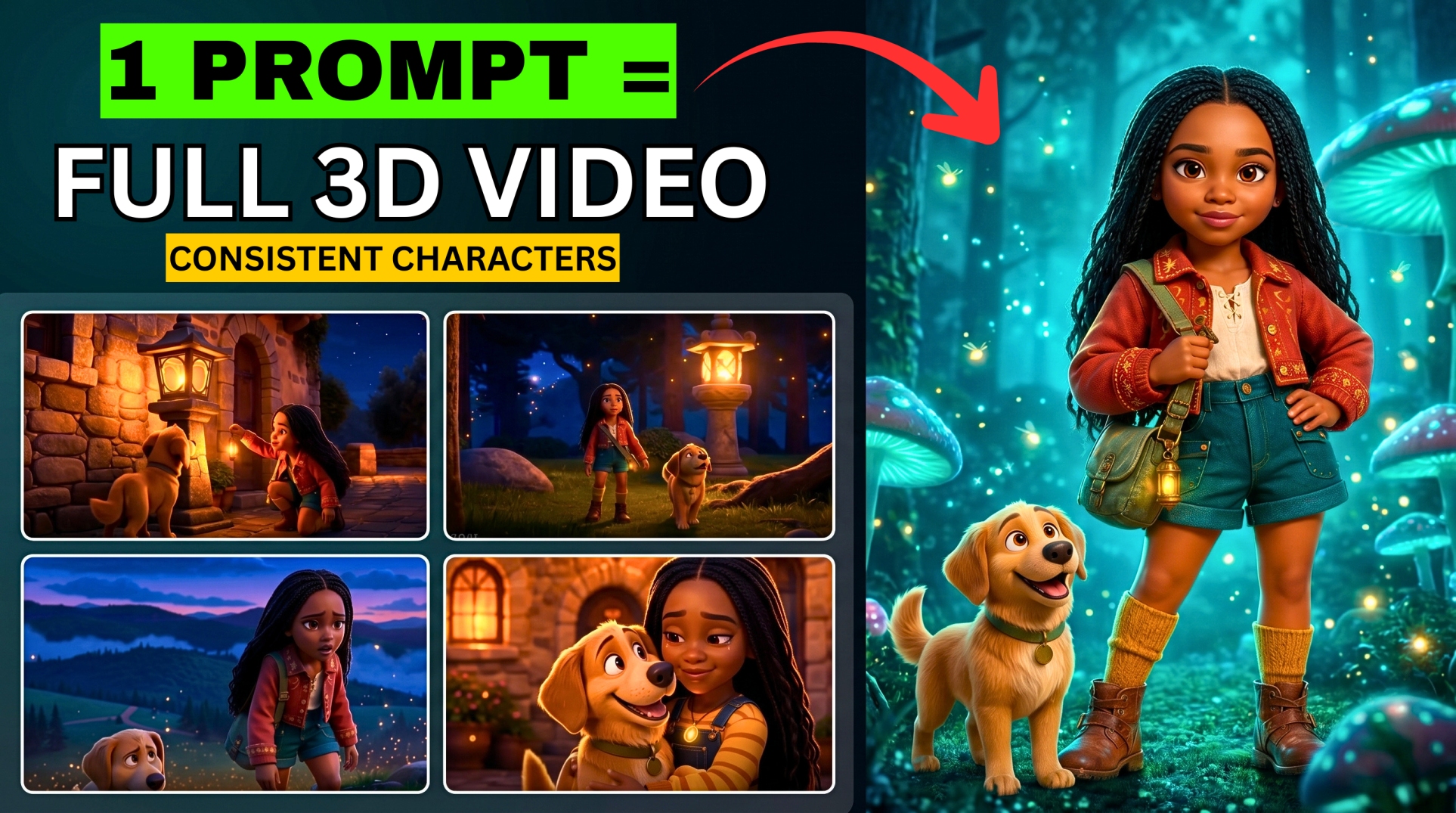



Create Unlimited AI Videos for Free — Same Character, Every Scene
What if you could Make Long YouTube Videos Using Grok AI completely free and keep the same character the entire time? No limits. No subscriptions. No watermarks. Just pure AI power that anyone can use.
- Create Unlimited AI Videos for Free — Same Character, Every Scene
- Tools You’ll Need (All Free)
- Method 1 — Single Character Talking Video
- Step 1 — Generate Your Video Prompt with ChatGPT or Gemini
- Step 2 — Generate Your Character Image in Grok AI
- Step 3 — Animate the Image into a Video
- Step 4 — Keep the Character Consistent for the Next Scene
- Method 2 — Full Story AI Video with Multiple Scenes
- Step 1 — Generate Your Story with ChatGPT
- Step 2 — Generate Scene 1 Image in Grok AI
- Step 3 — Keep Characters Consistent Across All Scenes
- Step 4 — Generate Your Voiceover with Google AI Studio
- Step 5 — Edit Everything Together in CapCut
- Key Settings Checklist
- Full Workflow Summary
- The Result
In this tutorial, I’ll show you exactly how it’s done — step by step — using Grok AI, ChatGPT or Gemini, Google AI Studio, and CapCut. There are two methods covered here, so stick with me to the end.
💡 All prompts used in this tutorial are available below.
Tools You’ll Need (All Free)
- ChatGPT or Gemini — for writing video prompts and generating your story
- Grok AI (grok.com) — for generating images and animating them into videos
- Google AI Studio (aistudio.google.com) — for generating your voiceover
- CapCut — for editing everything together
Method 1 — Single Character Talking Video
This first method is perfect for creating a spokesperson or presenter video — one consistent character talking directly to camera.
Step 1 — Generate Your Video Prompt with ChatGPT or Gemini
Open ChatGPT or Gemini (either works — I’m using Gemini Pro in the video). Copy the prompt from the video description and paste it in. The prompt used here is:
“Write a prompt of a video of a saleswoman talking in front of a camera.”
Gemini will give you several options. Choose the style that fits your video — in the tutorial, the vlogger/informal style is selected as it feels most natural on camera.
Step 2 — Generate Your Character Image in Grok AI
Open Grok AI and look for the “Imagine” or “Create Image” option. Click on it.
Paste the prompt you got from Gemini into the input field and hit send. Grok will generate a batch of images for you. Scroll through them and pick the one you like best.
More EV News

Step 3 — Animate the Image into a Video
Once you’ve selected your character image, click “Make Video”. You can either:
- Click it directly and let Grok generate something random, or
- Type exactly what you want her to say in the prompt field before clicking
For example, type: “Make her say: Hello guys, today is Black Friday. Rush in now for exclusive offers.”
Click the play/generate icon and Grok will animate your character saying exactly what you typed. Download the video once it’s done.
Step 4 — Keep the Character Consistent for the Next Scene
This is the most important step — how to keep your character looking the same across multiple clips.
- Go to your gallery and find the video you just downloaded
- Go to the very last frame of the video
- Take a screenshot of that last frame (use your device’s screenshot function — works on any device)
Now go back to Grok AI. Before uploading the screenshot, go to: Settings > Behaviour > Turn OFF “Enable Auto Video Generation”
This is critical — if you leave it on, Grok will automatically turn your image into a video without letting you add a prompt first.
Now upload your screenshot and type your next prompt (e.g. “Make her jump and shout rush in now”) and generate the next video clip. Your character will look consistent because you’re continuing from the last frame of the previous clip.
Repeat this process for every scene — screenshot the last frame, go back to Grok, upload it, add your next prompt, generate.
Method 2 — Full Story AI Video with Multiple Scenes
This second method is for creating a complete cinematic AI story video — multiple scenes, consistent characters, and a professional voiceover.
Step 1 — Generate Your Story with ChatGPT
Open ChatGPT and paste the story generation prompt from the video description. Hit send and wait for the full story to generate.
Once the story is ready, paste in the scene prompt generator — this will break your story down into individual scene descriptions, one per clip.
Step 2 — Generate Scene 1 Image in Grok AI
Copy the Scene 1 prompt from ChatGPT. Go back to Grok AI and use the Imagine feature. Paste the scene prompt and hit send.
Scroll through the generated images and pick the one that best fits your scene. Click “Make Video” to animate it. Download the clip.
Step 3 — Keep Characters Consistent Across All Scenes
Here’s the key consistency trick — same as Method 1:
- Find the downloaded Scene 1 video
- Go to the very last frame
- Screenshot it
- Go back to Grok AI (make sure Auto Video Generation is still OFF)
- Upload the screenshot
- Paste the Scene 2 prompt from ChatGPT
- Click “Make Video”
The new video will continue visually from where Scene 1 ended — keeping your character and environment consistent.
Repeat for every scene:
- Screenshot last frame of current scene
- Go back to ChatGPT, copy next scene prompt
- Upload screenshot to Grok + paste scene prompt
- Generate and download
Do this all the way through to your final scene.
Step 4 — Generate Your Voiceover with Google AI Studio
Go back to ChatGPT and copy your full story text — not the prompts, just the story narrative. Clean it up by removing any timestamps, scene numbers, or headings (or ask ChatGPT to clean it for you).
Now open Google AI Studio at aistudio.google.com and:
- Select a voice actor (preview a few to find one you like)
- Paste your cleaned-up story text
- Click Generate
- Download the voiceover audio file
Step 5 — Edit Everything Together in CapCut
Open CapCut and start a new project. Then:
- Import all your video clips in scene order
- Play them back to review the flow
- Trim any unwanted parts to tighten the timing
- Import your voiceover and place it on the audio track
- Go to Transitions and add a cinematic transition between clips (the Mix transition works well)
- Reduce transition duration slightly for a smoother feel
- Sync your clips to match the voiceover pacing
- Export at your preferred resolution and frame rate
💡 For a full CapCut editing tutorial, check out the dedicated editing video on BigWizTV’s YouTube channel.
Key Settings Checklist
| Setting | Where | What to Do |
|---|---|---|
| Auto Video Generation | Grok > Settings > Behaviour | Turn OFF |
| Character Consistency | Between every scene | Screenshot last frame and re-upload |
| Voiceover Text | Before AI Studio | Remove scene numbers and timestamps |
| Transitions | CapCut > Transitions | Add between every clip |
Full Workflow Summary
Method 1 — Talking Character Video:
- Generate prompt with ChatGPT or Gemini
- Generate character image in Grok Imagine
- Animate with custom dialogue
- Screenshot last frame → re-upload for next scene
- Repeat for all scenes
- Edit in CapCut
Method 2 — Full Story Video:
- Generate story + scene prompts in ChatGPT
- Generate Scene 1 image in Grok → animate
- Screenshot last frame → upload + paste Scene 2 prompt
- Repeat for all scenes
- Generate voiceover in Google AI Studio
- Edit everything together in CapCut
The Result
A complete, long-form AI YouTube video with:
- ✅ Consistent characters across every scene
- ✅ Custom dialogue or full story narration
- ✅ Professional AI voiceover
- ✅ Cinematic transitions
- ✅ Zero dollars spent
Found this helpful? Subscribe to BigWizTV on YouTube for free AI tutorials every week. Drop a comment telling me what kind of AI videos you’d make with this workflow!