


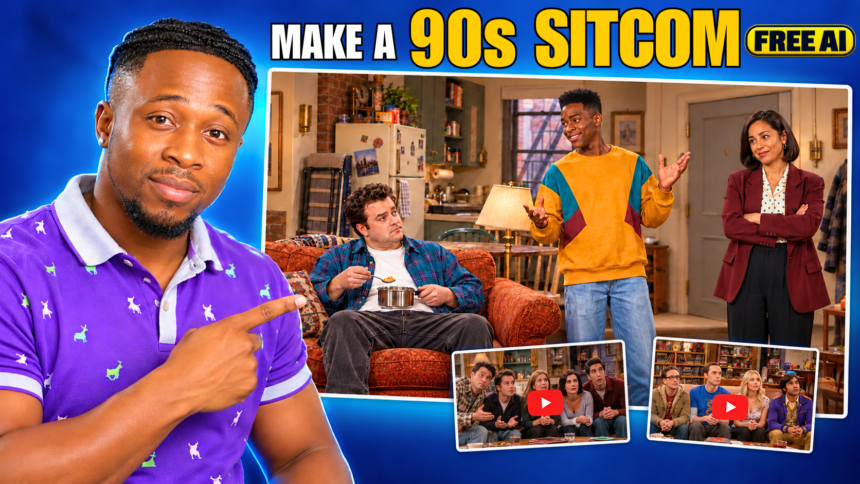
Create an original sitcom with recurring characters, a recognizable apartment, quick banter, and room for the audience to laugh. ChatGPT plans the comedy, Google Flow creates the images and animation, and CapCut brings the separate clips together.
- The Tools and What They Do
- Plan Your Access and Generation Costs
- Step 1: Set Up the Sitcom Project
- Step 2: Write the Script with Space for Reactions
- Step 3: Generate and Name the Character References
- Step 4: Choose an Apartment Image That Supports the Action
- Step 5: Generate Later Scenes Using the Previous Image
- Step 6: Prepare the Animation Prompts and Frames Settings
- Step 7: Generate the First Part of the Conversation
- Step 8: Save the Last Frame and Continue the Conversation
- Step 9: Download the Approved Clips in Order
- Step 10: Edit the Sitcom Timing in CapCut
- Frequently Asked Questions
- Do I Need to Write the Script Myself?
- Why Does My Apartment Change Between Scenes?
- Why Does the Dialogue or Laughter Get Cut Off?
- Are Five Scenes Enough for a 90-Second Sitcom?
- Is This the Same as Using Flow’s Extend Control?
- Is Upscaling Included with Free Access?
- Make Your First Original AI Sitcom
In this BIGWIZ MEDIA tutorial, we build a 90-second sitcom around Marcus, Danny, and Linda. The story starts with a friend trying to make a modest apartment sound like a luxurious home, while his roommate keeps puncturing the illusion.
The production uses five scene images, then generates additional clips when a scene needs more time for dialogue and reactions. The useful technique is saving a frame near the end of a finished clip and using it to start the next part of the conversation.
This guide covers the script, character references, apartment continuity, animation settings, continuation clips, and final edit.
Watch the full tutorial: How to Make 90s US-Style Sitcom Videos With AI.
Get the original master prompt: US-Style Sitcom Comedy Production Prompt.
The Tools and What They Do
| Tool | Role in the workflow |
|---|---|
| ChatGPT or another text chatbot | Develop the premise, script, character descriptions, and production prompts |
| Nano Banana inside Google Flow | Generate character references and the apartment scene images |
| Omni Flash 1.1 in Google Flow | Animate the approved images with dialogue, reactions, and audience laughter |
| Google Flow Save Frame | Capture a visual reference for the next conversation clip |
| CapCut or another editor | Arrange the clips, tighten the joins, and export |
The master prompt organizes the planning into setup, script, image prompts, and animation prompts. It pauses between stages so you can review the material before continuing.
More EV News

Plan Your Access and Generation Costs
The tutorial uses free access available in the demonstrated setup. Check your account’s current image models, video allowance, and output options before generating a full episode.
Google’s model guide, checked October 24, 2026, lists Nano Banana 2 Lite as the default image option available at no charge. The recording also shows Nano Banana 2.1 and Nano Banana Pro among the image choices.
Video generation uses credits. Google’s credit guide lists 50 daily credits for non-subscribers, with costs determined by the generation settings. Count continuation clips and retries when estimating your production needs.
Upscaling has separate availability conditions. Review the options and any cost shown before choosing higher-resolution downloads.
Step 1: Set Up the Sitcom Project
Copy the master prompt into your chatbot. The tutorial uses ChatGPT, with an additional example of preparing a script in another chatbot.
The prompt asks four setup questions:
| Decision | What to choose |
|---|---|
| Premise | Select a suggested situation or describe your own |
| Script option | Ask the chatbot to write the script or provide an existing one |
| Duration | State the target runtime |
| Aspect ratio | Choose 16:9 for horizontal or 9:16 for vertical |
The creator selects The Fake Rich Friend and requests a 90-second script. For a traditional widescreen sitcom presentation, 16:9 is a practical choice; keep your selected format consistent across the images, clips, and edit.
A simple misunderstanding can work well for a short episode. Give the characters different goals so their replies create the comic tension.
Step 2: Write the Script with Space for Reactions
Let the chatbot write the episode, or paste your own script for organization into numbered scenes.
The master prompt asks for witty banter, expressive reactions, and cues such as audience laughter or surprise. Review those cues as part of the timing, alongside the spoken lines.
The demonstration’s cast is Marcus, Danny, and Linda. Its script is divided into five scenes, with the same apartment providing a shared setting.
For an original practice episode, you can use this additional instruction:
Write an original 90-second American sitcom scene with three fictional adult characters and one apartment setting. Build the humor around a character exaggerating their lifestyle while a friend keeps revealing ordinary details. Use short, speaker-labelled exchanges, expressive listening reactions, and selective audience-laughter cues. Give each joke a clear setup and payoff, leave space for the reaction, and organize the story into numbered scenes without narration.
Read the script aloud. If a scene contains several lines, plan to split it into production clips rather than forcing the whole exchange into one short generation.
When the script is ready, type NEXT for the character and scene-image stage.
Step 3: Generate and Name the Character References
Open Google Flow, create a project, and go to Characters.
Copy the first character-reference prompt from the planning conversation, choose an available image model, and generate the character. Inspect the result before saving it under the exact script name.
The creator repeats this process for Marcus, Danny, and Linda, completing the cast before generating the scene images.
Check each reference for a distinct fictional face, consistent hairstyle, natural proportions, and a clear outfit. The 90s visual direction can come through the clothing, colors, lighting, and set design.
An original character-reference example is:
Create an original fictional adult sitcom character named Marcus, with medium-brown skin, an expressive oval face, a neat high-top hairstyle, and a tall, lanky build. Dress him in an oversized mustard sweatshirt with teal and burgundy geometric panels, light-wash jeans, and white high-top sneakers. Create a photorealistic studio reference sheet with front, profile, back, and facial-expression views, preserving the identical face, hair, outfit, and proportions throughout. Use even lighting and a clean white background.
Adapt the example to your approved character design. Keep those defining details consistent whenever the character appears in later prompts.
Step 4: Choose an Apartment Image That Supports the Action
Return to the main Flow workspace, select Image, and paste the first scene’s image prompt. Add the character references needed in the composition.
Generate variations and compare them. The first approved room image becomes an important reference for later scenes, so take time to review the layout.
In the tutorial, the creator chooses an image where a telephone is visible and usable for a later action. Another version places it behind a lamp, making the planned interaction less practical.
Check that the set supports what the script will require:
- Important props are visible and within reach.
- Characters have room for the planned movement.
- The apartment’s main features are easy to recognize.
- The lighting and camera height suit the sitcom presentation.
- Faces and expressions remain readable in the chosen format.
Keep one clearly identified approved image for the scene. The creator removes unused variations to simplify the workspace.
Step 5: Generate Later Scenes Using the Previous Image
Add the approved scene-one image to the prompt and include the character references again. Paste scene two’s image prompt and generate the next composition.
After approving scene two, use that image as a reference for scene three. Repeat through the remaining scenes.
This is the tutorial’s main technique for maintaining the apartment: each new image has a visual reference for the established setting, alongside the character references.
You can add this original continuity instruction:
Use the approved previous scene as the apartment reference and retain its room layout, furniture, kitchen fixtures, telephone, lamp, lighting direction, and color palette. Preserve the selected characters’ approved faces, hairstyles, outfits, and proportions. Change only the framing, positions, expressions, and prop states required by the new scene description. Keep important objects visible and physically accessible, with one clear composition in the selected aspect ratio.
Review each result against the established set. As an additional check, compare later scenes with the first approved apartment image so gradual changes do not accumulate unnoticed.
The demonstration finishes this stage with five approved scene images.
Step 6: Prepare the Animation Prompts and Frames Settings
Return to the chatbot and type NEXT to receive the animation prompts. The recorded project has five prompts corresponding to its five narrative scenes.
For the first animation, add scene one’s approved image as the start frame. Select the generation settings used in the tutorial:
| Setting | Demonstration choice |
|---|---|
| Generation type | Video |
| Input mode | Frames |
| Visual input | Approved scene image as the start frame |
| Model | Omni Flash 1.1 |
| Duration | Ten seconds |
| Outputs | One |
| Aspect ratio | Match the selected project format |
Google’s video guide documents start-frame controls and video preferences.
Read the dialogue before generating. Count all speakers’ lines together and allow room for listening reactions and audience laughter.
The number of scene prompts is a planning structure. A scene with a longer exchange can produce more than one video clip.
Step 7: Generate the First Part of the Conversation
The creator removes the later lines from the first prompt and generates the opening exchange separately. This gives the delivery and reactions more time within the ten-second clip.
Use only the dialogue assigned to that part. Keep the speaker names, performance direction, and important visual details clear.
Here is an original test prompt with a new practice exchange:
Animate the approved start frame as a ten-second 90s-style live-action sitcom shot, preserving the fictional characters, apartment layout, clothing, lighting, and camera framing. Marcus says, “Welcome to my executive suite.” Danny replies, “Your executive suite has a laundry basket.” Give the listener a readable reaction, then allow a brief studio-audience laugh after the punchline. Use restrained gestures, clear speaker timing, and natural mouth movement. Keep the exchange limited to those lines, with no narration or on-screen dialogue text.
Watch the result with sound. Check that both lines finish naturally, the intended character speaks each one, and the joke has enough time to land.
Keep the approved clip. If the pacing still feels compressed, revise the line allocation before generating the continuation.
Step 8: Save the Last Frame and Continue the Conversation
Open the approved video, scrub to its ending reaction, and use Save Frame to save a clean frame to the project.
Add that saved image as the start frame for a new video generation. Reuse the scene’s visual and performance direction, replacing the completed dialogue with the remaining lines.
The tutorial uses this process to continue scene one before moving to scene two. Google’s frame-saving instructions explain how to save a video frame and reuse it as a later generation input.
An original continuation prompt for the practice exchange is:
Use the saved ending frame as the start image for a new ten-second sitcom clip. Retain the fictional characters’ appearance, positions, outfits, room layout, lighting, and camera framing. Continue with Marcus saying, “That’s the guest wing,” followed by Danny saying, “Then your socks are overbooked.” Request vocal delivery consistent with the approved performance, allow a natural reaction and short audience laugh, and keep gestures restrained. Include only these remaining lines, without replaying the earlier exchange.
Review the join between the two clips. Check the pose, eyeline, facial appearance, prop positions, and voice delivery as the conversation continues.
Plan Scenes and Production Clips Separately
| Narrative unit | Possible production files |
|---|---|
| Scene 1 | S01_A.mp4, then S01_B.mp4 for its remaining dialogue |
| Scene 2 | S02_A.mp4, then a continuation if needed |
| Later scenes | As many reviewed parts as the approved exchange requires |
For planning, five scenes with two ten-second clips each would provide 100 seconds before trimming. That is a timing example; the actual clip count should follow the dialogue and reactions.
Let the Laughter Finish
Audience laughter and a character’s silent response occupy screen time. Split an exchange at a useful reaction or change of speaker so the next clip can begin naturally.
The source often divides a four-line scene into two two-line clips. Use that as a starting point, then check the timing of your own lines rather than dividing every script mechanically.
A saved frame carries visual information. Review the voice in the new generation as well. Google’s separate voice-reference controls require Ingredients mode, so explicitly saved voice references need a compatible setup beyond the Frames workflow demonstrated here.
Step 9: Download the Approved Clips in Order
Repeat the animation and continuation process for the remaining scenes. Keep the accepted takes clearly named so the correct part follows each preceding clip.
The tutorial recommends upscaling before downloading. Check the available options in your account: Google’s credit guide lists plan-dependent 1080p and 4K upscaling access.
Choose the resolution suited to your project and download the approved clips. Preview the files to confirm that they contain the expected picture and audio.
A higher-resolution output can support your edit, while the original generation’s face, hand, and motion quality still determines how convincing the result looks.
Step 10: Edit the Sitcom Timing in CapCut
Import the downloaded clips into CapCut or your preferred editor. Arrange them by scene and part number.
Play the complete sequence, then inspect each join. The creator trims unnecessary waiting time at the ends and beginnings of clips to make the conversation flow naturally.
Keep the pauses that serve the joke. A character’s reaction and the audience’s response can be part of the payoff, while unrelated dead time can be removed.
Check for repeated words as well as silence. Keep picture and dialogue audio aligned when trimming, and listen across every cut to make sure a sentence remains complete.
For clips sharing the same camera angle, a clean cut can work well. The tutorial generally uses the generated look directly and mentions an optional retro color treatment for further blending.
Final Review Before Export
Confirm that:
- The characters and apartment remain recognizable.
- Every dialogue segment appears once and in story order.
- The punchlines, reactions, and laughter have enough time.
- Continuation clips join without distracting visual or vocal changes.
- Important props remain in plausible positions.
- The final runtime and aspect ratio match the intended upload.
Export using settings appropriate to your source footage, then watch the finished file with sound.
Frequently Asked Questions
Do I Need to Write the Script Myself?
The master prompt supports either an AI-written script or one you supply. Review the dialogue and scene structure before generating the images.
Why Does My Apartment Change Between Scenes?
Use an approved room image as a reference for the next scene, alongside the character references. Repeat important layout details and inspect the new image before accepting it.
Why Does the Dialogue or Laughter Get Cut Off?
A short clip may not have enough time for the whole exchange. Generate a smaller section, save a clean ending frame, and use it to start the remaining conversation in another clip.
Are Five Scenes Enough for a 90-Second Sitcom?
Five narrative scenes can contain multiple production clips. The tutorial builds continuation clips to reach its target, then trims the assembled sequence. Plan the total from the actual usable footage.
Is This the Same as Using Flow’s Extend Control?
The demonstrated process saves an image from the finished clip and generates another clip from that image. Follow those frame-saving and new-generation steps for this workflow.
Is Upscaling Included with Free Access?
Availability depends on the account and plan. Check the download options and current credit rules before choosing 1080p or 4K upscaling.
Make Your First Original AI Sitcom
Start with a simple comic situation, a small fictional cast, and one carefully planned set. Approve the images, generate manageable dialogue sections, and continue them from saved frames when needed.
Use the original sitcom master prompt and follow the full BIGWIZ MEDIA tutorial alongside this guide.
Explore more resources at BigWizTV.com, join our Discord community, and follow the BIGWIZ MEDIA Telegram channel. Share the sitcom premise you want to create next.