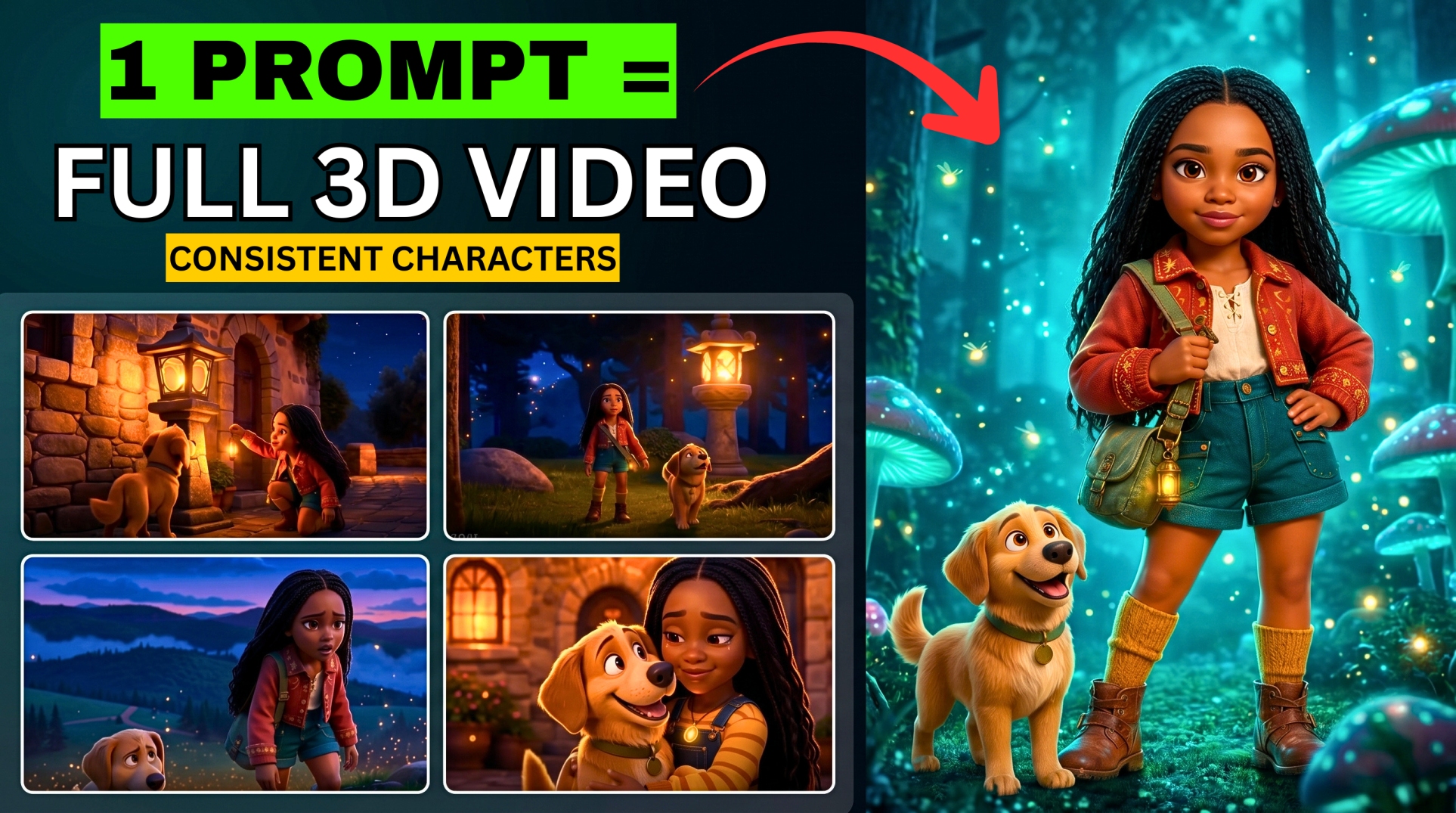



Grok Just Made Sora 2 and VEO 3 Look Outdated — And It’s Completely Free
Stop using Sora 2 and VEO 3. Grok just released something that makes both of them look outdated — and the crazy part is, it’s completely free. Most people have no clue this feature even exists.
- Grok Just Made Sora 2 and VEO 3 Look Outdated — And It’s Completely Free
- Tools You’ll Need (All Free)
- Step 1 — Generate Your 3D Story with ChatGPT
- Step 2 — Configure Grok AI Before You Start
- Step 3 — Generate Scene 1 Image in Grok
- Step 4 — Animate Scene 1 into a Video
- Step 5 — The Consistency Trick (Most Critical Step)
- Step 6 — Generate Scene 2 Using the Last Frame
- Step 7 — Repeat for All Remaining Scenes
- Step 8 — Generate Your Voiceover with Minimax
- Step 9 — Edit Everything Together in CapCut
- Full Workflow at a Glance
- Why Grok Beats Sora 2 and VEO 3 for This Workflow
Grok can now generate full-length YouTube videos with shockingly consistent 3D animation. Imagine taking a simple text story and watching it transform into a full cinematic world — every scene connected, every transition seamless, every frame looking like it was handcrafted.
Creators are already using this to pump out animated stories, documentaries, faceless channels, and full AI films — without paying a single cent. No limits, no credits, just unlimited long-form generation.
In this tutorial, I’ll walk you through the exact workflow step by step. Every prompt I used is available free in the video description or pinned comment.
🎬 Watch the full tutorial here:
💡 All prompts used in this workflow are in the video description or pinned comment above — grab them before you start.
Tools You’ll Need (All Free)
- ChatGPT — for generating your 3D story and scene prompts
- Grok AI (grok.com) — for generating images and animating them into video clips
- Minimax.io — for generating your voiceover (ElevenLabs also works)
- CapCut — for editing and exporting the final video
Step 1 — Generate Your 3D Story with ChatGPT
Open ChatGPT and paste the story generation prompt from the video description. Hit send and wait for your full story to generate.
Once the story is complete, paste in the scene prompt generator — this breaks your story down into detailed, scene-by-scene visual descriptions that you’ll use to generate each clip in Grok.
More EV News

You’ll now have two key components ready:
- The full story — used later for your voiceover
- Scene-by-scene prompts — used to generate your visuals in Grok
Step 2 — Configure Grok AI Before You Start
Open a new tab and go to grok.com. Before generating anything, there’s one critical setting to check:
- Click the menu
- Go to Settings > Behaviour
- Make sure “Enable Auto Video Generation” is turned OFF
This is essential — if left on, Grok will automatically turn every image into a video without letting you add a prompt first, which breaks the workflow.
With that confirmed, click on “Imagine” to enter the image and video generation area.
Step 3 — Generate Scene 1 Image in Grok
Go back to ChatGPT and copy the Scene 1 prompt. Return to Grok and paste it into the prompt box.
Before hitting send, set your aspect ratio to 16:9 — the cinematic format for YouTube.
Hit send. Grok will generate multiple image options. Scroll through them and pick the one that best fits your story’s visual style — look for the one with the most consistent 3D animation quality.
Step 4 — Animate Scene 1 into a Video
Once you’ve chosen your Scene 1 image, it’s time to animate it. Here’s the process:
- Paste the exact same Scene 1 prompt back into the prompt box
- This time, instead of generating an image, click the “Make a Video” button
- Wait for Grok to animate the static image into a video clip
- Once done, download the clip directly to your device
Step 5 — The Consistency Trick (Most Critical Step)
This is the single most important step in the entire workflow — the secret that keeps your characters and environment consistent from scene to scene.
You need to capture the very last frame of every video clip:
- On a computer: Right-click the last frame of the video and save it as an image
- On a tablet or phone: Open the video in your gallery, pause on the very last frame, and take a screenshot
This final frame becomes the starting frame of your next scene — keeping your visual world completely continuous.
Step 6 — Generate Scene 2 Using the Last Frame
Go back to Grok and upload the screenshot you just took of Scene 1’s last frame.
Now go to ChatGPT and copy the Scene 2 prompt. Paste it into Grok alongside the uploaded frame and click “Make a Video”.
Grok will now generate Scene 2 starting visually from where Scene 1 ended — giving you seamless scene-to-scene continuity.
Step 7 — Repeat for All Remaining Scenes
The full workflow for every scene is:
- Download the completed scene video
- Screenshot or save the very last frame
- Go back to Grok and upload that frame
- Copy the next scene prompt from ChatGPT
- Paste it into Grok and click “Make a Video”
- Download the new clip and repeat
Continue this process for every scene in your story until all clips are generated and downloaded.
Step 8 — Generate Your Voiceover with Minimax
Go back to ChatGPT and copy the full story text — not the scene prompts, just the narrative from beginning to end.
Open a new tab and go to Minimax.io (ElevenLabs or other TTS tools also work). Then:
- Paste the full story into the text field
- Preview the available voices and choose one that fits your story — the “Graceful Lady” voice is used in the tutorial
- Select the Speech 2.6 HD model for the best quality output
- Click Generate
- Download the audio file once done
Step 9 — Edit Everything Together in CapCut
Open CapCut and create a new project. Then follow these steps:
1. Import all video clips in order Add them starting from Scene 1 through to your final scene. Trim the start or end of any clips slightly to smooth out transitions.
2. Add your voiceover Tap Audio > Sounds > From Device, find your downloaded voiceover file and add it to the timeline.
3. Add transitions between clips Select each transition point between clips. The Mix transition works best for blending 3D animated scenes smoothly.
4. Adjust colors for a cinematic look
- Go to Adjust and tap Auto Adjust — then reduce the intensity slightly
- Go to Filters and apply the 4K filter at around 5% intensity
- Drag the adjustment layer to cover the entire video timeline
5. Export your final video Choose your preferred resolution and frame rate and export.
💡 For a full CapCut editing tutorial, check out the dedicated video editing guide on the BigWizTV YouTube channel.
Full Workflow at a Glance
| Step | Tool | What It Does |
|---|---|---|
| 1 | ChatGPT | Generate full story + scene prompts |
| 2 | Grok AI | Configure settings (Auto Video OFF) |
| 3 | Grok AI | Generate Scene 1 image (16:9) |
| 4 | Grok AI | Animate Scene 1 image into video |
| 5 | Gallery/Screenshot | Capture last frame of Scene 1 |
| 6 | Grok AI | Upload last frame + Scene 2 prompt → animate |
| 7 | Repeat | All remaining scenes |
| 8 | Minimax.io | Generate voiceover from full story |
| 9 | CapCut | Edit, color grade, and export |
Why Grok Beats Sora 2 and VEO 3 for This Workflow
| Feature | Sora 2 | VEO 3 | Grok AI |
|---|---|---|---|
| Price | Paid | Paid | Free |
| Watermark | Yes (free tier) | Yes (free tier) | None |
| Long-form video | Limited | Limited | Unlimited |
| Scene consistency trick | No | No | Yes (last frame method) |
| 3D animation quality | High | High | High |
Found this helpful? Subscribe to BigWizTV on YouTube and grab all the prompts from the video description. Drop a comment — what kind of AI story are you going to create first?