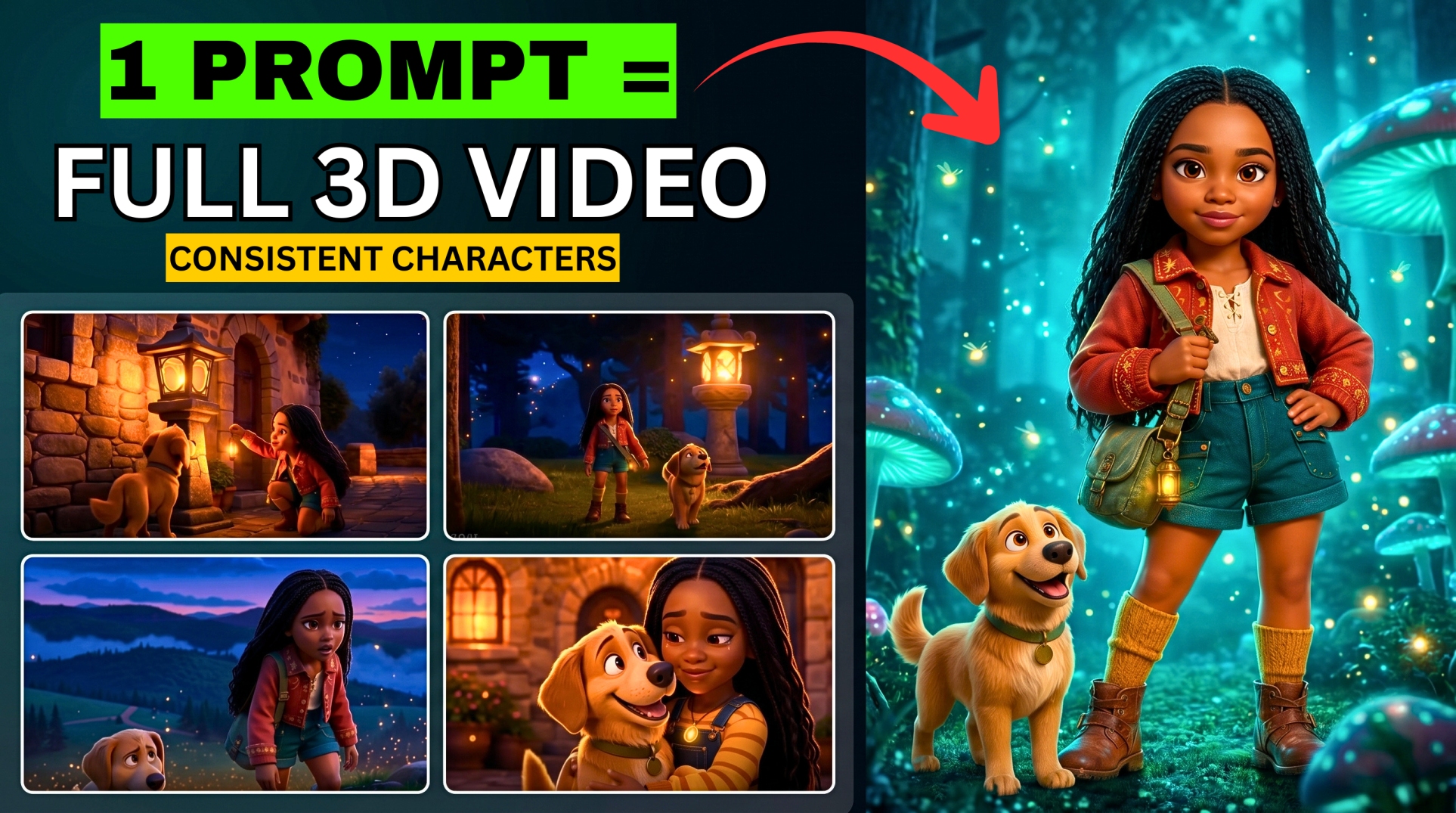




Looking for another way to create AI videos without immediately buying a subscription? This BIGWIZ MEDIA tutorial explores four options: SnapGen, ZSky, TikTok Symphony Creative Studio, and Vibes.
- The Four Tools at a Glance
- 1. SnapGen: Explore Several AI Video Models in One Place
- 2. ZSky: Generate Video with an Audio Description
- 3. TikTok Symphony Creative Studio: Generate Advertising Clips
- How the Demonstrated Video Test Works
- Current Credits and Model Access
- A Rejected Prompt in the Demonstration
- 4. Vibes: Create Variations and Continue a Clip
- How to Generate the Initial Video
- How to Extend a Video in Vibes
- Understanding the Errors Shown in the Video
- Current Free-Access Context
- Original Prompts You Can Use to Compare the Tools
- Which Tool Should You Try First?
- Frequently Asked Questions
- Are all four tools unlimited and watermark-free?
- Which tool can generate a thirty-second clip?
- Can these tools use an uploaded image?
- Can I extend a Vibes video?
- Do I have to replace Grok completely?
- Try a Focused Test Before Building a Full Project
The demonstrations cover several useful workflows, including generating clips from text, adding image references, describing audio, and extending a short video into a longer sequence.
Each platform offers a different starting point. SnapGen brings several model options into one interface. ZSky offers a straightforward video generator. Symphony focuses on advertising creatives. Vibes adds character, style, scene, and continuation controls.
This guide follows the original tests and updates the free-access details where current official information differs from the recording.
Watch the full tutorial: 4 AI Video Generators That Are ACTUALLY FREE & UNLIMITED.
The Four Tools at a Glance
| Tool | Workflow shown in the video | Current access detail to check |
|---|---|---|
| SnapGen | Select a model and generate a clip from a prompt | The homepage advertises free unlimited Veo 3.1; individual model availability still needs checking |
| ZSky | Generate video with an optional starting image and audio description | The current Free plan lists five-second clips and a small watermark plate |
| TikTok Symphony Creative Studio | Create advertising-style clips with generation credits | Weekly allocation and advanced-model access depend on the account |
| Vibes | Generate variations, use ingredients, and extend a clip | Check your account’s current creation options and usage allowance |
The video was published on August 28, 2026. Its opening describes all four tools as free, unlimited, and watermark-free. Free access has different conditions across these services, so the sections below distinguish the recorded experience from current plan information.
1. SnapGen: Explore Several AI Video Models in One Place
SnapGen is the first platform in the tutorial. Its studio displays a selection of providers and model options, including Google-related video models, Grok, Seedance, Kling, and MiniMax.
More EV News

That makes the interface useful for comparing different generation routes without beginning each test on a separate site. The recording demonstrates a successful output identified as Omni Flash and a separate Grok attempt that encounters maintenance.
SnapGen’s homepage currently advertises free unlimited Veo 3.1. That marketing statement does not establish that every model listed in the studio is continuously available on the same terms.
How to Run the First Text-to-Video Test
- Open snapgen.ai and sign in using an available account option.
- Go to the Studio and open the desired video module.
- Enter a prompt describing the subject, action, setting, and camera movement.
- Add ingredient images if you want visual references.
- Choose the aspect ratio, resolution, and clip duration offered by the selected model.
- Generate the video and review the result.
The demonstration shows 16:9 and 9:16 aspect ratios, 720p and 1080p resolution options, and durations ranging from four to ten seconds in the first module. The host leaves the resolution at 720p for the test.
The completed result is identified as Omni Flash in the recording. Keep an eye on the model attached to the actual output, particularly when several models appear within a grouped module.
For a landscape YouTube project, choose 16:9. For a vertical social clip, choose 9:16. Set the frame shape before generating so the subject is composed for the intended format.
What Happened in the Grok Test?
The host then opens the Grok module, replaces the prompt, accepts the displayed terms, and chooses orientation, resolution, duration, and audio settings.
The interface also shows a Grok extension option. However, the attempted generation returns a temporary maintenance message. The recording therefore demonstrates the controls rather than a completed Grok output.
If the module is unavailable in your account, check its displayed status before planning a project around it. You can evaluate an available model while waiting for the affected service to return.
The tutorial mentions a 30-second Grok option, but it does not successfully generate a clip with that feature. Treat it as an option shown in the recording rather than a confirmed result from the test.
2. ZSky: Generate Video with an Audio Description
ZSky is the second tool. Its video screen accepts a scene prompt and an optional reference image, which serves as a starting visual guide in the demonstration.
The recording also shows a separate audio-description area. You can describe the music, ambience, or effects you want alongside the visual scene.
How to Create a Video in ZSky
- Sign in and open the Video generator.
- Enter a focused description of the scene.
- Add a reference image if you want to guide the starting appearance.
- Describe the intended audio in the available audio field.
- Review the aspect ratio, resolution, render mode, and duration.
- Submit the request and inspect the generated clip.
In the recording, the render-mode choices include Fast, Quality, and Cinematic. The interface also displays duration choices from five to thirty seconds, although the demonstration leaves the test at its default settings.
Those recorded controls should be checked against the options currently available on your plan.
What the Current Free Plan Includes
ZSky’s current pricing table, checked October 1, 2026, advertises unlimited free generation with HD video, synchronized audio, a standard queue, and a five-second maximum.
Free videos include a small “MADE WITH / zsky.ai” watermark plate; paid tiers remove it. Free creations are kept for seven days, so download your approved clips.
These terms differ from the August duration menu. Confirm your current limits before planning a longer scene.
The site’s references to generating a video in about thirty seconds describe processing time. That is separate from the duration of the finished clip.
For a first test, use one subject and one clear movement. Listen to the audio as well as checking the image; a visually convincing clip still needs sound that fits the action.
3. TikTok Symphony Creative Studio: Generate Advertising Clips
Symphony Creative Studio is TikTok’s creative workspace for advertisers. The tutorial uses its AI video generator to create a vertical clip from a text prompt.
The recording shows 400 credits with weekly renewal in the host’s account. It also shows Dreamina/Seedance branding, while the selected model in the generation menu is labelled Video 1.5 Pro.
Those details describe the account and interface used for that test. They should not be read as a guaranteed allowance or model selection for every new account.
How the Demonstrated Video Test Works
- Open Symphony Creative Studio and sign in through a supported option.
- Open the AI video-generation workspace.
- Choose Text to video for a prompt-only test.
- Paste the scene prompt.
- Use the prompt-enhancement option if you want the tool to expand it.
- Review the available model and duration.
- Check the displayed credit cost and submit the request.
- Preview the completed video before using it in an edit or campaign.
The test selects ten seconds from a duration range of five to twelve seconds, with a displayed cost of ten credits. The generated clip is vertical 9:16.
The host describes vertical output as the limitation of that workflow. Check the format options for your currently selected model before assuming the whole platform has the same restriction.
Prompt enhancement can add useful visual detail. Read the revised wording if you are testing a specific product, action, or camera move, so the final prompt still represents your intention.
Current Credits and Model Access
TikTok’s September 2026 credit guide describes plan-based weekly allocations. Its Basic plan does not require an Ads Manager account link or ad delivery; other plans use account linkage and advertising activity.
The guide lists one credit per generated second, weekly renewal on Monday at 00:00 UTC, and no rollover of unused weekly credits. Check the balance in your account rather than assuming you will receive the video’s 400-credit allocation.
Advanced model access has separate conditions. TikTok’s Dreamina Seedance access guide currently ties direct-advertiser access to at least US$5,000 of linked ad spend over the previous thirty days; agencies follow a separate process.
Check the models available to your account before choosing Symphony for a particular generation task.
A Rejected Prompt in the Demonstration
A second request is flagged for involving a minor. The video does not show a completed result from that attempt.
If a request is rejected, read the reason and check the platform’s requirements. A rejection needs a different response from a temporary system error or an exhausted credit balance.
4. Vibes: Create Variations and Continue a Clip
Vibes is the host’s favorite tool in this video. It is part of Meta’s AI-video creation experience; the tutorial demonstrates a dedicated web interface with image, video, and lip-sync options.
Meta originally introduced Vibes as a way to create, remix, and share short AI videos within the Meta AI experience. The recording uses vibes.ai for its tests.
How to Generate the Initial Video
- Sign in and select Create new.
- Choose video generation.
- Describe the scene in the prompt box.
- Open Ingredients if you want character, style, or scene references.
- Browse the style library or keep the default styling choice.
- Review the available resolution and any start-frame or end-frame inputs.
- Generate the variations and compare the results.
The demonstration chooses 720p and runs a text-to-video test without adding a start or end image.
The ingredient categories give you several ways to guide a project: a character reference can establish the subject, a scene reference can guide the environment, and a style reference can influence the overall appearance.
Start with a small, clear idea. Once a variation works, use it as the foundation for the next part of the sequence.
How to Extend a Video in Vibes
The tutorial shows Auto extend and Manual extend controls.
For an automatic continuation, open a generated clip and select Auto extend. Review the new footage to see whether the subject, action, and setting remain coherent.
For a manual continuation, describe what should happen next. Keep the action close to the state at the end of the existing clip so the sequence has a clear connection.
In the successful test, a five-second video becomes nine seconds after extension. That is the demonstrated result, rather than a fixed duration increase for every clip.
The interface also shows voice and music options. If you add spoken words or a soundtrack, review how they sit with the generated scene before exporting or assembling it elsewhere.
Understanding the Errors Shown in the Video
Some early requests produce fewer variations than expected. An extension attempt also returns “Original prompt not available for this video.”
The host later generates a fresh set in which the original prompt is visible, and Auto extend works on one of those clips.
For that specific error, open a clip with its source prompt available and try the continuation there. Review a failed generation’s message before deciding whether to adjust the prompt or retry a temporary failure.
The recording describes the interface as beta software at the time of the test. Its errors and availability should be understood in that context rather than treated as permanent behavior.
Current Free-Access Context
Meta’s September 2026 Meta One announcement says the core Meta AI experience stays free, while subscriptions provide higher image and video generation usage.
That announcement does not establish an unlimited quota for every Vibes account. Check your current allowance and the creation features shown after signing in.
Original Prompts You Can Use to Compare the Tools
The spoken transcript does not supply the exact scene prompts used on screen. These are original examples written for this article.
For a fair comparison, begin with the same prompt and a five-second target wherever available. Note the chosen model, settings, and whether you enabled prompt enhancement.
Cinematic Motion Test
A cinematic, photorealistic shot of a small orange rescue boat climbing one dark-blue ocean wave at dusk. An adult crew member in an orange waterproof jacket stands on the deck, holding the rail as the bow rises and settles. The camera tracks alongside at a steady distance in one continuous shot. Preserve the boat’s shape, railings, jacket, and subject throughout. Natural storm lighting, realistic water movement, no cuts, text, or logos.
If the tool has a separate audio field, describe matching ocean sounds, wind, and engine ambience there. Keep audio enabled when you want to compare sound as well as visuals.
Product-Visual Test
A photorealistic product shot of matte-black headphones resting on a clean wooden desk beside a closed notebook. Warm window light moves softly across the ear cups as the camera makes one slow push-in. Preserve the headphones’ exact shape, color, and proportions. Shallow depth of field, restrained commercial lighting, one continuous shot, no added text or logos.
Upload your own product reference when you want the result to represent a specific item. Check the generated object against that reference before using the clip as a product visual.
Manual Continuation Example
Continue from the existing rescue-boat clip. Keep the same boat, crew member, clothing, sea conditions, and camera distance. The boat settles after the wave while the crew member keeps hold of the rail and looks toward the horizon. Maintain the established light and motion, with no cut or new character.
Use the continuation prompt with an approved clip and the relevant extension or reference controls. Judge the join as well as the added footage.
Which Tool Should You Try First?
Choose according to the task you want to test:
- SnapGen: explore the model choices currently available in one studio.
- ZSky: test a short scene with an optional image and audio description.
- Symphony: work on advertising-style clips using the models and credits your account provides.
- Vibes: experiment with variations, ingredients, and video continuation.
For a longer YouTube project, keep the approved clips and assemble them in an editor. A longer film usually needs a sequence of scenes, with consistent subjects, connected action, and clear audio throughout.
Use an image reference when the appearance of a person, place, or product needs to carry into another shot. Review the result rather than assuming that selecting a reference guarantees perfect continuity.
Frequently Asked Questions
Are all four tools unlimited and watermark-free?
The current conditions differ. SnapGen advertises unlimited free Veo, ZSky advertises unlimited free generation with branded output, Symphony uses weekly credits, and Vibes account allowances need checking. Inspect the plan and a downloaded sample before choosing your workflow.
Which tool can generate a thirty-second clip?
The recording displays a thirty-second option in ZSky and mentions a longer Grok option in SnapGen. It does not establish successful thirty-second output from either test. Use the current plan limits and duration controls to confirm what your account can create.
Can these tools use an uploaded image?
The recording shows ingredient images in SnapGen, an optional starting image in ZSky, reference inputs in Symphony, and ingredient or frame inputs in Vibes. The available input type depends on the selected workflow.
Can I extend a Vibes video?
The demonstration successfully uses Auto extend on a newly generated clip. It also shows an earlier missing-prompt error, so choose a clip with its source prompt available and review the continuation.
Do I have to replace Grok completely?
You can use these services as additional options for different tasks. Compare the output, access conditions, and controls that matter to your project, then keep the workflow that produces useful results for you.
Try a Focused Test Before Building a Full Project
Start with one scene and one clear action. Generate a sample, download it, and check the picture, audio, clip duration, and any visible branding.
Once the output works for your purpose, move to the next scene or test the continuation features.
Watch the complete four-tool demonstration and visit BigWizTV for more AI tools and practical resources.
For another character-reference workflow, read our Grok guide to AI videos with consistent characters.
Join our Discord community, follow our Telegram channel, and subscribe to BIGWIZ MEDIA for more tutorials.
Which of these four tools would you like to see in a full tutorial? Tell us in the comments.