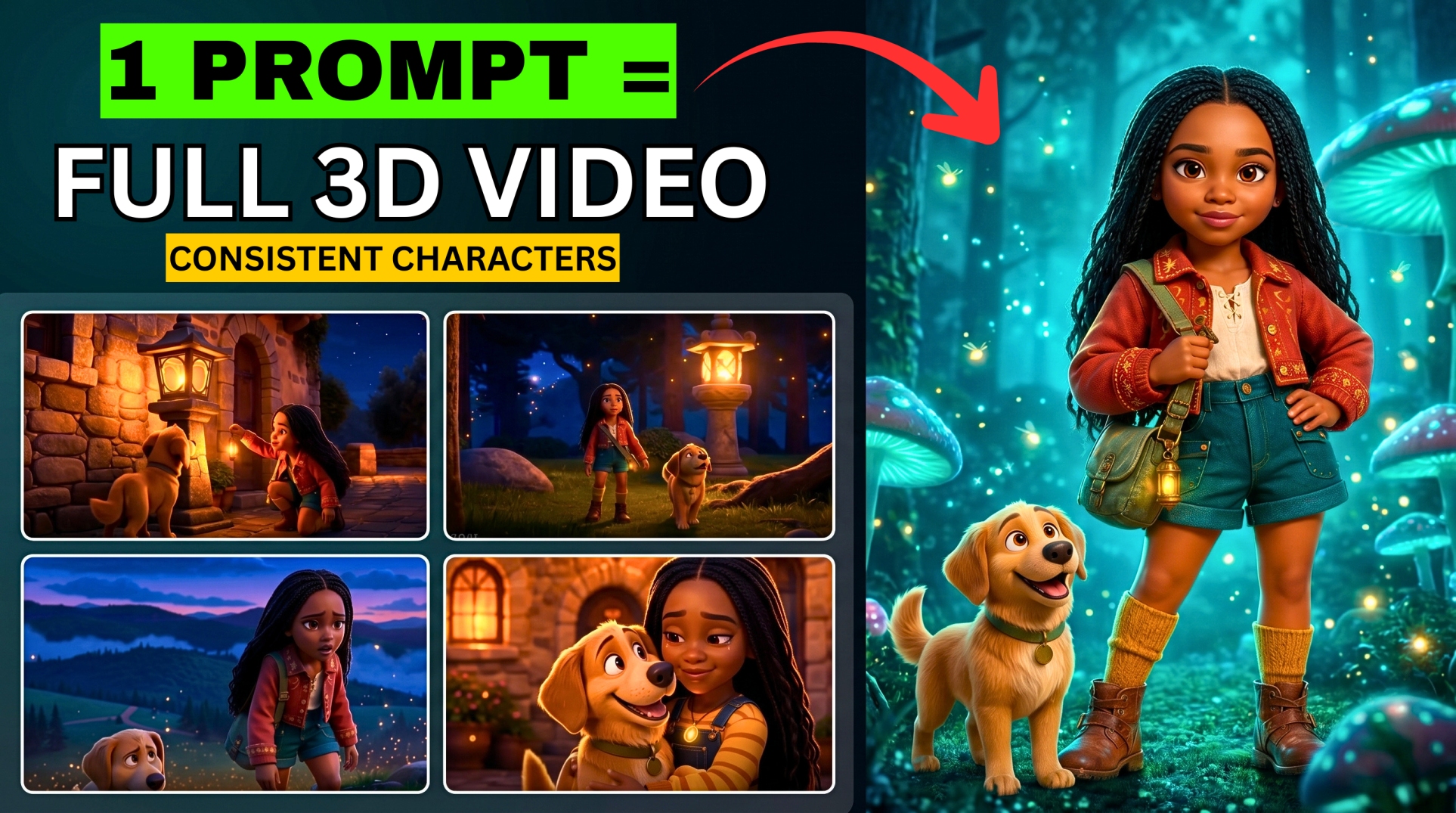



Stop Paying for AI Video Subscriptions — Here’s the Free Workflow Nobody Talks About
Are you tired of running out of credits every three seconds? Struggling to keep your AI characters looking the same from scene to scene? What if you could create full-length, high-quality AI movies with completely consistent characters — for absolutely zero dollars?
- Stop Paying for AI Video Subscriptions — Here’s the Free Workflow Nobody Talks About
- Tools You’ll Need (All Free)
- Step 1 — Generate Your Story with Arena.ai
- Step 2 — Generate Your 20 Scene Descriptions
- Step 3 — Generate Consistent Character Descriptions
- Step 4 — Install AutoWhisk Chrome Extension
- Step 5 — Generate Character Reference Images in Google Whisk
- Step 6 — Batch Generate All 20 Scene Images with AutoWhisk
- Step 7 — Assign Camera Movements to Each Scene
- Step 8 — Install Grok Automation Chrome Extension
- Step 9 — Batch Animate All Scenes with Grok + Grok Automation
- Step 10 — Generate Your Voiceover with Google AI Studio
- Step 11 — Edit Everything Together in CapCut
- The Final Result
- Full Workflow Summary
In this tutorial, I’m going to show you a powerful, little-known workflow using Grok and a few hidden free tools that completely changes the game. And here’s the part no one talks about — we’re not just generating scenes one by one. We’re automating the entire process: batch generating images, batch animating scenes, auto-downloading clips, and turning dozens of prompts into a complete long-form cinematic story, almost on autopilot.
By the end of this guide, you’ll know exactly how to create unlimited long-form AI videos with consistent characters, cinematic camera motion, full voiceover, and smooth editing — without spending a single penny.
Tools You’ll Need (All Free)
- Arena.ai (formerly LM Arena) — for AI story and scene generation
- Google Whisk — for generating character reference images
- AutoWhisk Chrome extension — for batch generating scene images
- Grok AI — for animating images into video clips
- Grok Automation Chrome extension — for batch animating all scenes
- Google AI Studio (aistudio.google.com/generate-speech) — for free voiceover
- CapCut — for final video editing
💡 All the prompts used in this workflow — storyboard, scene descriptions, character prompts, voiceover style, and camera motion — are linked in the description or pinned comment of the YouTube video above.
Step 1 — Generate Your Story with Arena.ai
Head over to Arena.ai (formerly LM Arena) and log in. Once inside, make sure you toggle on Direct Mode. This feature gives you free access to almost all popular AI models including Gemini Pro, Claude, Grok AI, ChatGPT, and many others — all for free.
Go to your prompts document and copy the story prompt. Select Gemini Pro as your AI model and hit send. Once the script finishes generating, save it — this will be used later for your voiceover.
Step 2 — Generate Your 20 Scene Descriptions
Next, copy the scene generation prompt and paste it into Arena.ai. Since Grok AI generates 6-second videos per prompt, you’ll need 20 scenes to cover a 2-minute video. The prompt is set up to request exactly 20 visual scene descriptions from your story.
Hit send and wait for all 20 scenes to generate. These visual descriptions will be used to generate your scene images, which you’ll later animate using Grok.
More EV News

Step 3 — Generate Consistent Character Descriptions
Copy the character design prompt from your prompts document and paste it into Arena.ai. This will generate detailed text-to-image prompts for your main characters — ensuring visual consistency throughout your entire video.
For the example in the video, this generates prompts for:
- Elara — a young girl (the human character)
- Pip — a sparrow (the animal character)
Save these prompts — you’ll need them in the next step.
Step 4 — Install AutoWhisk Chrome Extension
Open Google Chrome and go to the Chrome Web Store. Search for AutoWhisk and install the extension. You’ll be using this tool to batch generate all 20 scene images automatically.
Step 5 — Generate Character Reference Images in Google Whisk
Search for Google Whisk and open it in a new tab. Log in and enter the tool.
Copy the first text-to-image prompt (for Elara the young girl) from Arena.ai and paste it into Google Whisk. Hit send. Then repeat the same process for the second prompt (for Pip the sparrow).
Once both characters have finished generating, download one image for each character. These will serve as your reference images to ensure character consistency across all 20 scenes.
Step 6 — Batch Generate All 20 Scene Images with AutoWhisk
Go back to Arena.ai and copy all 20 scene descriptions. Click on your Chrome extensions and open AutoWhisk. Make sure to:
- Select English
- Choose version 7.6
- Paste all 20 scene prompts — the tool will automatically detect and separate them
Before generating, go to Settings > Control tab and upload your two character reference images (Elara and Pip). Then assign the correct names in the caption fields:
- Caption for the girl’s image: Elara
- Caption for the sparrow’s image: Pip
This ensures the AI recognises your characters across every scene prompt.
Next, set your aspect ratio:
- Landscape (16:9) for YouTube
- Portrait (9:16) for TikTok or Instagram Reels
Click Start. AutoWhisk will now generate all 20 images and automatically download them to a designated folder on your device. Wait for all 20 scenes to finish before moving on.
Step 7 — Assign Camera Movements to Each Scene
Before animating, you need to assign specific cinematic camera movements to each scene. Go back to Arena.ai, copy the Cinematic Motion Guide prompt along with the full list of camera movement options from your prompts document, and paste them in.
The AI will automatically assign appropriate camera movement instructions to each of your 20 scenes. Copy this full list — you’ll use it in the next step.
Step 8 — Install Grok Automation Chrome Extension
Go back to the Chrome Web Store and search for Grok Automation. Install this extension — it automates the animation process so you don’t have to animate each scene manually in Grok.
Step 9 — Batch Animate All Scenes with Grok + Grok Automation
Open grok.ai and sign in. First, go to Settings > Behaviour and make sure Automatic Video Generation is turned OFF.
Now click on your Chrome extensions and open Grok Automation. In the interface:
- Select Frame to Video (since you’re converting images to video)
- Upload all 20 scene images in order from Scene 1 to Scene 20
- Go back to Arena.ai, copy the camera movement prompts, and paste them into the Grok Automation interface — it will automatically assign each prompt to its matching image
Before hitting Run, go to Settings and configure:
- Aspect Ratio: 16:9 (for YouTube)
- Auto output video per prompt: 1
- Auto download quality: 720p (highest available)
- Language: English
Save your settings, go back to the Control tab, scroll down and click Run.
The tool will now process all 20 images, animate them using Grok AI, and automatically download each clip as it finishes. Sit back and let the automation handle it. Once complete, you’ll have all 20 video clips downloaded and ready.
Step 10 — Generate Your Voiceover with Google AI Studio
Go back to Arena.ai and copy the original story script you generated in Step 1. Open a new tab and go to:
👉 aistudio.google.com/generate-speech
(Link also in the video description)
- Select Single Speaker Audio
- Paste your story text
- Copy the voiceover style instruction prompt from your prompts document and paste it into the style field
- Preview the available voices and select the one that fits your story
- Click Run to generate the audio
- Download the voiceover file
Step 11 — Edit Everything Together in CapCut
Open CapCut and create a new project. Then:
- Import all 20 video clips in order (Scene 1 through Scene 20)
- Drag and drop them onto the timeline
- Do a quick playback to review
- Import your voiceover and place it on the audio track beneath the video clips
- Go to the Transitions tab, pick a transition you like, and click Apply to All
- If the voiceover is longer than your video clips, select individual clips and slightly decrease their speed to extend clip duration and match the audio timing
💡 For a full deep-dive on editing in CapCut, check out the dedicated CapCut tutorial on BigWizTV.
The Final Result
Following this complete workflow, here’s what you end up with — a fully animated, cinematic AI short film with:
- ✅ Consistent characters across all 20 scenes
- ✅ Cinematic camera movements on every clip
- ✅ Professional AI voiceover
- ✅ Smooth transitions
- ✅ Zero dollars spent
Full Workflow Summary
| Step | Tool | What It Does |
|---|---|---|
| 1 | Arena.ai | Generate story script |
| 2 | Arena.ai | Generate 20 scene descriptions |
| 3 | Arena.ai | Generate character prompts |
| 4 | Chrome Web Store | Install AutoWhisk extension |
| 5 | Google Whisk | Generate character reference images |
| 6 | AutoWhisk | Batch generate all 20 scene images |
| 7 | Arena.ai | Assign camera movements to scenes |
| 8 | Chrome Web Store | Install Grok Automation extension |
| 9 | Grok + Grok Automation | Batch animate all 20 scenes into video |
| 10 | Google AI Studio | Generate voiceover audio |
| 11 | CapCut | Edit and export final video |
Get the Prompts; CLICK TO DOWNLOAD
Found this helpful? Subscribe to BigWizTV on YouTube for more free AI workflows every week. Drop your questions in the comments below — I read every one.