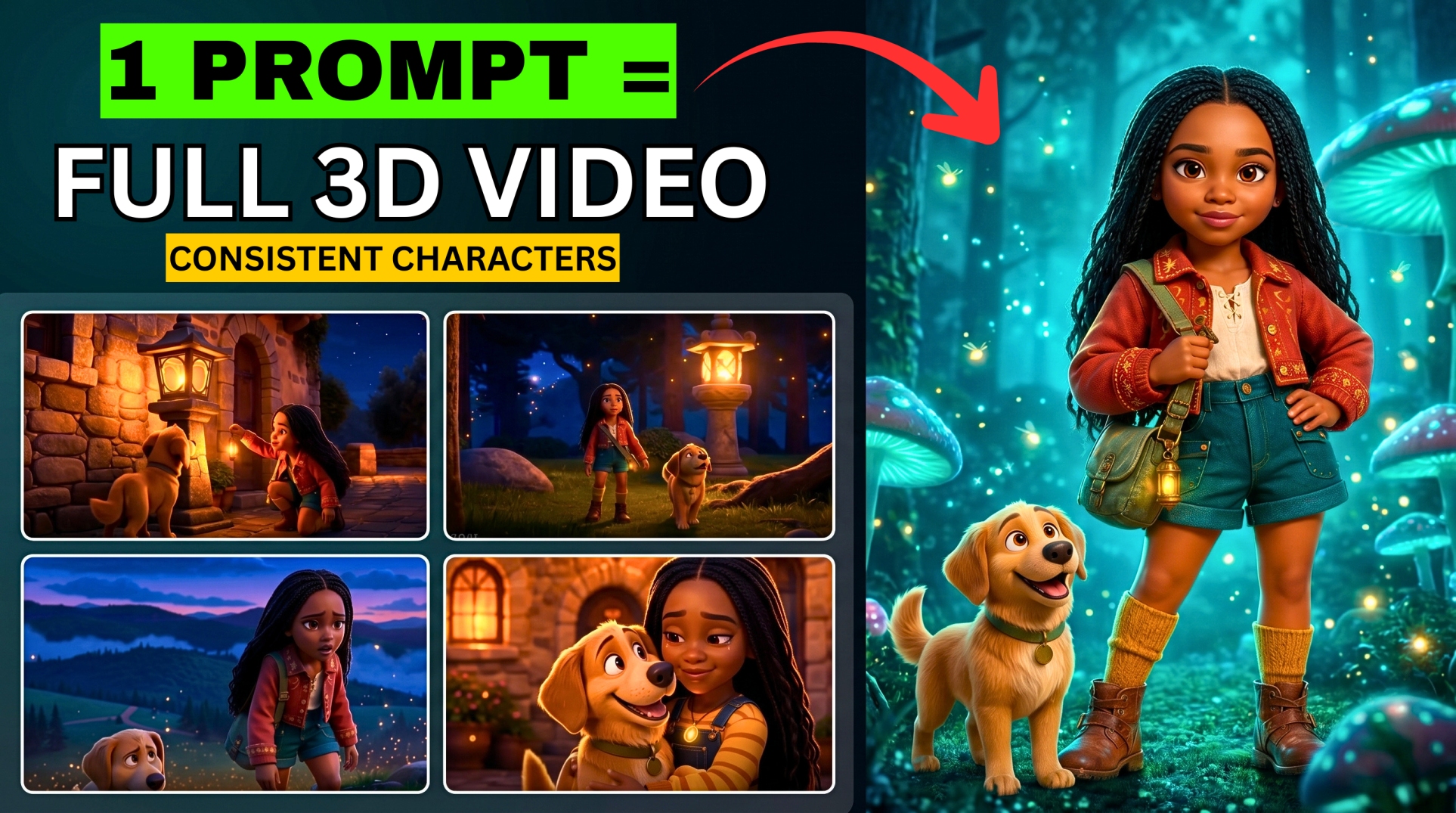



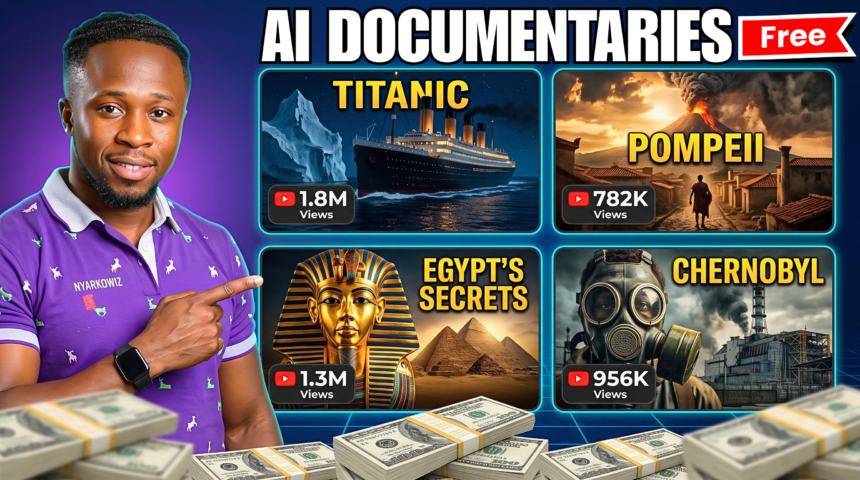
One master prompt can help you turn a documentary idea into a researched script, scene images, animation instructions, and narration. Google Flow’s built-in Agent then handles the visual generation in batches, while you review the results and assemble the finished video.
- The Tools and Their Roles
- Plan Your Free Access and Video Credits
- Step 1: Start the Master Prompt and Answer Six Questions
- Step 2: Check the Research and Approve the Script
- Step 3: Generate the Image Prompts
- Step 4: Configure Google Flow Agent
- Step 5: Generate the Image Batch and Check the Names
- Step 6: Generate and Submit the Animation Prompts
- Step 7: Review the Clips and Download a Collection
- Step 8: Extract the Approved Narration as Plain Text
- Step 9: Generate the Voiceover in Google AI Studio
- Step 10: Match the Footage to the Narration in CapCut
- Step 11: Check and Export the Documentary
- Scaling the Workflow to Longer Documentaries
- Frequently Asked Questions
- Does One Prompt Create the Finished Documentary Automatically?
- Can Flow Agent Animate the Images in Batches?
- Why Use the Rename Instruction?
- Can I Use the Workflow for Vertical Videos?
- Are All the Tools Unlimited and Free?
- Create Your First AI Documentary
In this BIGWIZ MEDIA tutorial, we create a short historical documentary about the sinking of RMS Empress of Ireland in 1914. ChatGPT prepares the production plan, Flow generates and animates six scenes, Google AI Studio creates the voiceover, and CapCut brings everything together.
The detail that keeps the workflow organized is simple: name each image by its scene number and use that same name in its animation prompt. That gives the Agent a clear way to pair each instruction with the intended scene.
This guide follows the complete one-minute demonstration, with practical advice for historical accuracy, batch review, credit usage, and longer productions.
Watch the full tutorial: ChatGPT + Google Flow Automation Just Changed AI Videos Forever.
Get the master prompt: Cinematic Fact-Based Documentary Production System.
The Tools and Their Roles
| Tool | Role in the documentary |
|---|---|
| ChatGPT or another text chatbot | Research, script, image prompts, animation prompts, and narration text |
| Google Flow Agent | Generate images and animations in batches, then organize the assets |
| Nano Banana 2 | Create the demonstration’s scene images |
| Omni Flash 1.1 | Animate the approved images in Flow |
| Google AI Studio | Generate the documentary voiceover |
| CapCut | Match the visuals to narration, add transitions, and export |
The master prompt organizes the planning conversation. Flow produces the media, AI Studio produces the narration audio, and the editor assembles the film.
More EV News

The demonstrated automation uses the Agent inside Google Flow. You can follow this workflow directly in the dashboard.
Plan Your Free Access and Video Credits
The tutorial selects Nano Banana 2. Google’s current model guide also lists Nano Banana 2 Lite as the default image model available at no charge. Choose the option available to your account and inspect the generation settings before starting.
As checked on October 5, 2026, Google’s Flow credit guide lists 50 daily credits for non-subscribers. Video generation uses credits, and free access can be restricted during busy periods.
For a planning example, six ten-second Omni Flash clips would currently use 42 credits at 360p or 90 credits at 720p, excluding retries. Those are calculations for specified settings, rather than the demonstration’s confirmed total spend.
Start with a small project and keep the video output count at one. Review the credit request before approving a batch, and allow room for revisions when planning a longer documentary.
Step 1: Start the Master Prompt and Answer Six Questions
Copy the master prompt into your chatbot. ChatGPT is the tool used in the recording, but the prompt can also guide a planning conversation in another capable chatbot.
The prompt collects your production choices in two groups. First, it asks for the topic, duration, and aspect ratio. Then it asks for the audience, narration language, and tone.
The demonstration uses these choices:
| Question | Demonstration answer |
|---|---|
| Documentary topic | The sinking of RMS Empress of Ireland, 1914 |
| Duration | One minute |
| Aspect ratio | 16:9 |
| Audience | All audiences |
| Voiceover language | English |
| Tone | Balanced professional documentary |
Choose a topic with reliable sources and a clear sequence of events. You can select a suggested idea or enter your own subject.
The aspect-ratio options are 9:16 for vertical, 16:9 for widescreen, and 1:1 for square. Keep the selected format consistent when you later configure Flow.
Step 2: Check the Research and Approve the Script
The master prompt requires research before writing. It asks the chatbot to establish chronology, verify important details, and distinguish documented facts from uncertainty and historical reconstruction.
It also produces a blueprint describing the topic, central question, locations, tone, runtime, and story structure. Review that plan before accepting the narration.
For a factual documentary, check the sources yourself. If your chatbot cannot browse, provide reliable reference material and ask it to identify anything that still needs verification.
For this tutorial’s subject, Parks Canada’s historical record confirms that Empress of Ireland collided with SS Storstad on May 29, 1914, sank about fourteen minutes later, and lost 1,012 lives. Check ship names and figures before they appear in narration or visual labels.
Introduce the generated scenes as AI historical reconstructions. Use the available evidence to guide their settings, objects, clothing, and actions.
How the Master Prompt Divides the Runtime
The shared prompt uses this planning system:
| Selected documentary length | Script chunks and image prompts |
|---|---|
| One minute | 6 |
| Three minutes | 18 |
| Five minutes | 30 |
| Ten minutes | 60 |
| Twenty minutes | 120 |
Each chunk is initially planned as a visual unit of up to ten seconds. The prompt prefers 16–21 narration words per chunk, with a maximum of 22.
These are production targets. The final voiceover’s pace and the usable footage determine the finished timing.
Review each chunk for a clear story function and one visual idea. Every section should establish context, explain a development, or show a consequence.
Step 3: Generate the Image Prompts
After the script, type NEXT to move to the image-prompt phase. The one-minute demonstration produces six image prompts, one for each narration chunk.
The prompt keeps recurring subjects, locations, historical details, and visual style consistent across the scenes. For a ship documentary, compare the vessel’s shape, funnels, masts, and deck layout with historical references before generating the full set.
The image blocks include a naming instruction directly beneath the description. This format example shows the structure; replace the bracketed lines with your approved prompts:
IMAGE 1
[Approved image prompt for scene one]
Rename the Image 1.

IMAGE 2
[Approved image prompt for scene two]
Rename the Image 2.
Keep the description and its rename instruction together, with one blank line between complete image blocks.
The shared prompt requests a cinematic, photorealistic 4K look. A quality phrase in a prompt does not determine the downloaded image’s actual pixel dimensions, so inspect the resulting files when choosing your export settings.
Step 4: Configure Google Flow Agent
Open Google Flow, create a project, and turn Agent on in the prompt box. Check that the Agent label is visible before submitting the batch.
Open its settings and configure the image generation:
| Setting | Demonstration choice |
|---|---|
| Agent | On |
| Image model | Nano Banana 2 |
| Outputs per generation | One |
| Aspect ratio | 16:9 |
| Confirm before generating | Always |
Save the settings. The Always option tells Flow to ask before a generation uses credits, giving you an opportunity to check the request.
Google’s Agent guide documents these defaults, along with generating media, using references, renaming assets, and organizing collections.
Keep the confirmation setting active for the animation stage as well.
Step 5: Generate the Image Batch and Check the Names
Copy the complete image-prompt batch from your chatbot, from the first scene through the last, including every naming line. Paste it into Flow Agent and send it.
The Agent works through the six prompts in the demonstration. For larger projects, review a manageable group of scenes before proceeding with the next group.
You can add this original instruction before the batch if you want to make the task explicit:
Generate one image for each numbered prompt block below, using the selected aspect ratio and image model. Retain the shared historical details and visual style. Apply each block’s rename instruction to its corresponding output. Keep every scene separate, then report any missing scenes or naming conflicts.
Inspect the completed images for historical details, visual continuity, and unwanted additions. Also confirm that every requested scene exists and has a distinct name.
Why the Names Matter
The scene name connects the image phase to the animation phase:
| Script chunk | Image asset | Animation reference |
|---|---|---|
| Chunk 01 | Image 1 | Image 1 |
| Chunk 02 | Image 2 | Image 2 |
| Chunk 03 | Image 3 | Image 3 |
| Continue in sequence | The matching numbered image | The same image name |
Check the actual names in your project. If the Agent produces a duplicate or ambiguous name, correct it before starting animation.
Keep the approved images in the same Flow project. You can also download copies for your own working files.
Step 6: Generate and Submit the Animation Prompts
Return to the chatbot and type NEXT after the image prompts. It produces one video prompt per image and script chunk.
The shared format references the numbered image, copies the approved narration, identifies the documentary visual style, and specifies a duration. For example:
Image 1
NARRATION: [Exact approved narration from Chunk 01]
Visual: Documentary Style
Duration: 10 seconds
The narration is a content cue linking the visual to the story. The final voiceover is generated separately in AI Studio.
The master prompt allows four-, six-, eight-, or ten-second durations. Choose the time needed for that section of narration, and inspect the duration shown in Flow’s generation request.
Copy the complete animation batch into the Agent prompt box. Select Omni Flash 1.1, the model used in the demonstration, and keep the output count at one.
Use this original instruction if you want to clarify the image-to-prompt mapping:
Animate the existing approved image named in each block. Match Image 1 to the Image 1 instructions, Image 2 to Image 2, and continue in order. Use each block’s stated duration and preserve the established subject, environment, and documentary style. If an image name is missing or ambiguous, identify the issue before generating that scene.
Review Flow’s request, including the selected model, output count, durations, referenced images, and credit cost. Approve the batch when those details match your plan.
The Agent then generates the six animations. This workflow uses Agent Mode for both the image batch and the video batch.
Step 7: Review the Clips and Download a Collection
Watch every animation before accepting the set. Check the ship’s appearance, camera movement, environmental details, and the action described by the narration.
If a clip has an error, revise that scene while preserving its name and references. Keep the approved version clearly identified so you can select it for the edit.
The tutorial asks the Agent to place the videos in one collection. An original version of that instruction is:
Place the approved documentary videos in a collection named Empress of Ireland Documentary. Include one approved video for each scene, keep the still images outside the video collection, and retain the scene numbers in the asset names.
Check that the collection contains all six approved clips. Open its download control or menu, then download the collection. The demonstration receives a ZIP file containing the videos.
Extract the ZIP and confirm the files before opening your editor. Google’s collection guide also explains grouping and downloading assets.
For longer productions, collections help you keep the approved scenes together while you work through additional batches.
Step 8: Extract the Approved Narration as Plain Text
After the video-prompt phase, type NEXT in the planning conversation. The master prompt returns all narration lines in chronological order.
The template includes narration labels. For text-to-speech, request only the spoken words, preserving the approved wording.
Here is an original instruction you can use:
Return the approved narration as plain text in its original chronological order. Remove narration numbers, scene headings, timestamps, and production notes. Preserve every spoken word, name, and figure exactly. Do not shorten, expand, or rewrite the script.
Compare the plain text with the approved script. Check that no line is missing, repeated, or changed.
The master prompt also offers AUDIO and EDITING commands for additional production guidance. Use them when you need suggestions for ambience, music, sound effects, or finishing the timeline.
Step 9: Generate the Voiceover in Google AI Studio
Open Google AI Studio and start a speech-generation session. The recording selects Gemini 2.5 Pro Preview TTS and opens the text input view.
Paste the approved narration, preview the available voices, and choose one that suits your topic. Use a single narrator for this documentary.
You can try this original speaking direction alongside the narration:
Read as a professional historical documentary narrator. Use a clear, resonant voice and measured pacing, with natural pauses between developments. Pronounce ship names, dates, and numbers carefully. Let the factual sequence carry the tension and avoid exaggerated emotional delivery.
Click Run, listen to the complete take, and download the approved audio. The demonstration’s voiceover is 59 seconds long, close to its one-minute target.
Use the actual audio duration as your editing reference. If the recording runs significantly longer or shorter than planned, revise the script or timing before finishing the visual sequence.
Google’s speech documentation describes model and voice controls. The model shown in the tutorial is a recorded choice; select an available TTS model in your current interface. Google lists AI Studio usage as free in supported regions, subject to the service’s available models and limits.
Step 10: Match the Footage to the Narration in CapCut
Open CapCut or your preferred editor and create a project. Import the extracted video clips and downloaded voiceover.
The demonstration places the voiceover on the timeline first, then arranges the footage above it. Follow the narration’s story order, using the numbered scene names to identify the correct clip.
Match each visual to the relevant words. The opening should establish the voyage; the later clips should follow the verified sequence and consequences described by the script.
Trim excess footage where needed. If a section is too short, adjust its clip plan, generate supporting footage, or use a suitable hold on an approved image. These are timing options you can apply during the edit.
If your generated clips contain speech, mute that speech when using the AI Studio narration as the final voice track. Retain only audio that supports the finished mix without overlapping the narrator.
Add the Demonstrated Fade Transition
The creator chooses a black fade, places it between clips, and applies it across the sequence.
Preview the transition duration after applying it. Check that the fade gives each shot enough time to show its important detail and that the last image lasts through the final spoken line.
Use restrained music or sound effects if they help the story, keeping them below the narration. Review the complete film for pacing, clear speech, correct scene order, and visual continuity.
Step 11: Check and Export the Documentary
Before export, confirm that:
- The opening image supports the first spoken line.
- Every clip matches its assigned narration section.
- Historical names, figures, and any displayed text are correct.
- The recurring ship, locations, and visual style remain consistent.
- Transitions and audio leave the narrator easy to understand.
- The closing image remains on-screen through the ending.
The tutorial exports in 4K and also mentions 1080p as an option. Choose settings available in your editor and appropriate for the source footage.
A 4K export produces a larger output frame, but its visible detail still depends on the generated source clips. Preview the finished file after export to check the picture, sound, and runtime.
Scaling the Workflow to Longer Documentaries
The master prompt supports durations up to twenty minutes, with 120 planned chunks for that option. A longer documentary also needs more research, approved images, animations, and review time.
Keep a simple production record of each scene’s number, image name, narration, animation duration, and approved clip. Group longer projects into manageable batches and collections.
The automation saves repeated prompt entry, but you still need to inspect the facts and media. Finish a short sequence first, establish its style, and carry that approved approach into the remaining scenes.
Frequently Asked Questions
Does One Prompt Create the Finished Documentary Automatically?
The master prompt prepares the research-led script and production instructions. Flow generates the visuals, AI Studio generates the narration, and you review and assemble the film in your editor.
Can Flow Agent Animate the Images in Batches?
Yes. The demonstration submits a complete animation batch and uses numbered image names to connect each prompt to its intended existing image. Review the references and generation request before starting.
Why Use the Rename Instruction?
It gives each image a distinct scene name that can be reused in the animation prompts and editing plan. Check those names in the project so every reference identifies the intended asset.
Can I Use the Workflow for Vertical Videos?
Choose 9:16 during intake and use the same format in Flow. Frame important subjects and any labels for that vertical composition.
Are All the Tools Unlimited and Free?
Free access and allowances can help you start. Video generation, model availability, usage limits, and some output options depend on your account and current service conditions.
Create Your First AI Documentary
Choose a subject with reliable evidence, start with the one-minute option, and approve a clear six-scene plan. Keep the image names and animation references aligned, then use the finished narration to guide your edit.
Get the master prompt and follow the full BIGWIZ MEDIA tutorial alongside this guide.
Explore more workflows at BigWizTV.com, join our Discord community, and follow the BIGWIZ MEDIA Telegram channel. Share the documentary topic you want to create with the community.