


I Made a Complete 90-Second AI Movie — Characters Stayed Consistent the Whole Way Through
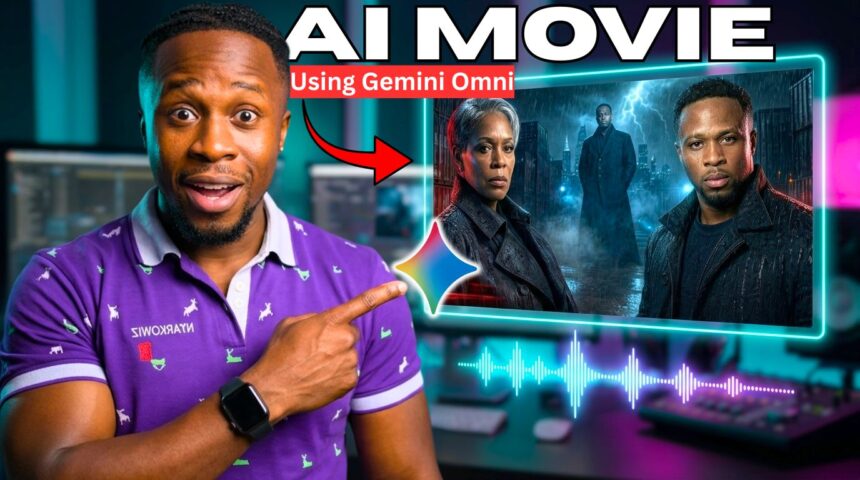
Everything you’re watching at the start of this video was created using Gemini Omniflash inside Google Flow. Not just a trailer — a complete 90-second thriller, drama, and action film, entirely created with AI.
- I Made a Complete 90-Second AI Movie — Characters Stayed Consistent the Whole Way Through
- 💡 Character sheet prompts (male and female versions)
- Getting Started — Google Flow Interface Overview
- Phase 1 — Create Your Characters (Character Sheets)
- Step 1 — Start a New Character:
- Step 2 — Expand to a Full Character Sheet:
- Step 3 — Assign a Voice:
- Step 4 — Name and Save:
- Phase 2 — Plan Your Story with ChatGPT
- Phase 3 — Generate Each Scene in Google Flow
- Phase 4 — Dealing with Bad Generations and AI Glitches
- Phase 5 — Edit Everything Together in CapCut
- Phase 6 — Remove the Google Flow Watermark
- Full Workflow Summary
- Pro Tips for Better Results
The characters remained consistent from beginning to end. The voices matched. The scenes flowed together. And with a little editing, I turned separate AI clips into one cinematic short film.
In this tutorial I’ll show you exactly how:
- Creating consistent characters with full character sheets
- Planning the story using ChatGPT
- Generating every scene inside Google Flow using Gemini Omniflash
- Fixing bad generations and AI glitches
- Editing everything together in CapCut to produce the finished movie
- Removing Google Flow watermarks — two methods (free + paid)
🎬 Watch the full tutorial here:
💡 Character sheet prompts (male and female versions)
Getting Started — Google Flow Interface Overview
Visit the Google Flow platform (link in the video description). Click New Project.
The interface includes:
| Tab | What It Does |
|---|---|
| + (Plus icon) | Add images or videos for Omniflash to edit |
| Voices | Assign consistent voices to characters |
| Characters | Create character sheets and insert into videos |
| Avatar | AI avatar tools |
| Upload | Personal asset library |
| Agent | Activate Agent mode for continuous AI generation via chat |
💡 Agent mode lets you chat with the AI to continuously generate content — but for this workflow, we focus on Omniflash for precise scene-by-scene control.
Selecting the Right Model:
- Click Video
- Select Omniflash (not Veo 3.1 for this workflow)
- Set duration up to 10 seconds per scene
- Set output count to 1 — this saves credits and gives you one focused clip per scene
Phase 1 — Create Your Characters (Character Sheets)
This is the most important step for character consistency. Google Flow’s Characters tab lets you build full character sheets with front, back, and profile views.
More EV News

Step 1 — Start a New Character:
- Navigate to the Characters tab
- Click “New Character”
- Either type a custom description of your character or select one of the sample preset prompts — the preset fills the prompt box automatically
- Upload a reference image of your existing AI avatar to ground the character’s appearance
- Click Send
The AI generates a portrait of your character.
Step 2 — Expand to a Full Character Sheet:
The initial generation only shows a portrait. To get the full body view, profile views, and back view needed for consistent scene generation:
- Copy the character sheet prompt from the video description (separate prompts for male and female characters)
- Paste it into the prompt box
- Click Send
The AI edits the portrait and outputs:
- Full body front view
- Left profile
- Right profile
- Back view
- Headshot
You now have everything needed to maintain visual consistency across all your scenes.
Step 3 — Assign a Voice:
- Browse the available voices
- Optionally create a custom voice by describing the type of voice you want
- Select your preferred voice and assign it to the character
⚠️ Note: As of now, you cannot clone your own voice — you must describe the voice type for the AI to create.
Step 4 — Name and Save:
- Give your character a name
- Add any background details in the description box (optional but helpful for AI context)
- Click Done
Repeat for all characters in your film. The tutorial uses three characters: Queen Mother, Big Whiz, and Marcus.
Phase 2 — Plan Your Story with ChatGPT
Since writing a complete screenplay from scratch is time-consuming, use ChatGPT to generate your story and scene prompts:
- Take screenshots of your created characters
- Go to ChatGPT and paste this prompt: “Let’s plan a trailer for a drama action short film with these characters. Note: I will use Google Omniflash to generate the videos.”
- Attach your character screenshots
ChatGPT will generate:
- A full storyline
- Character descriptions and arcs
- Scene-by-scene visual prompts ready to paste directly into Google Flow
For the tutorial film, ChatGPT generated 7–8 scene prompts covering the complete story arc.
Phase 3 — Generate Each Scene in Google Flow
For Each Scene:
- Copy the scene prompt from ChatGPT
- Paste it into the Google Flow prompt box
- Click the plus (+) sign and go to Characters
- Add the specific characters that appear in this scene
- Only add characters who actually appear — if Marcus isn’t in Scene 2, don’t include him
- Confirm Omniflash is selected
- Set output to 1
- Click Send
Repeat this process for all 7–8 scenes. Download each clip as it finishes.
Phase 4 — Dealing with Bad Generations and AI Glitches
This is the most important practical section. Expect glitches — the Omniflash model is sensitive to certain content types.
Common Glitch Triggers:
- Guns and weapons — AI tends to perform poorly and distort these
- Hand-to-hand combat — multiple attackers in one scene is very difficult for the AI
- Intense violence — often causes visual artifacts
Common Glitches You’ll See:
- Character’s neck/head unnaturally twisted
- Face morphing mid-clip
- Strange marks appearing on the character
- Physics errors on props or clothing
How to Handle It:
- Regenerate the problematic clip with a slightly adjusted prompt — remove violent or sensitive elements
- Download the clip anyway if only a small section is glitched
- Trim the bad frames during editing in CapCut — cut the glitched moment before or after it
💡 The finished film looks clean because every bad frame was trimmed out during the CapCut edit — viewers never see the glitches if your editing is tight.
Phase 5 — Edit Everything Together in CapCut
- Import all your downloaded scene clips into CapCut
- Drag them onto the timeline in scene order
- Trim bad frames from any glitched clips
- Add transitions between clips — the Passerby effect was used in this tutorial for a cinematic look
- Review the full edit for flow and pacing
- Export the final film
💡 A full CapCut editing tutorial is available on the BigWizTV YouTube channel — check that out for a complete editing guide.
Phase 6 — Remove the Google Flow Watermark
Google Flow adds a watermark to generated clips. Here are two methods to remove it:
Method 1 — CapCut Pro (Best Quality)
- Select the clip on the timeline
- In the Basic tab on the right panel, scroll down to find AI Remove
- Toggle AI Remove ON
- Use the AI Brush tool to paint directly over the watermark area
- Click Remove
- The AI processes and erases the watermark cleanly
Repeat for every clip on your timeline. This method preserves full video quality.
Method 2 — Magic Eraser (Free Online Tool)
- Search for “Magic Eraser” in your browser and open the first result
- Click on Video Tools at the top
- Select “Video Watermark Remover”
- Upload your clip
⚠️ Important: Do NOT use the AI V2 option — in testing it significantly degraded video quality and distorted character faces.
- Use the Manual Mask option instead
- Draw a precise box specifically over the watermark area only
- Click Remove
The Manual Mask method removes the watermark cleanly while preserving the original video quality.
💡 You may not need to log in for initial use — just visit, upload, and remove. If you hit a usage limit, create a free account to continue.
Full Workflow Summary
| Phase | Tool | What It Does |
|---|---|---|
| 1 | Google Flow (Characters tab) | Create full character sheets with all views |
| 2 | ChatGPT | Generate storyline + scene-by-scene visual prompts |
| 3 | Google Flow (Omniflash) | Generate each scene clip with characters attached |
| 4 | Manual review | Identify and note glitched frames |
| 5 | CapCut | Edit clips, trim glitches, add transitions |
| 6A | CapCut Pro | Remove watermark with AI Brush tool |
| 6B | Magic Eraser (free) | Remove watermark with Manual Mask |
Pro Tips for Better Results
- Always set output to 1 — saves credits and keeps your focus on one strong clip per scene
- Build full character sheets before generating any scenes — consistency starts here
- Only include characters in scenes they actually appear in — don’t add all characters to every prompt
- Expect regenerations — plan for 2–3 attempts on any scene involving action or weapons
- Trim aggressively — a tight 90-second film with clean frames beats a 3-minute film full of glitches
- Use Manual Mask for watermark removal — never use AI V2 for this, it degrades quality
Found this helpful? Subscribe to BigWizTV on YouTube for more AI filmmaking tutorials. Drop a comment — what type of AI movie do you want to create next?