




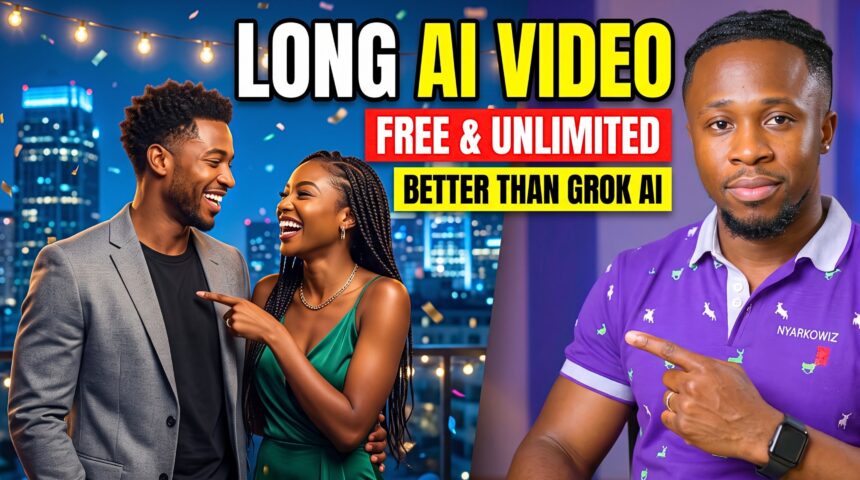
Make your AI characters talk, react, and stay recognizable throughout a complete story. A convincing scene needs the right face, a familiar voice, natural dialogue, and mouth movements that follow the words.
- What You Need
- What Free Access Covers
- Step 1: Write a Short Dialogue Story
- Step 2: Convert the Dialogue into a Scene Plan
- Step 3: Create Frank as a Saved Character
- Step 4: Create Rosina with Her Own References and Voice
- Step 5: Add Turnaround Views if Needed
- Step 6: Generate the First Scene Image
- Step 7: Animate the Image with Dialogue in Omni Flash
- Step 8: Keep the Environment Consistent Between Shots
- Step 9: Review Lip Sync and Split Long Exchanges
- Step 10: Download and Assemble the Film
- How to Expand the Workflow into Long AI Movies
- Frequently Asked Questions
- Can I Make These Videos Without a Paid Subscription?
- Does Each Scene Need a Separate Voiceover?
- Why Generate an Image Before the Video?
- Is This Better Than Grok AI?
- Will Every Generation Have Perfect Lip Sync?
- Create Your First Talking-Character Scene
In this BIGWIZ MEDIA tutorial, we use ChatGPT, Google Flow, Nano Banana 2, Omni Flash, and CapCut to create a cinematic conversation between two recurring characters. The workflow starts with a script, establishes character references and voices, then builds and animates each scene.
Our example follows Frank and Rosina, two former partners who meet again at a friend’s birthday party. The scene plan produces nine scenes, moving from an awkward greeting to warm memories and a bittersweet goodbye.
You can expand the same production method into longer AI movies. The finished length comes from assembling many short clips, with generation credits, revisions, and editing determining how much you can produce.
Watch the full tutorial: Make FREE Long AI Videos with Dialogue + Lip Sync.
Get the original prompts: Story, scene, and male/female character turnaround prompts.
What You Need
| Tool or resource | Purpose |
|---|---|
| ChatGPT or another text chatbot | Write dialogue and prepare scene descriptions |
| Google Flow Characters | Save reusable visual references and selected voices |
| Nano Banana 2 | Generate character sheets and scene images in the demonstration |
| Omni Flash in Google Flow | Generate animated dialogue clips with audio |
| Reference photos or AI avatars | Establish the characters’ appearance |
| An approved scene image or screenshot | Help keep the environment consistent between shots |
| CapCut or another video editor | Assemble the clips into the finished story |
The tutorial demonstrates generated speech within the video clips. It does not require a separate voiceover track to create the characters’ conversation.
More EV News

What Free Access Covers
Start by reviewing your account’s available models and allowances. The recording uses Nano Banana 2; Google’s current model guide also lists Nano Banana 2 Lite as the default image model available at no charge. Free image access can still have rate limits.
As checked on October 1, 2026, Google’s Flow credit guide lists 50 daily credits for non-subscribers. Video generation consumes credits, with costs varying by resolution and duration. Free video access can also be restricted during busy periods.
For a planning example, nine ten-second Omni Flash clips currently cost 63 credits at 360p or 135 credits at 720p, before retries. Those calculations describe hypothetical settings, rather than the recording’s confirmed total spend.
Use the allowance to test a short conversation, approve the images before animating, and generate one video output at a time. Longer productions may take multiple allowance cycles or require a paid plan.
Step 1: Write a Short Dialogue Story
Open the original prompt document and copy its story prompt into your chatbot. ChatGPT is the tool used in the demonstration.
The brief gives Frank and Rosina a clear situation: an unexpected reunion at a birthday party. It asks for surprise, awkwardness, nostalgic banter, an update on their lives, and a mature farewell.
That emotional progression gives the conversation a direction. Each exchange changes how the characters feel about seeing one another.
Write the script as short, speaker-labelled lines. Keep the character names identical throughout so the scene plan and generation prompts can assign dialogue correctly.
An Original Dialogue-Script Prompt
This example was written for the article. Use the linked document for the exact prompt shared with the tutorial.
Write a short, realistic conversation between Frank and Rosina, who unexpectedly meet at a friend’s birthday party after several years apart. Begin with a hesitant greeting, develop a light shared memory, then reveal how each has changed. End with a respectful goodbye that leaves a small emotional afterthought. Output only lines labelled Frank or Rosina, without narration or scene headings. Keep the exchanges brief and natural, with one person speaking at a time. Avoid introducing additional speaking characters.
Read the dialogue aloud before creating scenes. Shorten lines that feel like speeches, and leave room for reactions, pauses, and a change of expression.
Step 2: Convert the Dialogue into a Scene Plan
Copy the document’s scene prompt into the same conversation. It asks the chatbot to prepare character descriptions and a text-to-image prompt for each scene, including the corresponding dialogue.
The demonstration receives nine scenes. Your story may require a different count, especially after testing how quickly the characters speak.
For each scene, keep the dialogue and visual description together:
| Scene-plan field | What to specify |
|---|---|
| Scene number | The clip’s position in the story |
| Characters | Who appears and who speaks |
| Dialogue | The exact lines assigned to the clip |
| Composition | Two-shot, close-up, or over-the-shoulder view |
| Performance | Expression, gaze, and restrained gestures |
| Environment | Location, light, background objects, and party details |
| Continuity | Clothing and details carried over from the preceding shot |
Add a request for dialogue that can fit inside your chosen clip duration. A useful starting estimate for a ten-second conversation is roughly 15–22 words, allowing some time for pauses and reactions. Test the delivery; word count alone cannot guarantee the fit.
An Original Scene-Planning Prompt
Divide the approved dialogue into numbered cinematic clips, each intended to fit within ten seconds. For every clip, provide the exact speaker-labelled lines, a still-image description, and animation directions. Keep the same characters, outfits, birthday-party location, and lighting. Use one simple camera setup per clip and make the active speaker easy to see. Split long exchanges at a natural reply or reaction. Treat the dialogue as production instructions, not text to print inside the image. Include a continuity note for the next shot.
Keep the script editable. If the first animated test cuts a line short, revise the scene division before generating the remaining conversation.
Step 3: Create Frank as a Saved Character
Open Google Flow, start a project, and select Characters.
The recording uploads three reference images for Frank, including a side profile, to establish the appearance of the host’s brother. For your project, use your own images, authorized reference photos, or an AI-generated character, following the upload limits shown in your interface.
Paste the character description from your scene plan and generate the character image. The tutorial uses Nano Banana 2 and receives a full character sheet during this first stage.
Review the result for a recognizable face, consistent hairstyle, correct clothing, and natural proportions. Choose a reference you are happy to reuse throughout the film.
Name the saved character Frank, matching the script. Google’s character guide explains how visual references, a name, and a selected voice can be saved as one reusable character.
Select Frank’s Voice
Preview the available voices, choose the one that fits the character, and add it to his saved profile. Save the character when the image and voice are ready.
A visual reference establishes appearance. The voice comes from the voice you choose in Flow; uploading a face photo does not automatically reproduce that person’s real voice.
Use the same saved character and voice for later scenes, then check each generated take for consistency.
Step 4: Create Rosina with Her Own References and Voice
Create the second character in the same project. The demonstration uses two AI-avatar references for Rosina.
Add the images, paste her character description, and generate the reference sheet. Inspect her face, hairstyle, proportions, clothing, and accessories before saving it.
Name the character Rosina and choose her voice. Keep her identity separate from Frank’s, with each voice attached to the appropriate character.
The article’s examples use these names to match the tutorial. You can replace them with your own characters, provided you update the names consistently in the script, saved profiles, and scene prompts.
Step 5: Add Turnaround Views if Needed
A turnaround sheet shows the same character from several angles. It gives you references for a front view, side profile, back view, three-quarter view, and facial close-up.
If your first generation supplies only a portrait, the tutorial uses the Create Body or full-body control and the relevant male or female turnaround prompt from the shared document. Interface wording can change, so look for the character’s body-generation option.
Both characters in the demonstration already receive multiple views, so the creator skips that extra generation.
The shared templates contain specific features and clothing for the example characters. Adapt those details to agree with your uploaded references. Keep the person’s established face and hairstyle rather than adding a feature that belongs only to the template.
An Original Turnaround-Sheet Prompt
Use the uploaded reference as the character’s identity. Preserve the exact face, skin tone, hairstyle, body proportions, clothing, and accessories. Create a photorealistic reference sheet showing front, left profile, right profile, back, and three-quarter full-body views, plus front and profile facial close-ups. Use a neutral gray studio background, soft even lighting, and a relaxed pose. Maintain the same person and outfit in every panel, with clear separation between views. Add no text or logos.
Check the sheet panel by panel. A changed face or outfit in one view can give later generations conflicting information.
Step 6: Generate the First Scene Image
Return to the project’s media area and paste scene one’s visual prompt. Choose Image, select your aspect ratio, and start with one output.
For a landscape YouTube movie, 16:9 is a practical choice. Keep the same aspect ratio across the project.
Add both saved characters as references for the opening conversation. Flow’s prompt controls support selecting saved assets and referencing characters by name, such as @Frank and @Rosina.
The scene prompt may contain dialogue as context, but the still image should show the characters and their setting. Ask for no subtitles, speech bubbles, or other dialogue text inside the generated picture.
Before accepting the image, check:
- Both characters are recognizable and correctly placed.
- Clothing, hairstyle, and accessories match the references.
- Faces and mouths are visible enough for the intended conversation.
- Their gaze makes sense for the shot.
- The composition and background fit the story.
Generate additional image options when needed, then animate the approved one. This is the tutorial’s central habit for avoiding video generations based on an unsuitable face, angle, or composition.
Step 7: Animate the Image with Dialogue in Omni Flash
Add the approved scene image to the prompt, switch the generation type to Video, and choose Omni Flash.
The tutorial uses Ingredients mode and the corresponding scene prompt, including its dialogue. Confirm that the characters’ references are included, and select one video output.
Google’s video-generation guide documents Ingredients and voice-reference controls. Use the same saved voices throughout the conversation, with speaker names clearly assigned to their lines.
| Animation setting | What to check |
|---|---|
| Model | Omni Flash |
| Input mode | Ingredients for the demonstrated workflow |
| Visual references | Approved scene image and relevant saved characters |
| Voices | The established voice for each named speaker |
| Outputs | One video output |
| Aspect ratio | The same ratio used for the scene images |
| Dialogue | Only the lines assigned to this clip |
| Duration | Enough time for the words and reactions |
Make sure Return silent videos is turned off in the project’s settings when you want generated dialogue. Also check that the clip has audible speech when previewing and downloading it.
An Original Dialogue-Animation Prompt
Use the approved scene image as the visual reference and retain the saved identities and voices of @Frank and @Rosina. They face each other at the same birthday party, with unchanged clothing and lighting. Keep the camera steady and their gestures restrained. Frank says, “I wasn’t sure you’d come.” Rosina replies, “I nearly didn’t. I’m glad I changed my mind.” Only the active speaker moves their mouth; the listener reacts naturally. Speak the lines once, in order, with clear synchronized mouth movement. No narration, added dialogue, music, or subtitles. Fit the exchange within the selected ten-second duration.
This is an original test prompt, not the exact dialogue from the film. Confirm that both saved characters are actually selected in Flow; typing a name without attaching the intended asset may not provide the reference you expect.
Generate the clip and watch it with sound. Check the result before moving to the next scene.
Step 8: Keep the Environment Consistent Between Shots
For scene two, the creator takes a screenshot from the approved first scene and uses it as a reference. That image helps carry the party’s environment, light, and appearance into the new shot.
Use a clean screenshot with no playback controls, or reuse an approved scene image if it contains the details you need. Add the saved characters again and paste the next scene’s prompt.
Generate the new image first, compare the available compositions, then animate the chosen version with its matching dialogue.
The demonstration revises scene two after deciding that a different angle, with the characters looking toward one another, suits the exchange better.
Separate Character and Location References
Give your references clear roles:
- Character references establish the people and their saved voices.
- Scene references establish the room, lighting, furniture, and background details.
- The new prompt defines the next angle, action, and dialogue.
Tell the model which environmental details to retain while allowing the camera setup to change. Check where the characters stand, what they hold, and which direction they look across neighboring shots.
A screenshot supports visual continuity. Review the new clip’s opening and ending poses to decide whether it joins naturally with the previous one.
Step 9: Review Lip Sync and Split Long Exchanges
The tutorial tests a later exchange against the ten-second clip limit and explains that dialogue can be regenerated in parts if it does not fit.
Google’s current model documentation lists four-, six-, eight-, and ten-second Omni Flash clips. Choose the duration in Flow’s settings, then keep the dialogue short enough for that choice.
Split an exchange at a natural turn: a reply, a laugh, a meaningful pause, or a reaction. Carry the same character and environment references into the next clip.
| Problem in the generated clip | Useful adjustment |
|---|---|
| The last line is cut off | Shorten the exchange or split it into two clips |
| The wrong character speaks | Clarify speaker labels and check the saved voice assignments |
| Both mouths move during one line | Specify one active speaker and restrained listener reactions |
| The voice changes | Reuse the established character and voice references |
| A face changes or becomes distorted | Choose a cleaner image or revise the camera angle |
| Dialogue repeats or extra lines appear | Limit the prompt to the exact approved exchange and review a new take |
| The location changes between scenes | Reuse the approved environment reference and repeat the key details |
These adjustments are revision options, rather than guarantees. Judge the actual face, voice, words, and mouth timing in every take.
A strong reference image makes review easier, but lip sync still needs checking. Keep the version in which the performance and dialogue work together.
Step 10: Download and Assemble the Film
Download the approved clips and give them clear filenames such as 01-greeting.mp4, 02-banter.mp4, and 03-memory.mp4.
The creator prefers upscaled downloads. Higher-resolution options can depend on your plan; check their availability and cost before choosing them. Downloading or exporting at a larger resolution does not guarantee additional native detail.
Import the clips into CapCut or your preferred editor. The source tutorial refers viewers to a separate editing lesson; the following finishing steps are practical additions for this article.
- Arrange the clips in story order.
- Keep each approved dialogue clip’s audio aligned with its video.
- Trim unnecessary lead-ins and long empty tails without cutting off words.
- Check changes in camera angle, pose, and gaze between shots.
- Balance the speech levels across the conversation.
- Add quiet, licensed background music or ambience if the story benefits from it.
- Watch the complete film and export using the settings available in your editor.
Avoid speeding up spoken clips simply to force them into a shorter runtime. Shorten the script or split the scene when the delivery needs more room.
How to Expand the Workflow into Long AI Movies
A longer film needs a complete script, a stable cast, a scene plan, and more approved clips. Keep each production section manageable so you can review continuity before moving on.
These calculations show the scale of a project if every usable clip contributes a full ten seconds:
| Finished runtime | Ten-second clips needed |
|---|---|
| 10 minutes | 60 |
| 20 minutes | 120 |
| 30 minutes | 180 |
| 1 hour | 360 |
Shorter usable takes, reaction shots, and revisions increase the number of generations. The nine-scene tutorial demonstrates the production method; it does not show a completed one-hour film.
Before expanding, finish a small sequence with consistent faces, voices, clothing, and environment. Use that approved sequence to establish the look and performance of the larger project.
Frequently Asked Questions
Can I Make These Videos Without a Paid Subscription?
You can start within the free access and allowances available to your accounts. Video credits and other limits determine how much you can generate, while some models and download options require a subscription.
Does Each Scene Need a Separate Voiceover?
This workflow generates the characters’ speech within Omni Flash video clips. Check that the selected voices and exact dialogue carry through, then retain the approved clip audio in the edit.
Why Generate an Image Before the Video?
It lets you review faces, clothing, composition, and the environment before spending video credits. The demonstration tests alternative images when an angle does not suit the conversation.
Is This Better Than Grok AI?
The video presents this workflow as a Grok alternative for cinematic dialogue. Its useful features are saved characters and voices, image preparation, and scene references. Compare both tools using the same short scene if you want to choose the one that works best for your project.
Will Every Generation Have Perfect Lip Sync?
Review each output. Speech timing, mouth movement, speaker assignment, and facial consistency can vary. Short lines, clear references, and revisions help you produce a usable conversation.
Create Your First Talking-Character Scene
Start with two characters and one short exchange. Save their references and voices, approve the scene image, then animate and review the conversation. Once that scene works, carry the same cast and visual world into the next shot.
Use the original story, scene, and turnaround prompts alongside the full BIGWIZ MEDIA tutorial.
Explore more AI filmmaking resources at BigWizTV.com, join our Discord community, and follow the BIGWIZ MEDIA Telegram channel.


Great roundup, streaming tech keeps changing so fast that guides like this are lifesavers. Clear writing and actually useful recommendations, a rare combo. Thanks!