


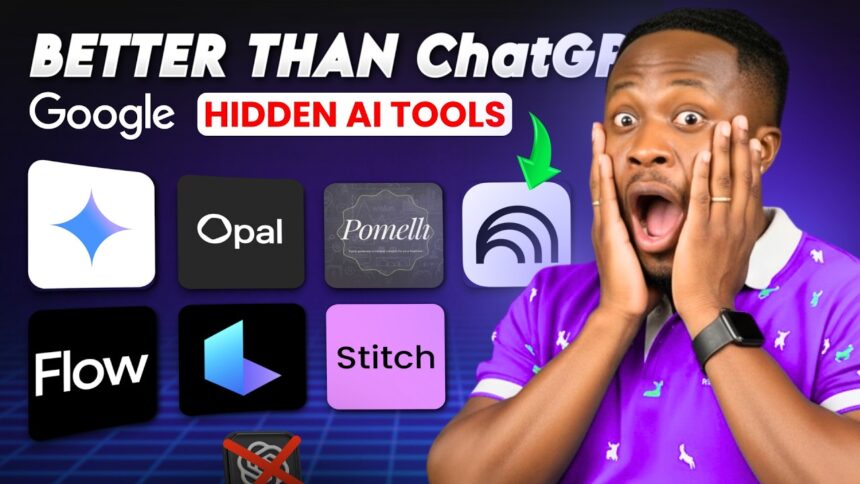
Stop Paying for ChatGPT — Google Just Made It Obsolete for Free
Google just released a lineup of AI tools that gives you almost everything you’re paying for in ChatGPT — and some things ChatGPT can’t even do yet — for absolutely free.
- Stop Paying for ChatGPT — Google Just Made It Obsolete for Free
- Tool #1 — Google AI Studio App Builder (Build Voice Apps for Free)
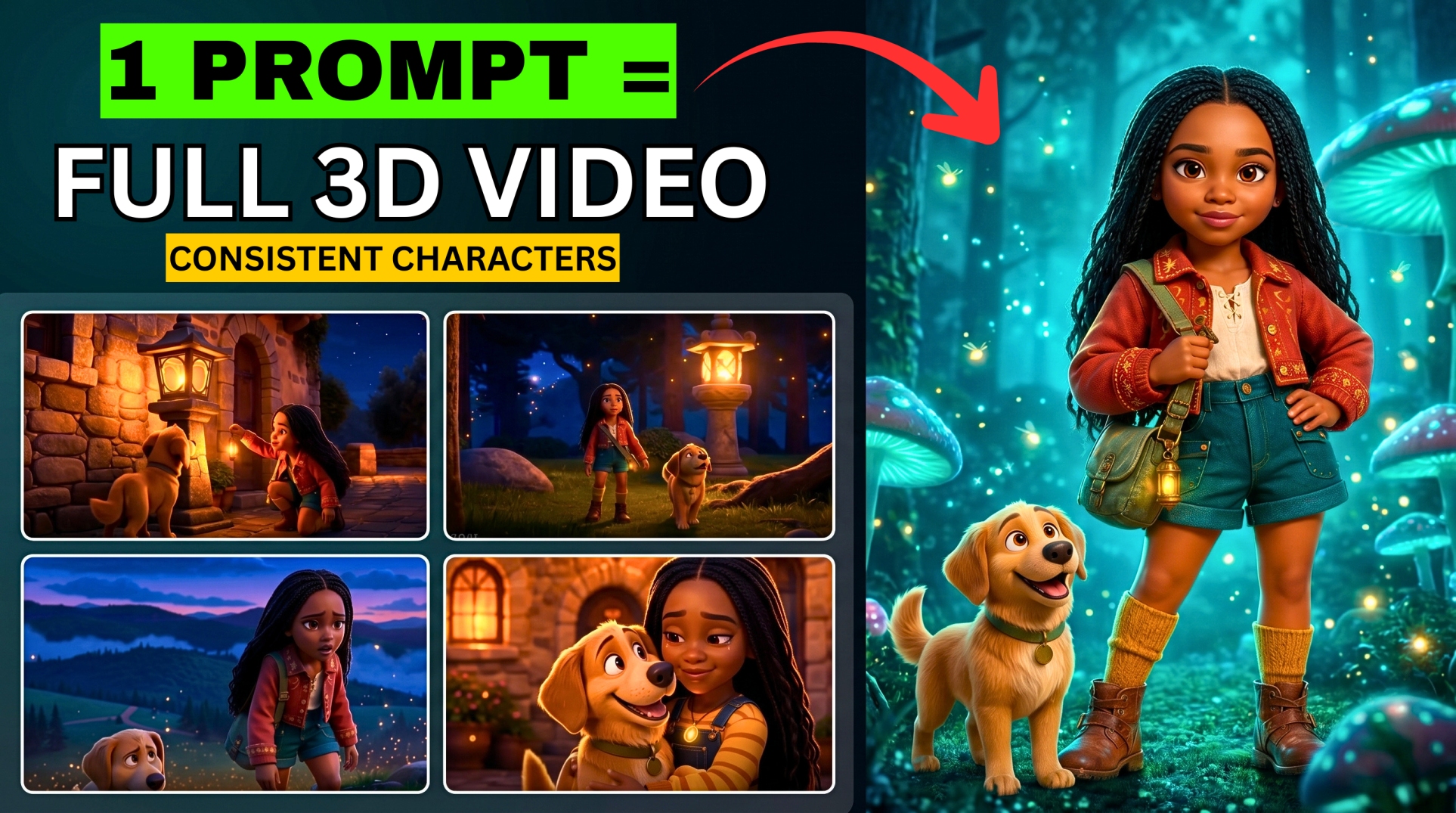
- Tool #2 — Google Opal (Build AI Video Generator Apps Powered by VEO3)
- Tool #3 — Notebook LM (Research + AI Video Presentations)
- Tool #4 — Gemini Canvas (Turn Documents into Presentations)
- Tool #5 — Pomeli (Social Media Content Generator from Your Website)
- Tool #6 — Google AI Studio Text-to-Speech (Free ElevenLabs Alternative)
- Tool #7 — Gemini Image Editing (Change Background, Keep Subject Intact)
- All 7 Tools at a Glance
- Google AI Tools vs ChatGPT
In this guide I’m breaking down 7 hidden gems inside the Google ecosystem:
- Build a voice app from scratch
- Turn boring PDFs into engaging video documentaries
- Generate hyper-realistic voiceovers without spending a dime
- Create social media content from just your website URL
- And much more
These tools are unlimited, they are powerful, and Tool #6 is going to completely change how you make content.
🎬 Watch the full tutorial here:
💡 All prompts used in this tutorial are in the video description or pinned comment below.
Tool #1 — Google AI Studio App Builder (Build Voice Apps for Free)
Where: aistudio.google.com → click Build in the left sidebar
Google AI Studio’s App Builder lets you develop any app you want using just a simple text prompt — including conversational voice apps.
How to Build a Voice App:
- Go to aistudio.google.com
- Click on Build in the left corner
- Select Conversational Voice App
- Describe what you want the app to do — paste your prompt from the description into the box
- Click Build and wait for the app to generate
Once built:
More EV News

- Click Allow to grant microphone permission
- Toggle the microphone ON
- Click Start Session and start speaking to your app
The app responds in real time as a conversational voice assistant — completely customised to your prompt.
What you can do with your app:
- Save it directly in AI Studio
- Download it entirely to your device
- Share it with friends and family via the share button so they can use it too
💡 This tool is currently free and appears to have no usage limits yet — take advantage while it lasts.
Tool #2 — Google Opal (Build AI Video Generator Apps Powered by VEO3)
Where: Search “Google Opal” → first result
Google Opal is a free experimental platform that lets you build, edit, and share AI apps using natural language. It powers video generation using VEO3 technology — completely free.
How to Build an AI Video App in Opal:
- Sign in with your Google account
- Click Create New
- Paste your app-building prompt (from the video description) into the input field
- Click Send — your app is created instantly (example name: Videocraft)
Generating a Video Inside Your App:
- Click Start inside your new app
- Paste your 3D scene description prompt
- Set:
- Duration: 10 seconds
- Frame Rate: 30 FPS
- Aspect Ratio: 16:9 (YouTube) or 9:16 (TikTok/Reels)
- Video Style: 3D (or Cinematic)
- Upload background music if desired
- Choose a transition — type “mix or crossfade” and send
- Let the app process through each step and deliver your final video
- Go to Export and Share to download as MP4 or GIF, or share directly to Twitter, Instagram, or Facebook
💡 If your video has no dialogue, use the Suggest Edit feature to add a dialogue/lip sync function to your app — this updates the app without rebuilding it. Full Google Opal tutorial available on the BigWizTV YouTube channel.
Tool #3 — Notebook LM (Research + AI Video Presentations)
Where: notebooklm.google.com
Notebook LM has always been powerful for research — but the new Video Overview feature is a game-changer.
What Notebook LM Does:
- Add multiple sources (websites, PDFs, documents) on the left panel to organise your research
- Audio Overview — generates a conversational podcast-style audio summary of your research
- Video Overview (NEW) — generates a full AI video presentation from your research
How to Use the Video Overview:
- Open or create a research project in Notebook LM
- Add your sources (websites, documents, PDFs)
- Click Video Overview
- The AI generates a complete video presentation of your entire research — with narration, visuals, and formatting
The result is a professional, fully AI-generated video documentary from your research — no editing required. Perfect for educators, researchers, and content creators.
Tool #4 — Gemini Canvas (Turn Documents into Presentations)
Where: gemini.google.com → Tools → Canvas
Gemini’s Canvas feature turns any text document or transcript into a fully formatted presentation — with text, images, and slides — in seconds.
How to Create a Presentation:
- Go to Gemini and click on Tools > Canvas
- Click the plus sign to upload your document
- Type a simple prompt: “Create a presentation out of this”
- Click Send
Gemini will generate a complete presentation with formatted slides, relevant images, and structured content.
Export options:
- Export to Google Slides
- Download directly
- Share via link
Tool #5 — Pomeli (Social Media Content Generator from Your Website)
Where: Search “Pomeli Google” → pomeli.google.com
Pomeli is a brand new Google tool that analyses your website’s DNA — typography, fonts, logos, colour schemes — and generates ready-made social media posts for you.
How to Use Pomeli:
- Click Get Started
- Paste your website URL into the input field
- Click Generate Ideas
Pomeli analyses your site and generates platform-specific content ideas and post designs for TikTok, Facebook, and more.
What you get:
- Ready-made social media posts you can use immediately
- Editable text and design for each post
- Multiple campaign options to generate more ideas
💡 This is perfect for business owners who don’t have time to create content constantly — give it your website and it handles the ideas. You just download and post.
Tool #6 — Google AI Studio Text-to-Speech (Free ElevenLabs Alternative)
Where: aistudio.google.com → Text-to-Speech
This is the tool that changes everything for content creators. Google AI Studio’s Text-to-Speech offers supernatural AI voices — completely free and unlimited. It’s essentially ElevenLabs without the cost or usage limits.
How to Generate Voiceovers:
Single Speaker Audio:
- Go to AI Studio > Text-to-Speech
- Select Single Speaker Audio
- Type your script
- Preview available voices and select your preferred one
- Click Run and download
Multi-Speaker Conversational Audio:
- Select Multi-Speaker Audio
- Type the first speaker’s line in the first row
- Type the second speaker’s line in the second row
- Keep adding dialogue rows as needed
- Select a different AI voice for each speaker
- Click Run
The result is a realistic, natural-sounding conversation between two AI voices — indistinguishable from real dialogue.
💡 This is the exact tool used to generate all the voices you hear on the BigWizTV YouTube channel — including the voiceover in this very video.
Tool #7 — Gemini Image Editing (Change Background, Keep Subject Intact)
Where: gemini.google.com
Gemini’s updated image model can now edit photos with surgical precision — changing backgrounds, styles, and vibes while keeping the subject completely untouched.
How to Edit an Image:
- Go to Gemini and upload your image
- Type a prompt instructing it to change the background/vibe but keep the subject intact. Example: “Change the background and vibe of this image to [your desired style] but keep the subject exactly as she is. Do not alter the person.”
- Click Send
Gemini regenerates the image with a completely new background and atmosphere while preserving the original person perfectly.
All 7 Tools at a Glance
| Tool | Where to Find It | What It Does | Cost |
|---|---|---|---|
| AI Studio App Builder | aistudio.google.com → Build | Build custom voice or text apps | Free |
| Google Opal | Search “Google Opal” | Build AI video generator apps (VEO3) | Free |
| Notebook LM | notebooklm.google.com | Research + AI video/audio presentations | Free |
| Gemini Canvas | gemini.google.com → Tools | Turn documents into presentations | Free |
| Pomeli | pomeli.google.com | Generate social media posts from website | Free |
| AI Studio Text-to-Speech | aistudio.google.com | Hyper-realistic multi-speaker voiceovers | Free & Unlimited |
| Gemini Image Editing | gemini.google.com | Edit images — change background, keep subject | Free |
Google AI Tools vs ChatGPT
| Feature | ChatGPT (Paid) | Google AI Tools (Free) |
|---|---|---|
| Voice App Builder | No | ✅ AI Studio App Builder |
| AI Video Generation | No | ✅ Google Opal (VEO3) |
| Research + Video Docs | No | ✅ Notebook LM |
| Doc to Presentation | No | ✅ Gemini Canvas |
| Social Media Content | No | ✅ Pomeli |
| Multi-Speaker TTS | Paid | ✅ AI Studio (Free & Unlimited) |
| Image Background Edit | Limited | ✅ Gemini Image Editing |
Found this helpful? Subscribe to BigWizTV on YouTube for more free AI tool discoveries every week. Drop a comment — which of these 7 Google tools are you trying first?