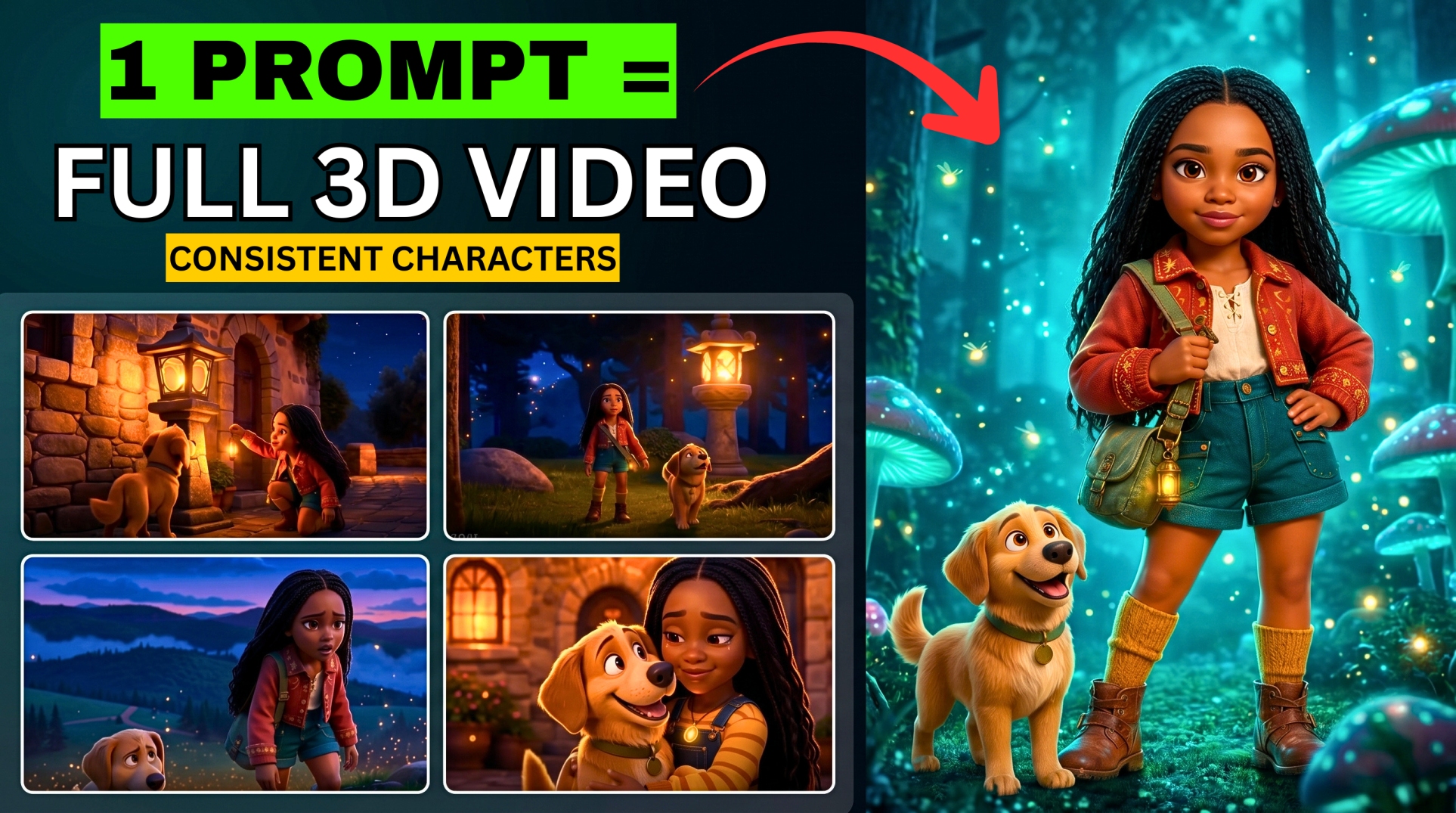




VEO3 Is Now Free and Unlimited — This Is Not Clickbait
Getting access to a model as powerful as VEO3 without hitting a paywall or running out of credits usually sounds like a dream. But today I’m showing you a completely free Google experimental platform that changes everything.
- VEO3 Is Now Free and Unlimited — This Is Not Clickbait
- Tools You’ll Need (All Free)
- How It Works — The Big Picture
- Step 1 — Generate Your App Concept with ChatGPT
- Step 2 — Sign In to Google Opal
- Step 3 — Build Your AI Video App in Opal
- Step 4 — Generate Your First Video
- Step 5 — Add Dialogue / Lip Sync (Important Fix)
- Troubleshooting — “Oops, Something Went Wrong”
- Full Workflow Summary
- Why This Method Works
- Pro Tips
It gives you direct access to the VEO3 engine, allowing you to generate unlimited, high-quality AI videos without spending a single cent. No waitlists. No expensive subscriptions. Just you and your creativity.
The platform is called Google Opal — and right now, because it’s in experimental mode, it’s completely free to use.
🎬 Watch the full tutorial here:
💡 All prompts used in this tutorial are available in the video description or pinned comment below.
Tools You’ll Need (All Free)
- ChatGPT — for generating your app concept and story
- Google Opal (search “Google Opal”) — the free VEO3-powered app builder
- A Google account — for signing in to Opal
- Optional: Background music file — to add audio to your video
How It Works — The Big Picture
Here’s the clever part of this workflow: instead of using VEO3 directly (which requires payment), you’re going to build your own AI video app inside Google Opal — powered by VEO3 technology — and use that app to generate unlimited videos for free.
It sounds complex but takes less than 5 minutes to set up.
Step 1 — Generate Your App Concept with ChatGPT
- Open ChatGPT and copy the app concept prompt from the video description
- Paste the prompt into ChatGPT and hit Send
- ChatGPT will generate the full structural instructions and design concept for your AI video app
- Once done, copy the entire generated response — you’ll paste this into Google Opal next
Step 2 — Sign In to Google Opal
- Open a new browser tab and search for Google Opal
- Click the first search result to open the platform
- Click Sign In and continue with your Google account
- Once signed in, you’ll land on the Opal dashboard
On the dashboard you’ll see:
More EV News

- A platform that lets you build, edit, and share AI apps using natural language
- An app gallery showing tools already created by others — blog post writers, city builders, video marketers, spelling bees, and more
- A “Create New” button to build your own app
💡 Google Opal is currently in experimental mode — which is why it’s free. Take advantage of this while it lasts.
Step 3 — Build Your AI Video App in Opal
- Click the “Create New” button on the dashboard
- Paste the text you copied from ChatGPT directly into the input field
- Hit the Send arrow
Google Opal will instantly generate your custom AI video app — powered by VEO3 technology. The app is created in seconds.
Note: Opal may rename your app automatically (in the tutorial it renamed itself “Videocraft”) — you can change the name later if needed.
Step 4 — Generate Your First Video
Now that your app is built, it’s time to create your first video inside it.
- In the app, paste or type your scene description — describe what you want to happen in the video
- Upload a reference image if you want a specific character or setting — click the image upload option and select your photo
- Fill in the video settings:
- Duration: 10 seconds (recommended)
- Frame Rate: 30 FPS
- Aspect Ratio: 16:9 for YouTube / 9:16 for TikTok or Reels
- Video Style: Choose from options like Cinematic or 3D Cartoon
- Add background music — upload a music track directly into the app
- Set your transitions — Mix or Crossfade work well for smooth scene flow
- On the left panel, you can see the full workflow showing every step — background audio, transitions, scene descriptions, and more
- Hit Send and let the app process your video
Your video will generate with visual movement and your chosen background music.
Step 5 — Add Dialogue / Lip Sync (Important Fix)
If your character isn’t speaking or lip syncing after the first generation, it’s because the initial app prompt didn’t include a dialogue feature. Here’s how to fix it instantly:
- In the app chat, type this update request: “Add a dialogue feature to the app where characters can speak or lip sync to a text prompt”
- Hit Enter
- The app will update itself automatically — you’ll see the new version appear
Now when you generate a new video:
- Re-upload your reference image
- Enter your scene description (example: “She looks into the camera and speaks”)
- You’ll now see a new Dialogue input field — type exactly what you want your character to say
- Hit Send and generate
Your character will now speak the exact dialogue you typed, with lip sync.
Troubleshooting — “Oops, Something Went Wrong”
If you get an error during generation, it’s usually one of two things:
- Safety policy violation — your prompt contains language that triggers content filters. Rephrase it slightly and try again
- Platform glitch — simply retry with the same or a slightly adjusted prompt
The fix is always the same: adjust your prompt wording and regenerate.
Full Workflow Summary
| Step | Tool | What It Does |
|---|---|---|
| 1 | ChatGPT | Generate AI video app concept and instructions |
| 2 | Google Opal | Sign in with Google account |
| 3 | Google Opal | Paste ChatGPT output → build your VEO3 app instantly |
| 4 | Your Opal App | Generate video with scene description, image, music, transitions |
| 5 | Your Opal App | Add dialogue feature via chat update → enable lip sync |
Why This Method Works
| Feature | Official VEO3 | Google Opal (Free) |
|---|---|---|
| Price | Paid subscription | ✅ Free (experimental) |
| Waitlist | Yes | ✅ No |
| Credit limits | Yes | ✅ Unlimited |
| VEO3 engine | Yes | ✅ Yes |
| Custom app builder | No | ✅ Yes |
| Background music | No | ✅ Yes |
| Dialogue / Lip sync | Limited | ✅ Yes (via update) |
Pro Tips
- Update your app via chat — Google Opal lets you add or change features just by typing a request. You can keep improving your app over time without rebuilding it
- Save your app — once built, your Opal app stays on your dashboard and can be reused any time
- Use the workflow panel — the left panel shows every step of your video creation process, so you can go back and adjust any individual element
- Act fast — this method works because Opal is in experimental mode. This free access may not last forever
Found this helpful? Subscribe to BigWizTV on YouTube for more free AI tool discoveries before everyone else finds out. Share this with a friend — drop a comment below if you’re trying this today!