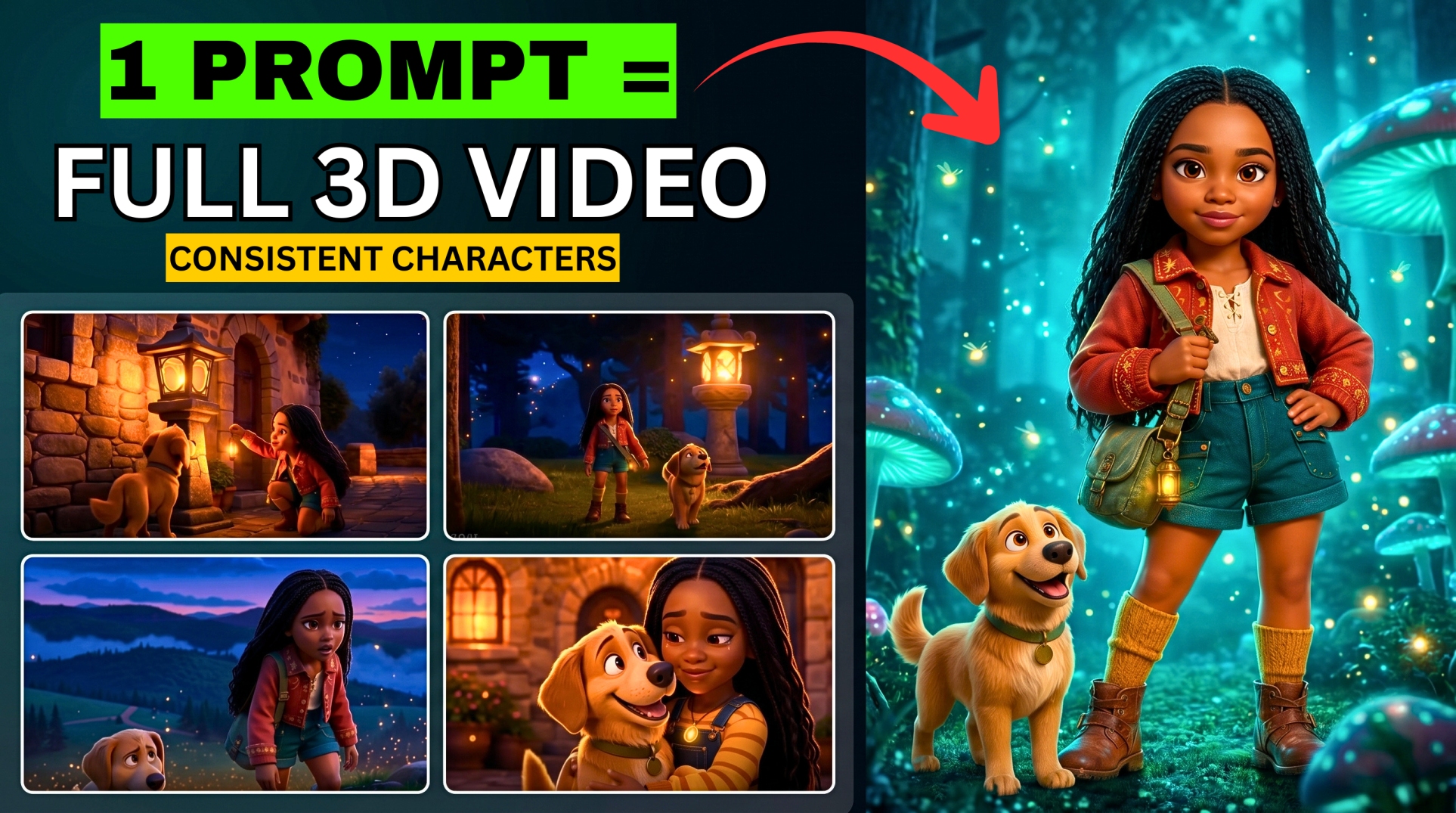



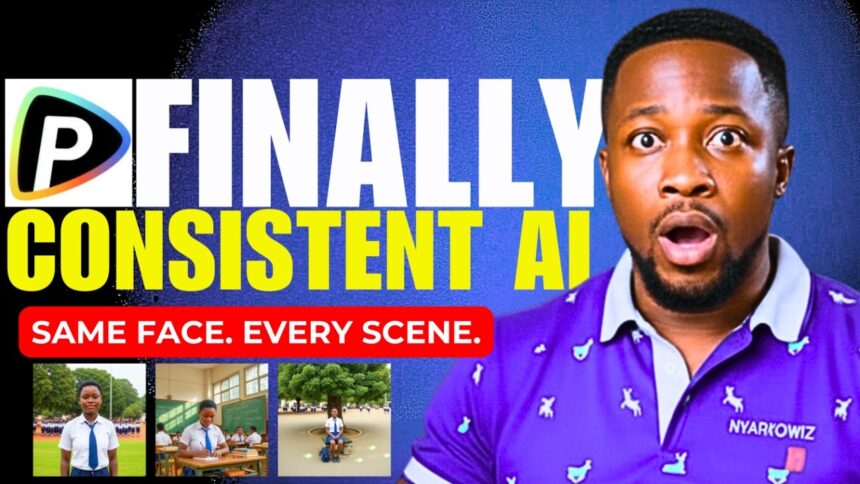
Consistent AI Characters and Native Audio — Pollo AI 2.0 Just Fixed Everything
Most AI video generators suffer from two massive problems — silent videos and characters that morph into completely different people every time the camera moves. It’s the biggest bottleneck creators face right now. You get a great visual, but it’s completely unusable.
- Consistent AI Characters and Native Audio — Pollo AI 2.0 Just Fixed Everything
- Tools You’ll Need
- Getting Started with Pollo AI 2.0
- Feature 1 — Text to Video
- Feature 2 — AI Video Extender (Hidden Tool)
- Feature 3 — Image to Video
- Feature 4 — Consistent Character Video (The Main Event)
- Step 1 — Generate Your Story with ChatGPT
- Step 2 — Access the Consistent Character Tool
- Step 3 — Upload Your Character Image
- Step 4 — Generate Scene 1
- Step 5 — Generate All Remaining Scenes
- Step 6 — Download All Scenes
- Step 5 — Generate Your Voiceover with Google AI Studio
- Step 6 — Edit Everything Together in CapCut
- Pollo AI 2.0 Pricing
- Full Feature Summary
- Pollo AI 2.0 vs The Competition
Pollo AI just dropped their massive 2.0 update — and they’re claiming to have fixed both problems. In this tutorial, I’ll show you the three major upgrades in this new model:
- Native Audio Generator — finally adds real sound to your clips
- Consistent Character Mode — maintain the same character across every scene
- Video Extender — break the time limit and extend clips anywhere from 1 to 10 seconds
🎬 Watch the full tutorial here:
💡 Every prompt used in this tutorial is available in the Discord or Telegram channel — links in the video description. Join to get all prompts ready to copy and paste.
🔥 Limited offer: Sign up within the first week and get 50% off Pollo AI credits.
Tools You’ll Need
- Pollo AI (visit link in video description) — main video generation platform
- ChatGPT — for generating your story and scene prompts
- Google AI Studio (aistudio.google.com) — for professional voiceover
- CapCut — for final editing and stitching
Getting Started with Pollo AI 2.0
Visit the Pollo AI website (link in the video description). Once inside, you’ll see a comprehensive suite of AI tools including:
- AI Videos
- AI Images
- AI Avatars
- AI Shorts
- AI Effects
Click on AI Video to get started. Make sure you’re using Pollo version 2.0 as indicated on the dashboard.
Feature 1 — Text to Video
How to Generate a Text to Video Clip:
- Click the hamburger menu, select Video AI, then click Text to Video
- Copy your prompt and paste it into the prompt box
- If your prompt is in another language, use the translate option — English works best
- Select your video length — choose between 5 seconds or 10 seconds
- Select your aspect ratio:
- 16:9 for YouTube
- 9:16 for TikTok, Instagram Reels, or Facebook Reels
- Select the number of video outputs — up to 4, but stick to 1 to manage credits
- Click Generate and wait for your video
Feature 2 — AI Video Extender (Hidden Tool)
This is one of the most exciting new features in Pollo 2.0. Once your video is generated, you don’t have to stop there — you can extend it further.
How to Use the Video Extender:
- Once your video is done, click the “Extend Video” button
- In the prompt box, type a command for the extension — for example: “Make the video longer and make him turn his face to the camera”
- Select your generation mode:
- Fast — quicker but lower quality
- Professional — best quality (recommended)
- Choose how many seconds to extend — 1 second up to 10 seconds
- Select your resolution — up to 1080p (higher resolution costs more credits; 720p is a good balance)
- Click Create
The extender understands your command and continues the video accordingly — adding new motion, direction changes, or actions exactly as instructed.
More EV News

Feature 3 — Image to Video
How to Animate a Still Image:
- Click the hamburger menu > Video AI > Image to Video
- Click the upload area and select your image
- Set aspect ratio to 16:9 and click OK
- Type your animation prompt — be specific about what you want the character to do. Example: “She excitedly jumps around and says this is how to turn any image to video with Pollo AI”
- Select video length (up to 10 seconds)
- Select number of outputs (1 recommended to save credits)
- Under Advanced Settings, toggle “Maintain Style” on if you want future generations to match the same visual style — or leave it off for variety
- Click Create
Whatever you describe in the prompt is exactly what you get — the AI follows your instruction precisely.
Bonus — Animate Your AI Avatar to Talk:
You can also upload a still AI avatar image and animate it to speak with realistic movement:
- Upload your AI avatar image
- Use this prompt: “Make realistic hand gestures and head movements while talking. You can also turn any character into AI talking avatar with Pollo AI”
- Select 1 output and click Create
The avatar will animate, gesture, and even point to the camera naturally while delivering your message.
Feature 4 — Consistent Character Video (The Main Event)
This is the feature that sets Pollo AI 2.0 apart from every other tool right now. The Consistent Character Video tool lets you upload a character image and generate multiple scenes — all featuring the exact same person throughout.
Step 1 — Generate Your Story with ChatGPT
Copy the story generation prompt from the Discord or Telegram channel and paste it into ChatGPT. Hit send and wait for your full story and scene-by-scene prompts to generate.
Step 2 — Access the Consistent Character Tool
- Click the hamburger menu
- Select Video AI
- Click Consistent Character Video
Step 3 — Upload Your Character Image
Upload the image of the person you want to feature throughout your video. You can feature up to 3 different characters, but for a single protagonist story, one is enough.
Click OK to confirm the upload.
Step 4 — Generate Scene 1
- Copy the Scene 1 prompt from ChatGPT
- Paste it into the prompt box
- Select your resolution
- Make sure Audio is toggled ON — this generates sound with your video automatically, no silent clips
- Set aspect ratio to 16:9 for YouTube (or 9:16 for short-form platforms)
- CRUCIAL STEP: Tick the Seed / Consistency setting — this is the key that locks your character’s appearance across every scene you generate
- Click Create
Step 5 — Generate All Remaining Scenes
For each subsequent scene:
- Copy the next scene prompt from ChatGPT
- Paste it into Pollo AI
- Keep the same character image uploaded
- Keep the consistency setting ticked
- Click Create
Repeat this for all scenes. The character will remain visually consistent across every single clip.
Step 6 — Download All Scenes
Once all scenes are generated, go to Menu > My Creations to find all your videos. Download them all to your device.
Step 5 — Generate Your Voiceover with Google AI Studio
- Go back to ChatGPT and ask it to remove all scene titles and headings and turn the story into a clean narrative script
- Copy the clean story text
- Open Google AI Studio at aistudio.google.com
- Select Single Speaker Audio
- Browse and select a voice actor
- Paste your narrative script and remove any leftover text you don’t need
- Click Run to generate the voiceover
- Download the audio file
Step 6 — Edit Everything Together in CapCut
- Open CapCut and create a new project
- Import all your scene clips in order starting from Scene 1
- Play back to confirm the character is consistent throughout
- Add your voiceover to the audio track
- Align the visuals with the audio timing
- Add transitions between scenes for a smooth flow
- Export your final video
💡 For a full CapCut editing tutorial, check out the dedicated editing video on the BigWizTV YouTube channel.
Pollo AI 2.0 Pricing
| Plan | Price | Credits |
|---|---|---|
| Free | $0 | 10 credits |
| Light | $15/month | Standard credits |
| Pro | $59/month | Full credits |
🔥 Sign up this week and get 50% off credits — limited time offer.
Full Feature Summary
| Feature | What It Does |
|---|---|
| Text to Video | Generate video clips from text prompts |
| Video Extender | Extend any clip by 1–10 seconds with a new prompt |
| Image to Video | Animate any still image into a video |
| AI Talking Avatar | Animate a portrait image to speak and gesture |
| Consistent Character | Maintain the same character across all scenes |
| Native Audio | Auto-generates sound with every video — no silent clips |
Pollo AI 2.0 vs The Competition
| Feature | VEO3 | Sora 2 | Pollo AI 2.0 |
|---|---|---|---|
| Consistent Characters | No | No | ✅ Yes |
| Native Audio | Yes | No | ✅ Yes |
| Video Extender | No | No | ✅ Yes |
| Free Plan | No | No | ✅ Yes (10 credits) |
| Image to Video | Yes | Yes | ✅ Yes |
Found this helpful? Subscribe to BigWizTV on YouTube and join the Discord or Telegram channel to get all the prompts used in this tutorial. Drop a comment — what kind of story are you going to create first with the consistent character tool?