


Create Realistic AI Lip Sync Avatars for Free — No HeyGen or Hedra Needed
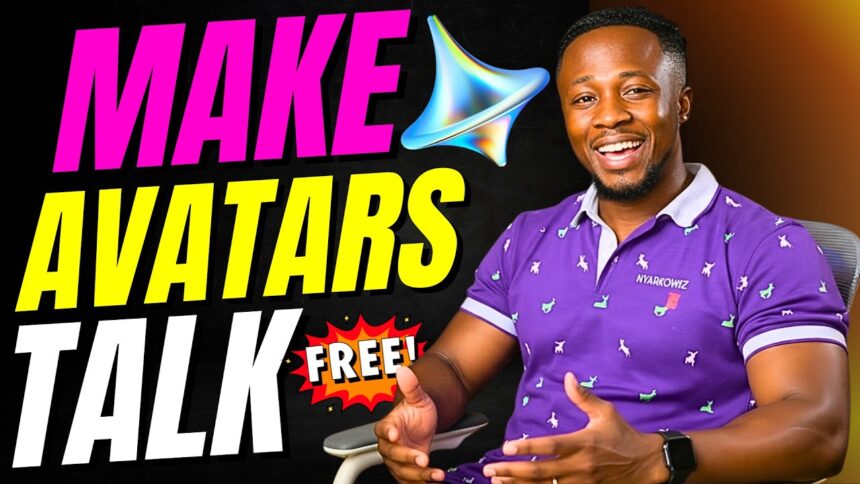
Want to make super realistic AI avatars that lip-sync your voice completely free? With Dreamina AI, you can create avatars that move, talk, and look lifelike — and it works as a completely free alternative to Hedra and HeyGen.
- Create Realistic AI Lip Sync Avatars for Free — No HeyGen or Hedra Needed
- Tools You’ll Need (All Free)
- Step 1 — Generate Your Avatar with Sora
- Step 2 — Set Up a VPN to Unlock Dreamina AI
- Step 3 — Create Your Lip Sync Avatar in Dreamina AI
- Step 4 — Create a Realistic Voiceover with Google AI Studio
- Method A vs Method B — Which Is Better?
- Full Workflow Summary
- Tips for the Best Results
- Dreamina AI vs HeyGen vs Hedra
But there’s one trick you need to unlock all its features — and I’ll show you exactly what it is.
In this step-by-step tutorial, I’ll walk you through:
- How to generate a realistic avatar using Sora
- How to lip sync it with a typed script or a custom voiceover
- How to create a professional voiceover with Google AI Studio
- How to unlock Dreamina’s full features anywhere in the world
🎬 Watch the full tutorial here:
Tools You’ll Need (All Free)
- Sora (sora.chatgpt.com) — for generating your realistic avatar image
- Dreamina AI (dreamina.capcut.com) — for lip syncing your avatar
- Thunder VPN (free, on Play Store) — to unlock Dreamina in restricted regions
- Google AI Studio (aistudio.google.com) — for generating a realistic voiceover
Step 1 — Generate Your Avatar with Sora
Before using Dreamina AI, you need a realistic avatar image to work with. The best tool for this is Sora by ChatGPT.
- Open your browser and go to sora.chatgpt.com
- Click the edit icon to open the workspace
- Paste your avatar generation prompt into the field
- Optional but recommended: Upload a photo of yourself or someone else to make the avatar look like a real person. If you leave it empty, Sora will generate a random avatar instead
- Click the plus sign > Upload from Device and select your image
- Click Remix and wait for Sora to generate your avatars
Sora will produce several avatar options. Browse through them, pick the best one, and download it to your device.
Step 2 — Set Up a VPN to Unlock Dreamina AI
Dreamina AI is not available in all regions — particularly in Africa and several other countries, you won’t be able to access features like AI Video or AI Avatar without a VPN.
More EV News

If those options are greyed out or unavailable when you visit dreamina.capcut.com, here’s how to fix it:
- Open the Play Store and search for Thunder VPN
- Install and open the app
- Connect to the VPN (select a supported country like the US or UK)
- Go back to your browser and refresh the Dreamina page
- The AI Avatar and AI Video options will now be fully available
Step 3 — Create Your Lip Sync Avatar in Dreamina AI
Now that Dreamina is unlocked, go to dreamina.capcut.com and navigate to AI Image > AI Avatar.
Method A — Lip Sync with a Typed Script:
- Upload the avatar image you downloaded from Sora
- In the voice/script section, type your script — what you want your avatar to say
- Click Voice to browse and preview available voice actors
- Select the voice that sounds most natural for your character
- In the prompt field, add: “Make realistic hand gestures and head movement while talking”
- Leave all other settings as default
- Click Generate
Dreamina will process your avatar and create a lip-synced video with your chosen voice and realistic movement.
Method B — Lip Sync with a Custom Voiceover (Recommended):
If you want a more realistic and personalised voiceover, use Google AI Studio to create one first (see Step 4), then come back and use this method.
- Refresh the Dreamina page
- Upload your avatar image again
- Instead of typing a script, click “Upload Audio”
- Select the voiceover file you created with Google AI Studio
- Add the same prompt: “Make realistic hand gestures and head movement while talking”
- Click Generate
Step 4 — Create a Realistic Voiceover with Google AI Studio
For the most natural-sounding result, generate your voiceover with Google AI Studio before uploading it to Dreamina.
- Open a new tab and search for Google AI Studio or go to aistudio.google.com
- Look for Native Speech Generation and click on it
- Click the settings icon (music-like icon)
- Choose between Single Speaker Audio or Multi-Speaker Audio — use Single Speaker for avatar videos
- Browse the available voices and preview them to find the best fit
- Type your full script into the text field — exactly what you want your avatar to say
- Click Run to generate the voiceover
- Download the audio file once it’s done
Now go back to Dreamina and use Method B above to upload this voiceover to your avatar.
Method A vs Method B — Which Is Better?
| Method A (Typed Script) | Method B (Custom Voiceover) | |
|---|---|---|
| Speed | Faster | Slightly more steps |
| Voice Quality | Good (Dreamina voices) | Better (Google AI Studio HD voices) |
| Personalisation | Limited to preset voices | Full control over tone and style |
| Best For | Quick test videos | Professional content |
Full Workflow Summary
| Step | Tool | What It Does |
|---|---|---|
| 1 | Sora (sora.chatgpt.com) | Generate realistic avatar image |
| 2 | Thunder VPN | Unlock Dreamina in restricted regions |
| 3A | Dreamina AI | Lip sync with typed script + preset voice |
| 4 | Google AI Studio | Generate realistic custom voiceover |
| 3B | Dreamina AI | Lip sync with uploaded custom voiceover |
Tips for the Best Results
- Use a front-facing, clear image for your avatar — side profiles or group photos don’t lip sync as well
- Keep your script natural — write it the way you’d actually speak, not like an article
- Add the hand gesture prompt every time: “Make realistic hand gestures and head movement while talking” — this dramatically improves the realism of the output
- Try both methods and compare — the custom voiceover from Google AI Studio typically produces more natural results than the preset voices in Dreamina
Dreamina AI vs HeyGen vs Hedra
| Feature | HeyGen | Hedra | Dreamina AI |
|---|---|---|---|
| Free Plan | Limited | Limited | ✅ Yes |
| Lip Sync | ✅ Yes | ✅ Yes | ✅ Yes |
| Custom Voice Upload | Paid | Paid | ✅ Free |
| Hand Gesture AI | No | No | ✅ Yes |
| Requires VPN (some regions) | No | No | Yes |
| Overall Cost | Expensive | Expensive | Free |
Found this helpful? Subscribe to BigWizTV on YouTube for more free AI tutorials every week. Drop a comment — what AI tool do you want me to cover next?