


Build a short drama with recurring characters, spoken dialogue, and a reveal that changes the meaning of the opening scene. A clear script and character references give each generated clip a place in the same story.
- The Tools and Two Production Methods
- What to Know About Free Access
- Step 1: Choose the Master Prompt and Story Idea
- Step 2: Review the Dialogue Story
- Step 3: Generate the Character Turnaround Sheets
- Step 4: Approve the Scene Breakdown and Video Prompts
- Step 5: Test Method One in Google Flow
- Step 6: Prepare the Hybrid Flow-and-Grok Method
- Step 7: Match Clip Duration to the Dialogue
- Step 8: Generate and Download the Remaining Scenes
- Step 9: Assemble and Refine the Drama in CapCut
- Step 10: Review and Export the Episode
- Frequently Asked Questions
- Can I Make Korean and American Micro Dramas?
- Do I Need Exactly Eight Scenes?
- Which Method Should I Use First?
- Why Does My Dialogue Stop Before the Scene Ends?
- Will the First Take Be Ready to Publish?
- Create Your First AI Micro Drama
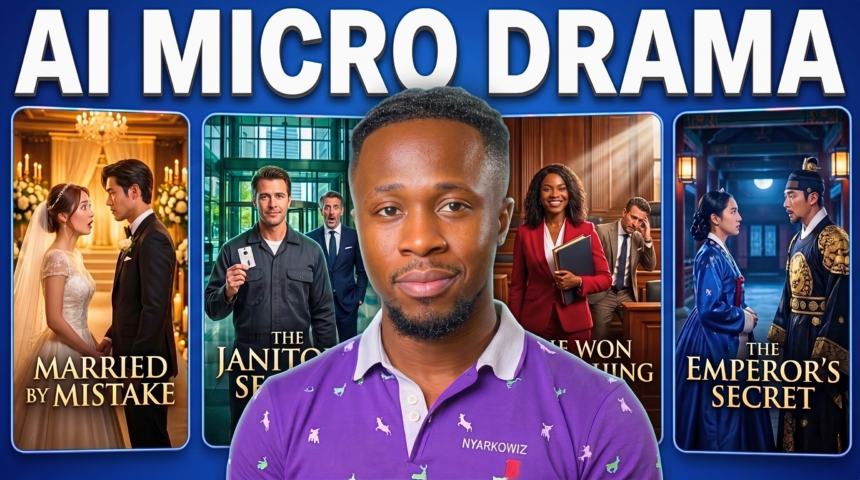
In this BIGWIZ MEDIA tutorial, we use ChatGPT, Google Flow, Grok Imagine, and CapCut to create a vertical AI micro drama. The demonstration follows an eight-scene story about a woman who offers food to a stranger, loses her job, and later discovers that the stranger is the company’s chairman.
We test two production methods: generating scenes in Google Flow, and combining Flow’s character sheets with Grok Imagine video generation. The tutorial also shows imperfect results and the changes that improve them.
This guide covers the five-phase planning system, character references, both generation methods, dialogue timing, and the final edit.
Watch the full tutorial: How to Make AI Micro Dramas From Scratch.
Get the master prompts: Korean micro-drama version and American micro-drama version.
The Tools and Two Production Methods
| Tool | Role in the project |
|---|---|
| ChatGPT or another text chatbot | Develop the story, character descriptions, scene breakdown, and video prompts |
| Google Flow with Nano Banana | Generate character turnaround sheets |
| Google Flow Agent with Omni Flash | Generate the first method’s dialogue scenes |
| Grok Imagine | Generate the second method’s scenes using the character references |
| CapCut or another editor | Join the approved clips and refine the dialogue pacing |
The creator prefers the hybrid Flow-and-Grok method after comparing the generated takes. Treat that as the result of this demonstration, and review the output from whichever method you use.
More EV News

What to Know About Free Access
The video demonstrates using the access available in the creator’s accounts. Check the current models, allowances, and generation costs in your own accounts before starting a full episode.
Google’s Flow credit guide, checked October 24, 2026, lists 50 daily credits for non-subscribers. Video generation uses credits. Its model guide identifies Nano Banana 2 Lite as the default image option available at no charge; the recording selects Nano Banana 2.1.
Grok’s consumer overview describes free starting access and paid plans with higher limits. Its website and app FAQ explains usage allowances and tier-dependent video-resolution caps. Use the settings displayed in Grok Imagine when planning your clips.
Test one scene before committing to the episode, and include revisions in your production budget.
Step 1: Choose the Master Prompt and Story Idea
Open the Korean or American version of the shared master prompt, copy it into your chatbot, and start a new planning conversation.
Both versions organize the project into five phases:
| Phase | Output |
|---|---|
| 1: Story ideas | Ten title and premise suggestions |
| 2: Complete story | The dialogue-driven script with the selected scene count |
| 3: Character sheets | Reference-sheet prompts for the important characters |
| 4: Scene breakdown | Characters, purpose, action, framing, and emotion for each scene |
| 5: Video prompts | Individual generation prompts based on the approved material |
Choose a story with a clear conflict and a believable payoff. Then specify the target duration and number of scenes.
The demonstration requests one minute and eight scenes, with vertical 9:16 framing. Keep these as the example settings, and adjust your own plan deliberately if you choose a different structure.
An Original Planning Add-On
You can add the following instruction to define a manageable production brief:
Build this as an original fictional live-action micro drama with adult characters, English dialogue, vertical 9:16 framing, eight scenes, and a one-minute target. Give each scene one clear dramatic purpose and a manageable action. Keep names, character designs, locations, and props consistent. Use dialogue and visible performances to tell the story. Check that the planned clip durations and spoken lines fit the total runtime, and flag any conflict before writing the final prompts.
This is an additional prompt written for the article. Use the linked documents for the full five-phase systems.
Step 2: Review the Dialogue Story
After you choose the idea and settings, the chatbot develops the complete script. Read it before moving to character design.
The story should establish a situation quickly, introduce a conflict, and give the later reveal a reason to matter. In the demonstration, the offer of food establishes kindness, the manager’s response creates the confrontation, and the chairman reveal supplies the reversal.
Check that each scene advances the story. Remove unnecessary exchanges during planning and leave room for facial reactions and pauses.
The templates use spoken dialogue to carry the action, without a narrator. Keep the approved lines attached to their speakers throughout the production process.
When you are satisfied, reply YES or use the requested continuation control to move to the next phase.
Step 3: Generate the Character Turnaround Sheets
Phase three provides a character-sheet prompt for each important role. The recorded story uses three main characters: the female lead, the chairman, and the office manager.
Open Google Flow, create a project, and go to Characters. Paste the first character prompt, select the image model, and generate the reference sheet.
The creator chooses Nano Banana 2.1. Review the resulting face, hairstyle, outfit, proportions, full-body angles, and facial expressions before accepting it.
Copy the character’s exact name from the script into Flow’s name field. Repeat the process for the remaining cast members before generating story scenes.
What Each Reference Should Establish
| Character detail | Why it helps |
|---|---|
| Face and hairstyle | Makes the role recognizable across angles and expressions |
| Outfit and footwear | Establishes a costume that can be carried into later scenes |
| Body proportions | Gives the generator a stable physical reference |
| Accessories | Helps prevent small details from changing unexpectedly |
| Front, back, and profile views | Supplies visual information for different shot compositions |
| Expression examples | Helps define the character’s performance without changing identity |
Use original fictional character designs. The current American master prompt includes an explicit original-fiction rule and asks for synthetic references and voices.
Here is an original reference-sheet example:
Create an original fictional adult office employee for a photorealistic live-action micro drama, with an invented face, dark expressive eyes, straight dark hair tied into a neat low ponytail, natural skin texture, and a slim upright silhouette. Dress her in a pale-blue blouse, charcoal trousers, and black flats. On a clean white studio background, show full-body front, back, left-profile, and right-profile views plus clear facial expressions. Preserve the identical face, hairstyle, proportions, outfit, and footwear across every panel, with natural anatomy and even studio lighting.
Adapt the appearance and costume to the role you approved. Check every panel for unwanted changes before using the sheet as a reference.
Step 4: Approve the Scene Breakdown and Video Prompts
Return to the chatbot and continue to phase four. It expands each scene into a production breakdown covering who appears, why the scene matters, the principal action, the camera shot, and the emotions involved.
Check the starting state of important objects. A lunch packet, handbag, phone, or document should have a clear location and holder before the action begins.
Also review costume and time-of-day changes. The chairman’s later formal appearance should be established by the story rather than appearing accidentally in the earlier encounter.
Approve the breakdown, then continue to phase five for the individual video prompts. The shared system keeps the approved story and dialogue as the basis for those prompts.
You can place the finished prompts in a working document, as the creator does, to keep scene numbers and revisions easy to manage.
Step 5: Test Method One in Google Flow
Open Agent Mode in the Flow project. Configure the video settings used in the demonstration:
- Aspect ratio: 9:16.
- Video model: Omni Flash 1.1.
- Confirm before generating: Always.
Add the character references needed for the selected scene and paste its video prompt. The first scene involves two characters, so the creator attaches those two references.
Review the generation request and approve the intended take. Google’s Agent guide explains generation defaults and confirmations; its video guide describes character and visual references.
Watch the completed scene with sound. Check the assigned speakers, dialogue, lip movement, character appearance, and object handling.
The Lunch Handoff Problem
In the recorded Flow test, the lunch appears unexpectedly and later hangs in the air during the transfer. The creator revises the prompt so the woman already holds it at the beginning, then reviews another take.
That is a useful lesson in physical staging: establish the object’s starting position, its holder, and the intended movement clearly.
An original handoff prompt could read:
Use the approved fictional lead and stranger references in a single vertical 9:16 live-action shot. At the first frame, the woman on the left already holds a closed paper lunch packet at waist height, while the man on the right has empty hands. He says, “Please, I haven’t eaten.” She replies, “Take this. I have enough,” and offers the packet through one slow, readable transfer. Keep the packet visible and physically supported throughout, preserve both characters’ approved appearance and clothing, and use a steady medium shot with clear speaker timing and no narration, music, or subtitles.
Review the result rather than assuming a detailed prompt will fix every physical error. You can simplify the movement or revise the shot plan if the transfer remains unclear.
If a generation is declined, review the tool’s feedback and its requirements for the request and references. Keep the project clearly described as original fiction; wording alone does not guarantee acceptance.
Step 6: Prepare the Hybrid Flow-and-Grok Method
For the second method, download the approved character sheets from Flow and rename the files so their roles are easy to identify.
Use the character’s approved name in each filename, keeping the names consistent with the script. This helps you and the generator distinguish the references during upload.
Open Grok and select Imagine. Upload the character sheets and paste the first scene’s prompt.
The demonstration uploads all three reference sheets, then uses Enhance Prompt to prepare the scene instructions and associate the images with the character roles.
Only the characters assigned to the current scene should appear in the result. Check the reference tags and the rewritten prompt before generating.
Review Enhance Prompt’s Changes
Enhancement can change the phrasing of a prompt. Compare the result against the approved script and scene plan:
- Are the correct references assigned to the intended characters?
- Are the spoken lines unchanged and attached to the right speakers?
- Does the scene retain the approved action and setting?
- Are unused cast members kept out of the shot?
- Is the starting position of the important prop still clear?
You can also select or tag the uploaded character images manually where the interface provides that control.
Generate the scene and review the resulting take. In the tutorial, the creator prefers the Grok handoff result and continues with that method for the episode.
Step 7: Match Clip Duration to the Dialogue
The next test exposes a different issue: the conversation is rushed and a line is cut short in a six-second clip.
The creator recommends choosing a longer duration for exchanges that need it, mentioning ten- and fifteen-second options. Use the durations offered in your current Grok Imagine interface and listen to the actual delivery.
Give speech and action enough room. Several spoken lines plus a physical gesture or emotional reaction may need more time than a short default clip provides.
Keep the Episode’s Runtime in View
Eight six-second clips total 48 seconds before editing. Eight eight-second clips total 64 seconds. Changing selected scenes to longer durations affects the overall plan as well.
Keep a record of each scene’s duration and the amount of usable footage. If a scene needs more time, revise the timing plan or propose shorter dialogue during script review.
Splitting a long exchange into additional production clips is another option, but update the clip count and edit plan deliberately.
This original timing-review instruction can help:
Audit the approved scene plan against the selected clip durations. Count the words spoken by all characters together and allow time for pauses, expressions, and the principal action. Identify exchanges that are likely to be rushed. Propose a suitable duration or a shorter version of the dialogue for review, preserving the story’s meaning and character voices. Recalculate the episode’s planned runtime and do not silently change the approved script or scene count.
Step 8: Generate and Download the Remaining Scenes
Work through the prompts in order. For each scene, keep the approved references active, replace the previous scene’s instructions, review any enhancement, and check the duration before generating.
The recording shows vertical 9:16 generation and a 720p option. Available output settings depend on the current interface and account; inspect the downloaded files as well as the selected setting.
Review the complete take for recognizable characters, matching clothing, clear dialogue, plausible motion, and continuity with the neighboring scenes.
If a take needs revision, retain the accepted parts of the plan and change the specific problem. Download the version you intend to use and identify it by scene number.
Keep one clearly approved take for each scene so unused variations do not accidentally enter the edit.
Step 9: Assemble and Refine the Drama in CapCut
Import the approved clips into CapCut or your preferred editor and arrange them in story order.
The tutorial trims excess time at the end of one clip and the beginning of the next so the chairman’s response follows the manager’s line naturally.
Play across every cut. Remove unnecessary pauses and imperfect edge frames without cutting off words or eliminating a reaction the story needs.
Keep picture and generated dialogue audio aligned. Check that the correct character is visible for the intended line and that mouth movement remains convincing after the trim.
Also inspect the visual joins: props should remain with the expected person, characters should face sensible directions, and wardrobe changes should agree with the story’s time progression.
Step 10: Review and Export the Episode
Before export, confirm that:
- The opening establishes the story’s situation quickly.
- Every planned scene appears in the correct order.
- Recurring characters remain recognizable.
- Props begin and end in plausible positions.
- Dialogue is complete, correctly assigned, and easy to understand.
- The reveal and final response have enough time to land.
- The runtime and vertical framing match your intended upload.
Choose an export resolution suited to the source clips, then watch the finished file with sound.
The demonstration includes retries and a final edit. Allow time for that review when planning your own episode.
Frequently Asked Questions
Can I Make Korean and American Micro Dramas?
The shared resources include separate Korean- and American-style master prompts. Choose the version that fits your fictional setting, cast, and visual direction. Both organize the production into five phases.
Do I Need Exactly Eight Scenes?
Eight scenes are the recorded example. Choose a count that fits your story and clip durations, then keep it consistent through the script, breakdown, and video prompts.
Which Method Should I Use First?
The tutorial tests Google Flow and then prefers Flow character references combined with Grok Imagine. Try one representative scene and compare its character consistency, motion, dialogue, and cost before producing the rest.
Why Does My Dialogue Stop Before the Scene Ends?
Check the selected duration, the number of spoken words, and the performance pauses. Use a longer available duration, revise the lines during planning, or divide the exchange into a revised clip plan.
Will the First Take Be Ready to Publish?
Review it. Character references and detailed prompts guide the generation, but visual errors, awkward speech, and continuity problems can still require another take or an edit.
Create Your First AI Micro Drama
Choose a short fictional story, approve its dialogue and cast, and test one scene with a clear action. Use the method that produces a usable take for your project, then carry the references and scene plan through the episode.
Get the Korean master prompt or American master prompt, and follow the full BIGWIZ MEDIA tutorial.
Explore more resources at BigWizTV.com, join our Discord community, and follow the BIGWIZ MEDIA Telegram channel. Share the micro-drama idea you want to make next.