


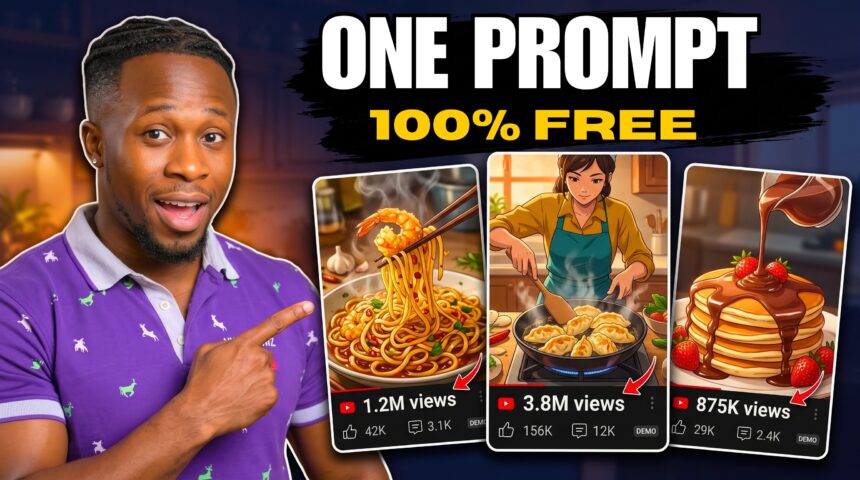
Turn one cooking idea into an anime short with a recognizable character, appetizing food shots, and satisfying chopping and sizzling sounds. A master prompt plans the sequence, and Google Flow Agent turns a single storyboard into seven animated clips.
- The Tools You Need
- What the Free Workflow Includes
- Step 1: Choose the Dish and Creative Direction
- Step 2: Review the Creative Lock and Seven-Shot Plan
- Step 3: Generate One Complete Storyboard in Google Flow
- Step 4: Request Seven Matching Animation Prompts
- Step 5: Configure Flow Agent for the Animation Batch
- Step 6: Review Each Clip and Correct Weak Scenes
- Step 7: Name the Clips and Download One Collection
- Step 8: Build the Cooking Film in CapCut
- Keep Cooking Sounds in the Foreground
- Find Music and Check Attribution
- Add the Demonstrated Mix Transition
- Step 9: Review and Export the Finished Video
- Frequently Asked Questions
- Does One Storyboard Really Become Seven Videos?
- Do I Need Drawing or Animation Skills?
- Do I Need a Voiceover or Talking Character?
- Can I Make a Vertical Anime Cooking Short?
- Is the 49-Credit Cost Guaranteed?
- Can I Change the Dish for the Next Video?
- Make Your First Anime ASMR Cooking Film
In this BIGWIZ MEDIA tutorial, we make spicy garlic shrimp noodles using ChatGPT, Nano Banana inside Google Flow, Omni Flash, and CapCut. The workflow covers choosing the dish, designing the storyboard, generating the animation batch, organizing the clips, and finishing the sound and edit.
The shared system targets seven shots of approximately four seconds each, giving you about 28 seconds of core footage for a roughly 30-second cooking film.
Watch the full tutorial: ChatGPT + Google Flow Automation Just Made Anime ASMR Cooking Videos EASY.
Get the original master prompt: AI Cooking Shorts: Master Production System.
The Tools You Need
| Tool | Role in the workflow |
|---|---|
| ChatGPT or another capable text chatbot | Plan the cooking film and write storyboard and animation prompts |
| Nano Banana in Google Flow | Generate the complete seven-panel storyboard image |
| Google Flow Agent with Omni Flash | Create seven separate animated scenes from the storyboard and scene prompts |
| CapCut or another editor | Arrange the clips, balance sound, add transitions, and export |
| YouTube Audio Library, optional | Supply background music or sound effects for the edit |
This is a visual cooking story driven by food preparation and sound. The master prompt asks for natural cooking ASMR without dialogue or voiceover. The tutorial later adds optional background music in the editor.
What the Free Workflow Includes
The recording shows storyboard generation at zero credits using the available image setup, followed by a 49-credit request for seven animated clips.
More EV News

As checked on October 24, 2026, Google’s Flow credit guide lists 50 daily credits for non-subscribers. Video costs depend on the model, duration, resolution, and output count, and free video access can be restricted during busy periods.
The 49-credit request is the demonstrated batch cost. Check your own request and remaining allowance before approving, and leave room for revisions when planning a project.
The tutorial selects Nano Banana 2.1. Google’s current model guide lists that model and identifies Nano Banana 2 Lite as the default image option available at no charge. Use the settings and pricing shown in your account.
Step 1: Choose the Dish and Creative Direction
Copy the master prompt into your chatbot. ChatGPT is the tool used in the demonstration.
The prompt guides you through five decisions, waiting for your choice at each stage: the dish, visual style, aspect ratio, camera feel, and character.
The tutorial’s initial food suggestions include pancakes, shrimp noodles, cheese-stuffed dumplings, a salmon rice bowl, and garlic butter chicken. Choose a dish with visible changes during preparation, cooking, and plating.
The demonstration makes these selections:
| Decision | Demonstration choice |
|---|---|
| Dish | Spicy garlic shrimp noodles |
| Visual identity | Anime |
| Format | 16:9 horizontal |
| Camera feel | Fast-paced food commercial |
| Character | Original female character |
The template also supports other visual treatments and camera styles. A calm, relaxing treatment calls for gentler movement; the chosen commercial style favors punchier framing and energetic cuts.
Use 9:16 for a vertical composition, 16:9 for widescreen, or the template’s 1:1 option for square. Carry your chosen format through the storyboard, animation requests, and final edit.
Step 2: Review the Creative Lock and Seven-Shot Plan
After the selections, the chatbot creates a Creative Lock. This records the dish, character design, kitchen, cookware, visual treatment, lighting, and camera direction.
Check it before generating the storyboard. The cook’s hairstyle and apron, the kitchen layout, the pan, and the final serving bowl should have clear descriptions that can be reused.
For an original character, establish a distinctive fictional adult design. If you already have an original character reference, use it to anchor the appearance across the film.
The food should also progress logically. Ingredients can be chopped, combined, cooked, and plated, while the recurring cookware and serving vessel retain their appearance.
The Seven Shots in the Master Prompt
| Shot | Visual purpose | Sound to prioritize |
|---|---|---|
| 01: Invitation | Establish the cook, kitchen, and ingredients | Subtle kitchen ambience and preparation sounds |
| 02: Preparation | Show a clear slicing, chopping, or mixing action | Tool contact and crisp preparation sounds |
| 03: Flavor | Add seasoning, sauce, or an ingredient combination | Pouring, sprinkling, or mixing |
| 04: Cooking | Show the central cooking action | Frying, stirring, or tossing sounds |
| 05: Texture | Focus closely on bubbling, steam, glaze, or another food detail | Detailed sizzling or bubbling |
| 06: Plating | Move the finished food into its serving vessel | Utensil and bowl contact |
| 07: Final reveal | Present the completed dish as the visual payoff | Gentle final handling and room ambience |
The different shot sizes give the film variety. Use wider views to establish the character and kitchen, then close-ups to make the preparation and food textures easy to see.
Step 3: Generate One Complete Storyboard in Google Flow
The chatbot produces a single storyboard-generation prompt describing all seven panels. Copy the complete prompt and open Google Flow.
Create a project, paste the prompt, and select the image settings. The demonstration uses:
| Image setting | Demonstration choice |
|---|---|
| Aspect ratio | 16:9 |
| Model | Nano Banana 2.1 |
| Outputs | Four storyboard variations |
Each output is a complete storyboard candidate. Compare the four versions and choose one approved storyboard containing seven panels for the animation stage.
If you chose a different format during planning, use that format in the image settings as well.
Check the Storyboard Before Spending Video Credits
Inspect every panel for a consistent face, hairstyle, clothing, kitchen, cookware, and food progression. Check hands and utensils closely, especially where the cook touches ingredients or handles a pan.
The sequence should read clearly from preparation through the final dish. Count the panels and confirm that each shot in the plan has its corresponding frame.
If you need a revision, this original instruction can help:
Revise the storyboard using the approved Creative Lock. Keep exactly seven clearly separated panels in the established shot order. Preserve the fictional cook’s face, hairstyle, outfit, kitchen, cookware, lighting, and serving bowl. Make the ingredient state appropriate to each preparation stage. Correct unclear hands or utensils and give each panel one readable action. Keep the selected anime treatment and aspect ratio.
Approve the strongest version and save a copy if you want a local reference. Use that same version for the animation batch.
Step 4: Request Seven Matching Animation Prompts
Return to the planning conversation and type NEXT once the storyboard is ready. Share the chosen board in the conversation if the chatbot needs it to match the actual panels.
The master prompt produces exactly seven scene prompts. Each is a single paragraph that identifies its scene, duration, format, character and environment details, action, camera direction, food movement, and sound.
Keep the scene numbers and clear spacing between the paragraphs. Each prompt should correspond to its matching storyboard panel.
Describe the Cooking Sound Precisely
Give the generator a visible action and its associated sound. A knife should contact the board when the tap is heard; a pour should accompany the movement of liquid; sizzling should belong to the food in the hot pan.
Here is an original example for a preparation close-up, rather than an exact prompt from the video:
SCENE 02: Animate the approved preparation panel for approximately four seconds in the selected 16:9 anime style, framing the fictional cook’s hands, teal apron, wooden board, knife, and sliced vegetables as shown in the storyboard, with the established kitchen softly behind them; show one short sequence of controlled chopping with clear knife-to-board contact and natural finger placement, a small camera push-in, crisp synchronized knife taps, gentle ingredient movement, and quiet room ambience; preserve the approved colors, utensils, proportions, and lighting, with no dialogue, narration, or music.
Adapt the details to your actual board. The goal is one understandable action per short clip, with sound that belongs to that action.
Step 5: Configure Flow Agent for the Animation Batch
Select the approved storyboard and use Add to prompt. Turn Agent Mode on, then open the Agent’s video settings.
The tutorial selects Omni Flash 1.1. Save the model choice and keep the animation’s aspect ratio consistent with the project.
As a production recommendation, check that the video output count is one per scene. The four storyboard variations were image alternatives; they are a separate choice from how many video outputs you want.
Keep confirmation before generation enabled so you can review the request. Google’s Agent guide explains image and video defaults, references, and generation confirmations.
Paste all seven numbered animation prompts into the Agent’s prompt box while the approved storyboard remains attached.
Make the Panel-to-Clip Mapping Explicit
This original instruction can clarify the batch request:
Use the attached seven-panel storyboard as the approved reference. Generate seven separate videos, matching Scene 01 to Panel 01 and continuing through Scene 07 and Panel 07. Produce one clip per scene at the requested duration and aspect ratio. Fill each video with its intended scene, excluding neighboring panels, storyboard borders, and labels. Preserve the approved character, kitchen, food progression, and anime style, with the cooking sounds specified in each prompt and no added speech or music. Identify unclear panel assignments before generating.
Review the selected model, references, durations, output count, and cost in the approval request. The recording shows 49 credits for the complete batch. Approve your request when its details match your plan.
The Agent then generates the seven clips from the one storyboard and corresponding scene prompts.
Step 6: Review Each Clip and Correct Weak Scenes
Play every result with sound. Check both the action and its relation to the cooking sequence.
Look for changing faces or clothing, duplicated hands and tools, floating ingredients, warped cookware, disappearing food, and movement that does not match the sound.
A storyboard panel is a visual reference, so inspect the animation’s framing too. Each clip should show its intended full-screen scene clearly.
If the Agent confuses two panels or carries the storyboard grid into the animation, make the panel assignment more explicit. As an additional recovery option, isolate the intended panel as a separate image and regenerate that scene using it as the reference.
Keep the approved clips and revise only the scenes that need work. Review the opening and ending states of adjacent clips so preparation, cooking, and plating feel connected.
Step 7: Name the Clips and Download One Collection
If the order is unclear, ask the Agent to rename the videos using their scene numbers. Match each name to the content before downloading.
You can combine the organization request with a collection instruction. This original example is suitable once the approved takes have been identified:
Name the approved clips Scene 01 through Scene 07 according to their matching animation prompts, then place one approved take per scene in a collection named Anime ASMR Cooking. Keep the original storyboard outside the video collection and identify any missing or duplicate scenes.
Inspect the collection, open its download control or menu, and download the videos together. The demonstration receives a ZIP file containing the clips.
Extract the ZIP and confirm that you have the seven approved scenes. Google’s collection guide also explains organizing and downloading assets.
Step 8: Build the Cooking Film in CapCut
Open CapCut or your preferred editor and import the seven videos. Arrange them on the timeline in scene order, from the opening setup through the final dish.
The master prompt plans approximately four seconds per scene. Use that as a starting point, then trim the actual clips to keep each action readable and the film moving.
Give the most satisfying moments enough space: the knife contact, sauce landing, food sizzling, plating movement, and final reveal.
Keep Cooking Sounds in the Foreground
Listen for sound that matches the visible action, with a consistent level across neighboring clips. Reduce distracting audio and check for clicks or abrupt changes at the cuts.
If a sound is missing, you can add an appropriate effect in the editor and align it with the action. Keep the original cooking audio where it works well.
The tutorial adds quiet background music. You can also finish the film using only cooking sounds and light kitchen ambience.
For music, choose a track suited to the mood and lower it until the preparation and frying sounds remain clear.
Find Music and Check Attribution
The tutorial recommends the YouTube Audio Library for YouTube projects. Preview a suitable track, download it, and import it into your editor.
Check its license type. YouTube’s Audio Library instructions explain how to copy the required credit for Creative Commons tracks and find tracks marked as not requiring attribution.
Use music whose terms cover your intended destination when preparing versions for other platforms.
Add the Demonstrated Mix Transition
In CapCut, the creator searches for Mix, places the transition between clips, adjusts its duration, and applies it across the sequence.
Preview the result after applying transitions. Keep the action easy to follow, with enough time for each scene’s important moment to appear.
Trim excess music at the end so the audio finishes with the cooking film. A short fade can help the ending settle naturally.
Step 9: Review and Export the Finished Video
Watch the complete sequence before export. Confirm that:
- The character, outfit, kitchen, and cookware remain recognizable.
- All seven scenes appear in the correct order.
- The food progresses logically toward the completed dish.
- Each clip shows its intended scene without storyboard borders or labels.
- Cooking sounds remain clear and fit the visible actions.
- Any music and attribution are ready for the intended upload.
- The final dish has enough screen time for a satisfying ending.
Choose the export resolution available in your editor and appropriate for the source footage. Keep the project’s chosen aspect ratio, then watch the exported file to check picture, sound, and runtime.
Frequently Asked Questions
Does One Storyboard Really Become Seven Videos?
The demonstration supplies one seven-panel image and seven matching prompts to Flow Agent, which generates seven separate clips. Review the panel assignments and resulting footage before accepting the batch.
Do I Need Drawing or Animation Skills?
The workflow uses generated images and video. Your main tasks are choosing the creative direction, reviewing continuity and motion, and assembling the approved footage.
Do I Need a Voiceover or Talking Character?
The original format uses cooking sounds without narration or dialogue. Character expressions, hands, food actions, and the final dish carry the story.
Can I Make a Vertical Anime Cooking Short?
Choose 9:16 during planning and use it in generation and editing. Inspect the framing of each individual scene so important hands, utensils, and food remain visible in the vertical video.
Is the 49-Credit Cost Guaranteed?
That is the request shown in the tutorial. Your generation settings, available models, output count, and revisions determine the actual total. Check the approval request and remaining allowance.
Can I Change the Dish for the Next Video?
Start a new planning run and choose another dish. Rebuild its ingredient states, actions, and plating plan, then retain a clear character and kitchen design across that film.
Make Your First Anime ASMR Cooking Film
Choose a dish with satisfying visual changes, approve a clear seven-shot storyboard, and keep the animation prompts matched to its panels. Finish with sound that makes each cooking action feel present.
Use the original master prompt and follow the full BIGWIZ MEDIA tutorial alongside this guide.
Explore more workflows at BigWizTV.com, join our Discord community, and follow the BIGWIZ MEDIA Telegram channel. Share the dish you want to animate next.