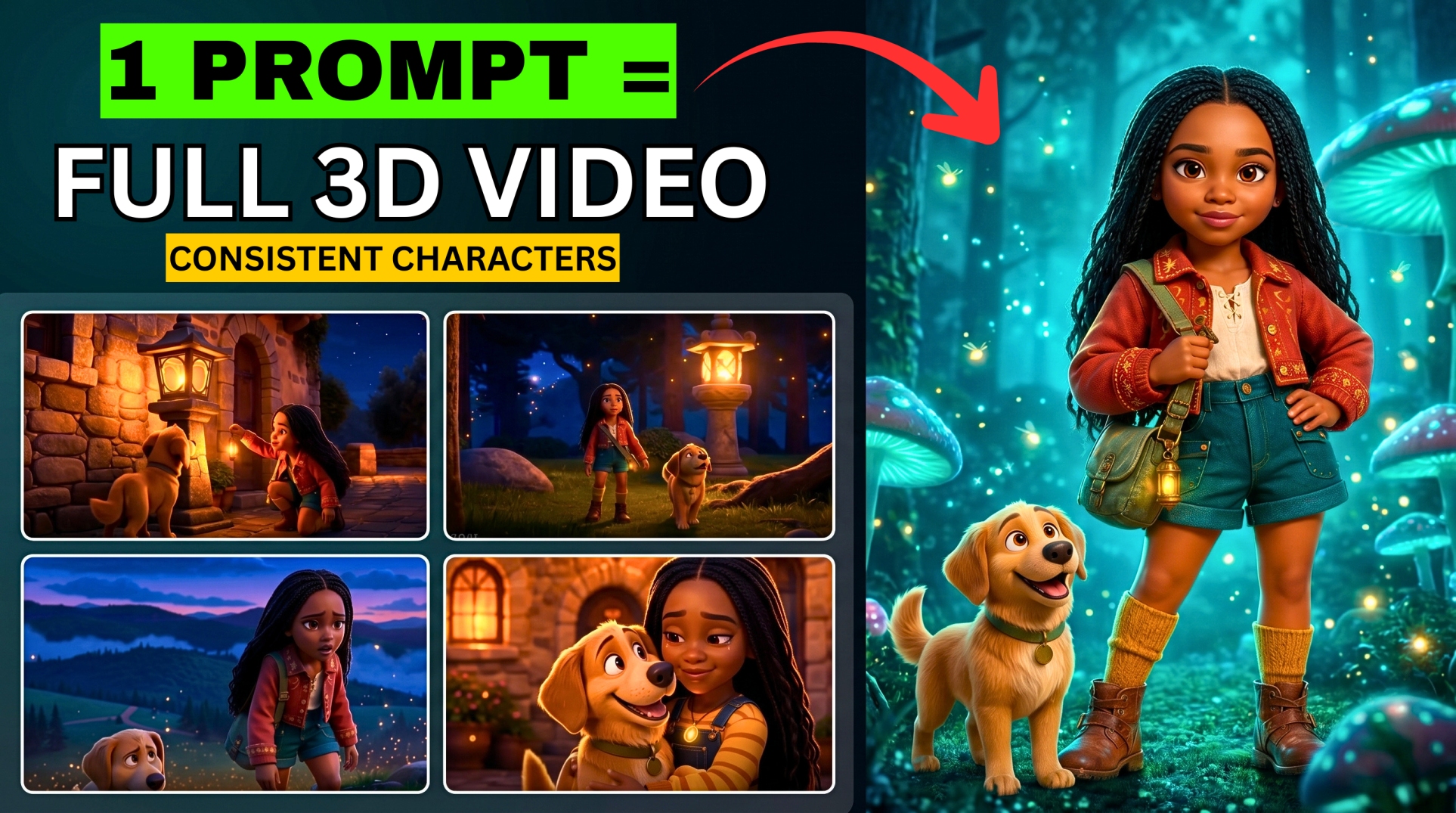



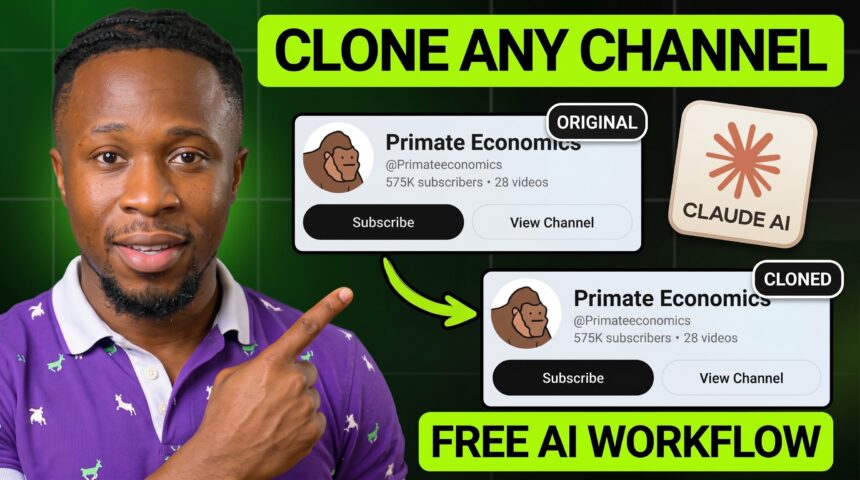
Generating a hundred scenes one at a time can turn a faceless YouTube project into days of repetitive work. In this BIGWIZ MEDIA tutorial, we used Claude to develop an original script and storyboard, then asked Google Flow’s Agent to generate 130 images in one run.
- Tools and Resources for This Workflow
- Before You Start: Free Access and Current Limits
- Step 1: Choose a Channel Format to Study
- Step 2: Load the Master Prompt into Claude
- Step 3: Collect Two or Three Full Video Transcripts
- Step 4: Select an Original Video Idea
- Step 5: Review the Style Analysis and Finalize the Script
- Step 6: Provide Visual References from the Videos
- Step 7: Compile the Storyboard into a Bulk Prompt List
- Step 8: Configure the Google Flow Agent
- Step 9: Generate and Review the Images in Bulk
- Step 10: Animate the Selected Scenes
- Step 11: Create the Voiceover in Google AI Studio
- Step 12: Edit the Clips and Narration in CapCut
- Frequently Asked Questions
- Can This Workflow Be Adapted to Other Niches?
- Do I Need Exactly 130 Images?
- Does the Agent Make the Entire Finished Video Automatically?
- Is the Whole Workflow Free and Unlimited?
- Get the Master Prompt and Start Your First Project
The workflow starts with a successful channel as a reference. Claude analyzes its storytelling patterns, helps you choose a topic, and builds the script. Google Flow handles bulk image generation and animation, Google AI Studio supplies the voiceover, and CapCut brings the final sequence together.
If you have been searching for YouTube channel cloning, faceless YouTube automation, or a way to create consistent AI scenes in bulk, this guide walks through the demonstrated process from research to export.
Here, cloning a channel format means studying its hooks, pacing, and presentation to develop your own content. The linked master prompt explicitly calls for original writing. Build your own scripts, characters, and visuals around what you learn.
Watch the full tutorial: How to Clone ANY YouTube Channel with Claude + ChatGPT. The video’s title mentions ChatGPT, while the production workflow demonstrated in the recording uses Claude and Google Flow.
Tools and Resources for This Workflow
| Resource | Role in the tutorial | What you take to the next stage |
|---|---|---|
| Claude | Analyze transcripts, generate ideas, write the script, and create storyboard prompts | Approved script and numbered image prompts |
| Google Flow | Generate images and animate selected scenes through the Agent | Reference images and video clips |
| Nano Banana 2 inside Flow | Image model selected in the recording | Landscape storyboard images |
| Google AI Studio | Turn the script into narration | Downloaded voiceover audio |
| CapCut | Match the clips to the narration and export | Finished edited video |
| YouTube Content Engine master prompt | Guide Claude through the production stages | A structured conversation from channel analysis to image prompts |
The tutorial generated all 130 storyboard images, then demonstrated animation with a selected subset. Its final edited example uses the corresponding part of the script, rather than an animation of every storyboard beat.
Before You Start: Free Access and Current Limits
The recording used Claude’s free version and described free image generation in Flow. Free access does not make every stage unlimited.
More EV News

Claude applies usage limits affected by conversation length, message size, attachments, and the selected model. Long transcripts and a large storyboard can use more of your allowance. Read Claude’s usage-limit guidance.
Google’s current credit guide lists 50 daily Flow credits for non-subscribers. Its model guide identifies Nano Banana 2 Lite as the default image model available at no charge; the recording selected Nano Banana 2. Check the active model and any displayed cost before starting your batch. Video generations have separate credit costs. Check Flow credits and current model options.
Step 1: Choose a Channel Format to Study
The example in the video is Primate Economics, shown at the time of recording with more than 500,000 subscribers and 28 videos. Its finance explanations use simple characters, familiar objects, and short sentences to make a complex subject easier to follow.
Start with a reference channel whose presentation suits the kind of content you want to make. Consider its topic range, typical video length, narration style, and the amount of visual work required.
The video’s introduction also discusses Bible animations, stickman explainers, and illustrated advice videos as possible formats. Those examples show how the same research-to-storyboard process can be adapted to different niches.
Copy the reference channel’s URL. You will give it to Claude after loading the master prompt.
Step 2: Load the Master Prompt into Claude
Open the YouTube Content Engine prompt, copy the complete text, and paste it into a new conversation at Claude.
The prompt organizes the work into stages: channel link, transcripts, topic selection, style analysis, script, visual references, image prompts, and optional video and thumbnail work. It asks Claude to handle one stage at a time.
When Claude requests the channel link, paste the URL you collected. Then provide the transcripts it asks for.
The important part is giving Claude enough evidence to analyze. A channel link identifies the reference; the transcripts and screenshots supply the material used in the later stages.
Step 3: Collect Two or Three Full Video Transcripts
Choose two or three representative videos from the reference channel. In the tutorial, we collected their complete transcripts rather than short summaries.
How to Copy a YouTube Transcript
- Open a video with available captions.
- Expand its description and find Show transcript.
- If the transcript menu offers it, turn off timestamps to make the text easier to copy.
- Copy the transcript and paste it into Claude.
- Repeat for the other reference videos.
The recording also shows a transcript-copy shortcut through the vidIQ browser extension. You can follow the manual method when that shortcut is unavailable.
Different examples help Claude identify recurring patterns across the channel. Choose videos that represent the format you intend to study, rather than unrelated uploads.
Pacing tip: Keep each reference video’s duration alongside its transcript if you want to estimate speaking speed. A transcript’s word count alone cannot establish words per second. Removing timestamps improves readability but removes useful timing information.
Step 4: Select an Original Video Idea
Once the transcripts are supplied, Claude asks whether you already have a topic or want suggestions.
In the demonstration, we requested ideas and received ten options. They included finance explainers about inflation, recessions, the stock market, Ponzi schemes, and credit scores. We selected “What is a Ponzi scheme?” for the test.
You can follow the same process:
- Provide your topic or ask Claude for ideas suited to the reference format.
- Review the suggestions for a clear question and an explanation you can illustrate.
- Pick an idea by its number or title.
- Confirm the chosen topic before moving into the script.
Choose a subject where your explanation can add value. The format gives you a production framework; your topic and writing give the resulting video its purpose.
Step 5: Review the Style Analysis and Finalize the Script
The master prompt calls this analysis “Style DNA.” It describes how the reference videos work: their opening hooks, structure, sentence rhythm, tone, transitions, curiosity gaps, and retention patterns.
Review that analysis before asking Claude to continue. Useful observations are specific enough to guide a new script, such as opening with a simple question, illustrating the answer with an everyday example, and introducing the complication after the viewer understands the basics.
Claude then drafts the narration. In the video, the initial script was about 1,042 words and was expanded to 1,487 words before approval.
What to Check Before Approving the Script
- The opening makes the video’s central question clear.
- The explanation progresses in an order a new viewer can follow.
- The writing is original and sounds natural when spoken aloud.
- Repeated ideas serve the explanation rather than padding the length.
- The word count fits your intended narration time.
The master prompt keeps visual directions out of this stage. Save the approved narration separately so you can return to it when creating the voiceover and matching the edit.
Step 6: Provide Visual References from the Videos
After the script is ready, Claude requests three to five screenshots from the channel’s actual videos. These are scene references, rather than thumbnail examples.
Collect a useful range: a character shot, a typical background, a scene involving an object, and a frame showing how information is presented. Upload the images to Claude so it can describe the art style, palette, composition, lighting, detail level, and mood.
Use those observations to establish a visual direction for your own project. You can keep recurring presentation principles while designing your own characters and scene details.
The tutorial postpones thumbnail work and focuses on producing the video first. If Claude asks about thumbnails while you are working through the process, tell it to continue with the storyboard and image prompts for now.
Step 7: Compile the Storyboard into a Bulk Prompt List
Claude divides the approved script into sequential storyboard beats. Each beat includes the script segment it illustrates, an image prompt, camera angle, lighting, mood, and action.
The demonstration produced 130 beats. Your scene count will depend on your script and pacing; it does not need to match that number.
Each image prompt should be understandable on its own. Repeat the necessary subject, setting, visual style, composition, and character details so the image generator can interpret every scene without relying on the previous prompt.
The recording skips separate motion prompts at this point because animation will be requested through Flow’s Agent. It then asks Claude to compile all the image prompts into one list.
Here is an adapted compilation instruction you can use:
Compile every approved image prompt into one numbered list in scene order. Put one complete, standalone prompt on each line. Preserve the character descriptions, visual style, composition, lighting, and action. Include every storyboard beat, keep its number, and leave out commentary so I can copy the list into Google Flow.
Keep the storyboard’s script-to-scene mapping as well. It will help you match the downloaded images and clips to the narration later.
Step 8: Configure the Google Flow Agent
Open Google Flow, create a new project, and enable Agent in the prompt area.
The recording used these image settings:
| Setting | Tutorial selection | Purpose |
|---|---|---|
| Aspect ratio | 16:9 | Landscape framing for standard YouTube videos |
| Outputs per generation | 1 | One image for each storyboard prompt |
| Image model | Nano Banana 2 | The image model used in the demonstration |
Save the settings, then open Agent Instructions and add the project’s visual guidelines. Google documents instructions, reference media, and separate default image and video settings as ways to guide the Agent. Read the Agent setup guide.
The video uses an instruction to follow each prompt’s style, lighting, and camera angle in 16:9. This expanded version adds practical consistency and tracking details:
Generate one image for every numbered prompt in the supplied list, in order. Follow the visual style, composition, lighting, camera angle, and action specified in each prompt. Use a 16:9 aspect ratio throughout. Preserve the approved identity and clothing of recurring characters. Keep each image associated with its beat number and report any failed or missing scenes.
Add approved character references when your project needs them. In the demonstration, text instructions were used for the image batch.
Step 9: Generate and Review the Images in Bulk
Paste the compiled image-prompt list into the Agent and submit it.
The video shows the Agent first preparing a storyboard reference and asking how to proceed. We instructed it to generate the images, and it worked through the list in batches until all 130 were complete.
Follow any generation-confirmation prompts shown in your account. If a scene fails, retry that scene and check that its result has returned to the correct position in your sequence.
Review the completed batch before animating it. Look for missing beats, changed character designs, inconsistent clothing, incorrect objects, and scenes that fail to explain their assigned narration.
To organize or download the results, select the images and use the collection or download options. The recording downloads a selected group as a ZIP file.
The 130-image run is the result shown in this tutorial. For your first project, we recommend testing a smaller group of scenes before submitting a large list, so you can correct the visual instructions early.
Step 10: Animate the Selected Scenes
Select the images you want to animate and ask the Agent to animate the selection. The recording uses a selected subset to demonstrate this stage.
You can begin with a short request, then add movement details if the scenes need them. Here is an adapted instruction:
Animate the selected images in their storyboard order. Preserve each image’s character identity, clothing, composition, and visual style. Use subtle movement that supports the scene’s action, with restrained camera motion. Keep each clip associated with its original beat number.
When Flow requests confirmation for the video generations, review the model, output settings, and credit cost before approving. Download the finished clips and keep them in scene order.
Bulk animation reduces repetitive submissions, but you still need to inspect the results. Regenerate or replace a clip if its movement changes the meaning of the scene or makes a character inconsistent.
Step 11: Create the Voiceover in Google AI Studio
Return to the approved Claude script and copy the section you are producing. Because the tutorial animated only part of the storyboard, it generated narration for that corresponding section.
Voiceover Workflow
- Open Google AI Studio and its text-to-speech interface.
- Paste the narration into the speech text field.
- Preview the available voices and choose one that fits your video’s tone.
- Generate the audio and listen through the result.
- Download the narration for editing.
The voice selected in the recording appears to be Achird; the captions render its name inaccurately. Google’s voice list describes Achird as friendly. See Google’s TTS voice options.
The tutorial also mentions ElevenLabs and MiniMax as alternatives. You can use your preferred voiceover service while keeping the same approved script and scene order.
Step 12: Edit the Clips and Narration in CapCut
Open CapCut and import the downloaded clips and voiceover.
- Place the narration on the audio track.
- Arrange the video clips on the track above it.
- Match each scene to the sentence or idea it illustrates.
- Trim the clips and adjust their timing so visual changes follow the narration.
- Add transitions where they help the sequence flow.
- Play through the edit to check timing, repeated frames, and abrupt cuts.
The recording demonstrates Mix and Fade transitions and an Apply to all option. Choose a transition that fits your project, then review each boundary after applying it across the timeline.
For export, the tutorial shows 1080p and 4K options. Use the resolution settings available in your version of the editor and review the exported file before uploading it.
Frequently Asked Questions
Can This Workflow Be Adapted to Other Niches?
The production stages can be adapted to other formats: analyze reference material, write an original script, establish a visual direction, create the storyboard, generate the assets, and edit. The research and visual choices will change with your topic. Animation explainers and cinematic documentaries need different scene designs even when their production stages are similar.
Do I Need Exactly 130 Images?
No. That was the storyboard count in the demonstration. Let your script and intended pace determine the number of scenes. A clear explanation may need fewer images; a fast sequence may need more.
Does the Agent Make the Entire Finished Video Automatically?
In this workflow, the Agent handles image generation and animation requests. The demonstrated process also includes Claude script work, separate voiceover generation, and a manual CapCut edit. You review and assemble the assets into the final video.
Is the Whole Workflow Free and Unlimited?
The video demonstrates free starting options, but current allowances differ by service and task. Claude has usage limits, Flow has credit-based video generation, and Google’s current no-charge image model is Nano Banana 2 Lite. Check the settings for the model you select rather than assuming unlimited access to every stage.
Get the Master Prompt and Start Your First Project
Open the YouTube Content Engine master prompt, choose a reference format, and develop an original topic. Start with a short section so you can review the writing, visuals, and narration before scaling the project.
For another approach to visual continuity, read our guide to creating AI videos with consistent characters using Grok.
- Watch the full tutorial to follow the on-screen setup.
- Subscribe to BIGWIZ MEDIA for more AI video workflows.
- Join the Discord community for prompts and discussion.
- Join the Telegram community for updates.
- Explore more tools and resources on BigWizTV.
Which niche would you try this workflow in? Share your idea in the comments.