


Build a YouTube Channel That Makes Money While You Sleep — Full 2026 Playbook
If you’ve ever wanted a YouTube channel that makes money while you sleep, 2026 is the year that dream gets real. In this guide I’m giving you the entire step-by-step playbook to build an automated, faceless YouTube channel from scratch.
- Build a YouTube Channel That Makes Money While You Sleep — Full 2026 Playbook
- Tools You’ll Need (All Free or Freemium)
- Phase 1 — Set Up Your YouTube Channel
- Step 1 — Create Your Channel
- Step 2 — Configure Channel Settings
- Step 3 — Generate Channel Description and Tags with ChatGPT
- Step 4 — Set Up Community Moderation
- Phase 2 — Design Your Channel Branding in Canva
- Phase 3 — Create Your AI Avatar
- Step 8 — Generate Your Avatar with Sora AI
- Step 9 — Enhance Your Avatar with Hedra AI
- Step 10 — Upscale the Avatar in Canva
- Phase 4 — Generate AI Voiceover
- Phase 5 — Animate Your Avatar with HeyGen
- Phase 6 — Edit Your Video in CapCut
- Full Workflow at a Glance
- Tips for Growing Your Faceless Channel Fast
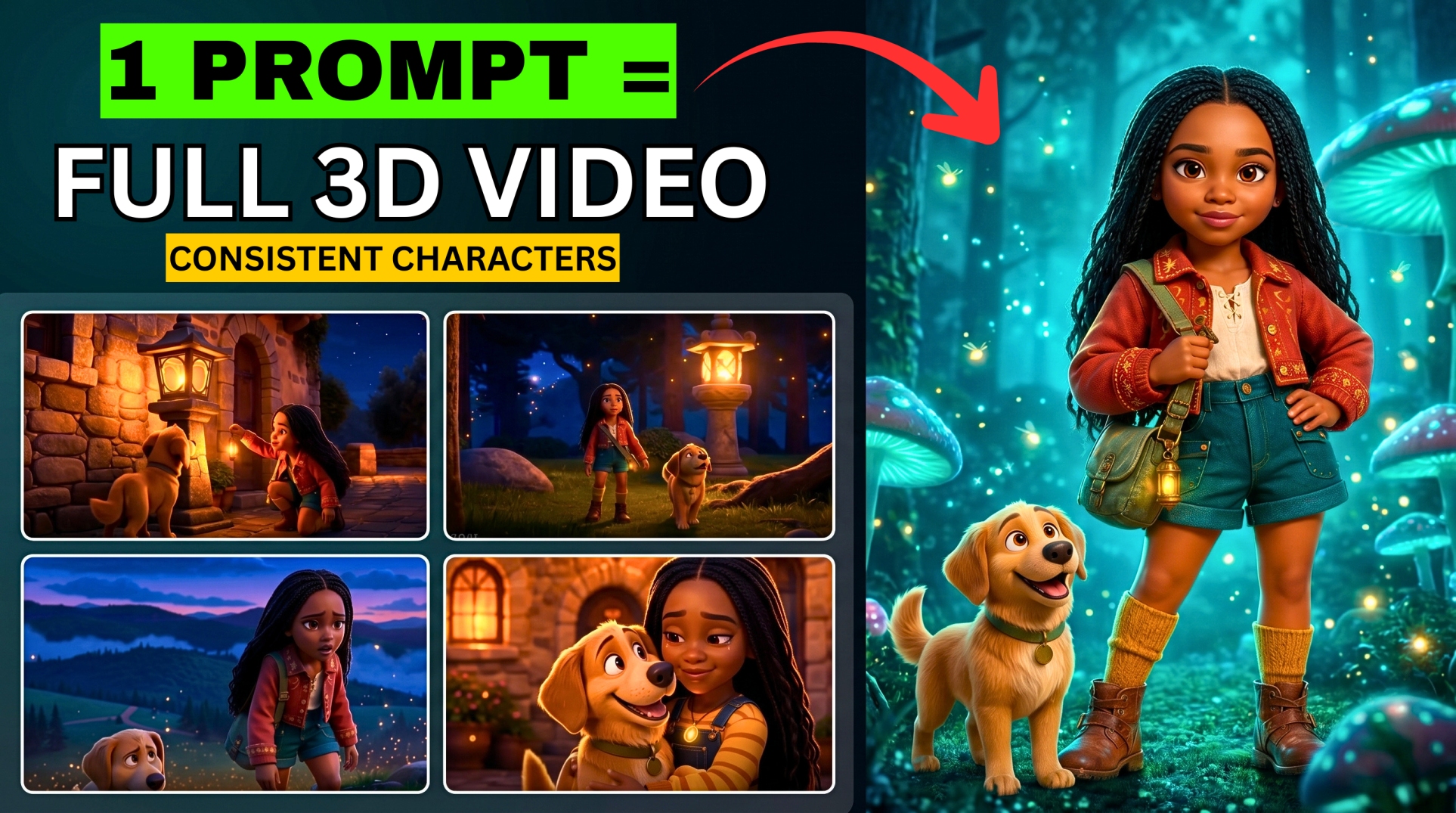
This is for the camera-shy creator, the behind-the-scenes strategist, the automation enthusiast. We’ll go from zero to a fully operational channel using smart AI tools — HeyGen, ChatGPT, Sora, Canva, and CapCut — to create everything:
- Channel branding
- AI avatar and voiceover
- Final polished video editing
No filming. No expensive gear. Just a proven system.
🎬 Watch the full tutorial here:
Tools You’ll Need (All Free or Freemium)
- YouTube Studio — for channel setup
- ChatGPT — for channel description, tags, and hashtags
- Canva — for logo, banner, and image upscaling
- Sora AI (sora.chatgpt.com) — for generating your AI avatar
- Hedra AI — for enhancing your avatar image
- Google AI Studio (aistudio.google.com) — for AI voiceover
- HeyGen — for animating your avatar with lip sync
- Smailpro — for generating a disposable email to sign up for HeyGen
- CapCut — for final video editing
Phase 1 — Set Up Your YouTube Channel
Step 1 — Create Your Channel
- Open your browser and search for YouTube Studio
- Log in with the email you want to use for your channel — consider creating a dedicated new email for your faceless channel
- Click Create Channel, give it a name (don’t overthink it — you can change it later), and click Continue to Studio
Step 2 — Configure Channel Settings
- Click the Settings gear icon
- Click Channel and select your country of origin
- Under Feature Eligibility, verify everything — tick all green. Verify your phone number at minimum
Step 3 — Generate Channel Description and Tags with ChatGPT
- Open ChatGPT and ask it to write a description for your AI YouTube channel
- Also ask for relevant tags and hashtags — this helps with search visibility and SEO
- Once generated, go back to YouTube Studio:
- Click Customisation and paste the description
- Go to Advanced Settings and paste your tags
- Under Default Post Settings, set visibility to Unlisted while your channel is still being set up
- Select your channel category and channel language
Step 4 — Set Up Community Moderation
- Go to Settings > Community
- Add words you don’t want appearing in comments on your videos
- Save and publish
Phase 2 — Design Your Channel Branding in Canva
Step 5 — Create Your Logo
- Go to Canva and search for “Logo”
- Browse the collection and select a template that matches your channel’s vibe
- Customise it — change the name, colours, and fonts to match your brand
- Download it
Step 6 — Create Your YouTube Banner
- In Canva, search for “YouTube Banner”
- Select a template and customise it with your channel name
- Download the finished banner
Step 7 — Upload to YouTube Studio
- Go back to YouTube Studio > Customisation > Branding
- Upload your logo as the profile picture
- Upload your banner
- Add your business email address so people can reach out for brand deals and collaborations
- Click Publish
Phase 3 — Create Your AI Avatar
Step 8 — Generate Your Avatar with Sora AI
- In ChatGPT, click the hamburger menu and select Sora — it opens in a new tab
- Click the Edit icon to open the workspace
- Upload 2 photos of yourself (or whoever you want the avatar to look like)
- Write your avatar description prompt
- Set the aspect ratio to 3:2
- Click Remix and wait for your avatars to generate
- Download the best result
Step 9 — Enhance Your Avatar with Hedra AI
For a sharper, more professional-looking avatar, run it through Hedra AI:
- Open a new tab and visit Hedra AI
- Click Sign Up and sign in with Google
- Accept the terms and conditions
- Click Image
- Upload your Sora-generated avatar
- Write a prompt describing your desired look
- Click Generate and wait for processing
- Download the result
💡 A full Hedra AI tutorial is available on the BigWizTV YouTube channel.
Step 10 — Upscale the Avatar in Canva
Before animating, upscale the image to the highest quality possible:
- Open Canva and click the Edit icon
- Upload your Hedra avatar and click “Use in a New Design”
- Go to Apps and search for “Image Upscaler”
- Select the image, click Continue, and increase the size to the maximum
- Click Export to upscale
- Once done, add the upscaled image to a 16:9 design canvas
- Delete the original and scale the upscaled version to fill the frame
- Download to your device
Phase 4 — Generate AI Voiceover
Step 11 — Create Voiceover with Google AI Studio
- Open your browser and search for Google AI Studio
- Click on Native Speech Generation
- Click the icon next to settings and select Single Speaker Audio
- Type your script — exactly what you want your avatar to say
- Select a voice actor from the available options
- Click Run to generate
- Download the audio file
- Generate a second voiceover if needed for additional video segments
Phase 5 — Animate Your Avatar with HeyGen
Step 12 — Sign Up for HeyGen (Free Method)
To sign up without using your personal email:
More EV News

- Open a new tab and search for Smailpro — click on the Temporary Email Tools option
- Click the plus icon to generate a new disposable email address
- Copy the generated email address
- Go to HeyGen, click Sign Up for Free, and paste the disposable email
- A verification code will be sent — go back to Smailpro to retrieve it
- Paste the code into HeyGen, set a password, and you’re in
Step 13 — Animate Your Avatar
- Inside HeyGen, click Avatar Video
- Upload your upscaled avatar image
- Select the audio file you created with Google AI Studio
- Add a prompt: “Make realistic hand gestures and head movements while talking”
- Click Generate
- Repeat this process for your second audio file if you created one
- Wait for both videos to finish processing, then download them
Phase 6 — Edit Your Video in CapCut
Step 14 — Edit and Export
Open CapCut on your phone and create a new project. Then:
1. Import all your clips and arrange them in order
2. Add text behind the subject:
- Split your clip at the point where you want text to appear
- Duplicate the clip and overlay it
- Remove the background of the overlaid video
- Type your text and choose a style or template
- Go to Layers and bring the text layer behind the subject — this creates a professional depth effect
3. Add B-roll footage:
- Search for relevant b-roll clips directly inside CapCut
- Place them at appropriate points in the timeline
4. Add transitions between clips for smooth scene changes
5. Add captions — auto-generate or manually add subtitles
6. Add sound effects to keep the video engaging
7. Cover any watermarks — add a graphic or overlay element
8. Color grade:
- Adjust colours under the Adjust panel
- Apply a filter if desired
9. Export your final video
Full Workflow at a Glance
| Phase | Tool | What It Does |
|---|---|---|
| 1 | YouTube Studio + ChatGPT | Set up channel, description, tags, SEO |
| 2 | Canva | Design logo and banner |
| 3 | Sora AI + Hedra AI | Generate and enhance AI avatar image |
| 4 | Canva (Upscaler) | Upscale avatar to highest quality |
| 5 | Google AI Studio | Generate AI voiceover |
| 6 | HeyGen + Smailpro | Animate avatar with lip sync |
| 7 | CapCut | Edit, add captions, b-roll, and export |
Tips for Growing Your Faceless Channel Fast
- Consistency is everything — publish at least 2–3 videos per week, especially in the early months
- Niche down — a focused channel (AI tools, finance, motivation) grows faster than a general one
- SEO first — use ChatGPT to generate keyword-rich titles, descriptions, and tags for every video
- Thumbnails matter — use Canva to create bold, high-contrast thumbnails with large text
- Post Shorts — repurpose your long-form videos into YouTube Shorts for extra visibility
- Enable monetization requirements — you need 1,000 subscribers and 4,000 watch hours (or 10M Shorts views) to apply for the YouTube Partner Program
Found this helpful? Subscribe to BigWizTV on YouTube for more AI tutorials and automation strategies. Drop a comment — would you like a full CapCut editing tutorial showing exactly how I edit my videos?