


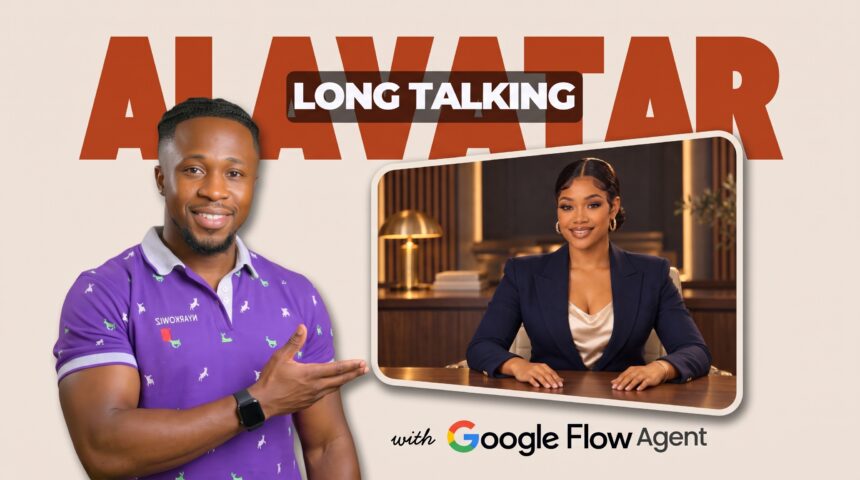
Create a realistic studio presenter, give her a consistent voice, and turn a complete script into a sequence of talking-avatar clips. With a browser-capable assistant handling repeated actions in Google Flow, you can spend more time reviewing the performance and less time entering each scene manually.
- The Tools and Their Roles
- Step 1: Design an Original Presenter and Character Sheet
- Step 2: Build the Studio Portrait and Wardrobe
- Step 3: Fix Hand Placement Before Animation
- Step 4: Save Zara as a Character with a Voice
- Step 5: Connect the Browser Assistant
- Step 6: Provide the Four Automation Inputs
- Step 7: Confirm the Visual Locks and Clip Plan
- Step 8: Generate and Assemble the Talking Clips
- Step 9: Remove Repeated Dialogue in CapCut
- Step 10: Check and Export the Finished Avatar Video
- Frequently Asked Questions
- Can This Create a Video from My Complete Script?
- Is the Entire Workflow Free?
- Do I Have to Use Zara?
- Can I Use This as a HeyGen Alternative?
- Does Automation Remove the Need for Editing?
- Video Sponsor and Disclosure
- Build Your First Studio Presenter Video
In this BIGWIZ MEDIA tutorial, we create an avatar named Zara, develop her studio image, customize her voice, and automate the scene-generation and assembly process. The final step is a short CapCut edit to remove repeated or misplaced dialogue.
The workflow builds a longer video from short generated clips. The full script provides the story order, while the saved character and visual references guide the presenter’s appearance and voice.
Watch the full tutorial: FORGET HeyGen: I Made LONG Talking AI Avatars in Google Flow.
Get the shared prompts: Avatar design, studio setup, and automation intake.
The Tools and Their Roles
| Tool or feature | Role in the workflow |
|---|---|
| ChatGPT image generation | Develop and refine the avatar and studio portrait |
| Nano Banana in Google Flow | Generate alternative character sheets and studio images |
| Google Flow Characters | Save the selected presenter image, character name, and voice |
| A browser-capable ChatGPT or Claude setup | Work through the script and operate the Flow project |
| Flow Agent | Generate the requested talking-avatar clips inside Flow |
| Flow Scenebuilder | Arrange the generated clips into a sequence |
| CapCut | Correct repetition, check the joins, and export the finished edit |
Two assistants have different jobs here: the browser assistant operates the website, while Flow Agent handles media-generation requests within Flow.
The tutorial compares image results from ChatGPT, Nano Banana 2, and Nano Banana Pro. Use the image options available in your account, and compare the actual outputs before choosing a permanent presenter.
More EV News

Step 1: Design an Original Presenter and Character Sheet
Start with a written design for an original fictional adult presenter, or a reference image of an original character you already created. Define the face, hairstyle, clothing, and general presentation you want to reuse.
Generate a character sheet that shows the presenter from several angles. The shared document uses full-body references alongside a set of head-and-shoulders views, giving the image generator more information about the character’s appearance.
In the recording, the creator compares character-sheet results across ChatGPT and Google Flow, then chooses the ChatGPT sheet for the next stage.
Review the face and hairstyle across every panel. A sheet should show one recognizable person, with natural proportions and consistent clothing.
An Original Character-Sheet Prompt
This example was written for the article and creates a fictional host:
Design Zara, an original fictional adult studio presenter with warm brown skin, expressive dark-brown eyes, a softly angular face, and dark hair arranged in a neat low bun. Create a photorealistic character reference sheet on a plain white studio background, including front and three-quarter full-body views plus front, profile, and three-quarter facial close-ups. Keep her facial geometry, hairstyle, proportions, and simple navy outfit consistent across every view. Use even lighting, natural skin texture, clearly formed hands, and no text or logos.
Save the approved sheet. Treat it as the identity reference when creating the studio portrait and later variations.
Step 2: Build the Studio Portrait and Wardrobe
Upload the approved character sheet to Google Flow and add it to the prompt. The tutorial also tests the studio brief in ChatGPT before comparing the results.
The shared studio direction places the presenter behind a walnut desk, with a charcoal-and-wood background, warm architectural lighting, and restrained decor. It specifies a navy blazer and a light blouse, with the presenter facing the camera.
Choose a composition that works as your repeatable base shot. Keep the face easy to see and the background simple enough to remain recognizable when the camera changes.
An original studio prompt you can adapt is:
Use the approved fictional character sheet as Zara’s identity reference. Place her seated upright behind a clear walnut desk in a professional studio, facing the camera in a centered waist-up 16:9 composition. Preserve her face, low-bun hairstyle, proportions, and approved accessories. Dress her in a tailored navy blazer over an ivory blouse. Use charcoal walls, walnut panels, a softly lit background shelf, a small plant, and warm architectural lighting. Light her face softly and retain natural skin texture. Show both hands resting separately on the desk, with a clean silhouette around each hand and no added text or logos.
Compare the generated portraits for identity, expression, posture, hand shape, and background detail. Choose the version that will be easiest to maintain across multiple clips.
Step 3: Fix Hand Placement Before Animation
The tutorial catches an important problem in a studio image: one hand is resting on the other. The creator separates them before using the portrait for animation.
Inspect fingers, wrists, and their contact with the desk. A clear resting pose gives the animation a cleaner starting reference.
Use a focused edit that preserves the rest of the image. For example:
Keep the presenter’s face, hairstyle, expression, outfit, accessories, desk, studio background, lighting, and camera framing unchanged. Separate her hands so they rest naturally on different areas of the desktop, with relaxed wrists and clear spacing between the fingers. Preserve natural anatomy, believable contact shadows, and the approved seated posture.
Review the revised hands at a useful viewing size, then save the approved portrait. Use that chosen version consistently for the character setup.
Step 4: Save Zara as a Character with a Voice
In Google Flow, open Characters and choose Add from Project. Select the approved studio image, or use the upload control if it is stored on your computer.
Enter the exact character name you want to use. The tutorial calls the presenter Zara, and that spelling is supplied again in the automation inputs.
Select a voice, preview it, and add the chosen voice to the character. Finish by selecting Done.
Google’s character guide explains saving visual and audio references together. Reusing that character profile helps guide the same appearance and voice across later clips.
Customize the Voice Delivery
The recording experiments with accent and delivery instructions. Choose an available base voice, describe the performance you want, and preview the result before saving it.
An original voice brief is:
Read as Zara, a confident and approachable tutorial presenter, using clear conversational English with a natural Ghanaian accent. Keep the voice warm, the pitch stable, and the delivery energetic but easy to follow. Use short natural pauses between ideas and pronounce the approved brand name clearly and consistently.
Choose the accent and tone that suit your own host. Judge the generated sample rather than assuming every instruction will produce an exact result.
Google’s video-generation guide describes custom voice controls and the Ingredients requirement for voice references. Keep the saved voice connected to a compatible generation setup.
Step 5: Connect the Browser Assistant
The automation needs an assistant that can read and act in your open Flow project. Set up the supported browser connection for the product you choose.
For ChatGPT, official OpenAI documentation describes the desktop app’s Settings > Computer Use setup. Select the browser, follow the installation link for its extension and required plugin, then confirm the browser is connected. Start a supported Work or Codex chat and select the browser or relevant tab. Availability can depend on rollout and workspace settings.
For Claude, follow Anthropic’s Claude in Chrome setup. Its current documentation lists browser-control access on paid plans.
Open the intended Google Flow project in the connected browser and make sure the assistant is working with that project. Check that it can inspect the saved Zara character before starting media generation.
Step 6: Provide the Four Automation Inputs
Copy the automation section from the shared prompt document into the browser-assistant conversation.
It asks for four details:
| Input | What to provide |
|---|---|
| A: Project title | A clear title used to identify the clips and assembled scene |
| B: Complete script | All the words the presenter should speak, in order |
| C: Character name | The exact name of the saved Flow character |
| D: Camera plan | One of the four movement plans in the template |
The recording uses BigWiz Media as the title, supplies the complete script, names Zara as the character, and selects Dynamic for the camera plan.
Read the script before submitting it. Fix spelling, punctuation, brand names, and awkward sentences now so they do not carry into multiple generated takes.
Choose a Camera Plan
| Plan | Direction in the shared template |
|---|---|
| Steady | A locked frontal medium shot throughout |
| Two camera | A three-quarter medium angle with a clean cut to a centered frontal shot |
| Dynamic | A cycle of the two-camera setup, a closer frontal cut, and a locked frontal shot |
| Mixed | Push-ins, a three-quarter angle, and a move back toward medium framing |
Start with a simple plan if you want to establish the avatar’s consistency first. Check more varied angles for changes in the face, hands, desk, and studio layout.
Step 7: Confirm the Visual Locks and Clip Plan
The shared instructions ask the assistant to inspect the character reference and record four visual locks:
- Style: The approved realistic or animated treatment.
- Look: A concise description of the presenter’s appearance and setting.
- Pose: The neutral resting posture.
- Details: Fixed features such as hair, wardrobe, accessories, chair, and background objects.
Review those details before continuing. The assistant should use the approved studio image and saved voice, with the exact character name supplied in the intake.
After reviewing the setup, type Continue or Proceed, as demonstrated, to move into the generation work.
The linked document currently contains the avatar and studio prompts, the automation intake, and these visual locks. The additional execution brief below spells out the generation and assembly tasks shown in the video.
The recording lets the assistant split the complete script into short speaking segments. Each segment needs enough time for its words and pauses; boundaries should fall at natural phrases or sentence endings.
Keep a scene list connecting each clip number, exact script excerpt, intended duration, camera setup, and completed take. This makes missing lines and duplicate clips easier to find.
Step 8: Generate and Assemble the Talking Clips
Use the browser assistant to operate the Flow project, attach the saved character, and submit the scene instructions. Flow Agent then generates the requested media.
The tutorial shows the assistant monitoring the queue and adding the resulting clips to Scenebuilder in script order.
This original execution brief can supplement the intake from the shared document:
Continue in the selected Google Flow project using the approved title, complete script, saved character, voice, camera plan, and visual locks. Split the script at natural speaking boundaries while preserving its wording and order. Plan durations that fit the selected model and each line’s delivery. Keep a numbered scene list and generate one video output for each planned segment using the correct saved character and voice-compatible references. Work within the agreed generation settings and budget, following any required product confirmations. Monitor completion and identify failed or missing scenes before continuing. Reuse accepted clips when resuming. Arrange one accepted take per segment in Scenebuilder, once each, in script order. Preview the sequence for omitted or repeated lines, then prepare the assembled video for download and list any sections needing a final edit.
Use the brief as task direction and review the first completed clip before expanding to the whole script. Check the voice, appearance, spoken words, camera treatment, and lip movement.
Plan the Generation Cost
Browser automation carries out the repeated actions, while Flow’s model and output settings determine the media cost. Review your allowance and the batch you intend to generate.
Google’s credit guide lists the current costs and allowances. Additional takes and revisions increase the total. Check the browser assistant’s account requirements as well when budgeting the complete workflow.
Review the Scenebuilder Sequence
Confirm that each planned script segment appears once and in the correct position. Play across the joins to check the hand pose, framing, sound, and the beginning and ending of each line.
Google’s Scenebuilder guide documents arranging clips, changing their order, trimming their ends, previewing the sequence, and downloading a scene.
Step 9: Remove Repeated Dialogue in CapCut
Download the assembled sequence and import it into CapCut, or work with the approved clips in your preferred editor.
In the recording, the assembled opening repeats “I’m Zara”. The creator splits and trims the repeated section so the introduction plays naturally.
Use the approved script as your reference while checking the entire timeline:
- Find each repeated or misplaced phrase.
- Split around the unwanted section without cutting into a word.
- Remove the extra material and close the gap.
- Keep picture and dialogue audio aligned.
- Listen across the join for natural timing and an uninterrupted sentence.
Also check for omitted lines, unfinished words, unexpected additions, and incorrect brand-name pronunciation. Regenerate a segment if the spoken content needs correction.
Review the camera changes at the same time. Choose joins that preserve a believable resting pose and avoid distracting jumps in the face, hands, clothing, or background.
Step 10: Check and Export the Finished Avatar Video
Before exporting, confirm that:
- Every approved script line appears in the right order.
- Repeated greetings and misplaced segments have been removed.
- The saved voice and accent remain suitable across the sequence.
- Mouth movement follows the dialogue convincingly.
- Hands, wardrobe, accessories, and studio details remain recognizable.
- Camera changes support the presentation.
- The ending gives the final words enough time to finish.
The video description refers to 1080p footage. Choose the download and export resolution available to your account and appropriate for the generated clips; some higher-resolution options depend on the plan.
Watch the exported file with sound before using it for your channel or business. A complete playback is the final check that the automation and edit produced the presentation you intended.
Frequently Asked Questions
Can This Create a Video from My Complete Script?
The demonstrated workflow gives the browser assistant a full script, then generates and assembles shorter talking clips. The number of clips, generation time, and credit usage grow with the script.
Is the Entire Workflow Free?
Account access, browser-control features, model allowances, video credits, and output options vary. Review the current requirements for the tools you choose before budgeting a full production.
Do I Have to Use Zara?
Create your own original presenter, save the character and voice in Flow, and enter its exact name in the automation inputs. Update the visual descriptions to match that presenter.
Can I Use This as a HeyGen Alternative?
This is another workflow for producing talking-presenter content. Compare the resulting voice, appearance, camera options, generation costs, and editing time against your project’s needs.
Does Automation Remove the Need for Editing?
Review the assembled sequence. The source tutorial demonstrates correcting repeated and misplaced material in CapCut before the final export.
Video Sponsor and Disclosure
The source tutorial is sponsored by VidRush. You can explore it through the BIGWIZ MEDIA VidRush link.
Affiliate disclosure: BIGWIZ MEDIA may earn a commission if you purchase through that link, at no additional cost to you.
Build Your First Studio Presenter Video
Approve the presenter and studio image, fix the resting hand pose, save a suitable voice, and test a short script section. Carry the accepted setup through the full sequence, then review the edit for clear, continuous delivery.
Use the shared design and automation prompts alongside the complete BIGWIZ MEDIA tutorial.
Explore more resources at BigWizTV.com, join our Discord community, and follow the BIGWIZ MEDIA Telegram channel.