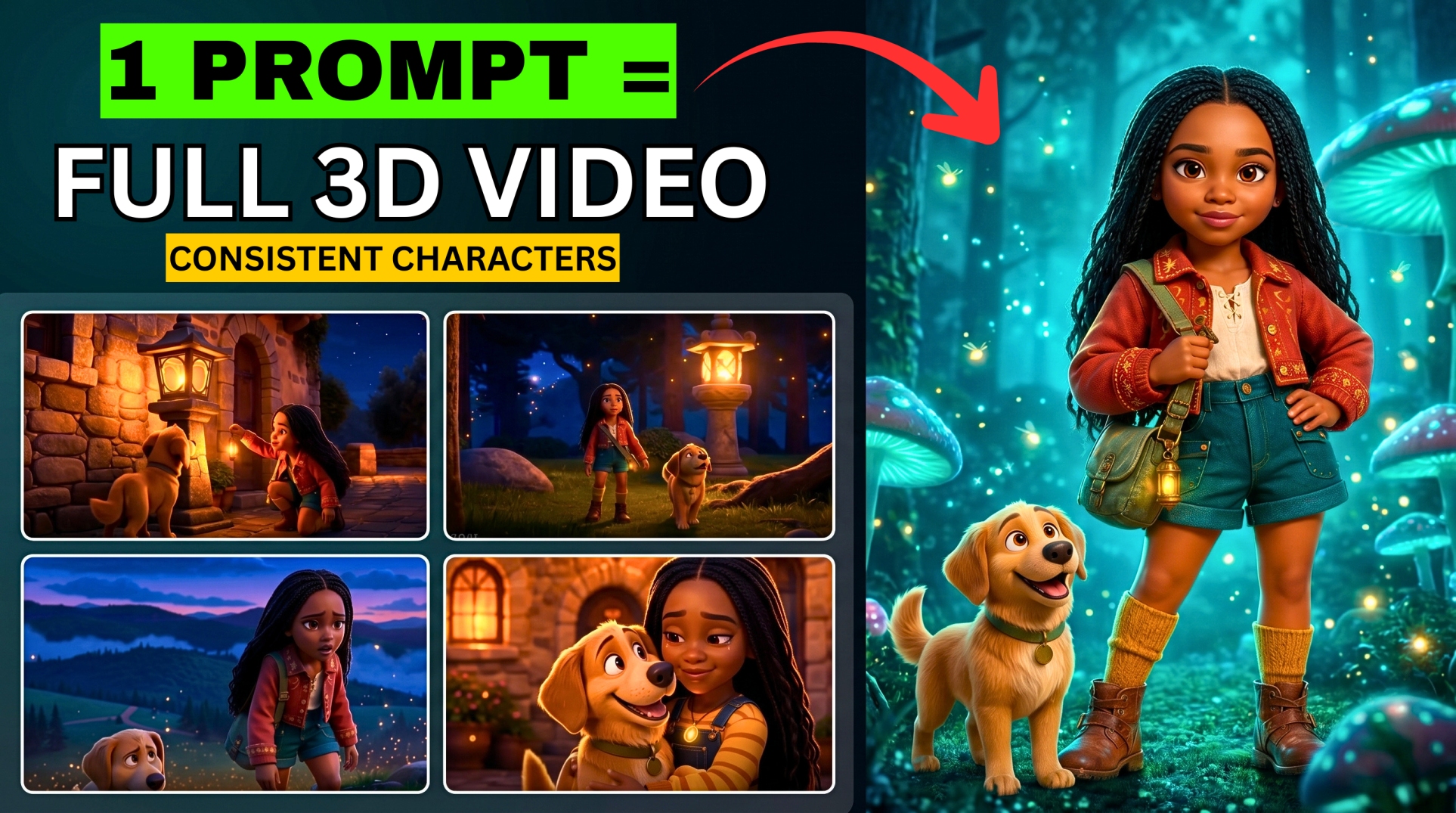



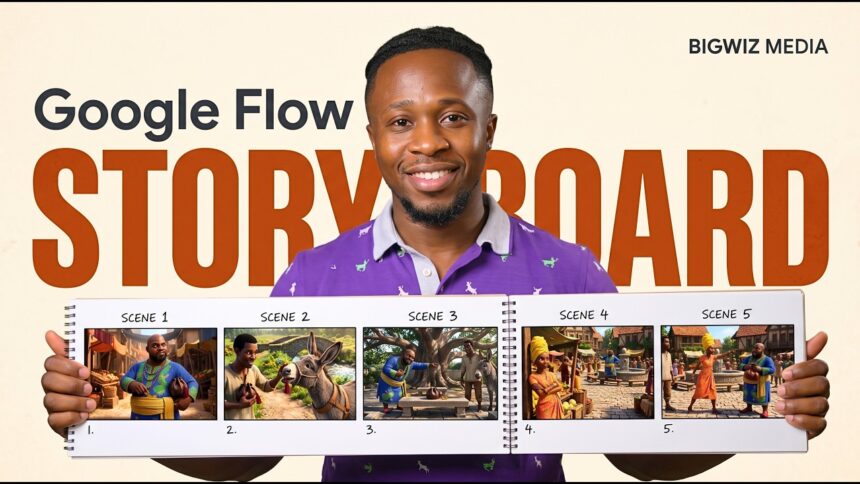
Turn a simple story idea into a script, character designs, locations, props, and a sequence of storyboard images inside Google Flow. Storyboard Studio connects those planning stages, giving you a visual foundation for animating your story.
- How the Workflow Fits Together
- Before You Start
- Step 1: Open the Storyboard Studio Template
- Step 2: Choose a Visual Style and Develop the Script
- Step 3: Auto-Fill Characters, Locations, and Props
- Step 4: Customize the Generated Assets
- Step 5: Auto-Fill the Storyboard Scenes
- Step 6: Save the Storyboard Studio Story
- Step 7: Save a Voice for Each Speaking Character
- Step 8: Add the Scene Image and Correct Character Reference
- Step 9: Choose the Model and Review the Generation Request
- Step 10: Check the Animated Scene Before Continuing
- Common Problems and Practical Fixes
- Frequently Asked Questions
- Where Is Storyboard Studio in Google Flow?
- Does Every Story Generate 35 Images?
- Does Auto Fill Scenes Animate the Entire Film?
- Can I Change an Automatically Generated Character?
- How Do I Keep Character Voices Consistent?
- Build Your First Storyboard and Dialogue Scene
In this BIGWIZ MEDIA tutorial, we use the Storyboard Studio template, choose a 3D animation style, and generate approximately 35 storyboard images. We then save character voices and animate a scene with dialogue using Flow Agent.
The important setup happens before animation: pair each speaking character’s approved appearance with a saved voice, then attach the correct character when generating their dialogue.
This guide follows the complete demonstrated workflow, with practical tips for reviewing assets, saving your story, and checking character and voice consistency.
Watch the full tutorial: How to Use Google Flow Storyboard Studio.
How the Workflow Fits Together
| Area in Google Flow | What you do there |
|---|---|
| Tools and Templates | Open the Storyboard Studio template |
| Script | Develop and review the scenes, actions, and dialogue |
| Assets | Generate characters, locations, and props |
| Storyboard | Generate scene images from the script and assets |
| Characters | Create reusable character profiles with selected voices |
| All Media and Flow Agent | Reference an approved scene and animate it with dialogue |
The demonstration handles story planning and media generation within Flow. The number of storyboard images depends on your script and scene breakdown; about 35 is the example shown in the video.
Before You Start
Use Google Flow in a desktop browser for this workflow. Google’s Tools documentation identifies Tools as a web and PC feature and explains that non-subscribers can use prebuilt tools, while building custom tools requires an eligible subscription.
More EV News

Check the available template and generation settings in your account. The navigation below follows the interface demonstrated in the tutorial, so individual labels may change as Flow develops.
Generating assets and animations can use credits. An automatic operation may create several media items, so review the displayed cost information before running a large set. Google’s current credit guide, checked October 24, 2026, lists 50 daily credits for non-subscribers, with usage costs and access conditions depending on the generation settings.
Step 1: Open the Storyboard Studio Template
Visit Google Flow and create a new project.
In the project workspace, select Tools on the left, then open the Templates tab. Scroll through the available tools until you find Storyboard Studio, and open it.
The tutorial uses this existing template. Start with it so you can follow its script, asset, and storyboard controls directly.
If the template is absent in your interface, check the desktop Tools area and the templates currently offered to your account. Availability and navigation can change; use the options displayed in Flow.
Step 2: Choose a Visual Style and Develop the Script
Open the style selector and choose the visual treatment for your story. The demonstration selects 3D animation. The interface also shows other presets and a custom-style option.
Next, describe the story in the Script area. Include the central situation, main characters, setting, and the outcome you want the story to reach.
Flow expands the idea into scenes with actions and dialogue. Review that breakdown before generating the assets: it determines which characters, locations, and props the storyboard will need.
Check that each scene has a clear purpose and that the conversation moves the story forward. Keep names and important objects consistent across the script.
An Original Story-Idea Prompt
The following practice prompt was written for this article; it is not the exact story prompt entered in the recording.
Create an original short 3D animated folk tale set around a lively village market and a nearby country path. Use a proud adult merchant, a quick-witted adult fruit seller, and a talking fantasy animal with an invented design. Build the story around a small mistake that teaches the merchant to treat others with respect. Develop clear scenes, natural dialogue, readable actions, and a satisfying ending. Keep the fictional characters’ names, clothing, recurring props, and locations consistent throughout.
You can replace the setting and premise with your own idea. Begin with a manageable story whose assets and scenes you can review comfortably.
Step 3: Auto-Fill Characters, Locations, and Props
When the script is ready, open the Assets tab.
The tutorial generates the three asset groups in this order:
- Select Auto Fill Characters to create the cast needed by the script.
- Select Auto Fill Locations to create its settings.
- Select Auto Fill Props to create the important objects.
Let each group finish and inspect the results. These assets provide the visual references used to build the story’s scenes.
| Asset group | What to review |
|---|---|
| Characters | Face, hairstyle, outfit, proportions, accessories, and distinguishing features |
| Locations | Layout, architecture, landmarks, lighting, and recurring background details |
| Props | Shape, size, color, material, and the way the object is used in the story |
An approved cast and setting make later decisions easier. Give a recurring basket, fruit stall, or other important object a clear appearance that you can recognize across different shots.
Step 4: Customize the Generated Assets
Select an asset to inspect its visual description. The demonstration shows that you can edit character details, including clothing and accessories, or use Regenerate Image to create another version.
Revise an asset that does not suit the story before generating the storyboard. Choose a design with a clear silhouette, readable expression, and distinctive features that can carry through different compositions.
This original asset-editing instruction illustrates how to make a focused change:
Preserve the approved fictional character’s face, skin tone, hairstyle, body proportions, and 3D animation treatment. Change the apron to deep teal and simplify the accessories to one small bracelet. Keep the rest of the established outfit intact, with clear fabric shapes and a readable full-body pose suitable for reuse in the storyboard.
Adapt the instruction to your chosen character. Keep descriptions specific, and review the regenerated result before accepting it.
When you change an important asset after creating scenes, review those scenes again and regenerate any that retain the outdated appearance.
Step 5: Auto-Fill the Storyboard Scenes
Open the Storyboard tab and select Auto Fill Scenes.
Flow generates images for the scenes in the script. In the demonstration, the sequence develops from a busy market to a country path and produces approximately 35 storyboard images.
Review the set in story order. Check that each image shows the right characters, location, props, and moment in the action.
Look closely at:
- Characters’ faces, hairstyles, outfits, and proportions.
- Who holds an important prop and where that prop appears.
- Screen positions and the direction characters look.
- Recurring location details and lighting.
- Expressions that suit the dialogue or action.
A storyboard image should prepare the intended shot clearly. If an image already shows an action completed before its line begins, revise the composition or action plan so the animation has a suitable starting point.
The output at this stage is a sequence of still images. Animation and generated dialogue come in the following stages.
Step 6: Save the Storyboard Studio Story
Before leaving the template, open the three-dot menu in its upper-right area and choose Save Story.
The tutorial saves the story to the computer so it can be uploaded again when returning to the project. Keep that saved file somewhere you can identify easily.
Use Save Story again after substantial revisions. Google’s broader Tools guidance also explains that media generated by a Tool is saved to the current Flow project; the template’s Save Story control preserves the story for its demonstrated save-and-reload workflow.
When you return, check that the script, assets, and storyboard you open are the versions you intended to continue.
Step 7: Save a Voice for Each Speaking Character
Move to Flow’s Characters area. Choose Add from Project and select an approved character asset.
Enter the character’s name, preview the available voices, and add the chosen voice to the character. Finish by selecting Done.
The demonstration sets up voices for its recurring characters, including Ama and the fantasy animal Tuli. Repeat the process for every character who needs to speak in your story.
Keep the Visual Asset and Voice Profile Connected
The asset-generation stage establishes appearance. The reusable character profile adds the name and selected voice that you will reference during animation.
Google’s character guide describes saving visual and audio references together. Use the same approved profile when that character returns in another scene, then review the resulting voice for consistency.
Write names identically in your script and profiles so you can select the intended character easily.
Customize the Voice When Needed
The tutorial previews preset voices and discusses tailoring their accent and sound. If you want a custom performance, choose a base voice and use Flow’s available voice-customization controls.
An original voice-direction example is:
Give this fictional character a warm, confident English-speaking voice with a natural Ghanaian accent, clear consonants, an easy conversational rhythm, and lightly playful delivery. Keep the pitch and vocal texture stable between lines, with enough space for the words to remain understandable.
Preview the result before saving it. Choose a voice that fits the character’s role and remains easy to understand during the dialogue.
For a speaking fantasy animal, you can choose a human-like voice or a more stylized performance. Test how well it delivers the actual lines before using it across the story.
Step 8: Add the Scene Image and Correct Character Reference
Open All Media, where you can find the generated characters, props, locations, and scene images.
Select the scene you want to animate and choose Add to Prompt. Turn on Agent for the demonstrated animation workflow.
Return to the storyboard’s Script section and copy the dialogue assigned to that scene. Then add the saved character who speaks it to the generation prompt.
The tutorial uses Ama for the opening line. Flow supports finding saved characters by typing @ followed by their name and selecting the intended asset. Google’s video guide explains character references, Ingredients, and voice-reference controls.
Check that the selected reference is the character profile with the voice you approved. A typed name should correspond to the saved asset you intend to use.
If two characters speak, include both relevant profiles and label their lines clearly. Keep the dialogue short enough for the selected clip duration.
An Original Animation-Prompt Template
This template uses the opening line heard in the tutorial, with additional production instructions written for the article:
Animate the approved market scene using its existing 3D style, character appearance, clothing, fruit stall, props, and lighting. Use the saved @Ama character and her established voice. Ama says, “Watch your step, Bako. Pride walks heavy, but fruit bruises easily.” Keep her face readable, use restrained gestures, and let the other character listen silently. Speak the line once with mouth movement that follows the words. Use a steady camera, subtle market ambience, and no added dialogue or music. Fit the performance within the selected clip duration.
Replace the line and asset reference for other scenes. Select the actual character asset in Flow and review which speakers the generation request includes.
Step 9: Choose the Model and Review the Generation Request
Open the Agent’s settings and choose the video model. The demonstration recommends Omni Flash 1.1 and keeps generation confirmation enabled.
Save the settings and submit the scene prompt. Review the Agent’s request before approving the generation.
Check these details:
| Item | What should match your scene |
|---|---|
| Visual reference | The approved storyboard image |
| Speaking character | The correct saved character and voice |
| Dialogue | The intended line or exchange |
| Model | The selected video model |
| Duration | Enough time for the words and reactions |
| Output count | The number of takes you intend to generate |
| Credit request | The batch and settings you intend to approve |
As a practical starting point, generate one video output for the test scene. Review it before spending credits on additional takes or the rest of the storyboard.
Google’s Agent settings guide documents confirmation controls and generation defaults. Its model guide lists the features supported by each model.
Voice references require an Ingredients-compatible video generation. If you change the input mode or model, verify that the selected setup supports the voice references you are using.
Step 10: Check the Animated Scene Before Continuing
Preview the generated clip with sound. The tutorial demonstrates an animated market conversation after completing the character setup.
Review the result for the correct speaker, recognizable appearance, intended voice, clear words, and mouth timing. Also check hands, props, expressions, and the setting.
When using dialogue, confirm that the result contains only the lines you intended. If you want a reply from another character, supply that reply and its saved speaker profile explicitly.
Saved references help guide consistency, but review every take before accepting it. Revise an unclear line, unsuitable camera angle, or weak performance while keeping the approved visual and voice references active.
To continue the story, repeat the process for the remaining approved scenes. Keep each clip associated with its scene number and dialogue so you can arrange the accepted takes in story order.
Common Problems and Practical Fixes
| Problem | What to check or revise |
|---|---|
| A character’s voice changes | Reuse the saved character profile and confirm that its voice is selected |
| The wrong character delivers a line | Check the attached profiles and identify the speaker explicitly |
| There is no dialogue audio | Check playback, the generation setup, and whether Return silent videos is enabled |
| A line ends too early | Shorten the line, choose a suitable duration, or split the exchange |
| Clothing or a prop changes | Review the asset description and regenerate the affected scene with its approved references |
| Dialogue includes an unwanted reply | Provide the exact lines and specify which characters speak or remain silent |
| A saved story opens with old material | Check that you loaded the intended Save Story file and version |
Google’s project settings guide documents the Return silent videos setting. Turn it off when you want generated speech, and listen to the finished take to confirm the result.
Frequently Asked Questions
Where Is Storyboard Studio in Google Flow?
The tutorial opens it through Tools, then Templates, inside a Flow project. Look for Storyboard Studio among the templates available in your desktop interface.
Does Every Story Generate 35 Images?
The demonstration produces approximately 35 storyboard images. Your script and its breakdown determine the images needed for your own story.
Does Auto Fill Scenes Animate the Entire Film?
Auto Fill Scenes generates the storyboard images in this workflow. The tutorial then demonstrates selecting a scene, attaching a speaking character, and generating an animated dialogue clip with Flow Agent.
Can I Change an Automatically Generated Character?
Select the character asset, edit its visual description, and regenerate its image as needed. Review any existing scenes affected by that change.
How Do I Keep Character Voices Consistent?
Save a voice in each speaking character’s reusable profile, select that profile for its dialogue, and check the audio in every generated take.
Build Your First Storyboard and Dialogue Scene
Start with a clear story idea and a manageable cast. Approve the script and assets, generate the storyboard, save the story, and establish character voices before animating the first conversation.
Follow the full BIGWIZ MEDIA tutorial alongside this guide. Explore more AI filmmaking resources at BigWizTV.com, join our Discord community, and follow the BIGWIZ MEDIA Telegram channel.