


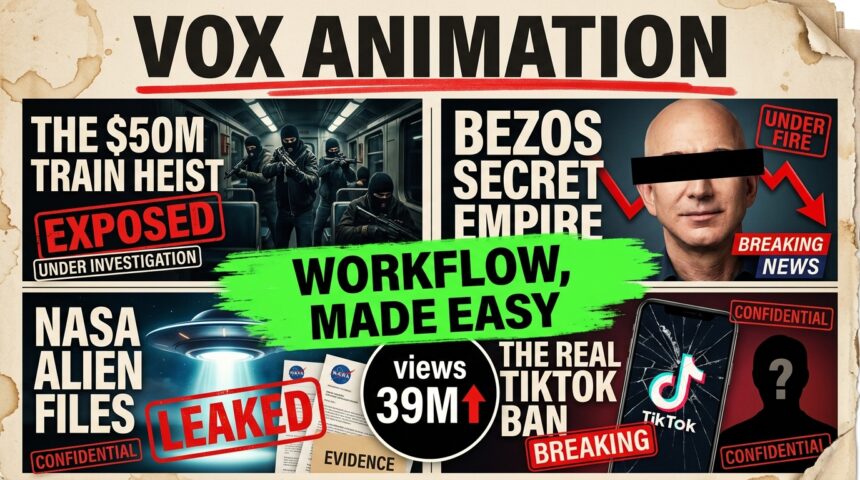
A torn map, a newspaper cutout, a red signal, and a calm narrator can turn a short factual story into an engaging animated explainer. With a planned script and a consistent paper collage style, AI tools can help you build those visuals and bring them to life.
- The Tools and What Each One Does
- Can You Follow This Workflow for Free?
- Step 1: Give Claude the Master Prompt and Source Guide
- Step 2: Choose a Niche, Topic, and Starting Length
- Step 3: Review the Narration Before Creating Images
- Step 4: Split the Script into Visual Beats
- Step 5: Export One Image Prompt for Every Beat
- Step 6: Batch-Generate the Images in Google Flow
- Step 7: Animate Each Image with Omni Flash
- Step 8: Create the Voiceover in Google AI Studio
- Step 9: Add an Optional Instrumental Soundtrack
- Step 10: Assemble the Documentary in CapCut
- Step 11: Check the Finished Edit and Export
- Frequently Asked Questions
- Do I Have to Use Claude?
- Does Agent Mode Animate All the Scenes at Once?
- Do I Need ElevenLabs for the Voiceover?
- Can This Work for a Longer Documentary?
- How Do I Keep the Collage Style Consistent?
- Create Your First Paper Collage Explainer
In this BIGWIZ MEDIA tutorial, we create Vox-style AI videos using Claude, Google Flow, Nano Banana, Google AI Studio, and CapCut. The process covers the story, scene prompts, batch image generation, individual animations, voiceover, background music, and final edit.
Our demonstration uses the Great Train Robbery as its subject and generates 14 scene images. You can adapt the same process for history, technology, money, sports, or another documentary topic.
Several stages offer free access, while video generation has credit limits and the optional Envato soundtrack uses a subscription. Below, you will find the full workflow and the choices that help you control the cost.
Watch the full tutorial: How to Make VOX-Style Videos with AI.
Get the original resources: Open the master prompt and download the Crime Doc Engine source guide.
The Tools and What Each One Does
| Tool | Job in this workflow |
|---|---|
| Claude | Develop the story, narration, visual beats, and prompts |
| Google Flow with Nano Banana | Generate the paper collage images |
| Google Flow Agent | Generate a batch of images from the complete prompt file |
| Google Flow with Omni Flash | Animate each approved image |
| Google AI Studio | Turn the narration into speech |
| Envato Music, optional | Generate an instrumental background score |
| CapCut | Synchronize the visuals, voiceover, music, and sound effects |
The visual direction is an editorial paper collage: textured backgrounds, photographic cutouts, restrained colors, short labels, and movement that feels handmade. Each scene should explain one part of the story clearly.

Can You Follow This Workflow for Free?
You can start with Claude’s limited free plan, Flow’s free image option, Google AI Studio, and basic editing tools. Claude’s plans have different usage allowances, so a large script-and-prompt conversation can reach a limit.
As checked on October 1, 2026, Google lists 50 daily Flow credits for non-subscribers. Video costs vary by model, resolution, and duration, and access can be restricted during busy periods. Check the current Flow credit rules before generating.
For example, one four-second Omni Flash clip at 360p currently costs four credits. Fourteen such clips would use 56 credits before retries. At 720p, fourteen ten-second clips would use 210 credits. These are planning calculations, rather than the settings or total cost demonstrated in the recording.
For the lowest-cost route, start with a small scene test, use the free image model available in your account, work within the video allowance, and choose music you already have permission to use. Envato is an optional paid addition. Use editing features included in your version of CapCut.
Step 1: Give Claude the Master Prompt and Source Guide
Open the master prompt document, copy the engine prompt, and paste it into a new conversation at Claude.
The prompt runs the project in stages. It asks for information, waits for your reply, and then produces the next part of the production plan.
Its first request is for the Crime Doc Engine source material. Download the linked PDF, attach it to the conversation, and tell Claude that the source material is attached.
That guide defines the writing rhythm, scene timing, collage appearance, motion direction, and thumbnail approach. It also includes worked examples. The master prompt allows you to type skip and use its embedded defaults, but the demonstration attaches the guide.
The PDF is a creative style guide. Supply reliable research about your chosen topic separately so the narration has a factual foundation.
Step 2: Choose a Niche, Topic, and Starting Length
Claude asks which niche you want to cover. The supplied prompt offers crime and documentary, history, money and power, disasters and survival, mysteries, technology, sports, or your own subject area.
The demonstration selects crime and documentary, then supplies a custom topic instead of choosing one of the generated suggestions.
Start with a narrow question or event. A short explainer works better when it follows one chain of actions than when it attempts to summarize an entire historical period.
The tutorial requests a 30-second video. The shared prompt’s standard duration options run from 30 seconds to five minutes. Longer projects require a larger script, more scenes, and additional generation time.
For your first attempt, use a short story that you can research and review easily. Expand the format after you have tested the full production process.
Step 3: Review the Narration Before Creating Images
The engine estimates script length at roughly 150 words per minute, giving a 30-second draft a target of about 75 words. Actual delivery will vary with the voice, pauses, and pronunciation.
Its writing approach starts inside a specific moment: a date, a place, and a concrete action. The story then advances through a sequence of causes and consequences.
Review the draft for three things:
- A clear opening. The first sentence should establish something the audience can picture.
- A manageable story. Each sentence should add a fact or move the event forward.
- Verified details. Check names, locations, dates, figures, and claims about what happened.
For the Great Train Robbery example, the Thames Valley Police account confirms the robbery took place on August 8, 1963, and identifies Bridego Bridge and Leatherslade Farm. It also describes the Monopoly game and the evidence left at the farmhouse. Use verified spellings when creating labels and narration.
Keep tension in the sequence of facts. If the topic has an unresolved detail, the ending can leave that question open. A resolved story should finish with its verified consequence.
Step 4: Split the Script into Visual Beats
After the script, the engine offers voice or proceed. The prompt references ElevenLabs at this stage, but our tutorial ultimately generates the audio in Google AI Studio.
The voice option can prepare narration and voice direction; it does not necessarily create an audio file in a normal chatbot conversation. Use proceed when you are ready for the scene breakdown.
The engine divides the narration into short visual beats, usually around two to three seconds each. One beat should have one main visual idea.
Ask for a table connecting the beat number, estimated start time, and exact narration words. Keep that table beside your downloaded images and clips.
| Narration idea | Possible collage treatment |
|---|---|
| Establish the date | A torn calendar card with one short label |
| Establish the location | A simplified map with one highlighted point |
| Show a key object | One large photographic cutout with a supporting detail |
| Explain a connection | Two elements linked by a line, pin, or arrow |
| Show an investigative clue | A document or object presented as the central image |
These are visual planning examples. Choose the treatment that makes the particular sentence easier to understand.
The demonstration produces 14 scenes. Your count should follow the approved narration and its pacing.
Step 5: Export One Image Prompt for Every Beat
Once you approve the beat table, type next to request the image-prompt text file. If needed, ask Claude to deliver it as a downloadable .txt file.
The shared engine specifies one self-contained prompt per block, separated by a blank line, with no numbering or commentary inside the file. Each block repeats the visual direction so it can be generated independently.
Keep the separate numbered beat table as your ordering reference. This is especially useful when the image gallery finishes in a different order from the story.
The collage system favors one dominant subject, a small number of supporting details, and plenty of open space. Its recurring visual features include paper texture, halftone cutouts, tan and gray tones, red accents, and soft shadows between layers.
Keep descriptions of recurring objects and people consistent across the prompts. If a map, train, or briefcase returns in several scenes, reuse its defining details.
An Original Paper Collage Image Prompt
The following example was written for this article. Use the linked document for the tutorial’s complete engine.
Create a 16:9 editorial paper collage with a railway signal as the main subject. Place a black-and-white photographic cutout with rough edges on a faded tan map background. Add one torn paper railway line and a small red circular accent. Use visible paper fibers, halftone print texture, matte lighting, and gentle shadows between layers. Keep the arrangement spacious, with a single clear focal point. Include no labels, logos, or decorative text. Maintain this paper treatment and color palette across the documentary’s other scenes.
Add dates and other precise labels in the editor if the generated text is inaccurate. A short, readable label contributes more than a page of tiny artificial newspaper writing.
Step 6: Batch-Generate the Images in Google Flow
Open Google Flow, create a project, and test the first image prompt.
For the image stage, the demonstration uses these settings:
| Setting | Demonstration choice |
|---|---|
| Generation type | Image |
| Aspect ratio | 16:9 |
| Outputs | One output per scene |
| Image model | Nano Banana 2 |
| Agent | On for the complete image batch |
The creator chooses Nano Banana 2. Google’s current model guide also lists Nano Banana 2 Lite as the default image model available at no charge. Select the option that fits your account and project.
Approve the test image’s style before running the full batch. Then turn Agent Mode on, check the aspect ratio and output settings, and paste the complete image-prompt file.
You can add this original batch instruction before the prompts:
Generate one 16:9 image for each prompt block below. Treat each block as a separate scene, retain the shared paper collage style, and create one output per scene. Keep the blocks in their original story order.
Review the completed set against the beat table. Check for missing scenes, repeated outputs, incorrect labels, and changes in the visual style.
Download the Images in Story Order
The tutorial’s gallery displays some results out of order. Inspect each image’s prompt and match it to the corresponding block in your file.
Use filenames such as 01-date.png, 02-location.png, and 03-key-object.png. Apply the same numbering when you download the animations.
The gallery’s layout should not determine the final story sequence.
Step 7: Animate Each Image with Omni Flash
Return to Claude and type next after the image prompts to obtain the universal animation prompt.
For this stage, the tutorial turns Agent Mode off, selects Video, chooses Omni Flash, and adds each approved image individually. It pastes the universal motion prompt, generates the clip, and repeats the process for the remaining images.
The demonstrated batch operation creates images. The animation stage generates clips individually.
The source prompt requests a locked camera and stop-motion paper movement. Its ten-second plan assembles the collage over the first seven seconds and holds the finished composition for the remaining three.
Use that direction as a starting point, then check whether the result actually preserves the paper layers and important objects. Review one animation before generating all 14 clips.
Match the Motion Prompt to the Image Input
As an additional production option, Flow’s frame controls let you supply start and end images. For an empty-to-finished assembly, use a matching bare paper background as the start frame and your completed collage as the end frame.
If the finished collage is already your start frame, a subtle moving-poster prompt fits that input better. Here is an original example:
Animate the supplied collage from its existing composition. Keep the camera fixed and preserve every subject, label, and paper layer. Use restrained stop-motion movement: a paper corner lifts slightly, a pinned strip settles, and a soft layered shadow shifts. Keep the main subject clearly visible throughout. Do not add objects, change the writing, or transform the scene into a realistic live-action shot. Use quiet paper sounds without speech or music. Maintain the original 16:9 framing for the selected clip duration.
Omni Flash supports four-, six-, eight-, and ten-second clips in Google’s current feature guide. Set the duration in the interface and make the prompt’s timing agree with it.
For a two- or three-second beat, bring the key visual into view quickly. A seven-second buildup may leave the important object off-screen when you trim the clip. Shorten the assembly, use a completed-poster animation, or give that beat more time in the edit.
Download the approved clips using the same scene numbers as the images.
Step 8: Create the Voiceover in Google AI Studio
Copy only the approved spoken narration from Claude. Leave out the word-count labels, beat table, and chatbot instructions.
Open Google AI Studio, select speech generation, and paste the narration into the text area. The tutorial uses a Gemini 2.5 speech option; choose an available TTS model in your current interface.
Google’s speech-generation documentation explains voice selection and control over speaking style. Preview several voices, choose one that suits the documentary, and run the generation.
An original voice direction you can try is:
Read as a calm documentary narrator, with clear pronunciation and measured pacing. Keep the delivery restrained. Use short natural pauses between events, give dates and place names enough space to be understood, and avoid exaggerated dramatic emphasis.
Listen for mispronounced names, missing words, unnatural pauses, and changes in tone. Download the approved take.
The recording’s requested 30-second piece produces roughly 38 seconds of narration. This shows why a script target is an estimate. Use the downloaded voiceover’s actual duration for the edit, or shorten and regenerate the script if the finished video must meet a strict time limit.
Google lists AI Studio usage as free in supported regions. Check the model and account’s current limits; API billing is a separate consideration if you later automate the process.
Step 9: Add an Optional Instrumental Soundtrack
The tutorial uses Envato through the BIGWIZ MEDIA link to generate background music. Open its Music tool and choose Instrumental, so the score can sit beneath the narration without competing vocals.
Describe the mood you need: tense, investigative, reflective, or urgent. For example, this original prompt gives the score a supporting role:
Create a restrained investigative documentary instrumental with low strings, soft pulses, and gradual tension. Leave space for spoken narration. Avoid vocals, sudden loud hits, and a busy lead melody.
Generate, preview, and download the approved version. Envato’s music guide describes its generation controls, while its pricing page explains the subscription and AI-credit allowances.
If you want to stay within free tools, use a track you own or a free track licensed for your intended video. Music is optional; clear narration and relevant paper sound effects can carry a short explainer.
Keep generated background music within the uses permitted by the Envato AI Product Terms, and retain licensing details for any downloaded music or sound effects.
Affiliate disclosure: Some links in this article may be affiliate links. Using them supports BIGWIZ MEDIA at no extra cost to you.
Step 10: Assemble the Documentary in CapCut
Open CapCut or your preferred editor and import the numbered clips, narration, music, and sound effects.
Place the voiceover on the timeline and use it as your timing reference. Arrange the visuals in beat order, then adjust each scene so its main idea appears during the matching narration.
The tutorial has more raw footage than its narration needs. It trims clips and speeds some up to 2x to fit the spoken story.
Use speed changes selectively. Check that the cutout movement still reads clearly and that the important visual has appeared before the clip ends. Trim unused portions rather than rushing every shot.
Keep the soundtrack below the voiceover and reduce any clip audio that obscures the words. Add paper slides, stamp taps, or pin clicks only where they support a visible action.
Watch the complete timeline with sound. Then watch it again while checking that every map, object, date, and label belongs to the sentence being spoken.
Step 11: Check the Finished Edit and Export
Before exporting, confirm that:
- The opening image supports the first line immediately.
- Every scene appears in the correct order.
- Important labels are readable and correctly spelled.
- Recurring subjects retain their appearance.
- The narration is clear above music and sound effects.
- The ending has enough time to land naturally.
Export at a resolution available in your editor and suitable for the source footage. The tutorial discusses a 4K finish, but a 4K export does not turn lower-resolution generated clips into native 4K detail.
Likewise, an image prompt that includes an 8K quality request does not determine the downloaded file’s pixel dimensions. Inspect the actual outputs and judge the final video at its intended viewing size.
Frequently Asked Questions
Do I Have to Use Claude?
Claude is the chatbot demonstrated in the video. Another chatbot can help with the same planning stages, but check its handling of the source PDF, downloadable prompt files, and instructions before running a large project.
Does Agent Mode Animate All the Scenes at Once?
In this tutorial, Agent Mode creates the image batch. The creator switches it off and animates each image individually with Omni Flash.
Do I Need ElevenLabs for the Voiceover?
The engine includes an ElevenLabs stage, but the demonstrated audio is generated in Google AI Studio. You can follow that route with the approved narration.
Can This Work for a Longer Documentary?
Yes, expand the research, script, and scene plan. Build longer projects in manageable sections, keep the same visual references, and budget for more clips and revisions. A long documentary is assembled from many short generations.
How Do I Keep the Collage Style Consistent?
Repeat the same paper treatment, palette, subject descriptions, and composition rules across your prompts. Approve one test image and one animation before generating the full set, then review every scene against that style.
Create Your First Paper Collage Explainer
Choose one factual story, test a short narration, and build a small set of scenes that explain it clearly. Once the images, motion, and voice work together, use the same process for your next topic.
For another creative workflow, watch our AI music-video tutorial using Envato and stock footage.
Explore more tutorials at BigWizTV.com, join the BIGWIZ MEDIA Discord community, and follow our Telegram channel.