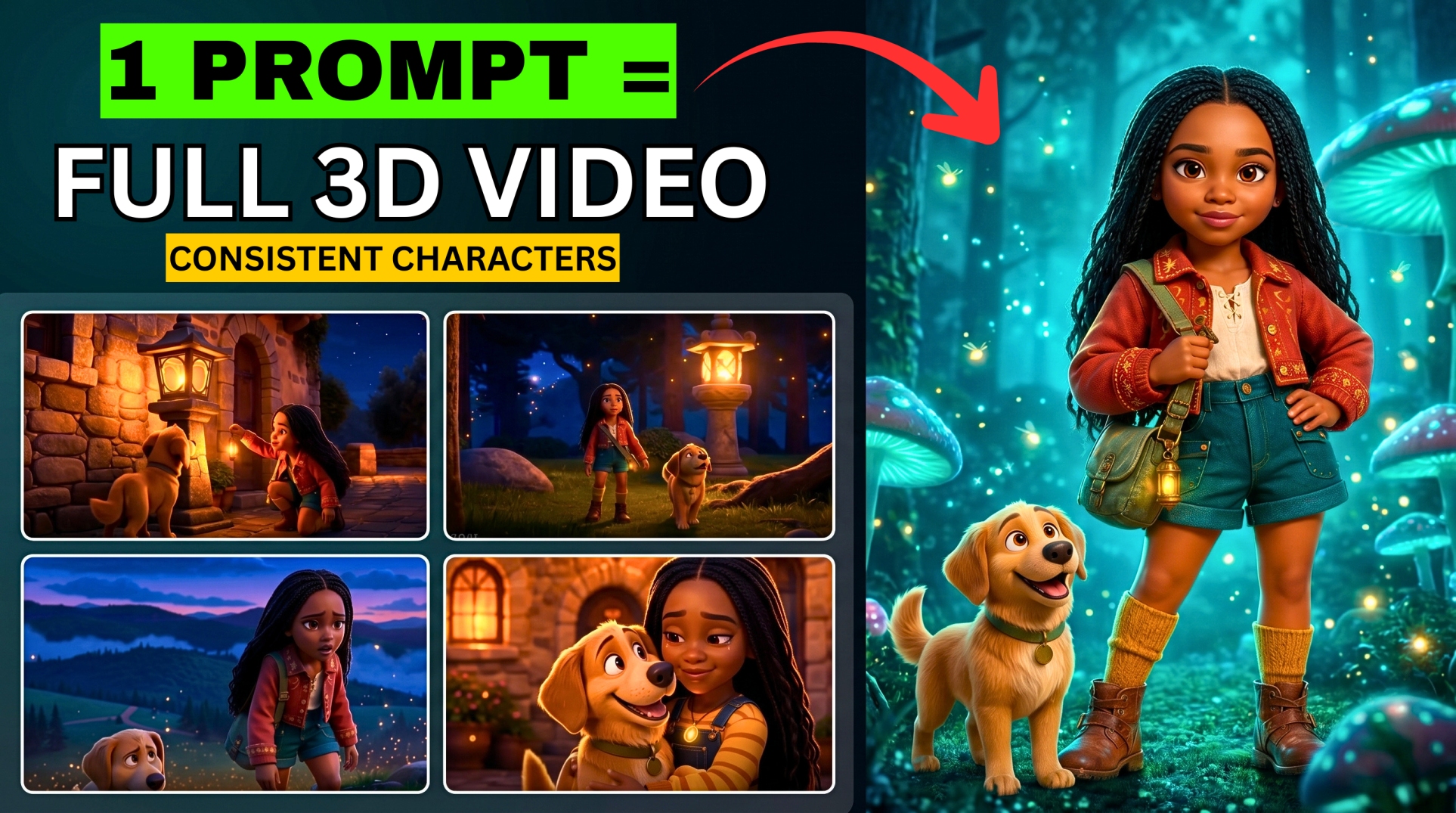



The moment a character’s face, clothes, or voice changes, an AI movie can lose its continuity. The same problem appears when a familiar room suddenly has a different layout in the next scene.
- What You Need for This AI Filmmaking Workflow
- Step 1: Generate the Story from the Master Brief
- Step 2: Prepare Character Turnaround Prompts
- Step 3: Create the Characters in Google Flow
- Step 4: Design and Save a Voice for Each Character
- Step 5: Create the Recurring Location References
- Step 6: Configure Omni Flash and Budget Your Generations
- Step 7: Tag the Saved Characters and Locations in Every Scene
- Step 8: Continue Long Conversations with a Saved Frame
- Step 9: Review and Download the Approved Takes
- Step 10: Assemble the Film in CapCut
- Frequently Asked Questions
- Can I make an AI short film with the free allowance?
- Do I need to use Claude?
- Can I use my own AI avatar as a character?
- Does the reference system guarantee perfect consistency?
- Can I make a conversation longer than ten seconds?
- Start Your Own AI Short Film
This Google Flow workflow gives your scenes a shared set of character, location, and voice references. You establish those assets first, then reuse them throughout the film with Gemini Omni Flash.
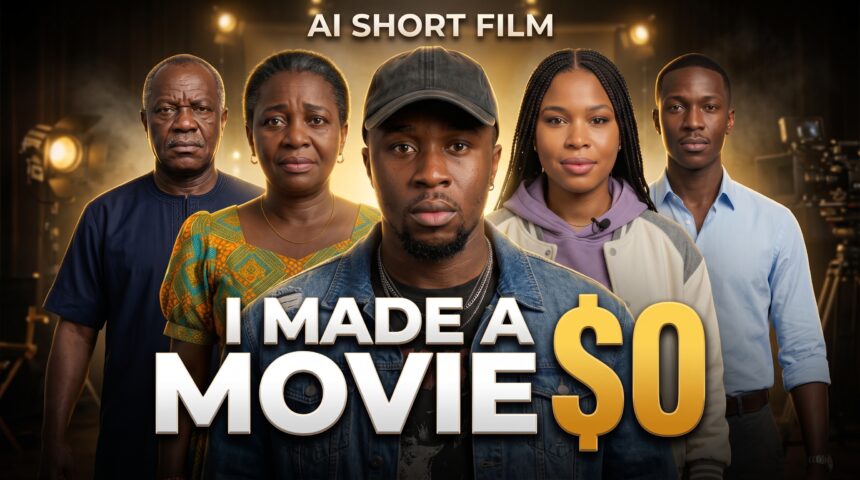
In the BIGWIZ MEDIA demonstration, we build a Ghanaian drama about Frank, also known as Supremo DM, a talented drill artist torn between university, his parents’ expectations, and his music. The project uses five characters, four recurring locations, and a ten-beat story plan.
Below, you will learn how to prepare the story, create character turnaround sheets, customize voices, reference locations, continue conversations across clips, and assemble the final movie.
Watch the full tutorial: How I Made a Full AI Short Film with CONSISTENT Characters (Omni Flash FREE).
Get the original resources: Open the free master prompt document.
What You Need for This AI Filmmaking Workflow
| Tool or resource | Role in the workflow |
|---|---|
| Claude, or your preferred AI chatbot | Develop the story and produce character, location, and voice prompts |
| Google Flow | Store references, configure characters and voices, and generate scene clips |
| Nano Banana 2 inside Flow | Generate character turnaround sheets and environment images |
| Gemini Omni Flash inside Flow | Generate the film’s dialogue and action clips |
| CapCut, or another video editor | Assemble the approved clips into a finished movie |
| The master prompt document | Supply the story brief and prompts used to prepare the references |
The recording uses Claude for planning, Nano Banana 2 for images, and Omni Flash for video. The two generation models are accessed within Flow.
More EV News

Google’s current model guide confirms Omni access for all users, with some feature and voice-customization restrictions by region. The current free image default is Nano Banana 2 Lite; the demonstration explicitly selects Nano Banana 2. Check the model selected in your own project.
Step 1: Generate the Story from the Master Brief
Open the linked prompt document. Begin with its opening story brief, which contains the premise, character anchors, location anchors, lighting progression, and ten story beats.
Copy that opening section into Claude or your preferred chatbot. Adapt the story, names, and setting if you are making a different film, then ask it to develop the cinematic scenes.
The sample cast has distinct roles and visual anchors:
| Character | Story role | Appearance to preserve |
|---|---|---|
| Frank / Supremo DM | The aspiring drill artist | Vintage streetwear, layered silver chains, and a faded cap |
| Mr. Osei | Frank’s strict father | A crisp, short-sleeved traditional tunic |
| Mrs. Osei | Frank’s concerned mother | A brightly colored Ankara print dress |
| Rosina | The producer and beatmaker | Neatly braided hair and oversized streetwear |
| Kofi | Frank’s pragmatic brother | A button-down shirt with rolled sleeves |
Keep these details in the planning conversation. They help the chatbot write scenes around the same cast rather than introducing a different description each time.
The Ten-Beat Story Structure
The original brief follows this progression:
| Beat | Setting and time | Main story event |
|---|---|---|
| 1 | University, Day 1 midday | Frank struggles to engage with his studies |
| 2 | Family living room, afternoon | His father confronts him about a failed exam |
| 3 | Family living room, evening | His mother prepares food as Frank packs for the studio |
| 4 | Accra tro-tro, night | Frank travels through the city |
| 5 | Kokrobite studio, late night | Frank arrives and meets Rosina |
| 6 | Kokrobite studio, late night | He channels the family conflict into his music |
| 7 | Family home, Day 2 dawn | Kofi encounters Frank returning home |
| 8 | Family living room, morning | His father discovers the lyric notebook |
| 9 | Family living room, midday | The argument escalates over university registration |
| 10 | Family living room, midday | Frank faces the final confrontation with his father |
A beat describes a story event. It may need more than one generated clip, particularly when the scene contains several lines of dialogue.
Read the generated story before creating the references. Resolve character names, dialogue, and scene order while revisions are still text edits.
Step 2: Prepare Character Turnaround Prompts
Return to the same planning conversation and paste the document’s Master Prompt for Character Turnaround Sheets.
This produces a separate image-generation prompt for each of the five characters. The requested reference board contains:
- Four full-body views: front, left side, right side, and rear.
- Three head-and-shoulders views: front, left profile, and right profile.
- A neutral studio background: to keep attention on the character.
- Consistent proportions, costume, hair, and colors: across the whole board.
These sheets give you several views of the same person to review before scene generation. Check that the face and outfit remain recognizable from every angle.
If you are using your own AI avatar, the document also includes a Full-Body Character Turnaround prompt based on an uploaded image. Let that image govern the face, hairstyle, and clothing; remove conflicting text descriptions when adapting the prompt.
Step 3: Create the Characters in Google Flow
Open Google Flow and start a New project.
Go to Characters, select New Character when needed, and paste the first turnaround prompt. Choose Nano Banana 2, as shown in the demonstration.
The tutorial uses two routes:
- With a reference image: Frank is created using the host’s AI avatar as a visual reference.
- From a written prompt: Mr. Osei is created without an uploaded reference image.
Generate the sheet and inspect the result. If it changes an important feature, refine the prompt or regenerate before accepting it.
Give the saved character a clear name. In the demonstration, the protagonist’s card is named Frank, even though the story also uses his artist name, Supremo DM. Use the saved card’s name when selecting him later.
Repeat the process for the other cast members. Google’s character-management guide confirms that a reusable character can bundle visual and voice references.
Step 4: Design and Save a Voice for Each Character
Copy the document’s Voice Description Prompt into the planning conversation. It asks for a separate profile for each character, covering three elements:
- Tone and texture: how the voice sounds.
- Accent: the intended speech pattern and pronunciation.
- Pacing and emotion: how the character delivers a line.
The sample differentiates modern Accra English and Pidgin influences for Frank and Rosina, more formal Ghanaian English for Kofi, and older Ghanaian English with Twi inflections for the parents.
In Flow, preview the available base voices and select one that fits the character. Then use the voice customization controls to apply the profile.
The recording initially places information in the character description, then demonstrates the more targeted Customize Performance control. Google’s current interface describes the corresponding field as Voice Performance.
Under the current custom-voice instructions, you can select a base voice, name the custom voice, describe its performance, enter sample dialogue, preview it with Sync, and choose Save New Voice. Add the saved voice to the character and complete the card with Done.
Listen to the preview before moving on. Adjust an accent or delivery that sounds unnatural, and save one approved voice for each recurring character.
An Additional Voice-Profile Example
This original example follows the document’s three-part structure; it is not a verbatim profile from the demonstration:
Give Frank a youthful, expressive voice with a slightly rough texture and natural Accra English pronunciation, with light Ghanaian Pidgin influence where the dialogue calls for it. Keep his everyday delivery conversational and direct. During family conflict, let the emotion rise through tension and brief pauses while preserving the same underlying voice.
The goal is a reusable voice identity with room for different emotions. A character can sound worried in one scene and confident in another while remaining recognizable.
Step 5: Create the Recurring Location References
Paste the document’s Master Prompt for Location & Environment Anchors into the same planning conversation.
It generates four environment prompts: the university lecture hall, Osei family living room, Accra tro-tro interior, and Kokrobite music studio.
Create an image for each location in Flow using Nano Banana 2. The source prompt requests empty environments so that an unrelated person does not become part of the setting reference.
In the recording, the host stores these references through New Character, gives each a location name, and leaves the voice unused. Named image assets can also be selected as visual ingredients in the current interface. What matters is reusing the approved location reference when that setting returns.
Review the room layout, furniture, windows, and major equipment. Regenerate an unsuitable result or add a reference image for clearer guidance. The tutorial itself identifies a lecture-hall image that could be improved.
Keep the Setting Consistent as Time Changes
The same room can appear at different times of day. Preserve its architecture and furnishings while giving the scene the lighting specified in the story.
The original brief moves from midday through afternoon, evening, night, dawn, and the following morning. Its studio uses deep purple and yellow lighting, while the tro-tro uses passing amber streetlights.
Use the location image to guide the space and the scene prompt to describe the intended time and atmosphere. This keeps the film’s day-to-night progression connected to the story.
Step 6: Configure Omni Flash and Budget Your Generations
Return to the project prompt box and choose Video with Gemini Omni Flash. For a landscape short film, use 16:9. Choose the clip length and resolution before generating.
The recording recommends lower-resolution tests and shorter clips to stretch the free allowance. Google’s current credit guide, checked October 1, 2026, lists 50 daily credits and these costs per generated video:
| Omni Flash setting | Credits per output | Whole outputs within 50 credits |
|---|---|---|
| 360p, 8 seconds | 6 | 8 |
| 360p, 10 seconds | 7 | 7 |
| 720p, 8 seconds | 12 | 4 |
| 720p, 10 seconds | 15 | 3 |
Ten 10-second draft clips would therefore use 70 credits before retakes. A ten-beat film may take multiple daily allowances, especially when conversations require extra clips.
Set one output when budgeting for a single generation. Check the displayed cost before sending; multiple outputs increase the total. Unused daily credits do not roll over, and the listed rates can change.
Use draft resolution to evaluate casting, dialogue, action, and continuity. Decide on your finishing quality once the scene works.
Step 7: Tag the Saved Characters and Locations in Every Scene
Copy the first scene prompt from your story into Flow. Read through it and replace the relevant character and location names with the saved asset references.
Type @ and choose the matching asset from the selector, or use Add to find it. Select the actual reference; typing a character’s name as ordinary text does not select its saved card.
The demonstration tags the characters throughout the action and dialogue instructions and also tags the room or vehicle. Make the speaker assignments clear wherever the dialogue changes hands.
This is the central consistency technique: the scene prompt describes what happens, while the selected assets supply the recurring people, voices, and environment.
Here is a short original example to adapt. The written @ labels indicate where you should select your own saved assets in Flow:
In @Osei Family Living Room, afternoon daylight enters through the established window. @Mr. Osei stands beside the wooden table holding an exam paper. @Frank enters and stops near the door. Keep their approved faces and costumes. @Mr. Osei says, “We need to talk.” @Frank replies quietly, “I know, Daddy.” Use a restrained cinematic shot and leave a brief pause after the reply.
Generate the clip and review it before continuing. Check the actual faces, clothing, room, speakers, and spoken words in the output.
Step 8: Continue Long Conversations with a Saved Frame
A long exchange may need several clips. Divide the dialogue at natural pauses and give each generation a manageable amount of action and speech.
The tutorial shows a saved-frame continuation method:
- Open an approved clip and pause at the point where you want the conversation to continue.
- Hover over the image and choose Save frame.
- Add the saved frame as a visual reference for the next generation.
- Reuse the same character, voice, and location references.
- Prompt the remaining dialogue and the next small action.
- Generate the continuation and review the join between the clips.
Google’s frame-saving guide confirms that a saved frame can be reused as an ingredient, start frame, or end frame.
For explicit voice references, Google’s current instructions require the Ingredients generation mode. Use that route when referencing saved voices; check the available audio controls if you switch to a Frames setup.
Choose a clear frame with useful character positions and expressions. An awkward mid-blink or motion-blurred image can make the next generation harder to direct.
Repeat the process as needed, then join the approved clips in the edit. The longer conversation comes from this sequence of generated clips, with each boundary checked for continuity.
Step 9: Review and Download the Approved Takes
Keep the successful versions of each scene. In the recording, one generation repeats a dialogue line, demonstrating why playback matters even when the visuals look convincing.
Before downloading, check:
- Identity: the face, hairstyle, and outfit match the saved character.
- Setting: the layout and major objects match the location reference.
- Dialogue: the correct character speaks, and the lines are complete.
- Performance: the voice and emotional delivery fit the moment.
- Continuity: positions, props, and lighting connect with neighboring clips.
Give downloaded clips a scene number and a continuation letter when needed, such as Scene_02_A and Scene_02_B. This makes the intended sequence easier to assemble later.
If dialogue cuts off, shorten that clip’s script or move the remaining lines into a continuation. If the character changes, check the selected references before spending credits on another take.
Step 10: Assemble the Film in CapCut
Import the approved clips into CapCut, or your preferred editor, and arrange them in story order.
Trim repeated opening frames, unnecessary pauses, and awkward joins. Check that each exchange remains understandable after trimming and that changes in location follow the story’s progression.
Balance dialogue, music, and ambience so voices remain clear. Review any captions you add for names and local expressions.
Watch the complete sequence before export. A clip that works by itself may reveal a continuity problem when placed next to another scene.
Export in the intended aspect ratio and at a quality suitable for the actual source footage. Increasing the export size alone does not create missing detail in a draft-resolution clip.
The finished movie now follows a complete production chain: story, visual references, voice design, tagged scene prompts, reviewed takes, and an assembled edit.
Frequently Asked Questions
Can I make an AI short film with the free allowance?
You can use the daily credits to generate scene clips. Use the budget table above to plan your film, including retakes and conversation continuations. A complete project may require work across several days.
Do I need to use Claude?
The demonstration uses Claude. You can adapt the master prompts for another chatbot that can follow the story and reference requirements. Keep the approved descriptions together so later prompts use the same cast and settings.
Can I use my own AI avatar as a character?
Yes. The tutorial uploads an avatar reference for Frank and generates his turnaround sheet from it. Preserve the reference’s face, hairstyle, and clothing when adapting the character prompt.
Does the reference system guarantee perfect consistency?
It gives each generation shared visual and voice guidance. You still need to review the output, as the demonstration’s dialogue retake illustrates. Approve the assets first, select them correctly, and inspect every scene.
Can I make a conversation longer than ten seconds?
Split it into several clips, reuse a saved frame and the relevant references, then join the clips in your editor. Review the voice, character positions, and action at each boundary.
Start Your Own AI Short Film
Begin with a focused story and a small recurring cast. Approve the character sheets, voices, and locations before spending credits on the full sequence.
Then generate one scene, check it carefully, and carry those approved references into the next. That repeated reference system is the foundation of this workflow.
Get the free master prompts and watch the complete BIGWIZ MEDIA tutorial.
For another character-reference workflow, read our Grok guide to AI videos with consistent characters.
For more AI filmmaking tutorials, subscribe to BIGWIZ MEDIA, join our Discord community, or follow our Telegram channel.
What story would you turn into an AI short film? Share your idea in the comments.