


This Creator Makes $18,800/Month with an AI Influencer — Here’s Exactly How
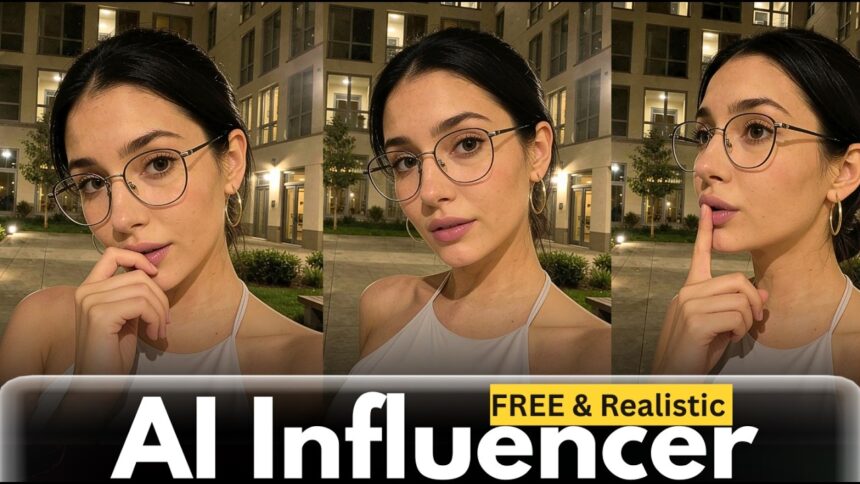
One creator is generating over $18,800 every month using an AI influencer they created just one month ago. And here’s the crazy part — they don’t have a big following, they didn’t use expensive software, and they were never on camera.
- This Creator Makes $18,800/Month with an AI Influencer — Here’s Exactly How
- What Is MySnapFace?
- Step 1 — Sign Up and Access the Platform
- Step 2 — Create Your AI Influencer Character
- Step 3 — Generate Realistic Images with Photo Pack
- Step 4 — Use the MySnapFace Chrome Extension
- Step 5 — Upscale for Maximum Realism
- Step 6 — Generate Multiple Angle Variations
- Step 7 — Edit Images with Text Prompts
- Step 8 — Clone Trending Videos with Your AI Character
- Content Creation Workflow at a Glance
- How to Monetize Your AI Influencer
- Key Features Summary
In this tutorial, I’ll show you exactly how to create your own ultra-realistic AI influencer in minutes — from scratch — and turn it into a real income stream.
🎬 Watch the full tutorial here:
What Is MySnapFace?
MySnapFace (mysnapface.com) is an AI influencer creation platform that lets you:
- Create a unique AI character from scratch (no photos of real people needed)
- Generate realistic photos in any pose using Instagram and Pinterest references
- Clone trending TikTok videos with your AI character
- Edit images with text prompts (add accessories, change clothing, etc.)
- Upscale images to remove the “AI plastic skin” look
Step 1 — Sign Up and Access the Platform
- Visit mysnapface.com (link in the video description)
- Click Sign Up and register with your Google account
- Once signed in, click on Characters in the menu
You’ll see existing characters available to use — but let’s create your own from scratch.
Step 2 — Create Your AI Influencer Character
- Click “Create Character”
- Choose between:
- Real Character — upload up to 20 images of a real person for the AI to learn
- Virtual Character — create a completely unique AI influencer from scratch (no photos needed)
- Select Virtual Character and click “Start Designing”
Customise Your Character:
| Setting | Options |
|---|---|
| Ethnicity | White, Black, Asian, Latina, and more |
| Age Range | Teens, Twenties, Thirties, etc. |
| Hair Colour | Black, Blonde, Brown, Red, etc. |
| Hair Style | High ponytail, curly, straight, etc. |
| Body Type | Various bust and hip combinations |
| Custom Prompt | Add details like “cute smile”, “dimples”, “freckles” |
- Click “Generate Character Options”
- Browse the generated options and select your preferred character
- Click “Continue with Selected Character”
- Give your AI influencer a name (example: Maya)
- Click Submit
The AI will begin training your character — this takes approximately 30 minutes. Once training is complete, you can start creating content immediately.
Step 3 — Generate Realistic Images with Photo Pack
- Click “Create Image” on your character’s page
- Select the Photo Pack tool
- Browse reference images from three sources:
- Web — general web references
- Instagram — Instagram-style poses and aesthetics
- Selfies — close-up, selfie-style references
- Select a pose you want to replicate
- Set your preferences:
- Image Dimensions — Square (Instagram), Portrait (Stories/Reels), Landscape (YouTube)
- Number of Outputs — up to 4 images per generation
- Enhance Prompt Style:
- Professional — sharp, high-end editorial look
- Amateur — realistic, phone-taken feel (recommended for authenticity)
- Click “Generate Images”
Your AI influencer will appear in the exact style and pose of the reference image — fully consistent with her trained appearance.
More EV News

Step 4 — Use the MySnapFace Chrome Extension
The MySnapFace Chrome Extension lets you replicate any image you find online — on Instagram, Pinterest, or anywhere on the web — using your AI character.
How to Install and Use:
- Click “Extension” in the MySnapFace menu
- Click “Add to Chrome” and install the extension
- Browse to any platform — Pinterest, Instagram, etc.
- When you hover over an image you like, the MySnapFace crown icon appears on it
- Click the icon
- A menu pops up — select your settings:
- Exact Copy — replicate the pose precisely
- Different — use the image as inspiration with variations
- Select your AI model (your trained character)
- Return to the platform — your character has been placed in the same pose and style as the original image
This works for any image on the internet — completely changing how fast you can create content at scale.
Step 5 — Upscale for Maximum Realism
Sometimes generated images can look too smooth or “AI-like” — the plastic skin effect. Fix this with the Enhanced Realism Upscaler:
- Hover over any generated image
- Click Upscale
- Select Enhanced Realism
- Click “Upscale Image”
The upscaler adds natural skin texture, removes the artificial smoothness, and makes the image look genuinely photographic — indistinguishable from a real photo.
Step 6 — Generate Multiple Angle Variations
After upscaling, you can generate multiple variations of the same scene from different camera angles:
- Hover over the image
- Click “Toggle into Carousel”
- Select your aspect ratio
- Choose the number of images (example: 5 variations)
- Click “Generate 5 Variations”
Each variation shows your AI influencer in the same outfit and setting but from a different angle — perfect for creating a full content batch from a single reference.
Step 7 — Edit Images with Text Prompts
Need to change something about an image? Use the Edit Image feature:
- Click the dropdown menu on any image
- Select “Edit Image”
- Choose Feed as the source and select the image you want to edit
- Type your edit instruction in the prompt box — examples:
- “Wear her glasses”
- “Change her top to red”
- “Add a necklace”
- “Put her in a café background”
- Select number of outputs
- Click “Edit Image”
The AI applies your exact instruction to the image while keeping your character consistent.
Step 8 — Clone Trending Videos with Your AI Character
This is the most powerful feature for going viral — Clone Video lets you take any trending TikTok or video and replace the person in it with your AI influencer.
How to Use Clone Video:
- Select “Clone Video” from the tools menu
- Choose a source image of your character from your feed
- Select your source video — three options:
- Paste a TikTok link
- Upload a video file
- Select from the Trending section (pre-loaded viral videos)
- Click “Generate Video”
Your AI influencer performs the same movements and actions as the original video — with her face and body replacing the original person completely.
💡 The Trending section has pre-loaded viral clips ready to clone — great for quick content creation without needing to find your own source videos.
Content Creation Workflow at a Glance
| Step | Tool | Output |
|---|---|---|
| 1 | Character Creator | Trained AI influencer |
| 2 | Photo Pack + Instagram refs | Realistic posed images |
| 3 | Chrome Extension + Pinterest | Any-style replicated images |
| 4 | Enhanced Realism Upscaler | Photographic quality images |
| 5 | Carousel Variations | Multi-angle content batch |
| 6 | Edit Image | Accessory/clothing changes |
| 7 | Clone Video | Trending video with your AI character |
How to Monetize Your AI Influencer
Once your content batch is ready, here’s how creators are turning it into income:
- Brand deals — brands pay AI influencers for sponsored posts just like real influencers
- Fan subscription platforms — post exclusive content behind a paywall
- Affiliate marketing — promote products in your AI influencer’s posts with affiliate links
- Stock content licensing — sell your AI-generated images and videos
- Social media growth — build a following and monetize through platform creator funds
💡 The MySnapFace team runs a private Discord community with a free masterclass covering the full monetization blueprint — what’s working right now and where to post for fast growth. Click the Community button inside your MySnapFace dashboard to join for free.
Key Features Summary
| Feature | What It Does |
|---|---|
| Virtual Character Creator | Build a unique AI influencer without real photos |
| Photo Pack | Generate images using Instagram/Pinterest pose references |
| Chrome Extension | Replicate any image from the web with your AI character |
| Enhanced Realism Upscaler | Remove AI plastic skin, add natural texture |
| Carousel Variations | Generate multiple angles from one reference |
| Edit Image | Modify images with text prompts |
| Clone Video | Replace person in any TikTok with your AI influencer |
Found this helpful? Subscribe to BigWizTV on YouTube for more AI business and content creation tutorials. Drop a comment — what niche would you create your AI influencer in?